My PC suddenly shows a “No Boot Device Available” error every time I power it on. It was working fine before, and I haven’t changed any hardware recently. I really need help figuring out if this is a BIOS setting issue, a dead drive, or something else, and what steps I should try first to recover my data and get Windows to boot again.
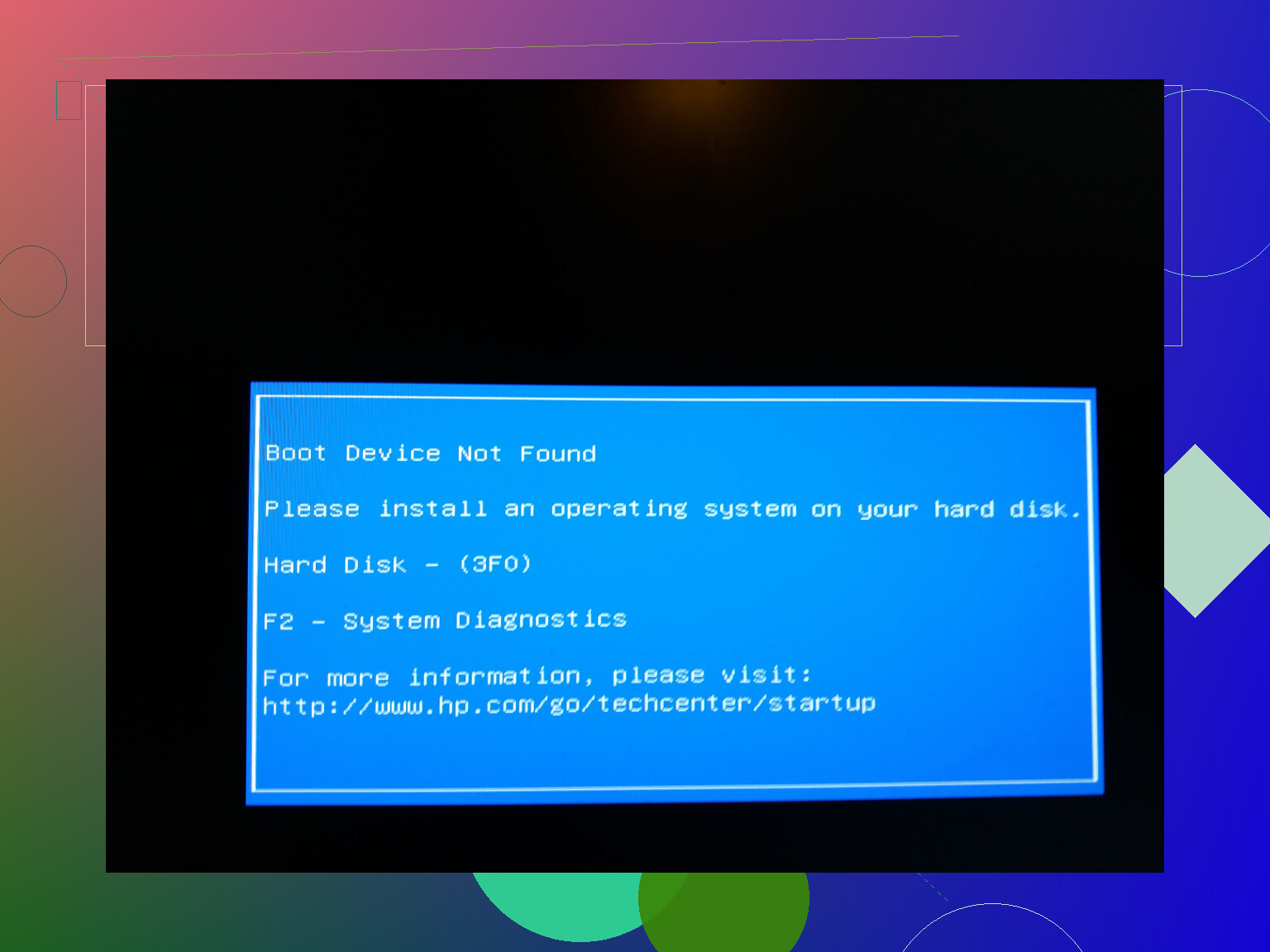
This hit my HP out of the blue too. Same “Boot Device Not Found / Hard Disk 3F0” message, black screen, sinking feeling that all my stuff was gone.
Here is what I did, step by step, before thinking about new hardware.
- BIOS switch that bailed me out
On my machine, I pressed F10 right after pressing the power button to get into BIOS.
In there, under the boot options, I changed the boot mode from UEFI to Legacy.
It felt too dumb to work, but the second I saved and exited, the laptop booted normally.
Looked like the boot order or mode got scrambled for no clear reason.
So before you spend on a new drive or laptop, check that BIOS setting first.
- Weird key combo some HP owners use
If the BIOS change does nothing for you, try this:
• Shut the laptop down.
• Unplug the charger.
• Remove external stuff, USB drives, SD cards, everything.
• Then hold down the power button and F6 together for about 30 seconds.
• After that, plug the power back in and try turning it on again.
I first saw this in a thread here:
https://discussion.7datarecovery.com/forum/topic/boot-device-not-found-hard-disk-3f0-on-hp-laptop-any-fixes/
People with different HP models reported that combo waking up drives that looked dead.
On mine, the BIOS trick worked so I did not need this, but I saved it for later since others had luck with it.
- Do not trust only the quick test
If neither of those helps and you suspect the drive is failing, use HP’s diagnostics from the startup menu.
Important part:
• Run the extended or long hard drive test, not only the quick one.
The quick test often says “OK” even when the drive is heavily degraded.
The extended test takes longer, but it is the one that usually reports reallocated sectors, read errors, or SMART failures.
If the extended test throws any error:
• Stop using the laptop for anything important.
• Back up whatever data you still reach as soon as possible.
• Then think replacement drive, not more fiddling.
- Mental side of it
These HP boot errors feel like the whole system is gone.
From what I have seen, a lot of cases turn out to be weird boot config issues instead of instant drive death.
So:
Try BIOS boot mode change.
Try the power + F6 reset from the link above.
Then run the extended diagnostics to see if the drive is on its last legs.
That path saved me from panic buying a new laptop and gave me a clear answer on what was actually wrong.
2 Likes
Looks a lot like a boot config issue or a failing drive on the edge. Since @mikeappsreviewer already covered HP specific tricks and BIOS mode flip, I would attack it from a slightly different angle.
First, quick rename for what you are dealing with:
“How to Fix No Boot Devices Found Error” → “How to fix ‘No Boot Device Available’ and get Windows to start again”
Here is what I would do, step by step.
-
Check if the BIOS even sees the drive
• Enter BIOS (F2, Del, F10, Esc, depends on brand).
• On the main or storage page, look for your SSD or HDD model.
• If the drive does not show up at all:
– Power off.
– Disconnect power cable.
– Open the case or access panel.
– Reseat the SATA cable on both the drive and the motherboard.
– If you have another SATA port, plug the cable into another port.
– If you have another SATA cable, try that too.
• For laptops, reseating is trickier, but at least check the drive bay if it is accessible.
If the BIOS never sees the drive after reseating, the drive is likely dying or dead, not a BIOS setting issue. -
Check boot order and Windows Boot Manager
I slightly disagree with switching UEFI to Legacy as a first move. It sometimes works, but it can hide the real problem.
• In BIOS, stay in UEFI mode if your system was installed in UEFI before.
• Look for “Boot” or “Boot Priority”.
• Make sure “Windows Boot Manager” or your system drive is at the top.
• Disable network/PXE boot for now so you see the hard drive error directly.
If you see the drive in BIOS but not as a boot option, the EFI boot files might be damaged. -
Use a Windows installer USB to repair boot files
This is where you check if it is a software issue.
• Create a Windows 10/11 install USB on another PC with Microsoft’s Media Creation Tool.
• Boot from the USB.
• On the first screen, choose your language, click “Next”.
• Click “Repair your computer”, not “Install now”.
• Go to Troubleshoot → Advanced options.
Then try, in this order:
a) Startup Repair
Run it once. If it says it could not fix anything, move on.
b) Command Prompt boot repair
In Command Prompt, type:
diskpart
list vol
Find the EFI partition (usually small, 100 to 300 MB, FAT32). Note its letter or assign one:
select vol X
assign letter=Z
exit
Then:
bcdboot C:\Windows /s Z: /f UEFI
Replace C: with your real Windows drive letter if it is different in this environment. Restart and test.
-
If the drive looks sick, grab your data first
If the BIOS sees the drive but Windows setup sees no partitions, or things are very slow, the drive is likely failing.
At that point, focus on data recovery.
• Attach the drive as a secondary drive to another PC if possible.
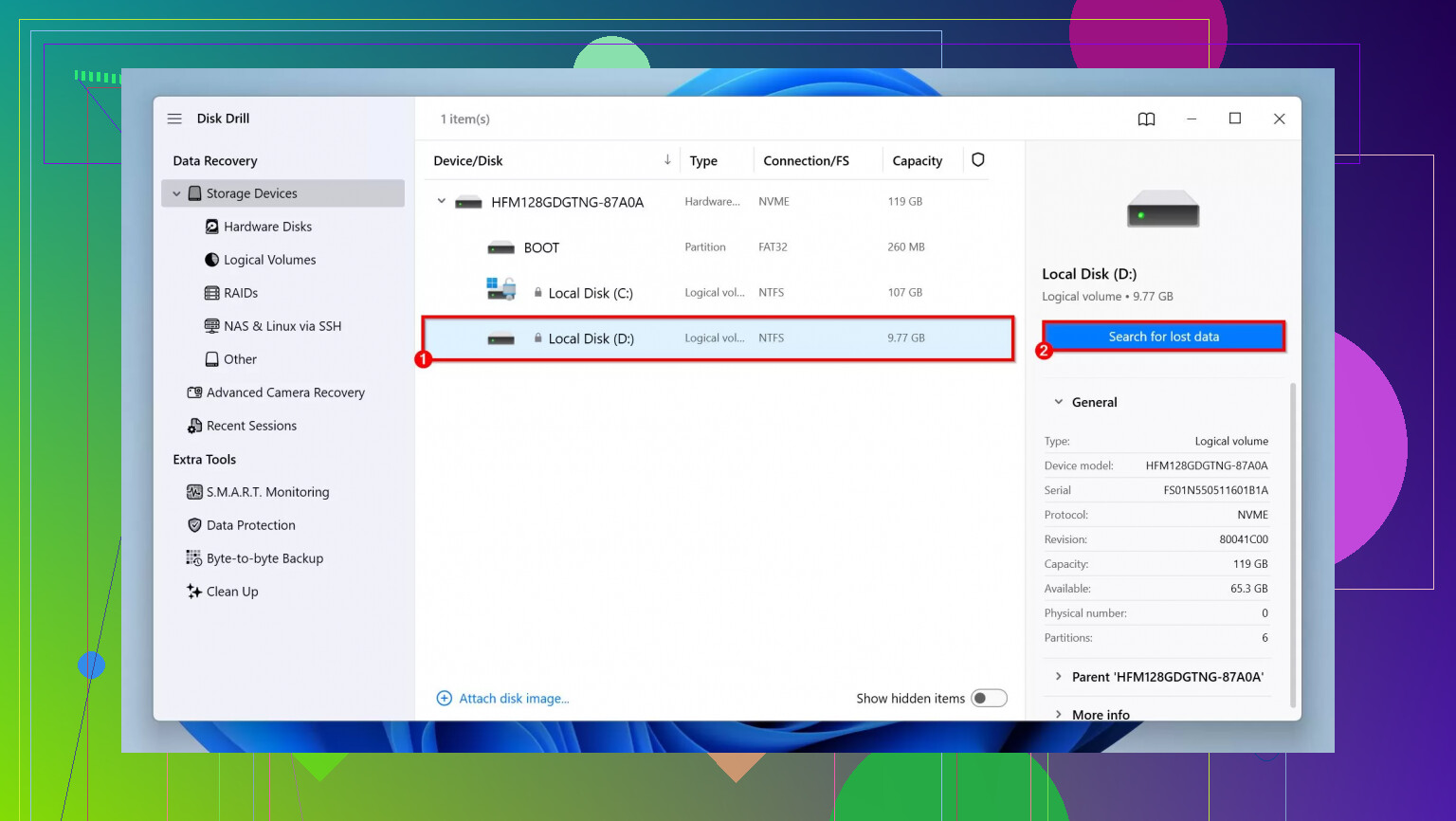
• Use a recovery tool like Disk Drill to scan the drive. Disk Drill handles a lot of failing disk cases and gives a clear list of recoverable files.
• Copy off everything important before you try any more repairs or formats.
Any repair that writes on a half-dead drive increases the chance of losing files. -
Run a real health check, not a quick one
Here I agree with @mikeappsreviewer. Quick tests are often useless.
• From another Windows system, install CrystalDiskInfo or a similar SMART tool.
• Check Reallocated Sectors, Pending Sectors, and Uncorrectable Errors.
If you see “Caution” or “Bad” with nonzero values there, replace the drive. Do not trust it again for important data. -
If you end up reinstalling
If nothing repairs the boot and the drive passes SMART with no serious errors:
• Wipe the drive during a fresh Windows install.
• Keep BIOS in UEFI.
• Let the installer create partitions automatically.
If the error returns even on a clean install, suspect motherboard or SATA controller issues. -
Short video guide if you prefer watching it
There is a solid walk through that shows these steps visually, including BIOS checks and Windows repairs, here:
fixing “No Boot Device Available” and restoring Windows step by step
Try to figure out two things in this order:
- Does the BIOS see the drive every time.
- If yes, is the bootloader broken or is the drive unhealthy.
Once you know which of those is true, the path is straightforward: repair boot files, or recover data with Disk Drill and replace the drive.
Skip the panic for a sec, this kind of “No Boot Device Available” is usually either:
- BIOS randomly forgot how to boot
- Drive is actually dying
- Boot files got trashed
@mikeappsreviewer and @jeff already nailed the BIOS flip, HP key combo, and classic boot repair. I’d come at it from a slightly different angle so you’re not stuck repeating the same fixes.
1. Confirm if it’s consistent or intermittent
This sounds silly but matters:
- If it sometimes boots and sometimes shows “No boot device”:
That often screams “drive on the edge” or a flaky cable, not just a BIOS glitch. - If it never boots and the message is instant every time:
More likely pure bootloader / config / dead drive.
If it boots even once, get your important files off right away. Don’t wait to “fully fix it” first.
2. Check SATA mode & controller settings, not just boot order
Everyone talks about boot order, but a sneaky one is SATA mode:
- Go into BIOS
- Look for anything like SATA Mode, Storage Configuration, AHCI / RAID / IDE
If your system was installed in AHCI and BIOS somehow flipped to RAID or IDE (or vice versa), Windows can suddenly act like the drive is not bootable at all.
I’d actually:
- Keep UEFI vs Legacy the same as when it used to work if you remember it.
- Only flip UEFI/Legacy after you’ve checked SATA mode and boot order.
Randomly changing both at once can just mask what really broke.
3. Rule out the ultra-obvious stuff (I know, but still)
- Unplug all USB sticks, external drives, SD cards, even weird dongles.
Seen more than one PC try to boot from a blank USB and scream “No boot device”. - If it’s a desktop, try a different SATA power connector from the PSU to the drive.
Loose or marginal power can make the drive appear and vanish.
Not glamorous, but this stuff saves time.
4. If the drive is visible, test it properly
BIOS sees the drive? Good, but that doesn’t mean it’s healthy.
If you can connect it to another Windows PC (either with a USB adapter or internally):
- Install CrystalDiskInfo and check SMART status.
- If it shows “Caution” or “Bad” or you see a lot of Reallocated / Pending / Uncorrectable sectors:
Stop treating this as a settings problem. Back up and replace the drive.
For data recovery from a sketchy drive, I’d use Disk Drill. It’s one of the better options if you want a relatively simple interface that still digs deep into damaged or partially readable drives. Let it scan, recover whatever matters, then retire that disk.
5. If the drive looks fine, rebuild partitions & boot records more aggressively
If @jeff’s bcdboot / Startup Repair cycle doesn’t sort it and SMART is good, I’d try:
Boot from Windows install USB → Repair your computer → Command Prompt:
- Check if partitions even exist:
diskpart
list disk
select disk 0
list part
If you see your main partition but it’s not marked correctly:
select part X
active
exit
For UEFI systems you should not usually need “active,” but on mixed / older setups it can matter.
Then:
bootrec /fixmbr
bootrec /fixboot
bootrec /scanos
bootrec /rebuildbcd
Yes, Microsoft’s automated Startup Repair tries some of this, but doing it manually gives you actual feedback if it can’t see Windows at all.
6. Hidden angle: corrupted partition table / GPT
If Windows setup sees the drive but the space looks as “unallocated” or completely wrong:
- That suggests the partition table itself may be damaged.
- At that point, don’t rush into formatting if you care about the data.
Use Disk Drill or a similar recovery tool first to scan the raw drive. It can often reconstruct the file tree even if the partition table is messed up.
Only after getting your data off should you:
- Recreate partitions
- Do a clean Windows install
- Keep UEFI + GPT for modern hardware
7. For HP-specific weirdness
Since you’re likely on HP (judging by the 3F0 talk): there’s a pretty useful thread where multiple people describe exactly that “Boot Device Not Found” situation and what fixed it for them. Instead of just “check this”, here’s something with more context:
real-world fixes for HP “Boot Device Not Found (3F0)” issues
You’ll see a mix of BIOS adjustments, cable / drive replacements, and people confirming long-term drive failure, which helps you compare to your own symptoms.
TL;DR path so you don’t spin in circles
- Check if BIOS always sees the drive.
- Keep UEFI vs Legacy the same for now, verify SATA mode and boot order.
- If drive is seen: run SMART / health check, preferably from another PC.
- If unhealthy: use Disk Drill to recover data, replace disk.
- If healthy: repair bootloader & partitions manually using Windows install USB.
- If partitions look nuked: recovery first, reinstall later.
You’re basically answering two questions:
- “Is the hardware flaking out?”
- “Or did Windows just forget how to boot?”
Once you know which one it is, the rest is just following the appropriate script.