Skip the panic for a sec, this kind of “No Boot Device Available” is usually either:
- BIOS randomly forgot how to boot
- Drive is actually dying
- Boot files got trashed
@mikeappsreviewer and @jeff already nailed the BIOS flip, HP key combo, and classic boot repair. I’d come at it from a slightly different angle so you’re not stuck repeating the same fixes.
1. Confirm if it’s consistent or intermittent
This sounds silly but matters:
- If it sometimes boots and sometimes shows “No boot device”:
That often screams “drive on the edge” or a flaky cable, not just a BIOS glitch. - If it never boots and the message is instant every time:
More likely pure bootloader / config / dead drive.
If it boots even once, get your important files off right away. Don’t wait to “fully fix it” first.
2. Check SATA mode & controller settings, not just boot order
Everyone talks about boot order, but a sneaky one is SATA mode:
- Go into BIOS
- Look for anything like SATA Mode, Storage Configuration, AHCI / RAID / IDE
If your system was installed in AHCI and BIOS somehow flipped to RAID or IDE (or vice versa), Windows can suddenly act like the drive is not bootable at all.
I’d actually:
- Keep UEFI vs Legacy the same as when it used to work if you remember it.
- Only flip UEFI/Legacy after you’ve checked SATA mode and boot order.
Randomly changing both at once can just mask what really broke.
3. Rule out the ultra-obvious stuff (I know, but still)
- Unplug all USB sticks, external drives, SD cards, even weird dongles.
Seen more than one PC try to boot from a blank USB and scream “No boot device”. - If it’s a desktop, try a different SATA power connector from the PSU to the drive.
Loose or marginal power can make the drive appear and vanish.
Not glamorous, but this stuff saves time.
4. If the drive is visible, test it properly
BIOS sees the drive? Good, but that doesn’t mean it’s healthy.
If you can connect it to another Windows PC (either with a USB adapter or internally):
- Install CrystalDiskInfo and check SMART status.
- If it shows “Caution” or “Bad” or you see a lot of Reallocated / Pending / Uncorrectable sectors:
Stop treating this as a settings problem. Back up and replace the drive.
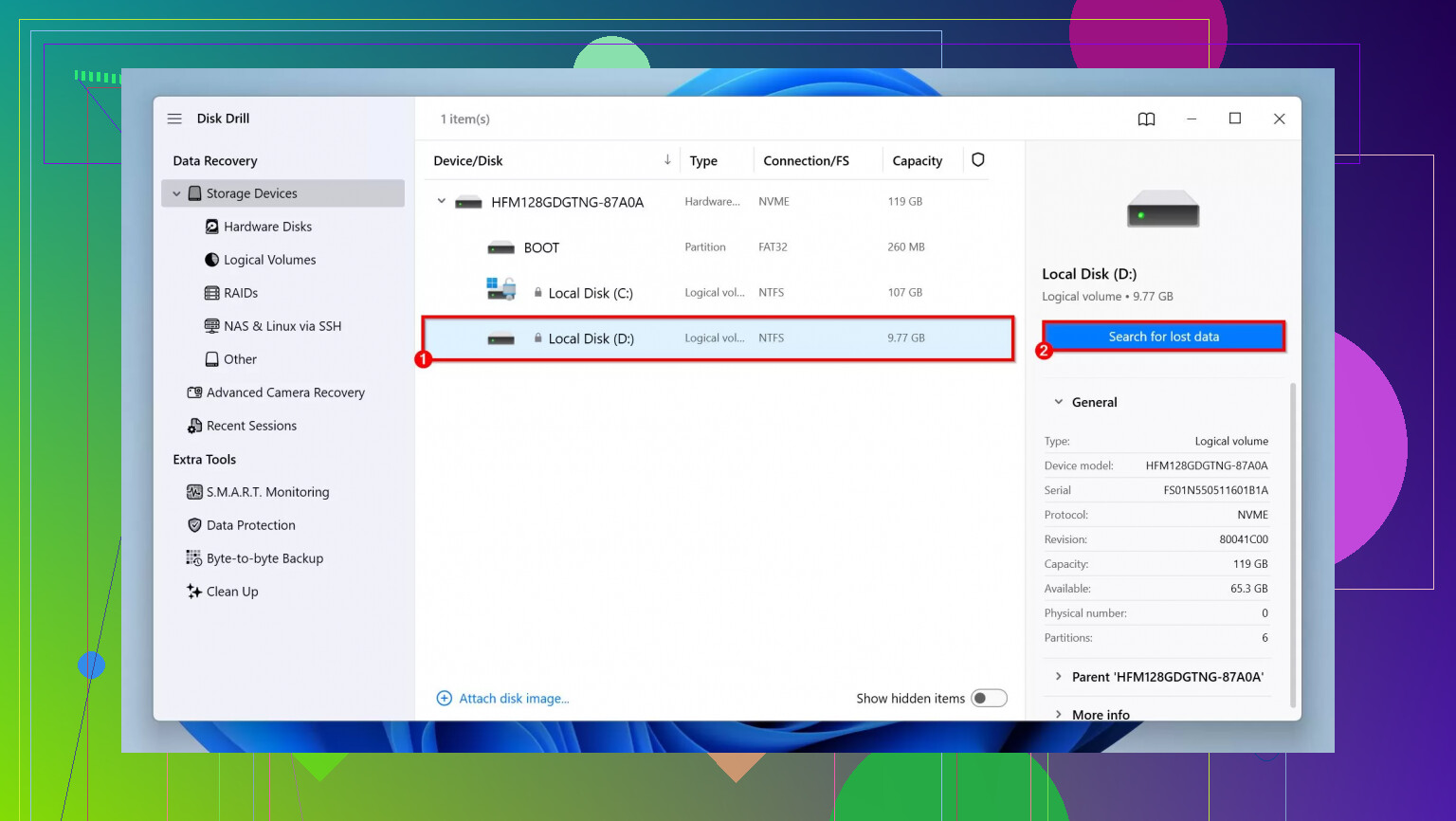
For data recovery from a sketchy drive, I’d use Disk Drill. It’s one of the better options if you want a relatively simple interface that still digs deep into damaged or partially readable drives. Let it scan, recover whatever matters, then retire that disk.
5. If the drive looks fine, rebuild partitions & boot records more aggressively
If @jeff’s bcdboot / Startup Repair cycle doesn’t sort it and SMART is good, I’d try:
Boot from Windows install USB → Repair your computer → Command Prompt:
- Check if partitions even exist:
diskpart
list disk
select disk 0
list part
If you see your main partition but it’s not marked correctly:
select part X
active
exit
For UEFI systems you should not usually need “active,” but on mixed / older setups it can matter.
Then:
bootrec /fixmbr
bootrec /fixboot
bootrec /scanos
bootrec /rebuildbcd
Yes, Microsoft’s automated Startup Repair tries some of this, but doing it manually gives you actual feedback if it can’t see Windows at all.
6. Hidden angle: corrupted partition table / GPT
If Windows setup sees the drive but the space looks as “unallocated” or completely wrong:
- That suggests the partition table itself may be damaged.
- At that point, don’t rush into formatting if you care about the data.
Use Disk Drill or a similar recovery tool first to scan the raw drive. It can often reconstruct the file tree even if the partition table is messed up.
Only after getting your data off should you:
- Recreate partitions
- Do a clean Windows install
- Keep UEFI + GPT for modern hardware
7. For HP-specific weirdness
Since you’re likely on HP (judging by the 3F0 talk): there’s a pretty useful thread where multiple people describe exactly that “Boot Device Not Found” situation and what fixed it for them. Instead of just “check this”, here’s something with more context:
real-world fixes for HP “Boot Device Not Found (3F0)” issues
You’ll see a mix of BIOS adjustments, cable / drive replacements, and people confirming long-term drive failure, which helps you compare to your own symptoms.
TL;DR path so you don’t spin in circles
- Check if BIOS always sees the drive.
- Keep UEFI vs Legacy the same for now, verify SATA mode and boot order.
- If drive is seen: run SMART / health check, preferably from another PC.
- If unhealthy: use Disk Drill to recover data, replace disk.
- If healthy: repair bootloader & partitions manually using Windows install USB.
- If partitions look nuked: recovery first, reinstall later.
You’re basically answering two questions:
- “Is the hardware flaking out?”
- “Or did Windows just forget how to boot?”
Once you know which one it is, the rest is just following the appropriate script.