My external hard drive was formatted as HFS/HFS+ and now my Mac won’t mount it. Disk Utility sees the drive, but I can’t access the files. I’m looking for reliable HFS recovery software or steps to recover data without making the drive worse.
If this is an HFS or HFS+ Mac drive, the main thing is to stop touching it as soon as you realize something is missing. Don’t copy anything else to it, don’t reformat it again, and don’t run random repair tools just to see what happens. New writes are what can overwrite the deleted data.
I’d check the obvious stuff first: Trash, and any Time Machine backup you might have. If the files aren’t there, then it’s better to go straight to recovery software instead of trying a bunch of fixes that could make the situation worse.
I used Disk Drill for an old external Mac drive after deleting a lot of files by mistake, and it recovered most of what I needed. The process was pretty straightforward:
- Install Disk Drill.
- Pick the HFS/HFS+ drive.
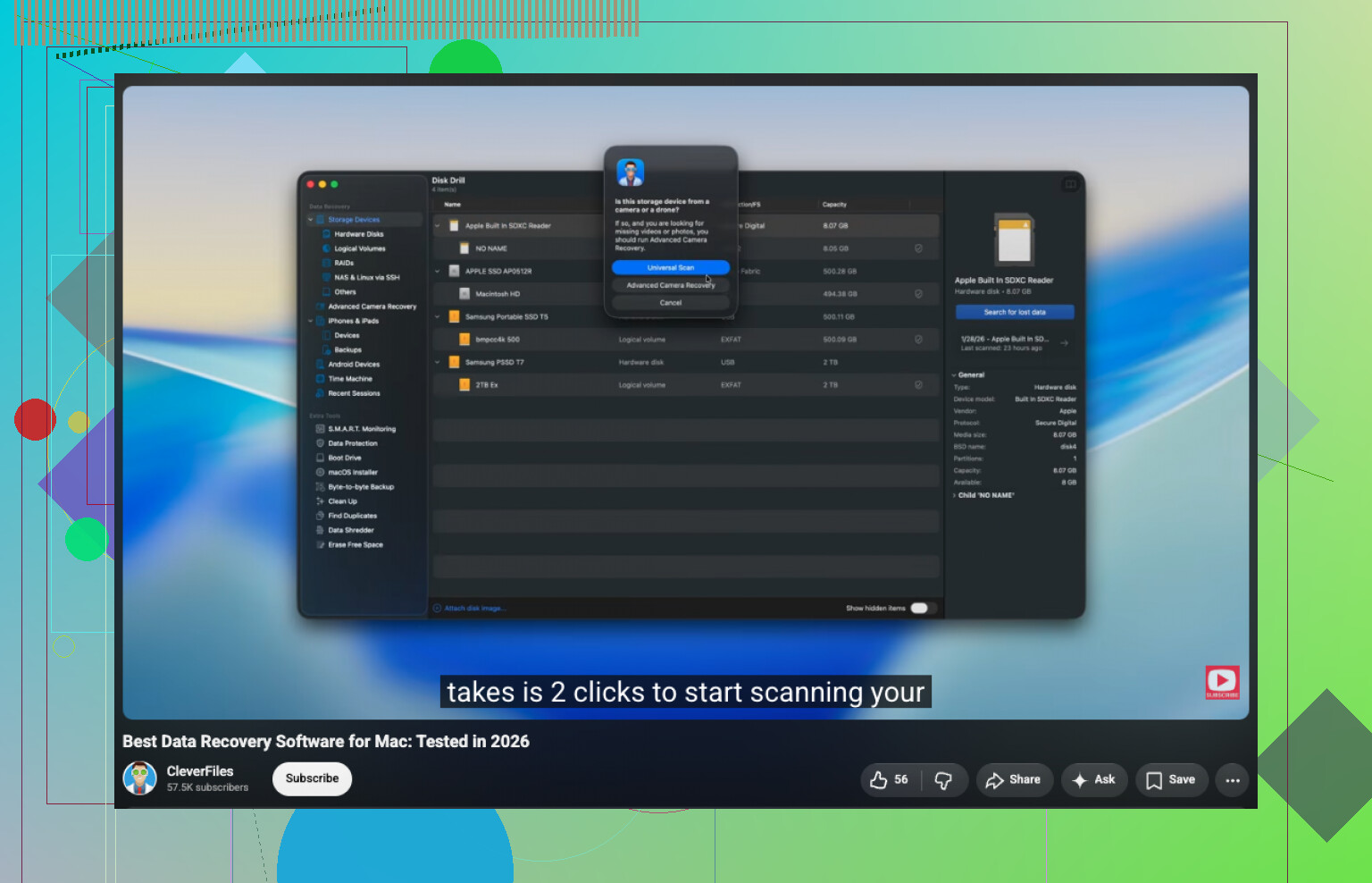
- Click Search for Lost Data. For an external drive, I used Universal Scan so it could try all available scan methods.
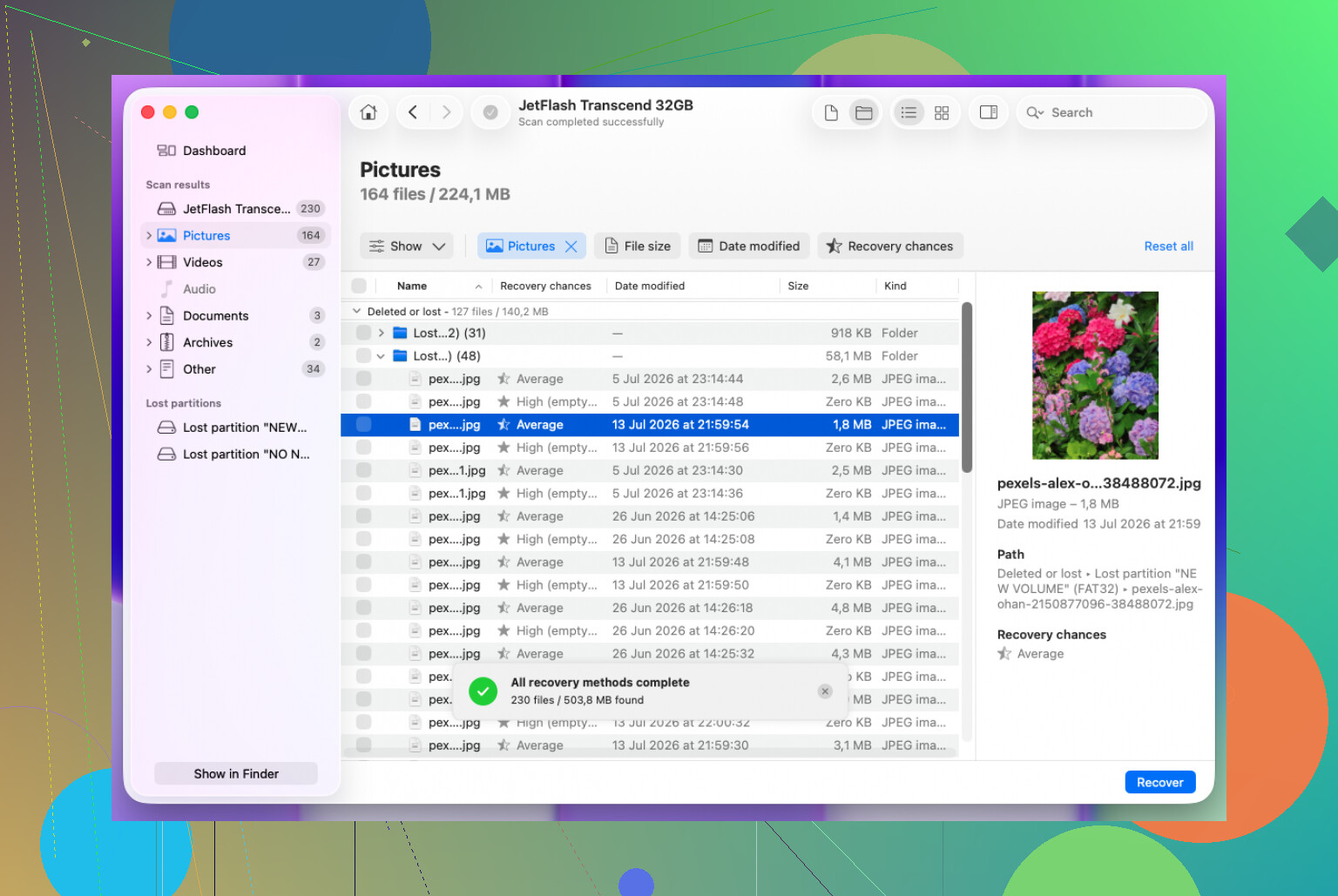
- Let the scan finish, then open Review Found Items.
- Preview the files before recovering them, so you know they’re actually usable.
- Select the files you want and click Recover.
- Save the recovered files to a different drive, not back onto the same HFS drive.
If the drive was formatted, recovery can still be possible, especially if it was just a quick format. That usually wipes the file system records more than the actual file contents right away. The catch is that every bit of new data written to the drive can lower your chances, so scan it sooner rather than later.
For an external drive that’s acting flaky, I’d be more careful. If it disconnects, throws read errors, or behaves differently every time you plug it in, make a disk image first if your recovery tool supports that. Then scan the image instead of repeatedly stressing the physical drive.
If the drive doesn’t show up in Disk Utility, clicks or grinds, disconnects constantly, or the scan can’t finish because of bad read errors, that’s where I’d stop with DIY recovery. At that point, a professional recovery service is safer because software can’t fix a drive that’s physically failing.
15 Likes
Whether Disk Utility shows the actual HFS volume or only the physical drive is a big detail. If you only see the device name and no mountable volume under it, that’s a different problem than a volume that exists but refuses to mount. In the first case, the partition map or drive hardware may be the issue. In the second, it may just be HFS catalog damage.
I agree with @mikeappsreviewer about not writing anything to it, but I’d be careful with “repair” buttons too. Disk Utility First Aid can be fine for a normal disk error, but on a drive where the data matters, it can make changes you don’t get to preview. My preference would be: try to image the drive first, then run recovery against the image. That way if the external drive gets worse, you still have something to work from.
Disk Drill is a reasonable choice if you want a guided Mac app, especially because previewing files before recovery saves a lot of wasted time. The caveat is that if the HFS directory structures are badly damaged, you may get files back without original folders or filenames. That doesn’t mean the scan failed, it’s just the difference between file system recovery and raw file carving.
If it’s a spinning external drive and it’s slow, clicking, dropping off USB, or changing behavior each time you plug it in, stop testing software and deal with the hardware side first. A bad cable or enclosure can look like corruption, but a failing disk can also die while you’re scanning it for hours. That’s where imaging or a recovery shop matters more than which app you pick.
Run diskutil list first and write down whether macOS sees an Apple_HFS partition, not just the USB device. That tells you whether you’re dealing with a damaged volume or a missing/broken partition map, and it changes what recovery software can realistically do. If macOS pops up “initialize” or “erase” prompts, cancel them every time. Disk Drill and similar tools are fine for scanning the disk, but don’t judge the result until you’ve tried previewing a few important files. A scan that shows thousands of random JPGs but no folder tree usually means the HFS catalog is toast, so expect sorting work afterward. And make sure you have a second drive with enough free space before you start, because recovering back to the same external is asking for trouble.
If the HFS+ volume was encrypted, the answer changes completely. A lot of “recovery” scans will only see scrambled data unless the tool can unlock the volume and you still have the password/recovery key. So before spending hours scanning, check whether Disk Utility shows it as encrypted or whether diskutil list / diskutil cs list points to CoreStorage or an encrypted logical volume.
I’d be a little skeptical of jumping straight to repair. First Aid has its place, but if the drive contains the only copy of the files, repair is more like “modify the patient and hope” than “look around safely.” For recovery, I’d rather scan read-only or make an image first. Even a slow image is better than repeatedly hammering the same failing USB drive with different apps.
Disk Drill is fine for the more guided route, especially if it can show your folder structure and preview the actual files. I would not pay based only on a file count, though. Preview a few files that matter: a large video, a document, a photo, whatever you care about. If the previews are bad or the names are all generic, you may still recover some data, but you’re probably looking at raw recovery with a lot of cleanup.
For a cheaper first pass, TestDisk is worth knowing about, but only for the right problem. If the partition map is damaged and the HFS+ volume is missing, it may help identify the old partition. If the HFS+ catalog itself is corrupted, it is not magic. PhotoRec can carve files from the disk, but you’ll usually lose filenames and folders, which is miserable if this was a big archive.
And if this was a Time Machine disk, expect extra weirdness. HFS+ Time Machine backups rely heavily on directory structure and links, so raw recovery can produce duplicates and confusing partial folders. In that case I’d try harder to recover the volume structure or image the disk first, rather than immediately doing a file-carving scan and ending up with a mountain of unnamed files.