Files suddenly disappeared from my USB drive after I plugged it into another computer, and now important documents and photos are missing. The drive is still detected, but the folders look empty. I need help with the best USB drive file recovery methods and tools before I make things worse or lose the data for good.
I’ve been in this exact mess. You delete something from a USB stick, unplug it, plug it back in, stare at the folder, and think, no way, it was there a second ago. The main thing is this: files deleted from a USB drive are often still recoverable, mostly if you stopped using the drive right after it happened.
Do this first, and do it now: stop writing anything to the USB. No copying files onto it. No formatting. No saving recovered stuff back onto it later. On most USB drives, deleted files skip the normal Windows Recycle Bin. The system marks the space as available, but the old data often sits there until something new lands on top of it. Once you overwrite it, recovery gets ugly fast.
Quick checks before you scan anything
I’d spend one minute on these before opening recovery software:
- Enable hidden items in File Explorer, then check the USB again.
- Look for hidden folders named $RECYCLE.BIN, RECYCLER, RECYCLED, or .Trashes if the drive touched a Mac at some point.
- Check your cloud sync folders or any backup location where the files might have been copied earlier.
- Leave repair tools alone for now unless the drive won’t open at all, and only after you’ve pulled off anything important.
I’ve seen cases where the files weren’t deleted. They were hidden by bad attributes, malware junk, or some random filesystem hiccup. The recycle-folder trick does fail a lot on flash drives, still worth a fast look.
If they’re gone, use recovery software
At that point, I’d move straight to Disk Drill. From what I’ve seen, it’s one of the easier tools for USB recovery if you don’t want to wrestle with terminal commands or half-broken freeware. It handles common USB file systems like FAT32, exFAT, and NTFS, and the preview feature saves time.
The workflow is simple enough:
- Install Disk Drill on your computer, never on the USB stick.
- Connect the USB drive and pick it inside the app.
- Start a scan for lost or deleted data.
- Preview what shows up.
- Select the files you want back.
- Recover them to your PC or a different drive, not to the same USB.
That last part matters more than people think. If you save recovered files back onto the same flash drive, you risk overwriting other deleted files which were still sitting there. I did this once years ago. Bad call. Got a few docs back, lost a folder of photos for good.
How to judge what the scan finds
The preview tool is the part I trust most. If a file opens in preview, your odds are usually better. If you also see the original file names and folder structure, even better. When all you get is generic rebuilt names, recovery still works sometimes, but sorting the results turns into a chore.
Small rule I use: if the file previews cleanly, recover it first. Don’t overthink it. Grab the good stuff while it’s there.
About Windows File Recovery and CHKDSK
You can try Microsoft’s Windows File Recovery tool, but I’d only point you there if you’re fine with command line stuff. It works, sort of, though the output gets messy and the process feels rough compared to GUI tools.
What I would not run first is CHKDSK. People do this because Windows suggests “fixing” the drive. For deleted files, I think that’s backward. Recover first, repair later. CHKDSK helps with filesystem damage, but it also changes things on the drive, and that’s the last thing you want before trying to pull deleted data off it.
Short version
Stop using the USB. Check hidden files and recycle-style folders. Then scan it with Disk Drill and recover everything to another device. If you caught the deletion early and the drive hasn’t been used since, your chances are still decent.
20 Likes
If the folders look empty after using another PC, I would treat this as hidden files or file system damage first, not instant deletion. I slightly disagree with @mikeappsreviewer on one point. A quick attribute check is worth doing early because this exact symptom often comes from files being marked hidden/system by junk software.
Try this on Windows Command Prompt as admin:
attrib -h -r -s /s /d X:*.*
Replace X with your USB letter.
If the files pop back, you had an attribute issue, not true data loss.
Then check Disk Management. If the USB shows the right size and one healthy partition, your odds are better. If it shows RAW, no file system, or unallocated space, skip repairs and go straight to recovery.
For recovery, Disk Drill is a solid pick for a USB drive because it handles exFAT, FAT32, NTFS, and previews photos/docs fast. I’d recover the important stuff first, then worry about fixing the stick. If Disk Drill finds files with original names, thats a strong sign the file system is partly intact.
One more thing people miss. Scan the USB from a different computer than the one where the problem started. I’ve seen bad USB controller drivers and antivirus tools keep messing with removable drives.
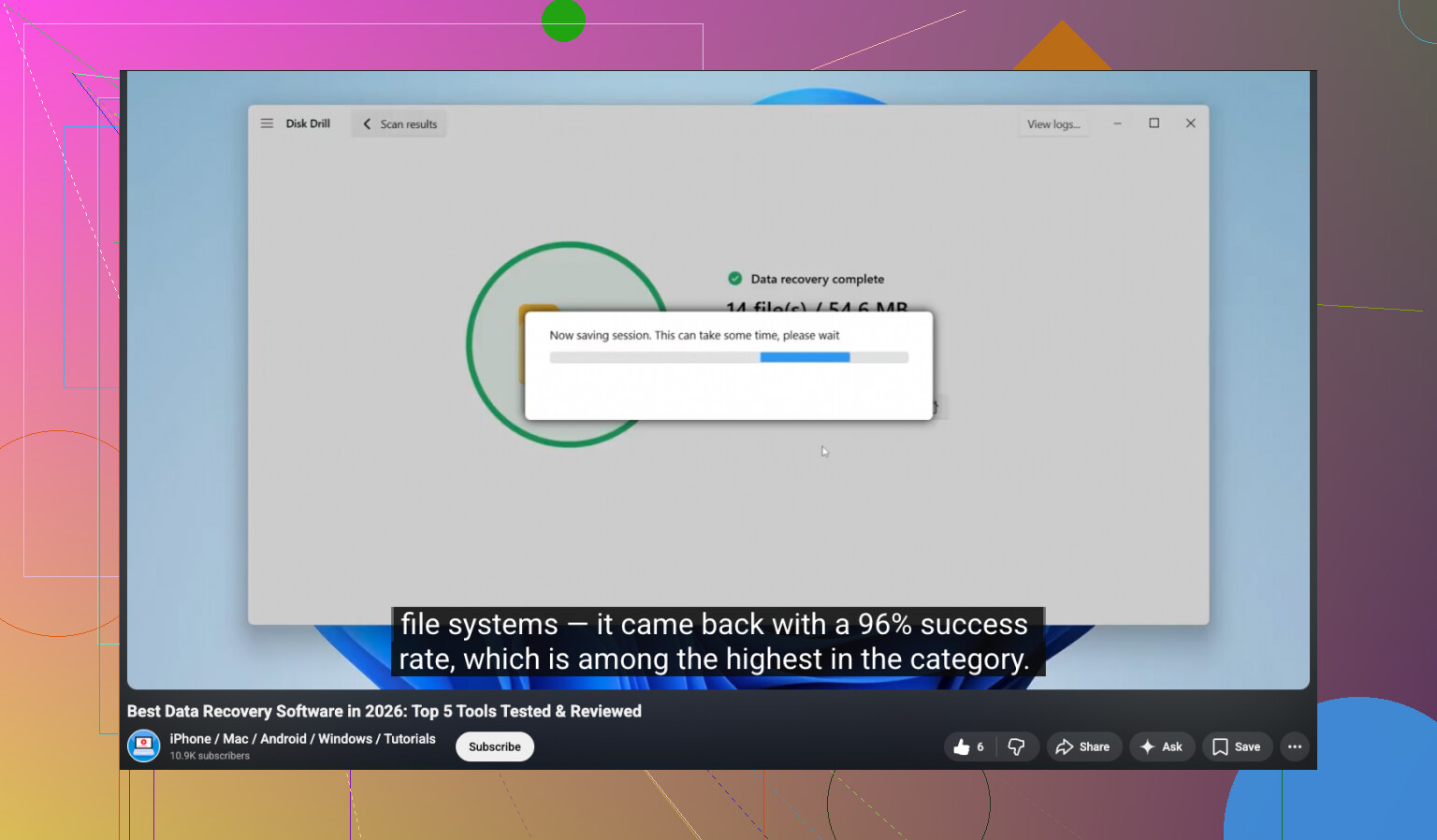
If you want a visual walkthrough, this USB data recovery video guide for missing files is easy to follow.
Do not format it yet. Do not run random “repair” apps. Thats where people make it worse fast.

One thing I’d add to what @mikeappsreviewer and @espritlibre said: check whether the other computer changed the file system behavior, not just the file visibility. I’ve had USB sticks show “empty” because the directory table got scrambled, while the actual files were still there.
What I’d do is this:
- Plug it into a different USB port and, if possible, a different PC.
- In File Explorer, right-click the drive, Properties, and see if the used space still shows data. If the drive says 20GB used but folders look empty, that usually means the files are still there somewhere.
- Open Command Prompt and run:
dir X: /a
That sometimes reveals stuff File Explorer hides badly. - If you’re on Windows, also check Event Viewer for disk/file system warnings. Sounds nerdy, but if Windows is throwing I/O or corruption errors, that changes what you should do next.
I slightly disagree with jumping into any “fix” command too fast. Even the attrib trick can be useless if the directory is damaged rather than hidden. Helpful sometimes, sure, but not magic.
If the used space is still there, I’d go straight to Disk Drill and do a read-only scan. It’s one of the easier options if you need the best data recovery software for USB drives, deleted files, and missing photos/documents without messing around too much. Recover to your internal drive, not back to the stick. Preview the photos first, then docs. Priortize the stuff you can verify.
Also worth checking whether the “other computer” had antivirus that quarantined files or turned folders into shortcuts. That old shortcut-virus nonsense still pops up sometimes, annoyngly.
If you want a simple walkthrough, this step-by-step USB file recovery video is probly more useful than random repair advice.
Main thing: don’t format it yet, and don’t trust “empty folder” to mean “gone forever.”