I’m looking for help with USB unlocking for technicians after running into a device that stayed locked even after trying the usual steps. I need a clear, practical guide to understand what went wrong, how to troubleshoot it safely, and which tools or methods actually work without risking data loss.
USB device troubleshooting guide for technicians
If a device stayed locked after the usual steps, start with the simple checks first. Most failures come from one of five spots.
-
Power.
Some USB security keys and service tools fail on low power. Test a rear motherboard port. Skip front panel ports and weak hubs. If the device pulls over 500 mA on USB 2.0, check the spec sheet. -
Driver state.
Open Device Manager. Look for error 10, 28, 43, or an unknown device entry. Remove the device, scan for hardware changes, then load the vendor driver manualy if Windows picked the wrong one. -
Policy lock.
Many shops forget Group Policy or endpoint control. Check removable storage rules, device install restrictions, BitLocker To Go policy, and AV device control. On domain PCs, run gpresult /h report.html and review applied policies. -
Firmware mode.
A lot of phones, tablets, and embedded gear expose different USB IDs in MTP, ADB, fastboot, DFU, EDL, or vendor diag mode. If your tool expects one mode and the device boots into another, it looks ‘locked’ even when the cable is fine. -
Cable and data lines.
Charge-only cables waste time. Use a known data cable. I keep one tested cable per brand bin. Saves hours.
Practical flow:
Test device on a second PC.
Test with a second known-good cable.
Check VID/PID in Device Manager or USBDeview.
Review logs in Event Viewer, Microsoft, Windows, DriverFrameworks-UserMode.
Compare against vendor docs for required mode.
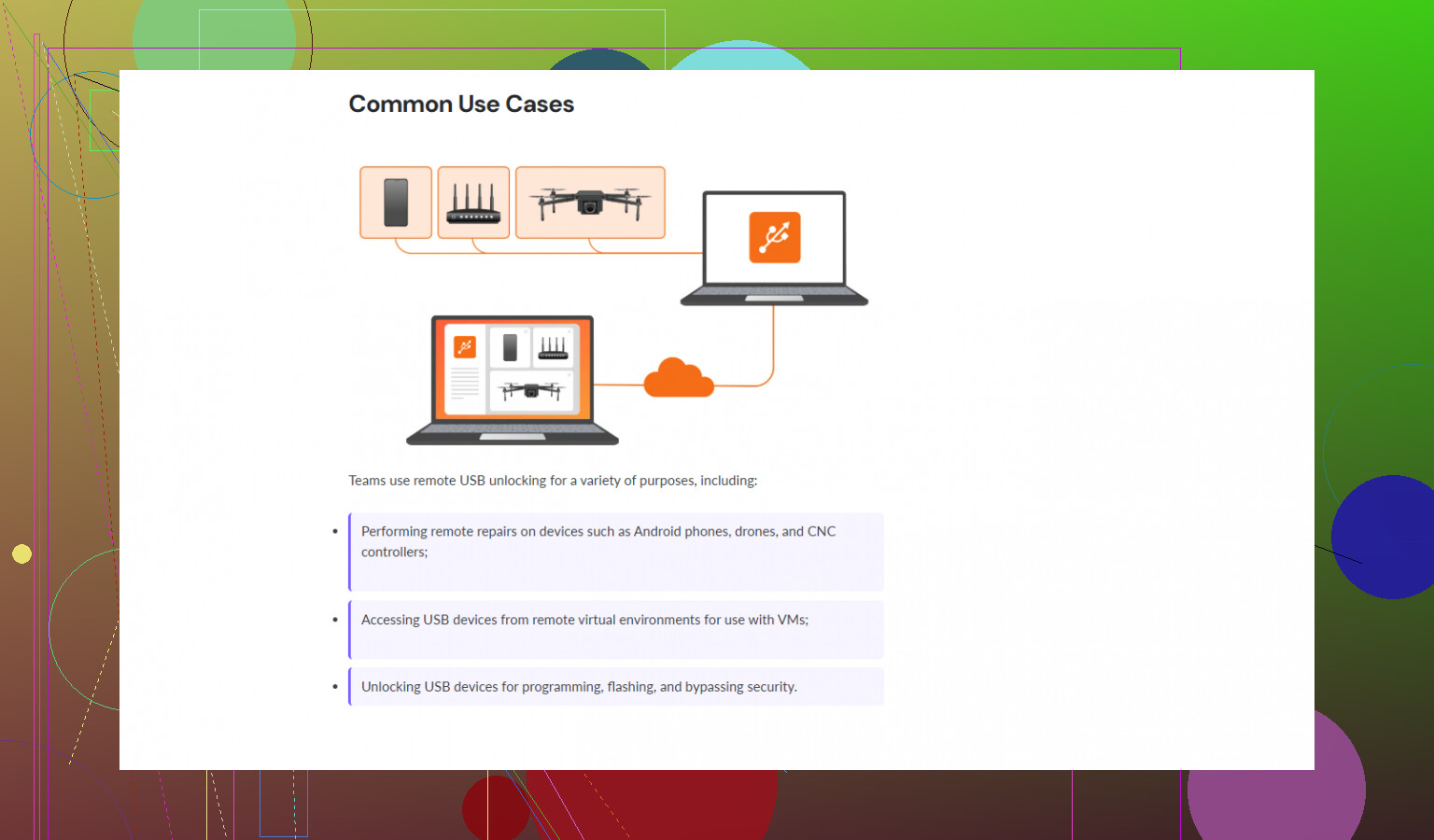
If remote access is part of your workflow, USB Network Gate helps pass USB devices over the network cleanly. This page is worth bookmarking for remote USB access and device unlocking steps.
If you post the device model, error code, and current USB mode, ppl here can narrow it down fast.
18 Likes
What usually gets missed is the layer above drivers and cables: the device’s own security state.
@himmelsjager already covered the classic PC-side checks, but I’d push a different angle. If the unit is still “locked,” verify whether you’re dealing with:
- USB port lockout in firmware/BIOS
- OEM service authorization required before data access
- Secure boot / FRP / activation lock type behavior
- Damaged data path on the device board, where charging works but enumeration is flaky
A practical technician flow I use:
-
Check whether the device actually enumerates consistently
If it connects/disconnects every few seconds, stop chasing software. That’s often a bad connector, damaged ESD filter, or unstable NAND/power rail. -
Compare behavior in recovery/service environment
Boot the target into its lowest-level supported mode and test there. If normal OS mode is locked but recovery/service mode is visible, the problem is logical, not physical. -
Pull USB descriptors with a proper tool
Use USBView, USB Tree View, or vendor service software. If descriptors are incomplete or malformed, that points more to firmware corruption than “lock.” -
Validate time-based or credential-based lock conditions
Some encrypted devices won’t unlock over USB until local auth is completed first. Techs skip this alll the time. -
Rule out host-side filtering
Not just policy. Also security agents, DLP tools, virtualization USB filters, and even flaky chipset drivers.
I’ll disagree slightly with the usual “Device Manager first” advice, because by that stage you’re already assuming Windows is seeing the device correctly. Sometimes it isn’t, period.
If you need to access a USB device remotely during bench work or from another workstation, USB Network Gate is actually useful for technicians because it lets you share and connect USB devices over a network without physically moving the setup around.
Also, for anyone looking for a no-cost option, check out free USB redirector options for remote device access.
If you can post the exact device type, what “locked” means in this case, and whether it shows a stable VID/PID, ppl can narrow it down way faster.
I’d add one thing @himmelsjager only touched indirectly: define what “unlock” actually means before troubleshooting. Techs often mix up four different failures:
- power only, no data
- detected, but no authorized access
- mounts, then drops under load
- vendor mode works, user mode blocked
Those are different fault trees.
My bench workflow is:
-
Start with a known-good USB 2.0 path
Some locked or damaged devices behave worse on USB 3 controllers. -
Test current draw
If amperage spikes or cycles, suspect hardware instability before any software lock theory. -
Check if the device exposes multiple interfaces
MTP, ADB, modem, storage, DFU, fastboot, serial. If one interface appears but not the one you need, that is often policy, firmware state, or bad composite configuration. -
Verify whether the host is waiting for trust pairing
Especially on phones and secured handhelds. If the screen, local PIN, or trust prompt was never accepted, USB “unlocking” will never happen from the PC side. -
Compare another identical unit
Fastest way to spot whether you have expected locked behavior or a true fault.
One place I slightly disagree with the usual advice: recovery visibility does not always prove the hardware path is fine. I’ve seen devices enter low-level mode reliably but fail in normal mode because high-speed data lines were marginal.
If you need to work from another bench, USB Network Gate can help pass the device to a different workstation without moving the setup.
Pros of USB Network Gate:
- easy remote USB access
- free for 1 USB device
- useful for lab benches and shared technician stations
- cleaner than constant cable swapping
Cons:
- not a fix for actual lock states
- timing-sensitive devices may behave inconsistently
Post the exact device class, whether it asks for local auth, and whether it exposes any interface at all. That usually reveals the real blocker fast.