My iPhone isn’t showing my Chromecast when I try to put a video on the TV. Can you use Chromecast with iPhone directly, or is there a setup step I’m missing? The Chromecast is plugged into the living room TV, and my phone is connected to the same Wi-Fi network. I’ve closed and reopened the video app, but the device list is still empty. It’s annoying to get stuck before the video even starts.
I would use Chromecast with an iPhone for supported streaming apps, but I would not treat it as a complete screen-sharing solution by itself. For showing the entire phone screen or playing personal media, I would consider an additional app rather than expect the iPhone’s built-in controls to do the job.
I am late to sorting this out. What finally made the arrangement clear to me was separating casting from mirroring. Those sound like interchangeable ways to put something on a television, but the distinction explains both what works and why some apparently reasonable attempts do not.
Chromecast uses Google Cast. The iPhone’s built-in Screen Mirroring feature uses Apple’s AirPlay. That means the Screen Mirroring control is not a native route to a Chromecast, even though an iPhone can set up the device and send content to it from compatible apps.
That limitation matters more to me than a broad statement about compatibility. A website without a Cast button is a different case from a supported streaming service. So are videos and photos stored on the phone, music in a personal library, and the contents of an arbitrary app. Those uses need extra software rather than just the standard casting arrangement.
The app matters more than the phone
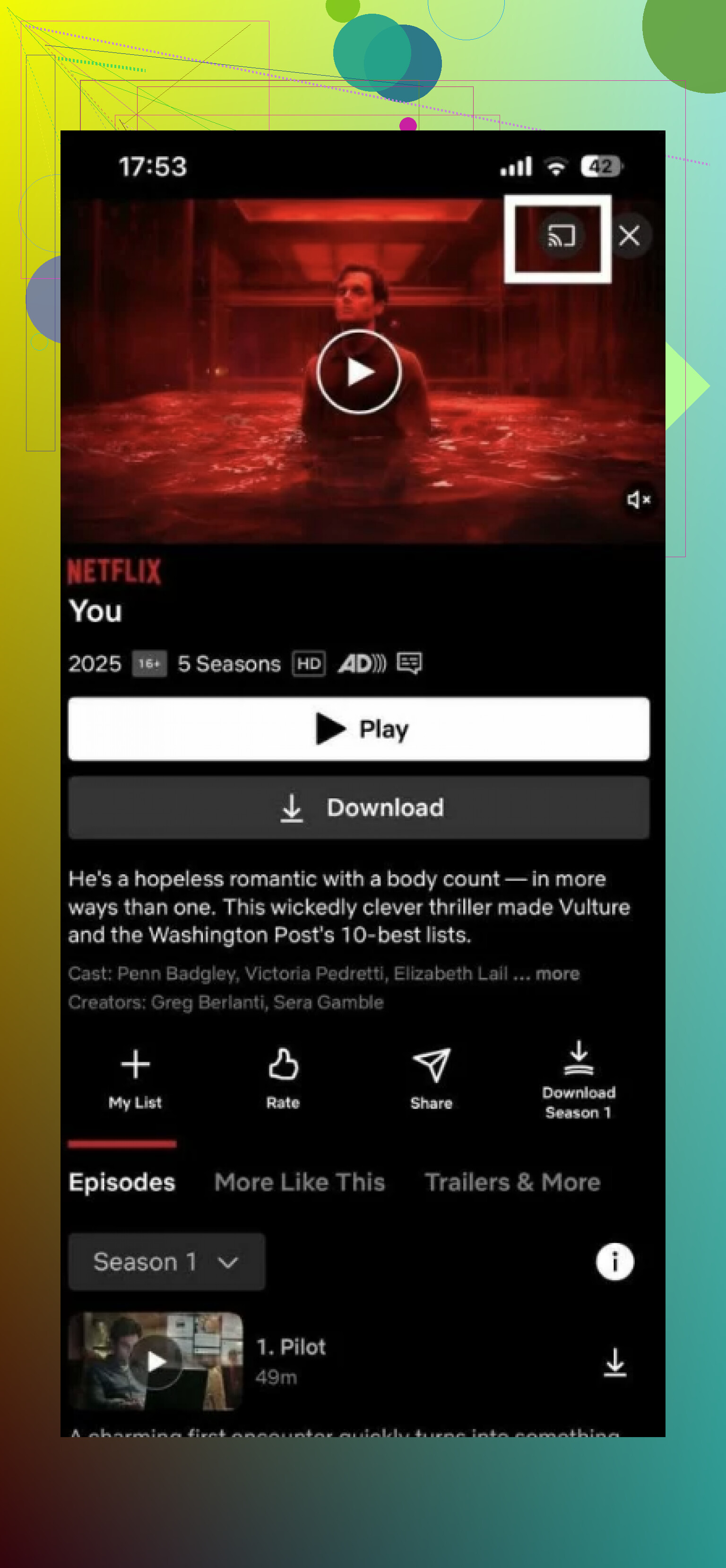
Once I understood that distinction, ordinary streaming looked much less complicated. YouTube, Netflix, Disney+, Spotify, and Google Photos are among the apps described as having Cast support. Within a supported app, the process is to open the content, tap the Cast icon, and select the Chromecast.
The useful part is that the phone does not have to remain occupied with showing that content. It can be locked or used for something else while playback continues. For someone catching up, that is a better explanation of the appeal than simply being told the devices work together. I would not need full-screen mirroring just to watch something that already has a casting option.
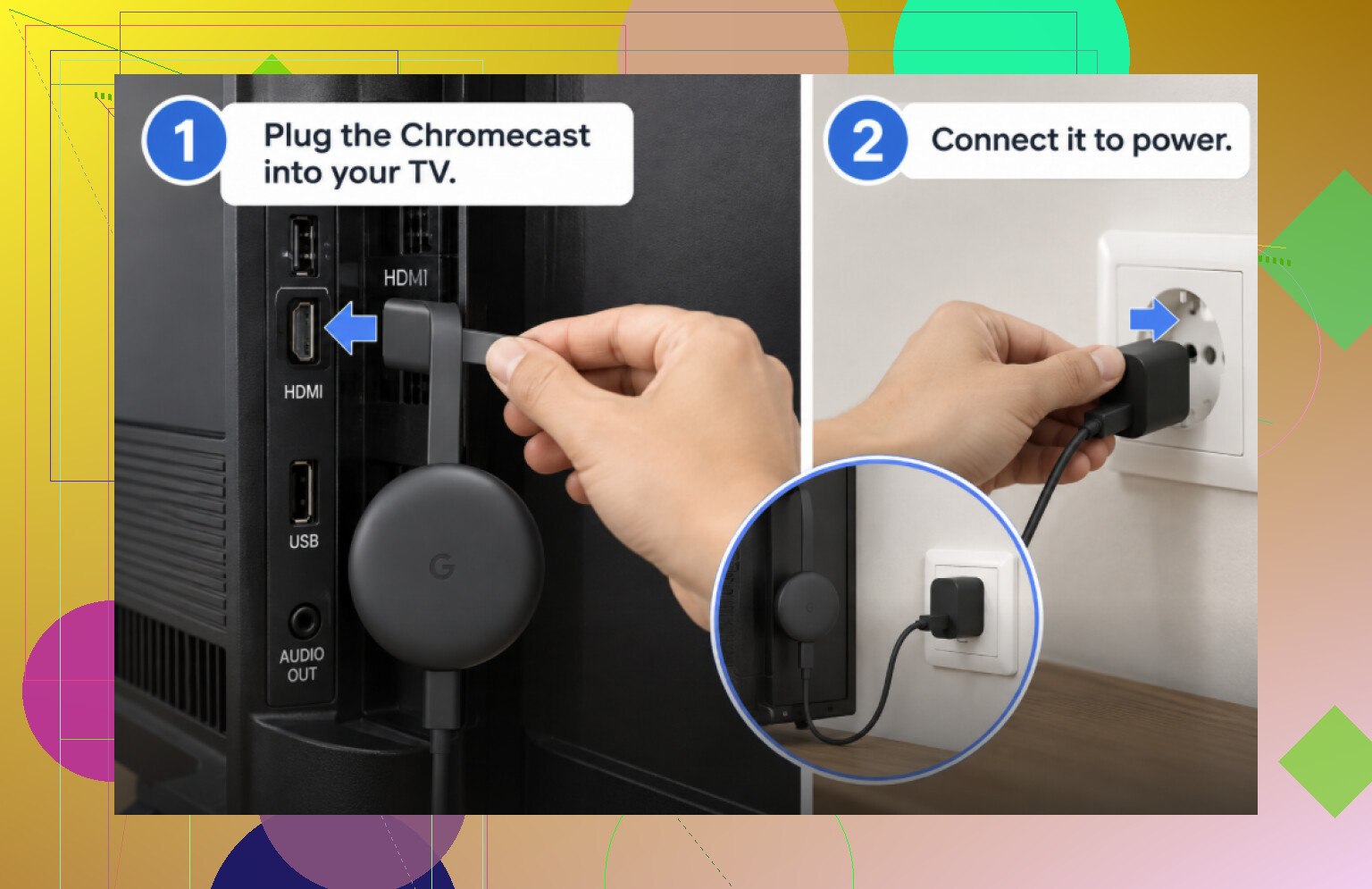
The initial setup is a separate task. The Chromecast needs to be plugged into the television and connected to power. On the iPhone, Google Home handles setup after signing in with a Google account. The listed path is + → Set up device → New device, followed by the instructions for connecting the Chromecast to Wi-Fi.
Bluetooth and Local Network permissions also need to be allowed when requested. I would get that basic connection established before deciding whether anything else was necessary. My earlier confusion was treating setup, supported playback, and whole-screen sharing as though they were the same function.
Where an additional app fits
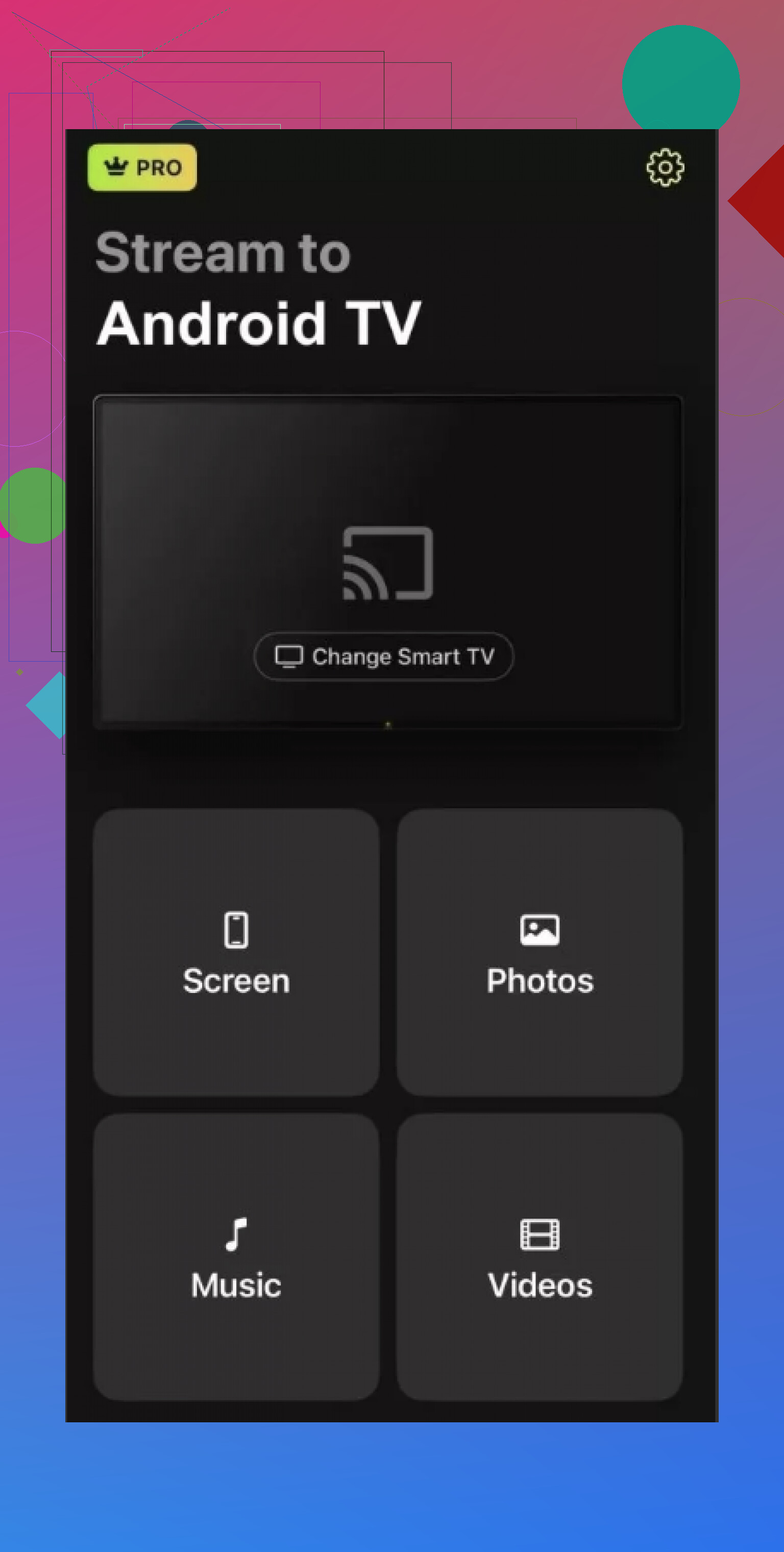
For the uses left out of native casting, the DoCast mirroring app covers screen sharing and streaming personal videos, photos, and music. Its stated compatibility includes all Chromecast generations, the Google TV Streamer, and televisions with Chromecast built in. That makes it relevant beyond a particular standalone Chromecast model.
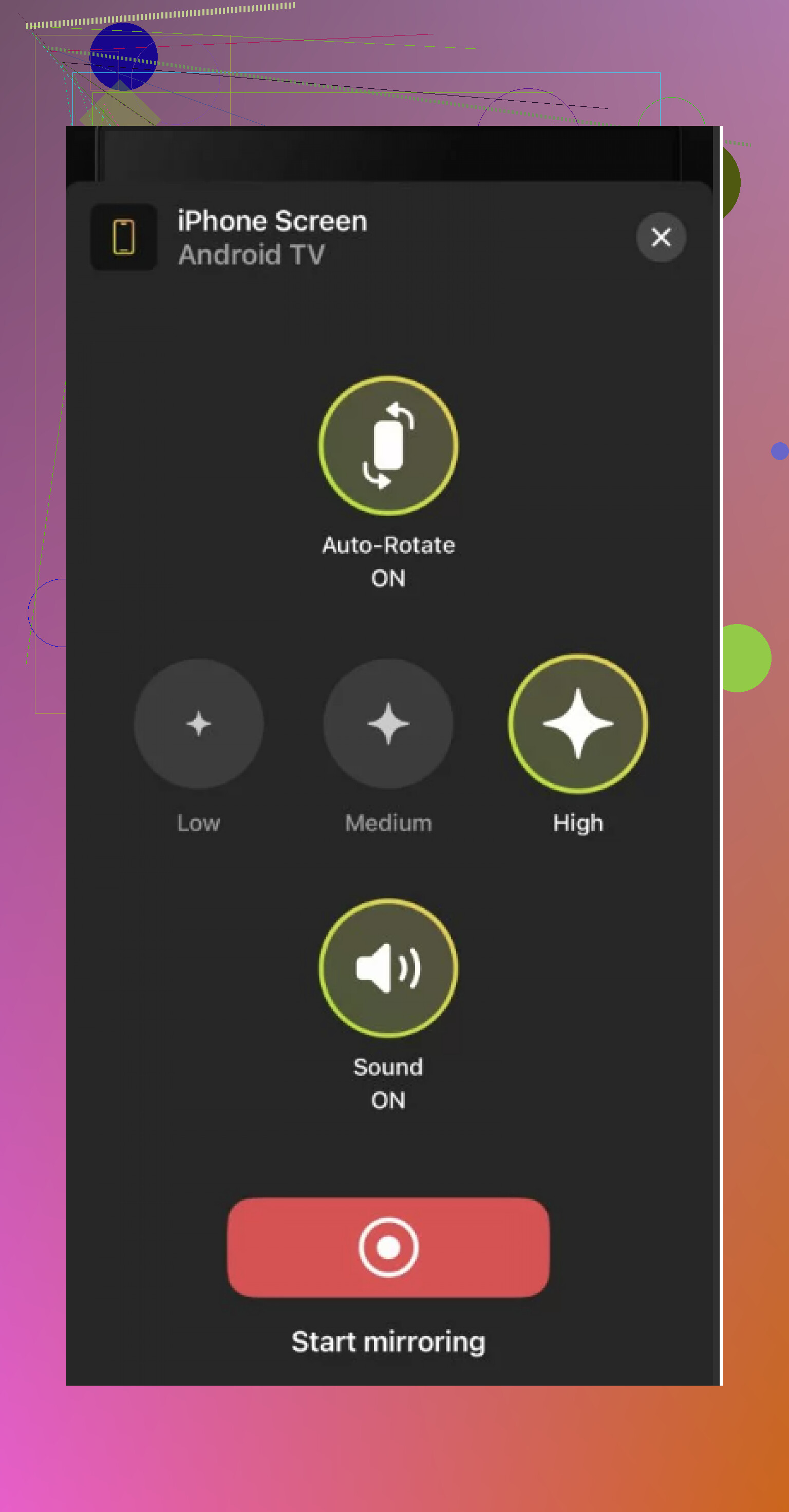
The connection procedure is straightforward on paper: put the iPhone and Chromecast on the same Wi-Fi network, open the app, and select the receiver. Screen → Start mirroring is the route for displaying the phone screen. Videos, Photos, and Music are separate choices for sending personal media. I find that separation useful because sharing a photograph does not necessarily require displaying everything else on the phone.
The payment distinction deserves attention before choosing it. Photo casting is free, while screen mirroring and unlimited video and music streaming require Premium. A lifetime option is available. The description also puts mirroring delay at under one second on strong Wi-Fi, which I would treat as a conditional performance claim, not a result I have personally measured.
My provisional view of DoCast app is that it addresses the missing functions without changing what Chromecast supports natively. I would change that view if testing on my own network showed distracting delay, failed media playback, or unreliable connections, or if a native method demonstrably handled the same screen-sharing tasks without an additional app.
7 Likes
Allowing Google Home to access your network doesn’t give your video app that permission. Yes, iPhones can cast directly from compatible apps, but check Settings → Privacy & Security → Local Network and enable the app you’re actually watching in. Your phone and Chromecast should be on the same Wi-Fi network, too. I’d hold off on the extra mirroring app suggested by @0xbadger4 and check this first. For a missing Chromecast, start with device discovery rather than buying another way to share the screen.
If you’re using guest Wi-Fi, that could explain why the Chromecast never appears. The catch with @signal.dev’s same-network advice is that a router’s “AP isolation” or “client isolation” setting can prevent devices from communicating even when they’re on the same Wi-Fi. Try connecting both to your main home network instead, and check that setting if discovery still fails. Google specifically flags isolation as a Chromecast setup blocker. I’d rule that out before spending time on a mirroring app.
A missing cast in one application does not necessarily indicate that there is something wrong with the Wi-Fi configuration. Before trying to figure out what is wrong with the router’s isolation settings, it would be a good idea to check if the YouTube “Cast” button is working correctly on the same iPhone. If it works, the problem is in the first application.
A Chromecast missing in every app isn’t the same as one missing only in Netflix. Sure, an iPhone can cast directly from some apps, but that doesn’t mean all streaming services have support for every Chromecast.
I’d qualify @golden_thread195’s suggestion: testing YouTube is useful, but a successful test doesn’t necessarily mean the other app needs fixing. Netflix currently limits casting to a short list of receivers, including older Chromecasts without a remote. A newer Chromecast with a remote isn’t on that list. For unsupported receivers, Netflix directs you to use the remote and its TV app instead. That’s a compatibility restriction, not a Wi-Fi fault.
Before changing router settings, post the name of the video app and whether your Chromecast came with a remote. I wouldn’t start resetting equipment until those two details are clear. The broad “Netflix supports Cast” claim in the first reply needs that caveat.
Do not start changing the router if the iPhone has aVPN running. I’d check that first before fiddling around with the living room setup. Google specifically suggests turning off a VPN if one is in use when trying to troubleshoot Chromecast setup, so it’s totally understandable that one might want to test it out in the meantime rather than just assuming it’s always the Chromecast’s fault.
Yes, the iPhone can do direct video casting from a Cast-enabled app. It doesn’t need one to use a separate mirroring app. The apps have a Cast button that can be used to send the video once everything is set up and both devices are on the same Wi-Fi network. I agree with testing another app, but I’d prefer that it’s done with theVPN disconnected, so that it’s actually not the Chromecast’s problem.
I think that for this test, you should disconnect theVPN, close and re-open the video app, and check its device list. If the Chromecast shows up, one can re-connect theVPN and do the same procedure again. That way, if it turns out that theVPN was interfering with the connection, you can actually say so and not blame the Chromecast. But, if it ended up not mattering, just turn it on again and move on. There’s no point in leaving it off if it’s not needed for now.
I’m not completely sure about changing lots of settings at once in this particular scenario. With apps, permissions, routers, and other software at work, I think you could end up having it work without knowing what fixed it. Just keep everything app- and Chromecast-related the same while testing this one particular variable. That way, you’ll have something more concrete to go on rather than just another reset.
If your router broadcasts one name but quietly splits the 2.4 and 5GHz bands behind it, that alone can hide the Chromecast. The phone lands on 5GHz, an older Chromecast sits on 2.4GHz, and even though the labels match, discovery dies. This is separate from the isolation setting @vectorcraft8176flow raised, and it bites people who swear both devices are on the same Wi-Fi. Worth checking which band each one actually joined before touching anything else.
The reason this matters: casting relies on mDNS, the little broadcast that lets the app find the receiver. Band splits, mesh nodes, and some ‘smart’ router features block that broadcast without flagging an error. So you get a Chromecast that streams fine from the TV remote but never shows up in any app on the phone. That looks identical to a permissions problem, which is why the advice from @signal.dev about Local Network is right but incomplete. Permission lets the app ask. mDNS is what carries the answer back.
I’d rank the checks by effort. VPN off, same band, main network not guest, Local Network permission on for the specific app. That covers maybe nine out of ten cases without changing a single router setting. @data_lena60 is correct that bundling changes together leaves you guessing what fixed it, so do these one at a time.
On the mirroring app from the first reply, I’d leave it out of this entirely for now. The original post is about the Chromecast not appearing, which is a discovery fault. No third party app will rescue a receiver the network is hiding, since they lean on the same discovery path. Fix the connection first. If after that you still want full screen mirroring rather than just casting supported apps, that’s a different decision and a different day.
Make sure you switch the TV to Chromecast’s HDMI input before going through the router settings mentioned here. If your TV displays any setup instructions, make sure to go through them using Google Home on your iPhone since just plugging it in is not completely set up. After setting up, yes, you can send videos directly from your iPhone through compatible Cast-enabled apps.