I checked my iPhone storage in Settings and noticed the numbers don’t match what I expected. The used storage, available space, and app sizes all seem different, and I’m not sure which number is correct. I need help understanding why iPhone storage shows different numbers and how to check what’s actually taking up space.
I kept running into the same stupid iPhone warning, ‘Storage Almost Full,’ usually when I needed the camera right then. After poking through Settings way too many times, here’s the layout I wish I had from the start.
Total space, used space, and where Apple hides it
Open Settings, then General, then iPhone Storage.
This is the main screen. At the top, you’ll see the storage bar with the full picture, something like 184 GB of 256 GB used.
If you want the phone’s listed capacity, go to Settings > General > About, then scroll to Capacity.
Small gotcha here. The number in About might look lower than the number on the box. You might see 124 GB on a 128 GB model. I saw this on mine and thought something was off. It wasn’t. iOS takes part of the storage for itself.
If the phone is dead and you need the storage size for resale or trade-in, I’d check a few places:
- The back of older iPhones
- The SIM tray on some models
- Your carrier account page
- The purchase receipt
What is taking up all the space
Back in iPhone Storage, scroll down.
Apple lists your apps by size, biggest offenders first. This page tells the truth fast. I found old downloads inside streaming apps, huge message threads full of videos, and a pile of media I forgot existed.
The categories usually break down like this:
-
Apps
The app itself. -
Photos & Media
Your photos, videos, music, podcasts, and similar stuff. -
System Data
This used to show as Other. It’s the messy bucket. Caches, logs, fonts, Siri voices, temp files, all of it lands here.
Why storage numbers don’t match everywhere
I noticed this too. The number on the phone and the number on a Mac or PC often look different.
When you connect the iPhone to Finder on a Mac or iTunes on Windows, the computer might report more free space than the phone does. From what I saw, temp files and caches are a big reason. The phone counts them while you use it. A sync or connection session sometimes clears part of that junk, so the desktop view looks cleaner.
Also, iCloud storage and iPhone storage are separate. This trips people up all the time. You can have 2TB in iCloud and still have almost no room left on the device in your hand.
What low storage felt like on my phone
Mine got ugly once I was down to the last couple GB.
Apps opened slow. The camera hesitated. Typing felt delayed. Even swiping around the interface felt off. Not broken, but heavy. I used to think people overstated this part, then I hit it myself. Low free space seems to drag the whole phone down because iOS needs working room for temp tasks and file movement.
What helped, and what barely moved the needle
I tried the usual cleanup stuff first.
Offload unused apps. Fine, but small gain.
Delete old conversations. Helped a bit.
Clear downloads from streaming apps. Better.
Check Messages attachments. Worth doing.
The biggest problem on my phone was photos and videos. Way too many near-duplicates, burst shots, screenshots, and giant clips I never planned to watch again.
I ended up trying a third-party cleaner and the one I used was https://www.youtube.com/shorts/g-oBMrNE57g
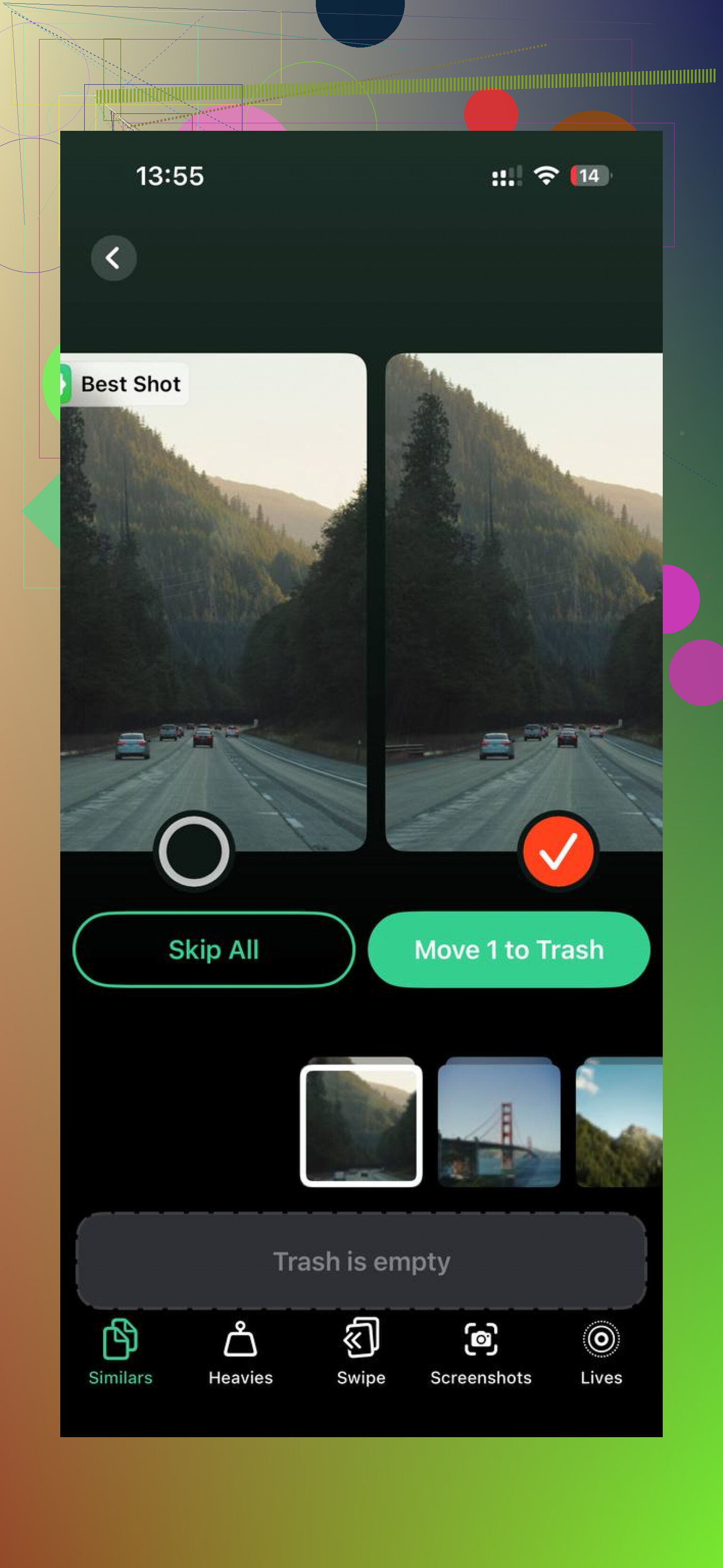
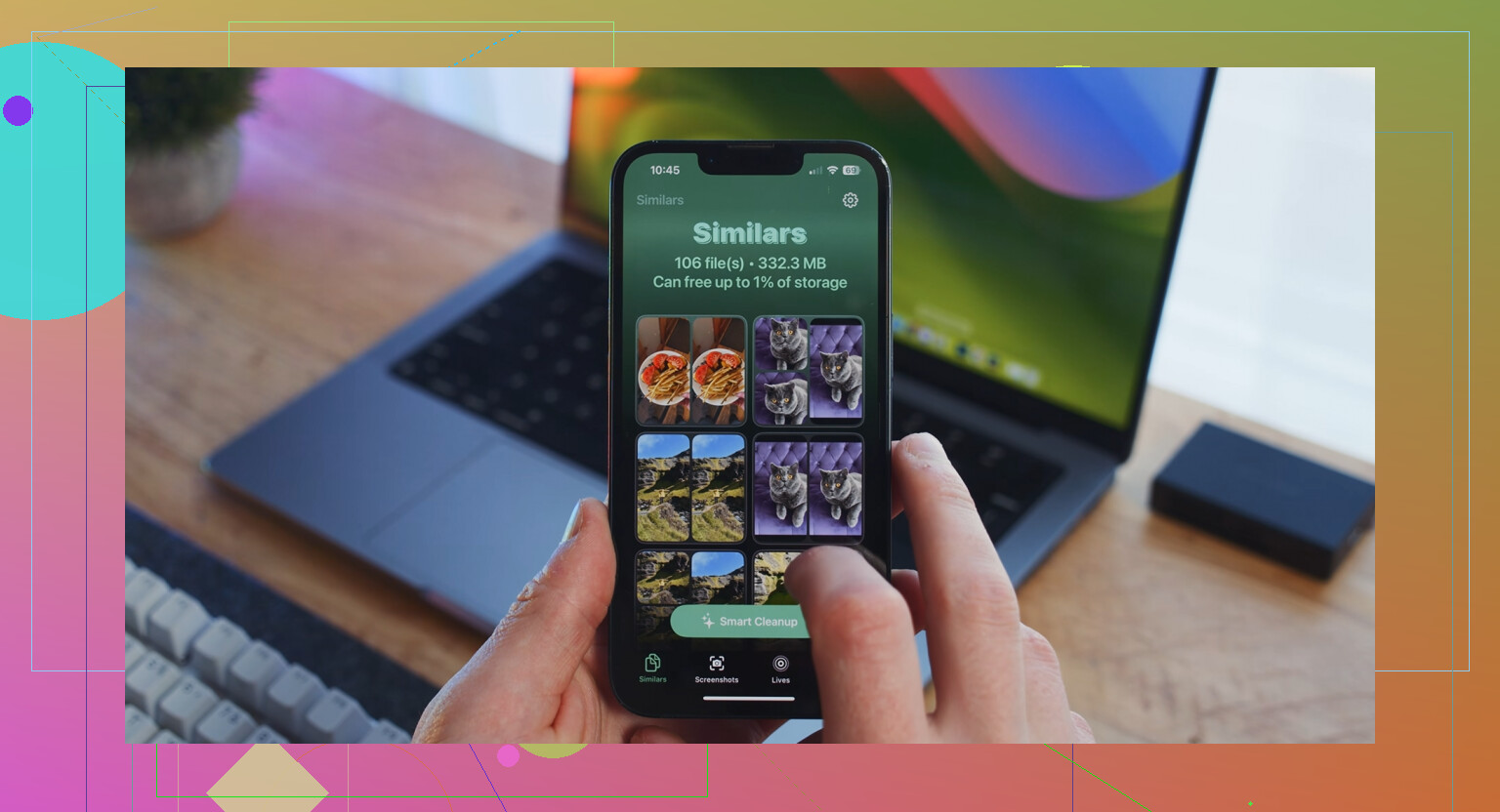
I’m normally suspicious of apps in this category. Most of them feel like bait. This one stood out because I didn’t run into ads, fake free trials, or a paywall two taps in. What I liked most was the sorting. There was a Heavies section for the largest files, so I could start with the stuff doing the most damage. There was also a Similars section, which grouped near-identical photos well enough for me to cut a lot fast.
The useful part, for me, was seeing file sizes clearly before deleting anything. I could tell what was worth the swipe and what wasn’t. It also handled processing on the device, which mattered because I don’t want my photo library sent off somewhere random. I cleared around 15 GB on my first pass. Phone felt normal agian after that.
If you want the short version
Check Settings > General > iPhone Storage first.
Use Settings > General > About if you need the listed capacity.
Ignore the box number mismatch, it’s normal.
Watch Photos, Messages, and streaming downloads first.
Don’t confuse iCloud space with local iPhone space.
If your phone feels slow, low storage might be the reason.
That was the path for me. Annoying job, but worth doing once you see where the space went.
24 Likes
What counts is the iPhone Storage screen in Settings. That is the live number. It changes because iOS is counting caches, logs, downloaded updates, message attachments, and temporary files all the time.
A few mismatches are normal.
-
Box size vs phone size
A 128GB iPhone never shows the full 128GB as usable. iOS and system partitions take space from day one. -
Used space vs app sizes
App list totals often look off because app data is separate from the app binary. Safari cache, Music cache, Photos indexing, Messages attachments, and offline files bloat storage outside the simple app number. -
Available space changes after a restart
I disagree a bit with @mikeappsreviewer on desktop numbers mattering much. Finder or iTunes views are often stale. The phone itself is the better source. Reboot once, wait 2 to 5 minutes, then re-check. You’ll often see System Data shrink a little. -
“System Data” swings up and down
This is the least stable category. It grows during updates, streaming, editing videos, and browsing. Then it drops later. Annoying, but normal.
If you want a clean audit, do this:
Restart iPhone.
Check Settings, General, iPhone Storage.
Wait for the bar and app list to fully load.
Compare Photos, Messages, media apps, and Files app.
If photos are the issue, Clever Cleaner is worth a look for duplicate and large file cleanup. This Clever Cleaner review for freeing up iPhone storage fast shows what it does.
Short version, your numbers arne’t broken. They’re measuring diffrent things at diffrent times.
What counts most is the number on the iPhone itself after it finishes recalculating, not whatever rough mental math we do from the app list.
A few reasons the numbers look weird that @mikeappsreviewer and @sterrenkijker didn’t really dig into enough:
- “Available” is not always truly free. iOS keeps some space purgeable. That means cached music, streamed video leftovers, temporary thumbnails, and update files can be removed by the system if needed, but they may still appear used for now.
- App size is split up awkwardly. The app listing may show the app binary, but documents, caches, downloaded content, and shared data can lag behind or get counted in other buckets.
- Photos syncing can confuse the math. If iCloud Photos is on with Optimize iPhone Storage, tiny previews and full-res originals are swapped around constantly. So the Photos number can drift a bit.
- System Data is basically Apple’s junk drawer. Not broken, just annoyng.
If you want the most honest check, do this:
- Charge the phone
- Connect to Wi-Fi
- Restart it
- Wait 10 to 15 minutes
- Open iPhone Storage and let it fully populate
That usually gives the least misleading snapshot.
Also, I mildly disagree with the idea that the app list always “tells the truth fast.” Sometimes it absolutely does not. Messages, Photos, Safari, Files, and media apps can report in ways that feel half-baked.
If your space issue is mostly photos, duplicate shots, screenshots, and giant videos, Clever Cleaner is one of the more useful options because it helps surface the bulky stuff faster than Apple does. If you want a broader read on it, this article on the best AI cleaner apps for iPhone storage cleanup is easier to skim than digging through random app store reviews.
Short version: your numbers are probly different because they’re measuring different layers of storage at different moments. Normal, just badly explained by Apple.
One angle missing from @sterrenkijker, @caminantenocturno, and @mikeappsreviewer: snapshots are not all taken at the same time. The storage bar, app list, Files app, and photo library can each finish calculating on different passes, so the mismatch is sometimes just a timing issue, not bad math.
Also, I would not treat Finder/iTunes as useless, just secondary. It can be handy to spot whether a backup or sync chunk is affecting what you see.
What I check when numbers look wrong:
- recent iOS update download
- Voice Memos size
- downloaded Maps areas
- Safari Reading List offline data
- Mail attachments
- deleted photos not yet emptied
- Files app local folder contents
- On My iPhone app folders
One weird one: deleting stuff does not always raise free space immediately. iOS may delay cleanup until the phone is idle and charging.
If photos are the main culprit, Clever Cleaner is decent for surfacing duplicates and large videos fast.
Pros:
- easy to spot heavy files
- faster than hunting through Photos manually
- useful for duplicate cleanup
Cons:
- cleaner apps cannot fully control System Data
- always review before deleting
- gains depend on whether photos are actually your problem
So, the “correct” number is usually the top iPhone Storage screen after it settles, but not every sub-number will add up neatly. That part is just classic Apple accounting.