I imported photos from my iPhone to my computer and want to delete them from my phone to free up space. Before I do that, I need help understanding whether deleting imported iPhone photos will also remove them from iCloud and my other Apple devices. I don’t want to lose anything by mistake.
I hit this mess on my own iPhone, and it was one of the more annoying cleanup jobs I’ve done. You move photos to your computer, think the hard part is over, then the phone still nags you about storage like nothing changed. No clear “empty phone after import” path. Apple made this feel harder than it needed to be.
The first thing I learned was the backup versus sync problem. This is where people get burned.
If iCloud Photos is on, your iPhone is not keeping a separate local stash in the way most people expect. It is syncing with iCloud. So if you delete a photo on the phone, iCloud treats it as a real deletion and removes it from your other Apple devices too. I almost did this wrong the first time.
If your goal is to wipe photos from the iPhone and keep them somewhere safe, do one of these first:
- Move the photos into a folder on your Mac or PC that does not sync back through iCloud Photos.
- Turn off iCloud Photos before you start deleting.
Skip this check and you risk deleting the only copy you meant to keep.
On a Mac, Apple pushes you toward the Photos app. Sometimes it works fine. Sometimes it acts weird.
When you connect the iPhone by USB, Photos is supposed to show a checkbox near the top right called “Delete items after import.” On my setup, it disappeared. No warning, no explanation. A lot of people run into this when iCloud Photos is enabled.
What worked better for me was Image Capture. It is already on the Mac. Open Applications, launch Image Capture, connect the phone, then pick your iPhone from the Devices list. You get a plain list of the photos and videos on the device. From there, select what you already copied over and use the red delete icon. It feels more direct, less “helpful,” which in this case is better.
On Windows, the route is uglier but simpler.
Plug in the iPhone, open This PC, find the phone, then go into the DCIM folder. You can remove photos there directly. I’ve seen Windows throw errors like “device is busy” or “device is unreachable,” which is peak iPhone-on-Windows behavior. If you hit that wall, check the iPhone setting for photo transfer and switch “Transfer to Mac or PC” to “Keep Originals.” After I changed that, transfers stopped failing so often.
If you want to clean up from the iPhone itself, there’s one album worth checking first: Imports.
Open Photos, go to Albums, scroll down into Utilities, and look for Imports. It gathers items brought onto the phone, which makes batch cleanup easier. Still, deleting there does not free space right away. iOS moves the files into Recently Deleted and leaves them there for 30 days. If you need storage back now, open Recently Deleted and remove them again. Miss this step and your storage number barely moves, which is maddening.
I started sorting this out because my iPhone 13 had turned slow in a way I could feel every day. The camera hesitated. Typing lagged. App switching got sticky. Once free space gets low, iPhones start behaving badly. When I was down close to the last gigabyte, the whole thing felt off.
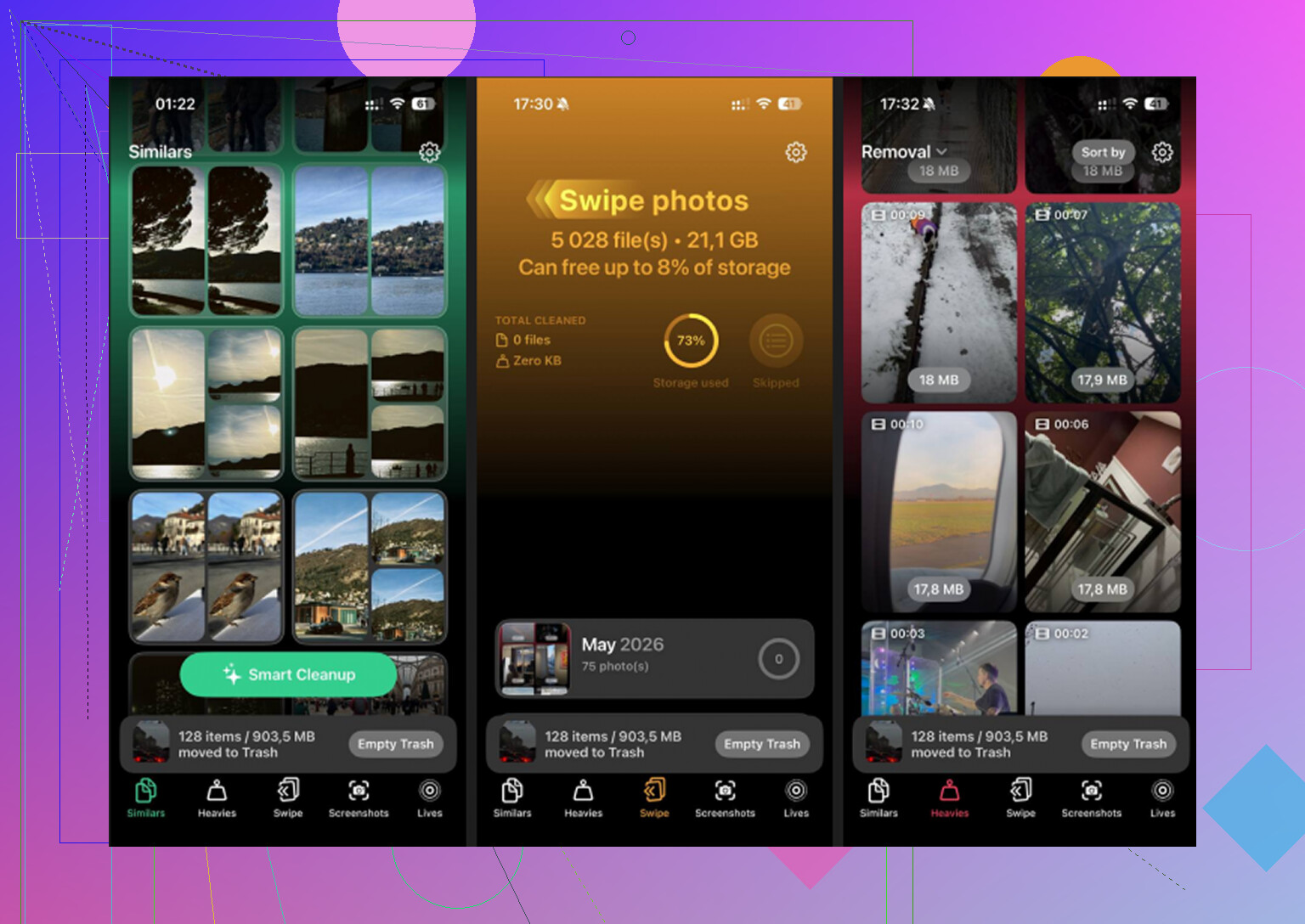
After the manual import, I still had loads of junk. Near-duplicate photos. Old screenshots. Random clips I forgot existed. I used Clever Cleaner to finish sorting it out.
What stood out to me was how easy it was to spot the files doing the most damage. The Heavies section grouped media by size, so the huge 4K videos showed up fast. The Similars section grouped near-matching photos, which helped when I had eight versions of the same shot and only wanted one. I liked being able to see the size before deleting stuff. Less guessing.
One other part mattered to me. The photo scanning stays on the device, so your library is not getting pushed to some unknown server for analysis. After I cleared around 15 GB, the lag I’d been dealing with was gone. The phone felt normal agian.
The cleanup after an import is still a chore. No clean way around that. But if your storage is jammed, this is one of the few fixes you feel right away. Before you call it done, check Recently Deleted one last time. That is the step people miss, and it’s often why the space doesn’t come back.
34 Likes
Yes. If iCloud Photos is ON, deleting a photo from your iPhone deletes it from iCloud too, and from other Apple devices signed into the same library. Importing to a computer does not break the sync.
So the safe rule is simple:
- Check Settings, your name, iCloud, Photos.
- If iCloud Photos is on, treat your iPhone library as the same library as iCloud.
- Make sure your imported photos exist in a normal folder on your computer, or on an external drive, before deleting anything.
I’ll disagree a bit with @mikeappsreviewer on one point. Turning off iCloud Photos is not always the best move. For some people, it triggers a download mess or leaves optimized files in weird states. Safer option is to confirm your computer copy opens fine, then remove photos only if you no longer want them in iCloud at all.
Best way to free space without deleting from iCloud is often this:
Use Optimize iPhone Storage in iCloud Photos settings. Your full files stay in iCloud, smaller versions stay on the phone. It helps a lot if your goal is storage, not library cleanup.
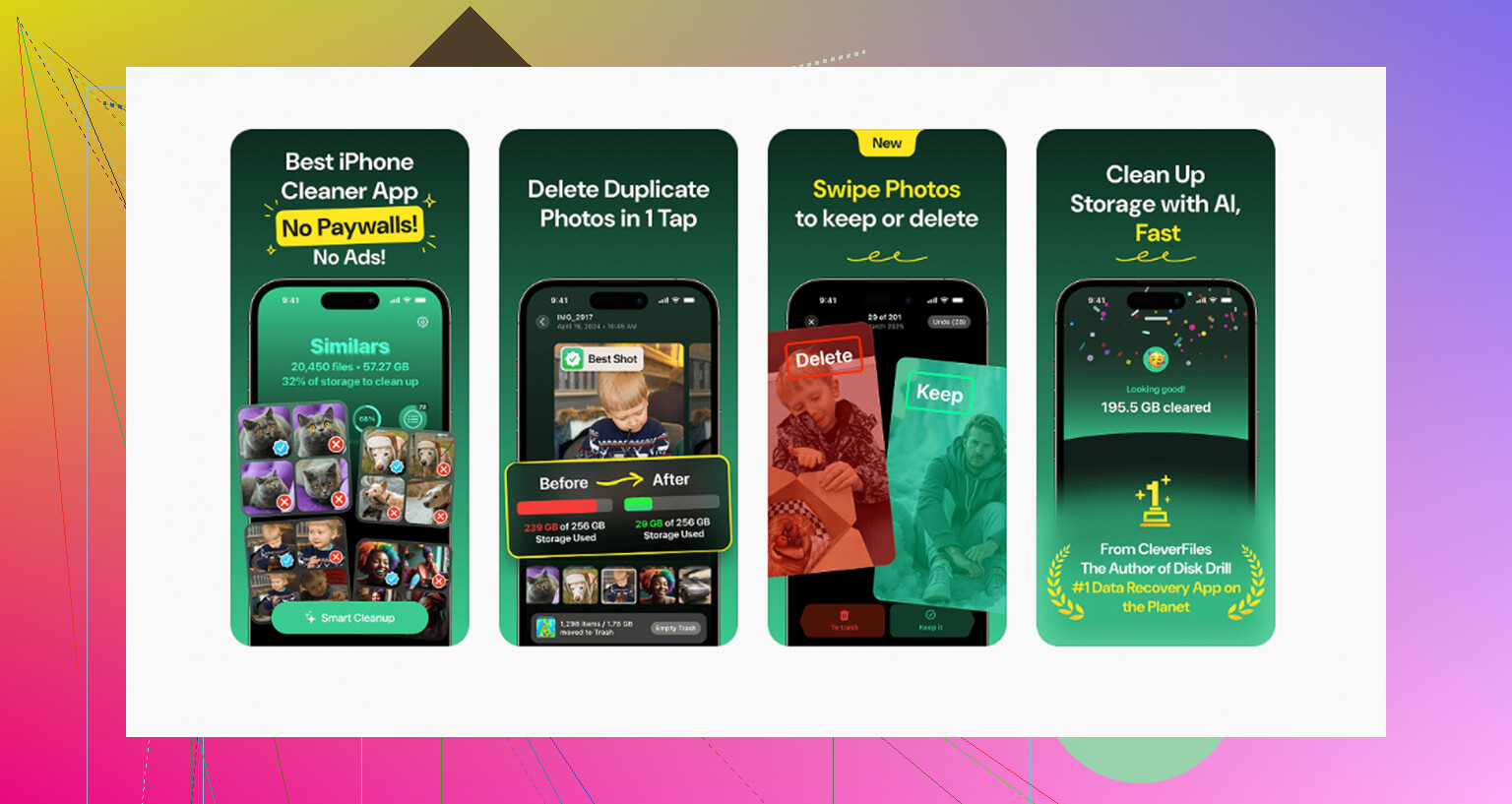
If you want to clean duplicates, screenshots, and huge videos after the import, Clever Cleaner is decent for that. This review covers a 100 percent free, ad-free iPhone cleaner app for clearing duplicate photos and large videos. Handy if your libary is bloated.
One more gotcha. If you delete on the phone, empty Recently Deleted too, or the space wont come back right away.
Yep. If iCloud Photos is enabled, deleting photos from your iPhone after import will also delete them from iCloud, and from any other Apple device using the same photo library. Importing them to a computer does not “unsync” them. That’s the part that trips people up.
Where I slightly disagree with @mikeappsreviewer and @shizuka is this: I would not rush to turn iCloud Photos off unless you really know what state your library is in. That can create its own mess, esp if your phone has optimized copies only. Better move is to verify your imported files on the computer are actually complete, backed up, and open normally.
Simple rule:
- iCloud Photos ON = delete on iPhone, delete everywhere
- iCloud Photos OFF = delete on iPhone, usually only affects the phone
If your real goal is just more space, try Optimize iPhone Storage first. That often solves the problem without deleting anything from iCloud.
If you already imported and now want to clean up the phone library, I’d also make a second backup first, like an external drive. A lot of ppl think one computer copy is enough, then later realize some videos didn’t transfer right.
After that, if your library is still bloated with duplicates, giant videos, screenshots, and junk, Clever Cleaner is actually useful for trimming the mess faster. Also saw a solid discussion here about real user experiences with a free iPhone cleaner app.
Also, don’t trust storage numbers right away. iPhone can be annoyngly slow to recalculate free space.
A simpler option is Google Photos.
Install it, enable Backup, and wait until it shows “Backup complete.” Open several photos and videos there to confirm. Then delete them from Apple Photos and empty Recently Deleted.
The files will disappear from your iPhone and iCloud Photos, but stay in Google Photos. This gives you one clear archive without changing iCloud settings or dealing with USB imports.
Check your Google storage first, especialy for large video collections. Keep a second copy of important family photos on your computer too.
The Google Photos route @chris64 mentioned has a catch nobody said out loud: the free unlimited backup is long gone. You get 15 GB shared across Gmail, Drive, and Photos, and video eats that alive. So if you’re offloading a phone stuffed with 4K clips, you’ll hit the wall fast and end up paying monthly anyway. It’s a fine archive for photos, less great as a dumping ground for big video.
On the main question, everyone’s right and I won’t repeat it. iCloud Photos on means the phone and the cloud are the same thing, and importing to a computer changes nothing about that. Where I land closer to @shizuka and @mike34 is leaving iCloud Photos alone. Flipping it off mid-cleanup is how people end up with half-optimized copies and a download queue that stalls for hours. Verify the computer copy actually opens, then delete. Boring, but it works.
The bit I’d stress that got glossed over: the Recently Deleted album counts against your iCloud storage too, not just local space. So if your real problem is a full iCloud tier and not the phone itself, emptying that album is the step that actually moves the number. Clean up the obvious junk first with something like Clever Cleaner if your library’s a swamp, empty Recently Deleted, then give the phone a day before you trust the storage readout. It lies for a while after big deletes.