I deleted a bunch of photos from my iPhone to free up space, but my iPhone storage still shows as almost full. I also checked Recently Deleted, and I’m not sure what else is taking up the space. Has anyone fixed this issue or found a way to force iOS to update the storage correctly?
Yeah, this is one of the more annoying iPhone storage problems because deleting photos doesn’t always mean the space is actually free yet. If you spent a bunch of time clearing out your camera roll and Settings still shows the same storage number, the first place to check is Recently Deleted.
Photos you delete usually sit there for another 30 to 40 days, and they still take up space the whole time. Open Photos, go to Albums, scroll down to Recently Deleted, and choose “Delete All.” Until that’s emptied, the storage bar may look like nothing changed.
If you already did that, restart the phone. iOS can be slow about recalculating storage, so the space may be freed but Settings is still showing an old cached number. Sometimes one reboot is enough. Sometimes it takes a couple before the storage report catches up.
Also check whether iCloud Photos Optimize Storage is enabled. If it is, your phone may only have small local versions of many photos while the full-size originals live in iCloud. So deleting 1,000 optimized photos might not free as much space as you expect. You could be removing thumbnails instead of multi-gigabyte originals.
Photos are only part of it, though. Messages can quietly eat a ton of storage, especially old group chats full of videos, GIFs, and memes. App caches are another big one. TikTok, WhatsApp, Instagram, and similar apps can build up several gigs of temporary files without making it obvious.
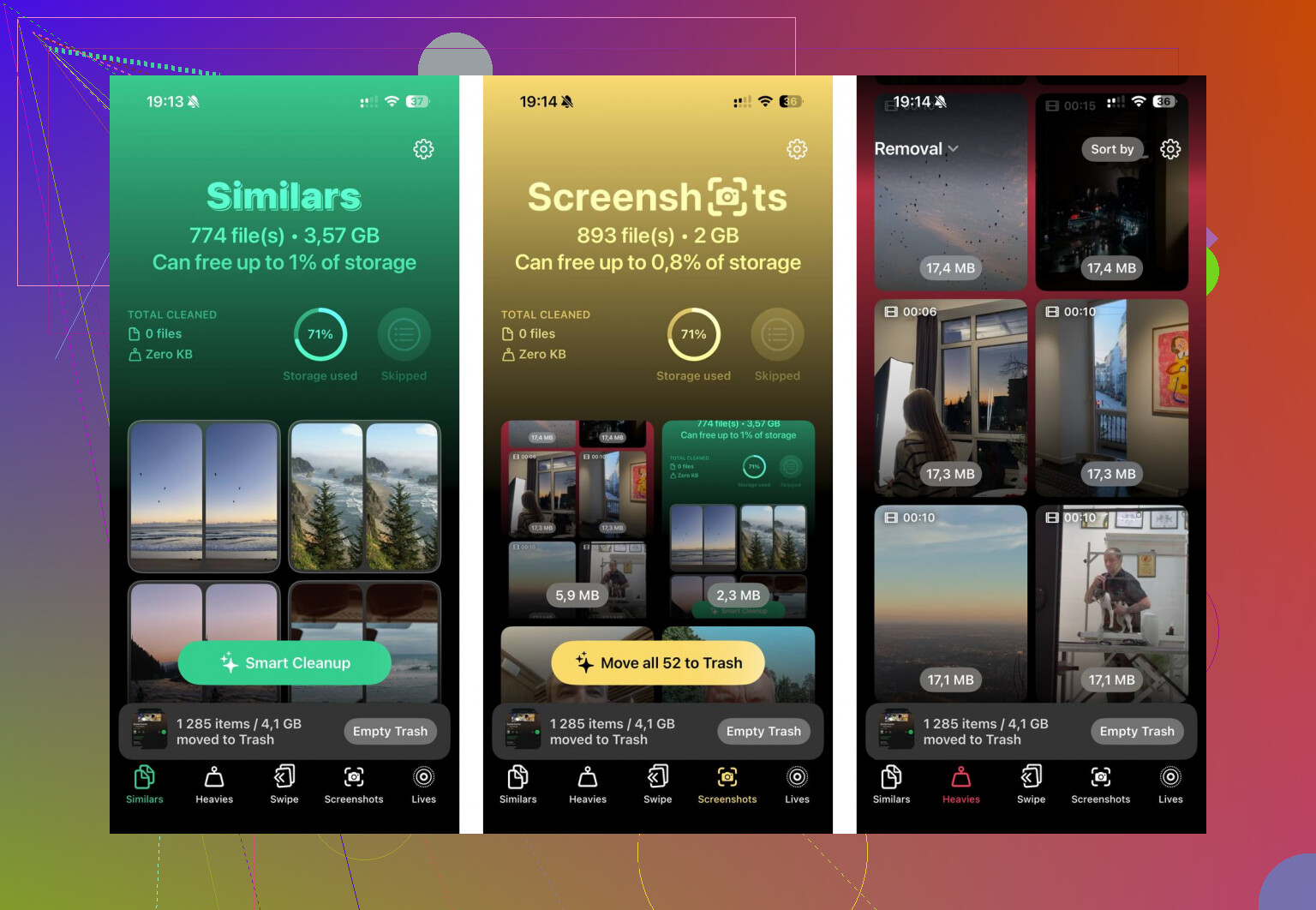
If you don’t want to dig through everything manually, a cleaner app can help, but be picky because a lot of them are subscription traps. One free option mentioned a lot is Clever Cleaner. Its Heavies tab is useful because it sorts your library by file size, so you can find the giant 4K videos first instead of guessing. The Similars tab can also group near-duplicate photos, like ten versions of the same shot, and help you keep the best one. It also processes photos on-device instead of uploading them somewhere, which matters if you care about privacy.
There’s also a weird trick that sometimes helps with stuck “ghost” storage. Go to Date & Time, turn off “Set Automatically,” set the date about two years back, open Photos for a minute, then switch the date back to automatic. It can force iOS to re-check old deleted items and cached photo data.
If none of that works and System Data is huge, especially over 20GB, the cleanest fix may be backing up the phone and doing a factory reset. That’s the last-resort option, but it clears corrupted caches and junk that normal cleanup won’t touch. I’d try Recently Deleted, a restart, Messages/app caches, and a proper photo cleanup first. Most of the time, one of those is the thing keeping the storage from dropping.
21 Likes
Check Settings > General > iPhone Storage and tap Photos before deleting more stuff. If the Photos number is still huge, the deleted items are probably still being counted because of Recently Deleted, iCloud sync, or indexing lag. But if Photos already dropped and the phone still says full, then chasing your camera roll won’t help much because the space moved to Messages, apps, or System Data. I agree with @mikeappsreviewer on emptying Recently Deleted, but I’d use the storage category as the tie-breaker before installing cleaners or doing weird fixes. It saves you from deleting another 2,000 pictures when the real offender is one messaging app full of videos.
Deleting the photos is not the same as freeing the storage immediately.
The annoying bit people miss is that iOS sometimes needs a little free space to finish cleaning up the space you just tried to free. If the phone is sitting at 99% full, it can get stuck in this stupid loop where Photos, iCloud sync, and the storage calculator are all lagging behind. So before doing anything drastic, I’d make a small amount of breathing room first.
Go to Settings > General > iPhone Storage and offload one large app you can reinstall later. Not delete your data, just Offload App. Something like a game, Netflix, Spotify, YouTube, or a maps app with offline downloads can be enough. Then restart the phone, plug it into power, connect to Wi-Fi, and leave it alone for a while. Don’t keep opening storage settings every 30 seconds because it often does not recalculate instantly.
If you use iCloud Photos, open Photos and scroll to the bottom of the Library tab. Look for messages like “Syncing Paused,” “Not Enough iPhone Storage,” “Restoring from iCloud,” or “Uploading.” That status matters more than the storage bar. If sync is paused, deleting photos may not fully settle until the phone gets power, Wi-Fi, and enough local storage to process the queue.
I agree with @reveurdenuit that the category breakdown is the sanity check. If Photos is still huge, keep working inside Photos. If Photos is no longer huge, stop deleting pictures. At that point the space is probably in Messages attachments, downloaded music/video, offline maps, Safari data, or app documents.
A couple of places people forget:
Settings > General > iPhone Storage > Messages. Check large attachments there. Old videos in chats can be bigger than camera roll photos.
Settings > Safari > Clear History and Website Data. Not usually massive, but easy.
Files app > Browse > On My iPhone. Sometimes downloaded videos, ZIPs, voice memos, or exported projects sit there.
Podcasts, Netflix, Disney+, Spotify, YouTube, Apple TV, Maps. Anything with offline downloads can quietly sit on several GB.
Mail attachments can pile up too, especially if you use the Apple Mail app with big accounts.
I’d be careful with the date-change trick unless you are desperate. It has helped some people with ghost deleted photos, but changing the system date can mess with messages, app logins, certificates, reminders, and sync timestamps. If you try it, I’d back up first and switch the date back right away.
Cleaner apps are optional, not magic. They can help you find huge videos or duplicate-looking shots faster, but they cannot delete iOS System Data or force Apple’s storage meter to behave. If you use one, treat it as a sorting tool, not the actual fix.
If System Data is the giant category and it stays huge after a restart, charging overnight, and freeing a few GB, then backup plus erase/restore is the boring answer. I wouldn’t start there, but it is the only thing that reliably clears some stuck caches. Just make sure the backup is complete before wiping anything, especially if you are not fully synced to iCloud.
A phone where Photos is still the huge category is a different problem than a phone where Photos shrank but “System Data” or an app category ballooned. I’d follow @reveurdenuit’s point there before doing any more deleting, because the fix depends on which bucket is actually full.
Something people forget: if you use iCloud Photos, deleting a large batch can create a sync backlog. The phone may look like it ignored you while it is really waiting to upload/delete/update everything across iCloud. Leave it on Wi-Fi and power with Photos closed for a while, then check again later. If Low Power Mode is on, turn it off temporarily. Same if you have VPN/ad blockers that sometimes interfere with Apple services. Not saying that is always the cause, but it can make the cleanup feel stuck.
I’d be slower to jump to cleaner apps or the date trick than some people. A cleaner like Clever Cleaner can be useful for finding huge videos if Photos is still the culprit, but it won’t fix a sync jam or System Data bloat. For a quick test, free 2 to 5 GB by offloading one big app, restart, charge overnight, then check iPhone Storage again the next morning. If nothing changes and System Data is the monster, backup and restore is probably the least fun but most honest answer.