I accidentally deleted photos from my Nikon camera’s SD card before backing them up, and some of them are really important. I need help figuring out the best way to recover deleted Nikon SD card photos without making things worse or overwriting the files.
I did this once with a Nikon card, and the photos were not gone right away.
When you hit Delete on most cameras, the card usually marks those spots as free space. The image data often stays there until new shots land on top of it. So the first move is simple. Stop using the camera now. Don’t take a test shot. Don’t poke around. Every new file raises the odds of overwriting the old ones.
Take the SD card out and plug it into your computer with a card reader. I’d skip connecting the Nikon by USB if you have a choice. A lot of Nikon bodies show up in MTP or PTP mode, and recovery tools tend to work better when they get direct access to the card.
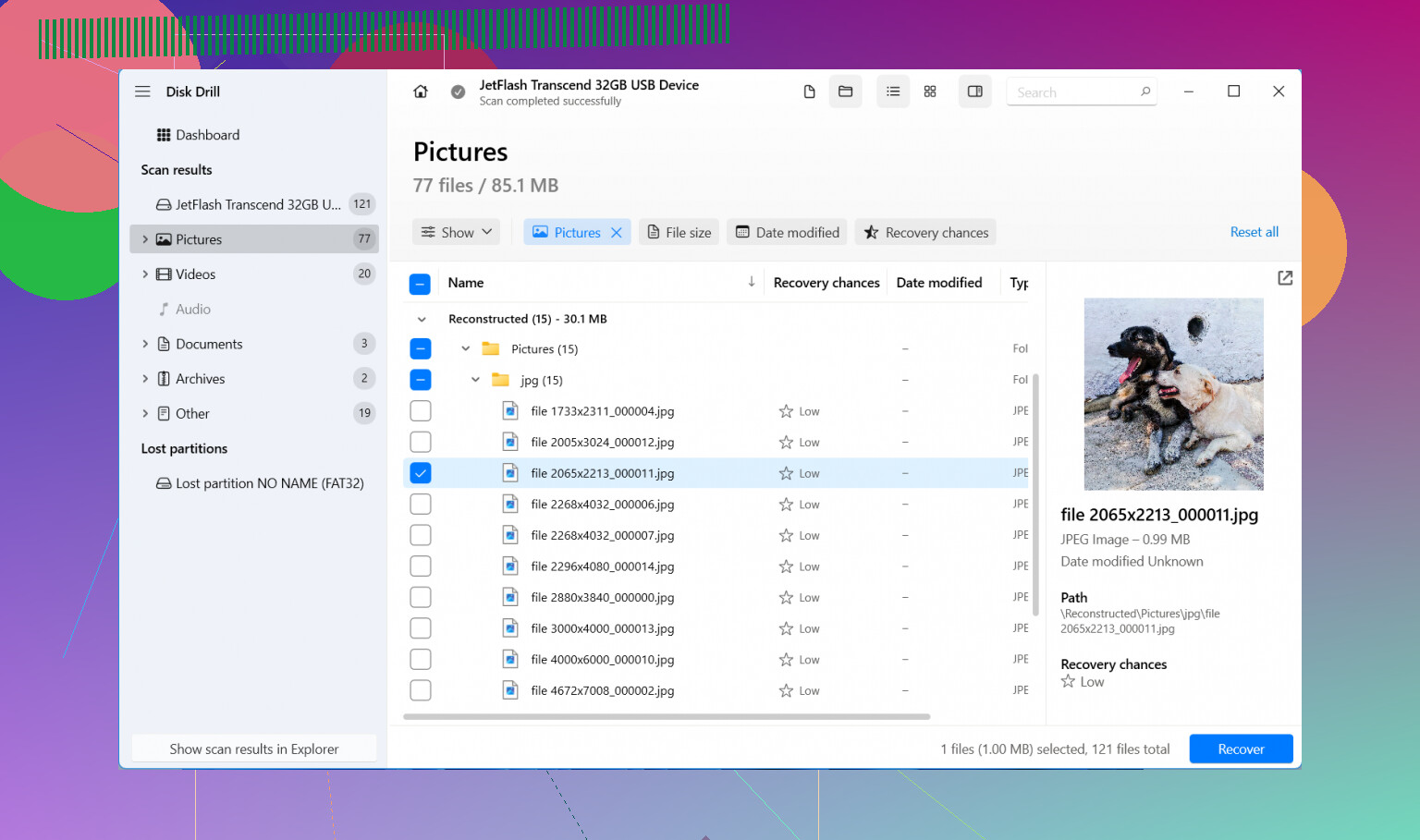
If you don’t already have copies elsewhere, recovery software is the usual path. I’ve used a few, and Disk Drill felt easier than most. It reads Nikon NEF files and normal JPEGs, and I didn’t have to fight the menus.
What I’d do:
- Install Disk Drill on your computer, not on the SD card.
- Put the Nikon SD card in a card reader.
- Open the program and pick the card.
- Run Universal Scan. For deleted photos, that’s often the right first pass.
- Wait for the scan to finish, then preview what it finds. If a photo opens in preview, I usually take that as a good sign.
- Recover everything to your computer or another drive. Do not write the files back to the same SD card.
A small thing worth knowing, Windows users get up to 100 MB free recovery. That won’t save a big event shoot, but it’s enough to test whether the missing files are there before you pay for anything.
If you lost videos too, there’s an Advanced Camera Recovery mode in Disk Drill. I wouldn’t start there. Universal Scan is quicker, and in my own use it found most of what mattered. If clips are still missing after that, then try the camera-specific scan.
Don’t get thrown off if the recovered files come back with ugly names like file000123.nef, or if the folder structure is gone. I’ve seen this a lot. Recovery tools often rebuild files from raw data patterns, so names and folders disappear first, while the image itself still opens fine.
One more Nikon-specific snag. If recovered NEF files won’t open in Windows, I would not call them dead yet. Windows has a habit of acting clueless with RAW formats unless the right codec or app is installed. Open them in software with Nikon RAW support before you give up.
Before you spend an hour scanning, check the obvious places too:
- Your computer, if you usually import after each shoot.
- SnapBridge or any cloud sync you had turned on.
- External drives and old backup folders you forgot existed.
Quick format is not the same as a full wipe. I’ve recovered files after a quick format more than once. Same with accidental deletion. The part that matters most is what happened after the loss. If you kept shooting on the same card and added a few hundred new images, your chances drop fast.
If the SD card is cracked, keeps disconnecting, or your computer does not detect it at all, I’d stop the do-it-yourself route there. Failing flash media gets worse with repeated attempts. That’s when a recovery shop starts making more sense.
So the short version:
- Stop using the card.
- Pull it from the camera.
- Check for backups, synced copies, and imported folders.
- Scan it with recovery software, starting with Universal Scan.
- Save recovered files somewhere else.
Delete does not always mean gone. If the card sat untouched after the mistake, you’ve still got a decent shot at pulling most of it back.

14 Likes
First thing, leave the SD card alone. No new shots, no in-camera edits, no format attempt. If your Nikon uses two slots, make sure you pulled the correct card too. Sounds obvious, but peopel mix them up all the time.
I agree with @mikeappsreviewer on one big point, use a card reader. I disagree a bit on one other point though. I would make a full image backup of the SD card first if the files matter a lot. Recovery software scans are read-only most of the time, but if the card is starting to fail, one clean pass to clone it is safer than repeated rescans. On Windows, USB Image Tool or similar works. On Mac, Disk Utility works.
Then recover from the copy if possible.
A few Nikon-specific things to check before recovery:
- Look for hidden files on the card. Some cameras leave folder entries weird after deletion.
- Check DCIM and any Nikon folders for .NEF, .JPG, and .MOV.
- If you used SnapBridge, look in your phone gallery. Full-res is not always there, but previews might be.
For software, Disk Drill is a solid pick because it handles Nikon RAW, JPEG, and video well. If it finds files with bad names, sort by file type and date. That saves time. If one app misses NEFs, test PhotoRec too. It is uglier, but strong at raw carving.
If the card asks to be formatted when inserted, stop and clone first. That’s a higher-risk sitaution.
If you want a solid Nikon SD card photo recovery discussion, this thread is useful:
best ways to recover deleted photos from an SD card
Best case, deleted files were only unlinked. Worst case, some got overwritten. The less you touched the card after deletion, the better your odds.
One thing I’d add to what @mikeappsreviewer and @andarilhonoturno said: check whether your Nikon was set to write to both cards at once, if your body has dual slots. A lot of people panic over “deleted” shots and forget the second card may still have a backup copy sitting there untouched. Same idea if you had RAW to card 1 and JPEG to card 2.
I also would not spend too much time browsing the card in Explorer/Finder trying to “see” the missing files. Sometimes that just wastes time and leads people into clicking repair or format prompts they should not touch. If the card mounts, recover first, inspect later.
My take is this:
- Lock the SD card with the little write-protect switch if your reader respects it.
- If the card is acting weird, make an image of it before doing anything else.
- Try recovery on the image or on the card with something like Disk Drill.
- Sort results by file signature, not just folder names, because deleted Nikon NEF files often come back detached from the original structure.
- After recovery, verify a handful of files in Nikon software or Lightroom, not just Windows thumbnails.
Slight disagreement with @mikeappsreviewer on the preview thing: preview is helpful, but lack of preview does not always mean the file is toast. RAW previews can fail even when the image data is mostly fine.
Also, if you want a simple explainer on how to recover files from a digital camera SD card, that covers the general workflow pretty well.
If the card starts disconnecting, gets super slow, or asks to be formatted, stop messing with it. That’s where people make it worse real fast. Disk Drill is solid for Nikon photo recovery, but a dying card is a diffrent problem than plain accidental deletion.

One angle not mentioned enough: Nikon sometimes “deletes” only the file entry, but the card’s allocation table can still be messy enough that one app misses files another sees. So I would not treat a single failed scan as the final answer.
I mostly agree with @andarilhonoturno, @techchizkid, and @mikeappsreviewer on stopping use immediately, but I’m a little less sold on spending too long hunting hidden folders first. If the photos matter, I’d prioritize recovery while the card is untouched, then inspect leftovers later.
A couple Nikon-specific checks that can save frustration:
- If you shot RAW+JPEG, recover both separately. Sometimes the JPEGs are recoverable even when some NEFs are damaged.
- Check whether the missing photos were from a burst. On some cards, burst sequences get partially overwritten in chunks, so don’t assume “all or nothing”.
- If your Nikon had in-camera rating or retouch features used before deletion, metadata may survive oddly even when filenames do not.
About Disk Drill:
Pros:
- Good support for NEF, JPG, MOV, MP4
- Easier preview and filtering than many tools
- Decent for quick triage before deeper recovery
Cons:
- Free recovery on Windows is limited
- Can return lots of duplicates from deep scans
- File names/folder structure often won’t come back
My take: run Disk Drill first for usability, then only switch tools if NEFs or videos are missing. Also, recover to an SSD or hard drive with plenty of space, because recovered RAWs can balloon fast.
If the card shows the wrong capacity, 0 bytes, or random unreadable folders, that starts sounding less like deletion and more like filesystem or controller trouble. In that case, cloning is not just “nice to have”, it’s the whole game.