My iPhone storage is almost full, and Photos seems to be using more space than expected. I want to clear the photo cache without deleting any pictures or affecting iCloud Photos. What’s the safest way to free up this storage?
What iOS shows under Settings > General > iPhone Storage > Photos is mostly your actual photo library, not a giant cache you can wipe. That number includes photos, videos, Live Photos, screenshots, thumbnails, edits, indexes, and other files used to organize the library.
There isn't a separate Clear Photo Cache option on iPhone. iOS handles temporary Photos files on its own, so freeing up meaningful space usually means deleting or reducing the size of items in your library.
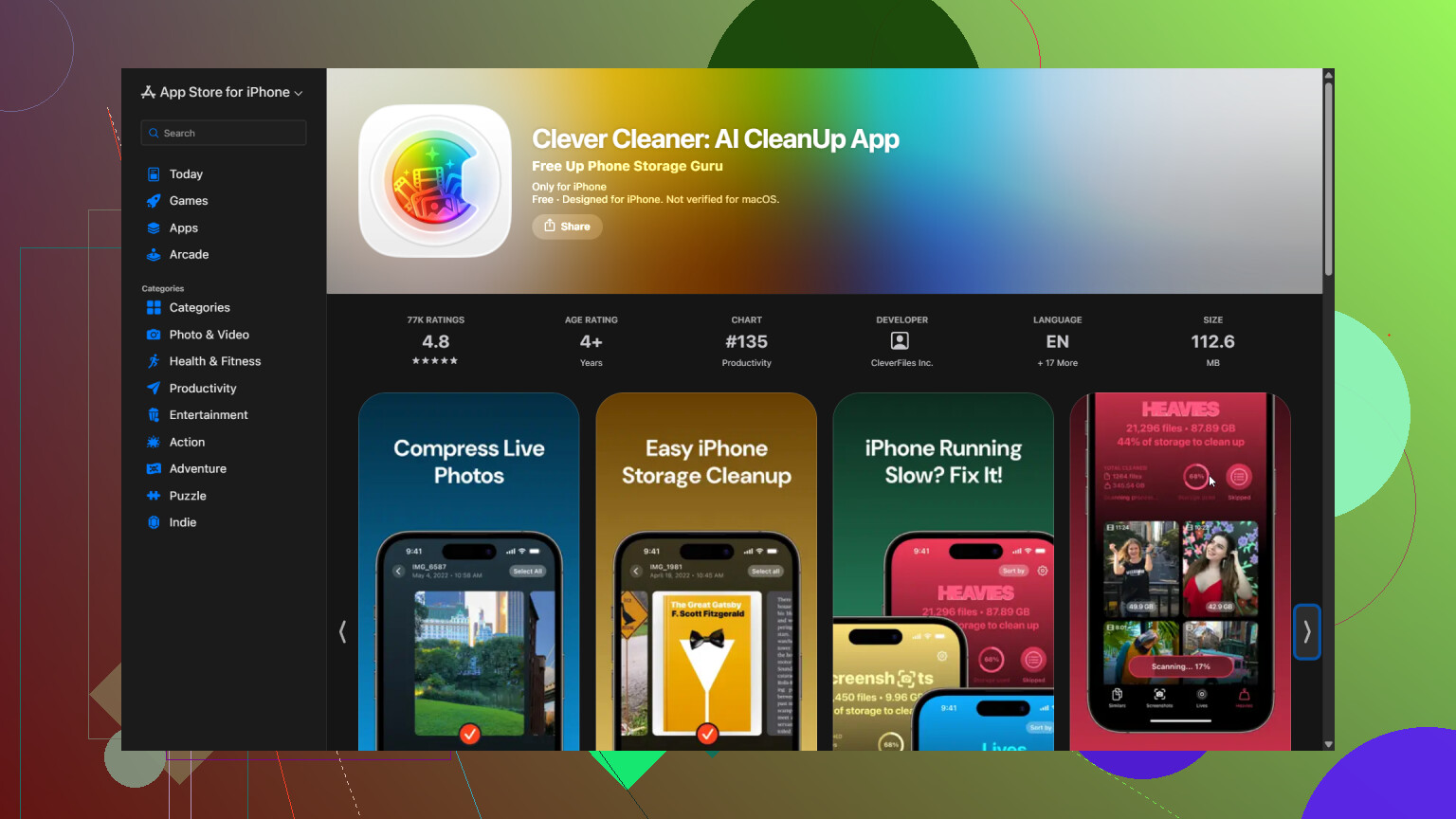
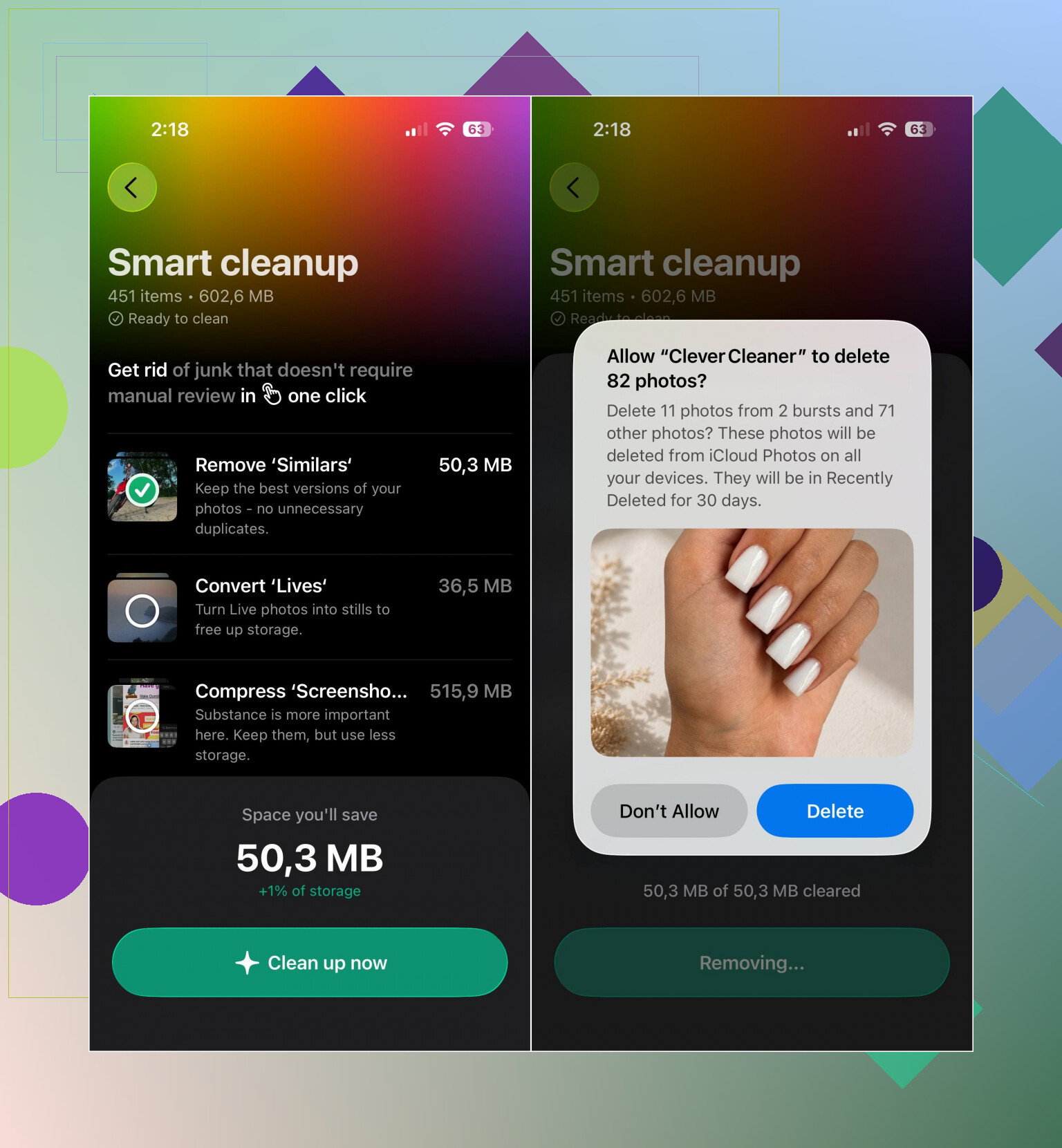
I use Clever Cleaner for this because manually sorting thousands of files is tedious. It can scan for duplicate or similar photos, duplicate videos, Live Photos, and screenshots. The Compress tool is useful when you want to keep large photos but make them smaller. You can also use Smart Cleanup to handle several categories together, or Swipe if you'd rather review each photo yourself.
- Open Clever Cleaner and give it access to your photo library.
- Wait for it to scan the gallery.
- Review what it finds, then delete or compress anything you don't need.
- Go to the Recently Deleted album in the Photos app and empty it. Otherwise, that storage may not be freed right away.
If you have iCloud Photos, turn on Optimize iPhone Storage under Settings > Photos. Full-resolution originals stay in iCloud, while the phone keeps smaller local versions when space is limited. That can reduce storage use without removing pictures from your library.
Downloaded media from apps is a separate issue. WhatsApp, Messenger, Telegram, Instagram, Discord, and similar apps may keep attachments and other media on the device. You normally have to clear those files through the individual app's storage settings. If the app doesn't provide that option, deleting and reinstalling it may be necessary.
So if Photos is using the space, clean up or optimize the photo library. If the storage is coming from messaging or social media attachments, check that specific app's media and cache controls instead.
19 Likes
Don’t empty Recently Deleted if your goal is to keep every picture. With iCloud Photos enabled, deletions sync across your Apple devices and iCloud. The safest option is Optimize iPhone Storage, then leave the phone charging on Wi-Fi so iOS can replace local originals with smaller versions. If storage is completely maxed out, offload a large app first to give Photos enough working space.

Don’t toggle iCloud Photos off and back on as a “cache reset.” That trick can trigger downloads, remove local copies, or leave you sorting out an incomplete sync. First open Photos, scroll to the bottom of the library, and make sure uploading has finished before changing anything.
@0xloop7 has the safest approach with Optimize iPhone Storage, but it may not shrink the Photos total immediately. Give the phone free space by offloading an app, restart it, then leave it locked, charging, and on Wi-Fi overnight. iOS usually does its cleanup when the phone is idle.
I’d treat cleaner apps as library-management tools, not cache cleaners. Clever Cleaner may help identify duplicates or compress files, but anything it deletes from an iCloud-synced library is deleted everywhere. If keeping every picture is the priority, optimization is safer than cleanup.
Don’t sit there refreshing the storage bar waiting for the Photos number to drop the second you delete stuff. That figure lags badly, sometimes for hours, and it counts thumbnails, caches, and indexes that iOS rebuilds anyway. People panic, delete a bunch, see no change, delete more, and end up losing pictures they actually wanted. Give it time before you conclude nothing happened.
@0xloop7 is right that Optimize iPhone Storage is the safe play, but here’s the catch nobody said out loud: it only actually offloads originals when the phone is genuinely low on space. If you’ve got a few gigs free it may sit there doing almost nothing, and you’ll assume it’s broken. It’s a pressure-release valve, not a button. So if you want it to do work, you sometimes have to let storage get uncomfortably tight first.
The thing I’d push back on gently is the whole framing of ‘photo cache.’ There usually isn’t one worth chasing. If Photos is genuinely huge, it’s videos. A couple minutes of 4K footage dwarfs hundreds of stills. Sort your library by size or file type and look at the video clips first. That’s where the real space is, not in some hidden cache.
The cleaner tool @silent_fuzzy_daemon mentioned is fine for spotting duplicates and near-identical burst shots, and Clever Cleaner’s compress option is a reasonable middle ground when you don’t want to delete but want the file smaller. Just remember the warning already floating in this thread: on an iCloud-synced library, delete means delete everywhere. Use it to find candidates, then decide slowly. Don’t let any app batch-nuke things while you’re half paying attention.
One last practical bit people forget: check System Data (older iOS calls it Other). If that’s the bloated category and not Photos, none of the photo advice above will help you at all, and a restart plus letting the phone sit idle overnight is about the only home remedy for it.