A large batch of photos, videos, and work files suddenly disappeared from my external hard drive after I unplugged it and reconnected it later. The drive still shows used space, but the folders look empty and I really need to recover these missing files. Looking for help with possible causes, file recovery steps, and how to avoid this happening again.
I ran into this twice with external drives, and both times it looked worse than it was. Folders gone. Drive opens, but nothing useful inside. It feels like the disk got wiped. A lot of the time, it didn’t. Windows lost the map, or the file system got messed up, so your files stop showing even though the data is still sitting there.
First thing, stop using the drive.
Do not copy anything onto it. Do not format it. I wouldn’t run repair tools yet either. If a tool starts rewriting file system records before you pull your files off, recovery gets messier fast. I learned this the hard way on an old USB drive. Dumb mistake.
What I’d check first:
- In File Explorer, enable Hidden items. Sometimes the files are there and only hidden.
- Look at the drive properties and check used space. If the drive still shows roughly the same used storage as before, that’s a decent sign. Empty folders plus a mostly full drive usually means the data still exists.
- If Windows still detects the drive, I’d skip ‘fixing’ it for now and go straight to a recovery scan.
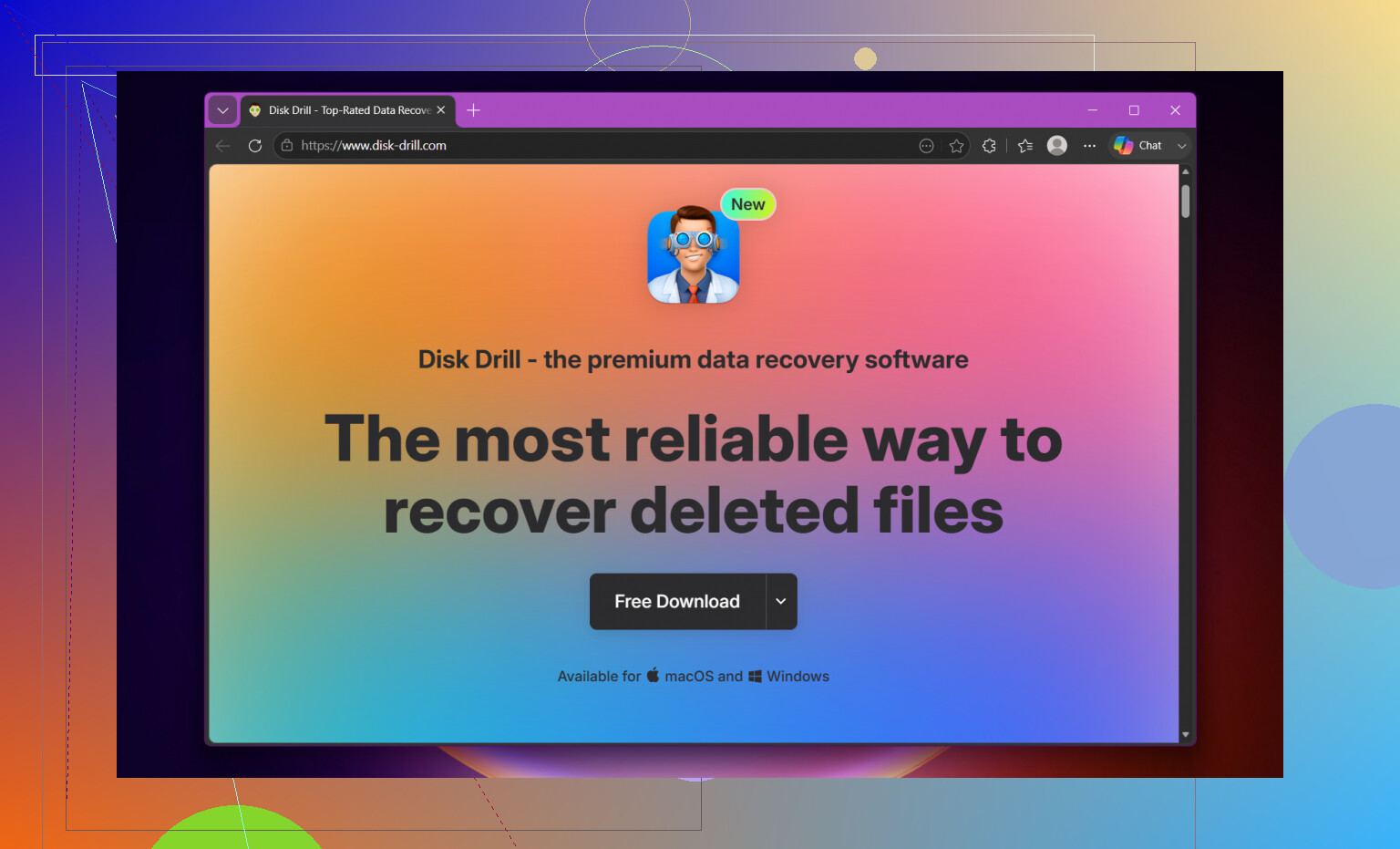
For recovery software, I used Disk Drill. It worked for me after an external drive showed almost nothing, while the used space still sat in the hundreds of GB. It pulled back the missing folders without much fuss.
This is the order I’d use:
- Install Disk Drill on your internal drive, or another healthy disk. Do not install it on the external drive with the missing files.
- Plug in the external drive and open Disk Drill.
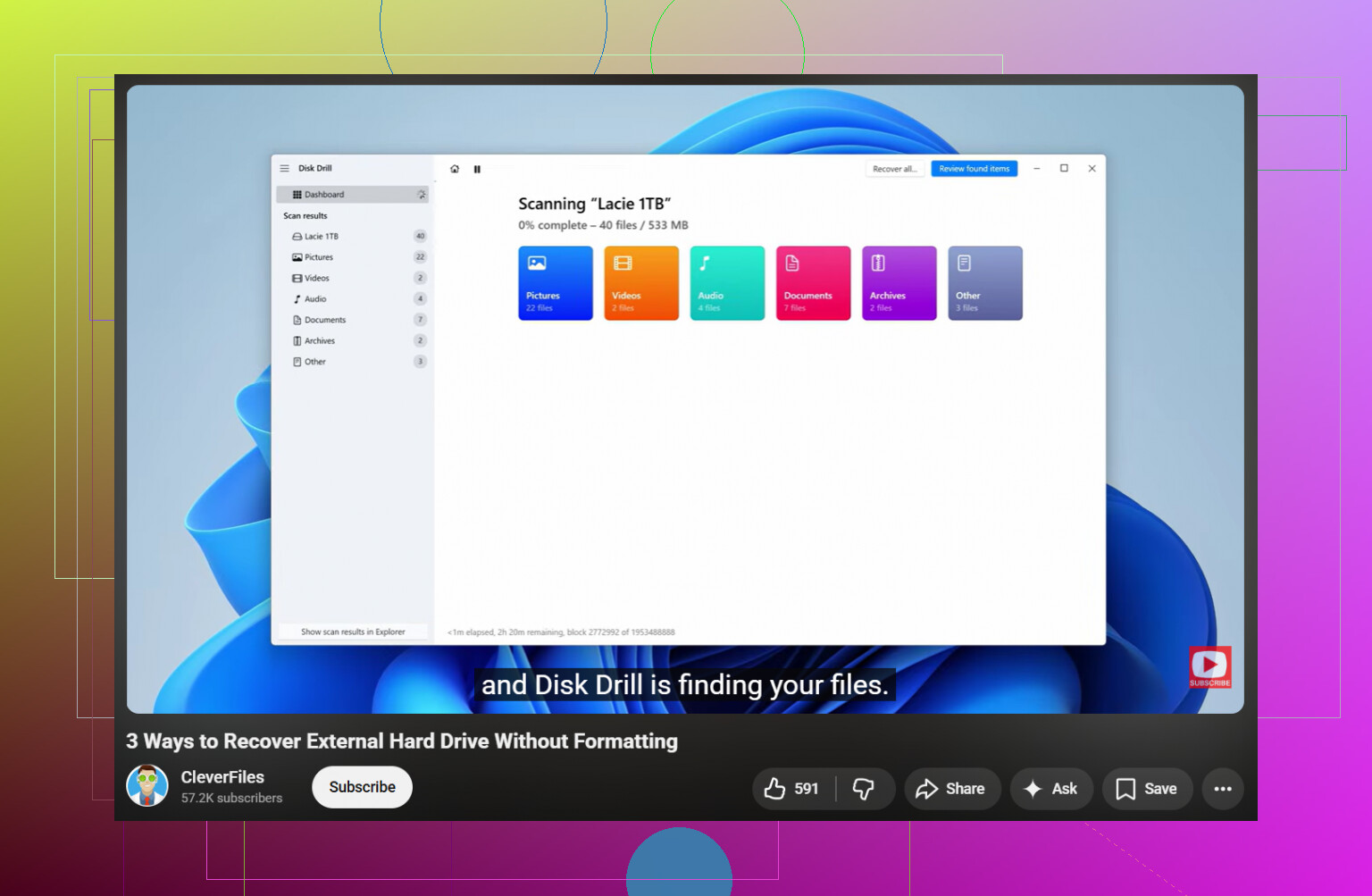
- Pick the problem drive and hit Search for lost data.
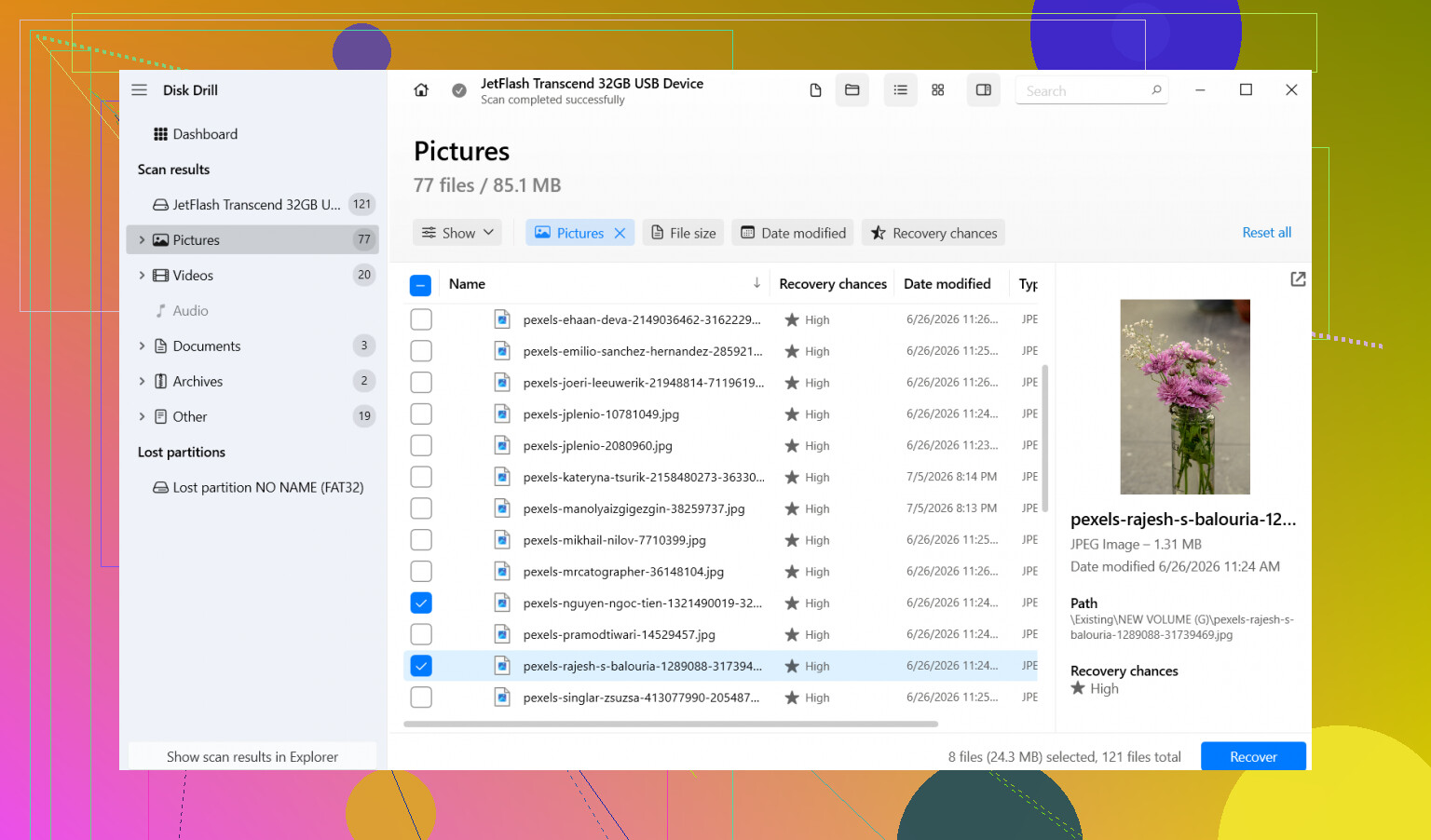
- Let the scan finish fully. Don’t cut it short. Then sort through results, or filter by type if you only care about photos, video, docs, stuff like tht.
- Preview a few files first. I always do this so I’m not recovering broken junk.
- Select what you want and click Recover.
- Save everything to a different drive. Not back onto the same external disk. Ever.
After your important files are safe somewhere else, then deal with the original drive.
One thing I would not touch first is CHKDSK. People throw it at every storage problem because Google keeps pushing it up top. Bad move if your first goal is file recovery. CHKDSK repairs file system damage, sure, but it also edits directory info and sometimes drops damaged entries. Good for fixing. Bad if you still need to pull missing files out.
Same deal with the Windows message saying the drive needs formatting. I’ve seen people click Format because they panic and want the drive usable again. Don’t. That message often shows up because the file system is damaged, not because the data vanished.
There is one case where I’d stop messing with software. If the drive clicks, grinds, spins up badly, disconnects over and over, or acts flaky in a hardware way, stop. Unplug it. Each extra read attempt chips away at your odds. At that point, a recovery lab is the safer move.
So yeah, disappearing files on an external drive happen more than people think. Bad unplug, power loss, file system corruption, all common. If the drive still shows up and it isn’t making ugly noises, your odds are often decent. The main thing is not making it worse. Recover first. Repair later.
15 Likes
Used space still showing is a strong sign. It often means the file table got damaged, not the data itself.
I agree with @mikeappsreviewer on avoiding writes to the drive first. I slightly disagree on waiting too long to test the connection side. Before you scan, try a different USB port, a different cable, and if possible another PC. I’ve seen empty folders caused by a bad enclosure or flaky cable, not only file system damage. Takes 5 mins, worth it.
A few checks I’d do:
- Open Disk Management. See if the partition shows the right size and file system.
- Open Command Prompt and run dir /a on the drive letter. This sometimes shows files Explorer skips.
- Check Event Viewer for disk errors. Look for I/O or NTFS errors around the time files vanished.
- If this is a Mac-formatted drive plugged into Windows, file visibility gets weird fast without the right support.
If the drive mounts normally, scan it with Disk Drill and recover to a different disk. Preview files first. Photos and videos are a good test. If previews work, your odds are decent.
If you want a solid guide on best file recovery methods for an external hard drive, this helps: how to recover files from an external hard drive
One more thing. If the folders turned into shortcuts, or names look garbled, check for malware too. I’ve had this happen once. Annoying as hell.
If the drive clicks, drops offline, or freezes your system, stop there. Software scans on a failing drive are risky. That’s lab territory, no joke.
Used space still being there is the part I like. Empty folders + same-ish used capacity usually means the files are not gone gone, just not being shown properly or the directory got borked.
I mostly agree with @mikeappsreviewer and @reveurdenuit, but I’d add one thing before going deep into recovery: check whether the folder path got absurdly long or permissions changed. Windows sometimes acts weird and shows folders empty when the account no longer has proper access. Right click the top folder, Properties, Security, and see if your user can actually read it. Also try searching the drive with *.* from the root, not just browsing manually.
Another thing people miss: open an admin Command Prompt and run:
attrib -h -s /s /d X:\*.*
Replace X with the external drive letter. If the files got marked hidden/system by a glitch or malware, this can make them visible again. I’d try that before any repair pass. Small risk, decent payoff.
If that fails, then yeah, recovery scan. Disk Drill is a solid option for this exact kind of external hard drive recovery because it tends to find the original folder structure better than some barebones tools. Recover to another drive only. Not back to the same one, obviosly.
Also, if this drive is exFAT, those can get touchy after unsafe unplugging. Once your files are saved, I’d fully test the drive with the manufacturer diagnostic tool, not just trust it because it mounts. Plenty of drives look “fine” right before they start eating data again.
For anyone looking for a clear discussion on external hard drive file recovery, this thread is useful: best ways to recover deleted files from a hard drive
If the files are work stuff and irreplaceable, don’t keep expermenting forever. A couple safe checks, then recovery, then stop.
Used space still being occupied is the clue here, but I’m a little less optimistic than @reveurdenuit and @mikeappsreviewer if the disconnect happened during write activity. Sometimes the directory is toast and the data is only partially intact, especially with big video files. So I would treat this like recovery-first, but with one extra precaution they didn’t really stress enough: make a sector-level image of the external drive before you do any heavy scan if the data is truly important. If the drive is unstable, scanning the clone is safer than scanning the original.
I do agree with @kakeru that permissions and hidden attributes can fake an “empty” drive, but I would not keep poking around too long with random fixes. A few non-destructive checks, then move to recovery.
My order would be:
- Check SMART health with something like CrystalDiskInfo. If health is bad, stop and clone.
- If SMART is okay, clone the drive anyway if you have enough space.
- Run recovery on the clone or original with Disk Drill.
Disk Drill pros:
- Good at finding deleted/lost partitions and rebuilding folder trees
- Preview is useful for photos, docs, some videos
- Interface is easier than a lot of recovery tools
Disk Drill cons:
- Deep scans can take forever on large externals
- Folder structure is not always perfect
- Best features are not really free if you need full recovery
One mild disagreement with the “don’t use repair tools” advice: after recovery is done, definitely do run proper checks, because a drive that did this once can absolutely do it again. Until then, no CHKDSK, no format, no writing recovered files back to it.