My hard drive suddenly shows up as a GPT protective partition, and I can’t access the files or original partitions. I’m trying to find a safe way to recover the GPT partition table or data without formatting the drive. What steps or tools should I try first?
If the drive suddenly shows as “Unallocated” or “RAW,” don’t start clicking repair options right away. The most important thing is to leave the disk alone until you have a plan. GPT drives usually have a backup partition header, so a corrupted partition table does not automatically mean the files are gone.
Stop writing to the drive immediately. Don’t create a new partition, don’t format it, and don’t run Diskpart “clean.” Even normal use can make things worse if something gets written over the old file system data.
The safest approach is to work from a copy, not the original disk. If the files matter, make a sector-by-sector image first with something like dd or ddrescue. That gives you a full clone to experiment on. If a recovery attempt goes badly on the image, you can start over. If it goes badly on the actual drive, you may not get another chance.
For most people, I would not start by manually rebuilding the GPT table. It’s easy to pick the wrong thing and make the situation worse. A better first move is to scan the drive with recovery software that works read-only and lets you check what is still there before changing anything.
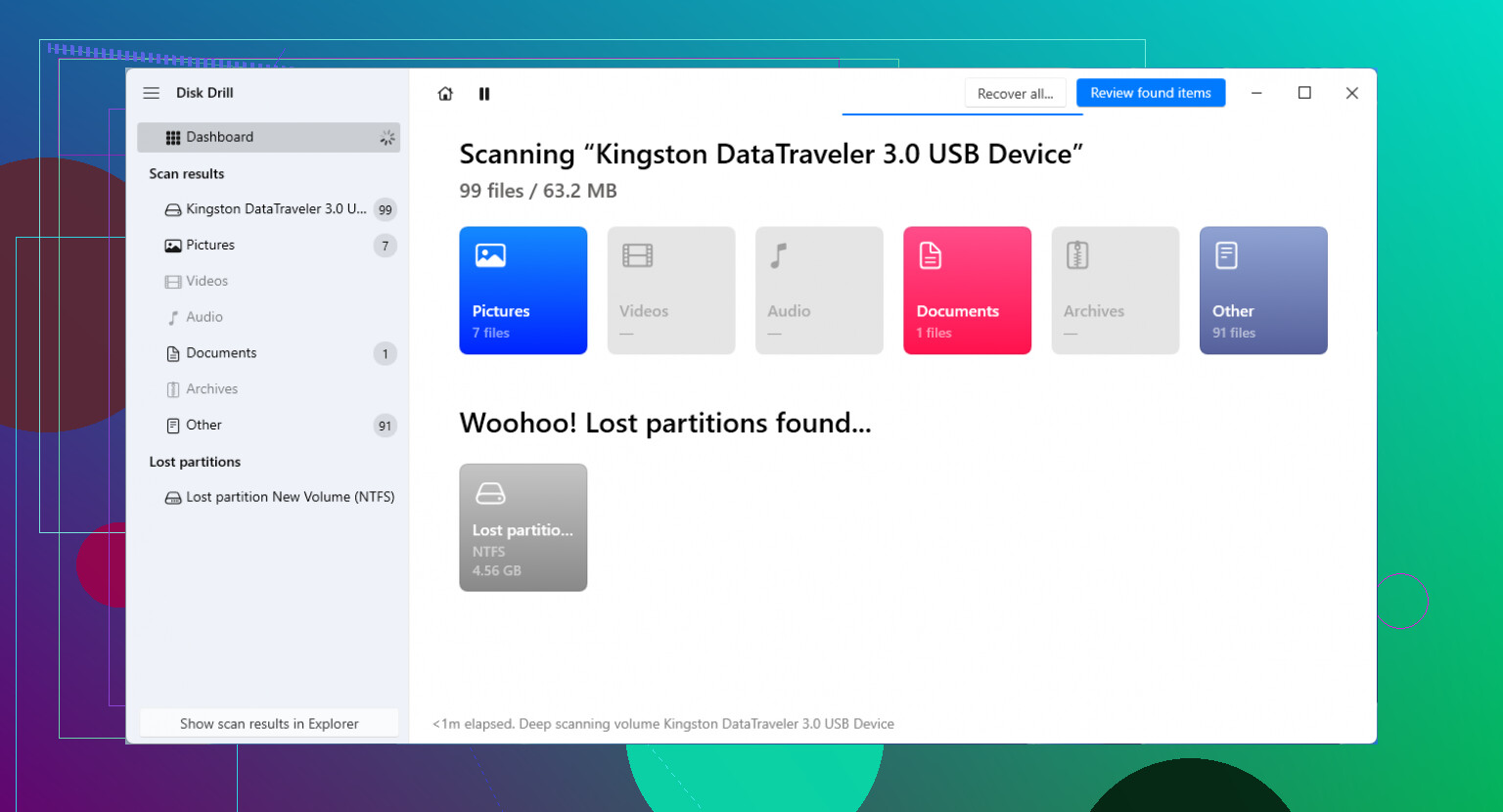
I’ve had the best luck with Disk Drill for this kind of case. It’s a lot less intimidating than command-line tools, and it can scan for lost partitions, file signatures, GPT headers, and entries that Windows may no longer be recognizing. The big advantage is that it does not need to rewrite the broken partition table just to show you recoverable files.
Once the scan finishes, preview the important stuff if possible. If your photos, documents, or whatever else are visible, recover them to a different physical drive. Do not recover files back onto the damaged disk.
If you’re comfortable with the technical route, and preferably after you’ve made an image, then tools like these can help repair the partition layout itself:
- TestDisk: Good old command-line recovery tool. It can scan for lost partitions and, if it finds the right one, write a new partition table so the volume shows up again. Just be very sure you’re selecting the correct partition before using the write option.
- gdisk: Useful when the main GPT header is damaged but the backup GPT header at the end of the disk is still intact. It can rebuild the primary GPT from the backup in some cases.
If Windows shows the drive as a “GPT Protective Partition,” don’t assume that means you should wipe it. That can happen when a drive is moved between systems, when older software does not understand GPT properly, or sometimes because of a USB dock or adapter issue. Do not run Diskpart clean unless you are okay with wiping the partition table. Scan it first with something like Disk Drill and see whether the files can be copied off safely.
18 Likes
A disk that shows the correct full capacity is a different problem than a disk that suddenly shows the wrong size through a USB dock or adapter. Before doing any repair, I’d check that first: try a different cable/enclosure, or connect it directly by SATA if it’s an internal drive. Some “GPT protective partition” cases are really the bridge board or old software misreading the disk, not the GPT being destroyed. If the size is correct and the disk is healthy, then scanning read-only with something like Disk Drill or TestDisk makes sense. If the size is wrong, don’t rebuild anything yet, because any partition recovery tool will be working from bad geometry and can give you convincing but useless results.
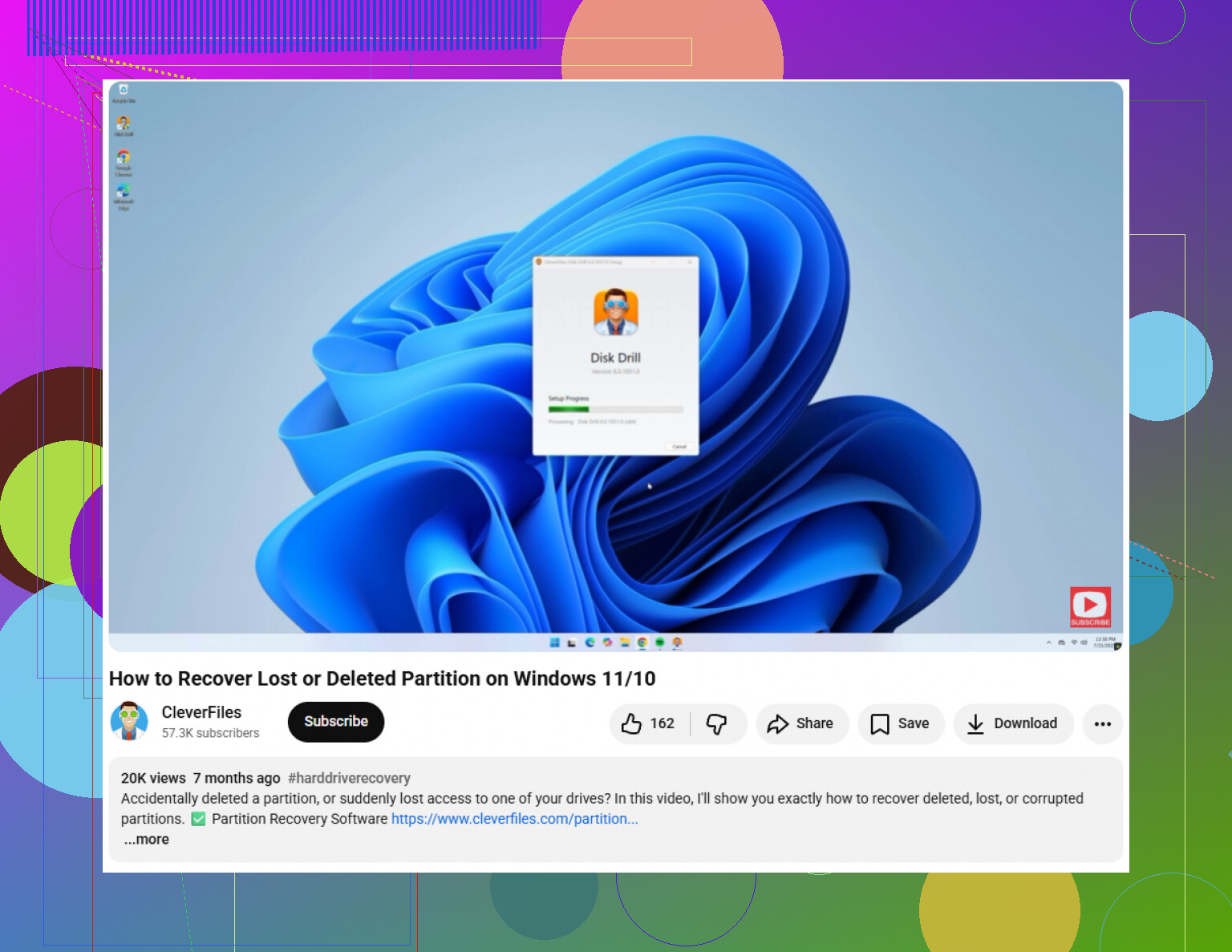
The sneaky downside is that “GPT protective partition” can make people think the disk is one big broken partition, when sometimes Windows is only showing the protective MBR and hiding the real GPT layout from you. I’d stay out of Disk Management except to look, because prompts like initialize, convert, or format are exactly how a recoverable situation turns into a mess. If you can, boot a Linux live USB and check the disk read-only with lsblk, fdisk -l, or gdisk -l; if Linux sees the old partitions, your next move is copying files off, not “repairing” anything. If it does not see them, then image the drive and scan the image with TestDisk/Disk Drill/whatever you’re comfortable with. The repair can wait. Getting the data copied somewhere else is the win.
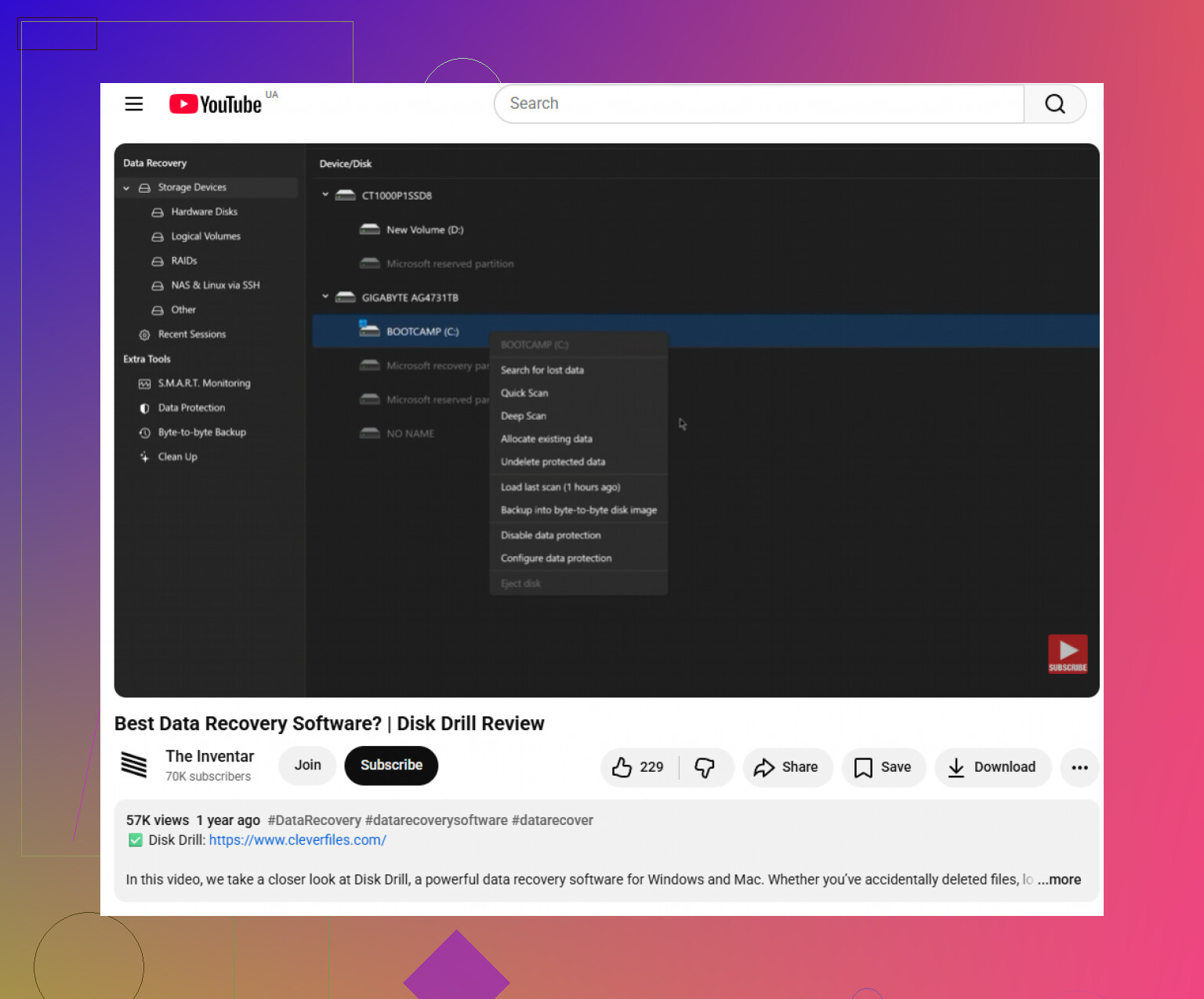
The hidden downside of “repairing” the GPT is that a successful-looking repair can make a bad recovery harder if the disk is physically failing. Check SMART first with something like CrystalDiskInfo or smartctl. If you see reallocated/pending sectors or the drive is clicking, skip partition repair tools and clone it before doing anything else.