I just saw OpenMTP mentioned in a thread. For those of you who use it regularly, how does it handle large folders? Is it pretty stable or does it have quirks I should know about?
I moved to OpenMTP after giving up on Google’s Android File Transfer app. That thing feels abandoned at this point. Half the time it wouldn’t open, and when it did, it would randomly fail mid-transfer. I just wanted something that works when I plug my phone in.
So here’s where OpenMTP stands for me.
The Experience
The interface is simple: two folders side by side. Mac files on the left, phone storage on the right. That’s it.
You connect your phone with a standard USB cable, set it to file transfer mode, and the storage shows up in the app. From there, you drag a file from your phone to your Mac (or the other way around). It feels like using a basic file manager.
No accounts. No cloud sync. No background service running all day. You open it, move what you need, and close it.
When it connects properly, it does the job. Copying photos, videos, documents – all straightforward.

The Problem: Transfer Freezes⚠️
I’ve run into its transfers freezing halfway through. This tends to happen more often with large files or with files that have certain special characters in their names. The transfer bar just stops moving. No clear error message, no explanation.
In some cases, renaming the file (removing unusual characters) fixes it. In other cases, I’ve had to cancel and retry the transfer. It’s not constant, but when you’re moving a big video file and it stalls at 80%, it’s frustrating.
It doesn’t make the app unusable, but it does make you double-check file names and occasionally redo transfers.
Alternative: MacDroid
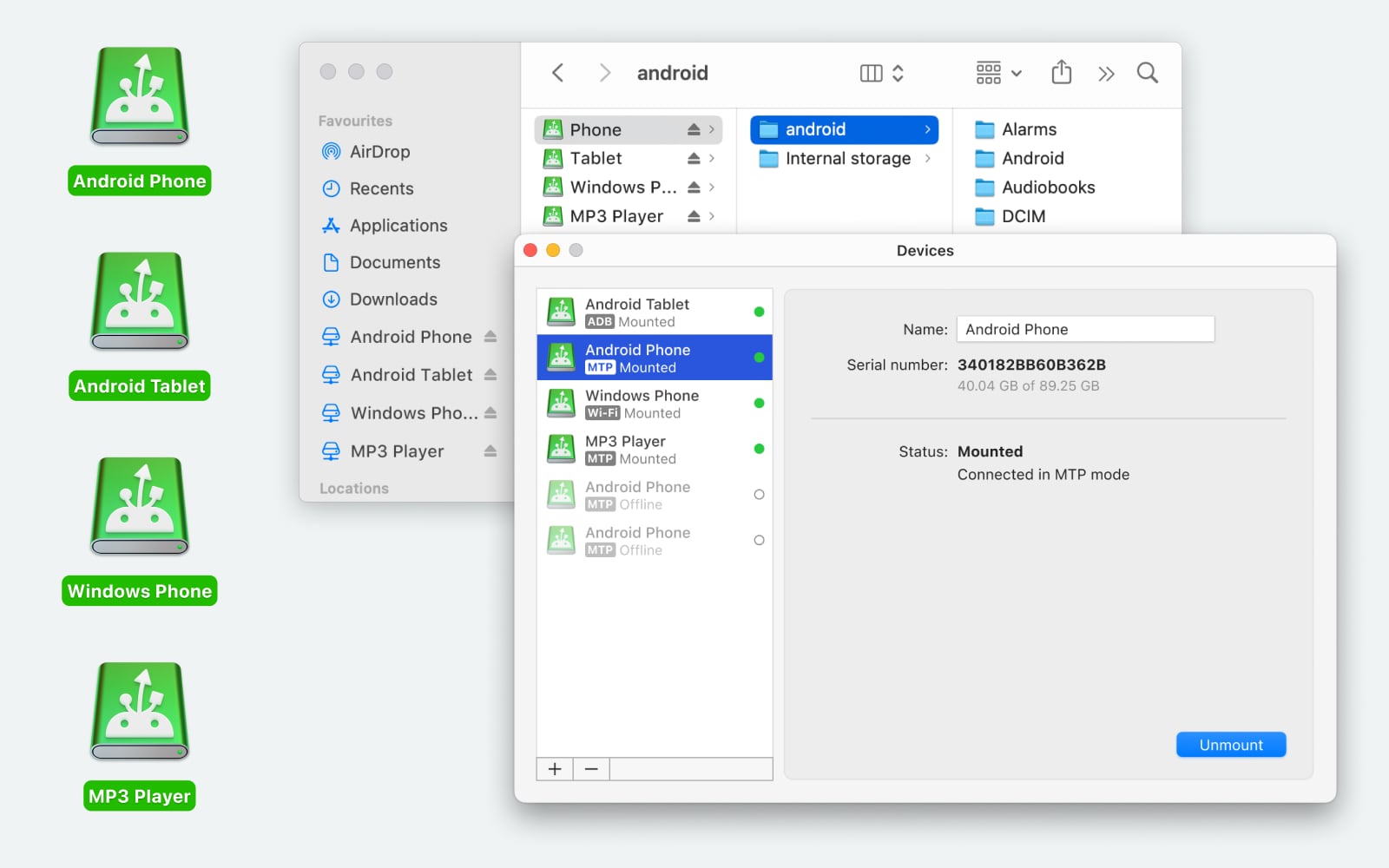
I’ve also tried MacDroid. The full version costs money, but it does one thing differently that I really like: it mounts the phone directly in Finder.
Your phone just appears in the sidebar like an external drive. No separate transfer window. No dual-pane app. You use normal Finder windows to move files around.
That feels more natural on macOS. You’re not learning a new interface – you’re just using the system you already know. If you move files often, that approach makes a difference.
Also I want to mention that MacDroid enables file transfer to macOS via USB or Wi-Fi, allowing Android devices to mount in Finder as a local drive. It supports MTP (cable-based, easier setup) and ADB (faster, more advanced USB) or Wi-Fi (wireless, requires Developer options) modes for managing internal and SD card storage directly.
Alternative: AirDroid
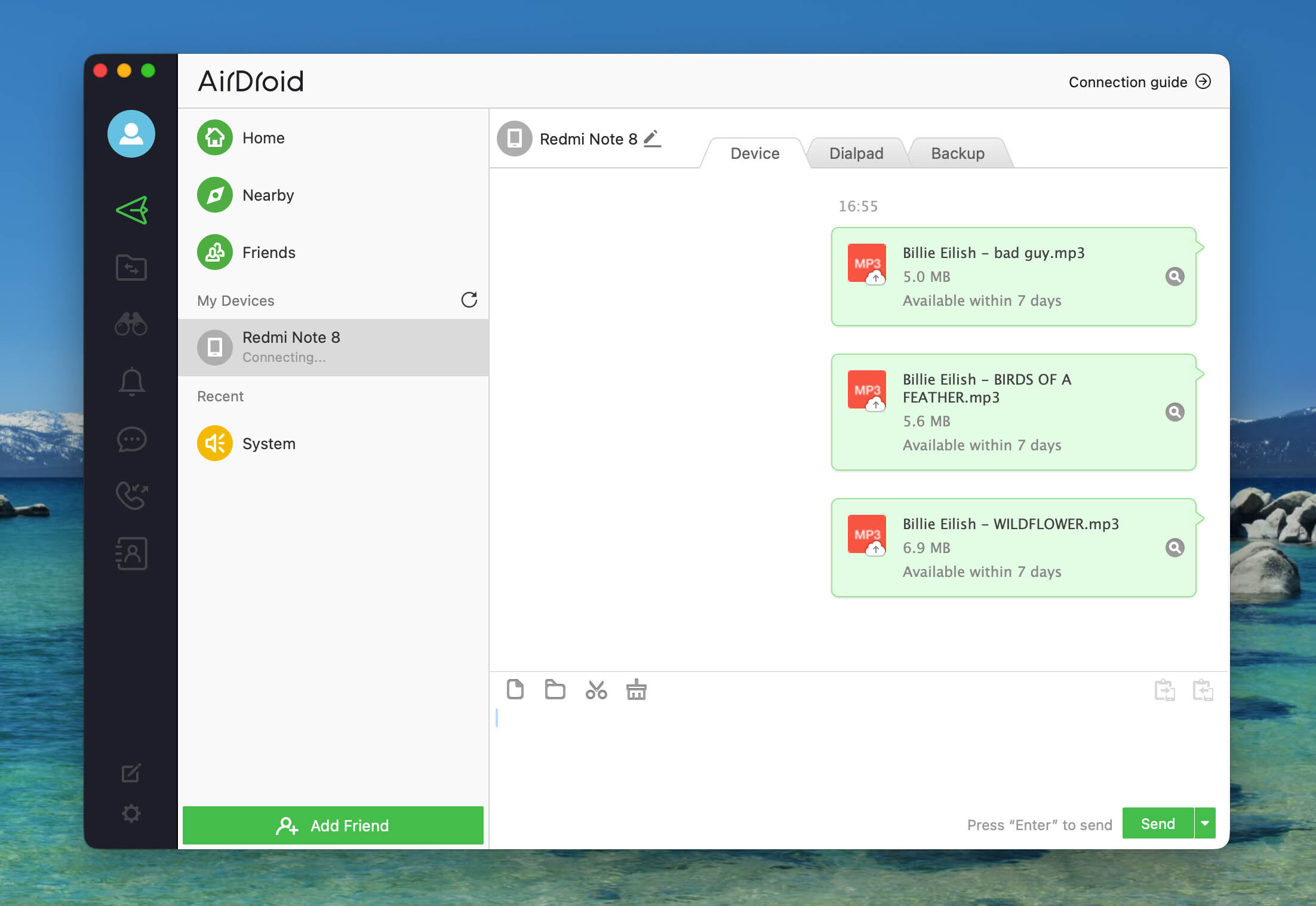
Another option is AirDroid.
This one skips the cable entirely. You open a web browser on your Mac, connect over Wi-Fi, and your phone’s files show up in a web interface. You can upload and download files from there.
For quick transfers, it’s convenient. Just open the browser and send the file.
Final Thoughts
OpenMTP is still a solid replacement for Android File Transfer. The basic experience is clear and functional, and when it connects, it works.
The MTP connection conflict is the one thing holding it back. Having to open Activity Monitor and manually kill background apps adds friction to a simple task.
If you want a free USB-based tool and don’t mind the occasional troubleshooting, OpenMTP is fine. If you prefer deeper Finder integration or wireless transfers, MacDroid or AirDroid might fit your routine better.
56 Likes
I have a similar setup to you, and OpenMTP has been hit or miss for me in the last few months.
Where I disagree a bit with @mikeappsreviewer is that, on my side, small files are fine, but the random “device not detected” is worse than the freezes. The speed drops and stalls felt more tied to macOS and USB quirks than to the app alone.
Here is what helped me, in order of impact:
- USB and macOS quirks
- Use a short, good quality USB‑C or USB‑A cable. Some charge‑only cables still pretend to be data cables.
- Plug straight in to the Mac. Avoid hubs when you test. My hub was the main cause of slowdowns.
- On Android, toggle USB mode off and on:
Settings → Connected devices → USB → switch to “No data transfer”, then back to “File transfer / MTP”. - On macOS, kill old MTP stuff:
Open Activity Monitor and quit “Android File Transfer Agent” or anything MTP related. Those background processes fought with OpenMTP here.
- Tame OpenMTP itself
- Turn off auto refresh in its settings, then hit refresh manually when you need it. That reduced freezes when browsing large folders.
- Switch the transfer mode to “Copy” instead of “Move” for bigger stuff, then delete on the source after you confirm the file landed. I had fewer locked transfers that way.
- Avoid huge mixed batches. Group by size: first photos and small docs, then a few large videos.
- File system and storage checks
- On Android, check storage health: Settings → Storage. If the phone or SD card is almost full, OpenMTP slows down a lot. I try to keep at least 10 to 15 percent free.
- If you use an SD card, test it with another device or move a big file inside Android’s own file manager. I had one flaky SD that only showed issues during MTP transfers.
- On macOS, run Disk Utility on the destination drive, especially if you write to external SSD or HDD.
- Version combo that felt stable
This is subjective, but on my Intel Mac with macOS 13 Ventura:
- OpenMTP 3.1 was more stable than 3.2 with my Pixel.
- After I updated macOS to 14 Sonoma, detection issues increased until I removed “Android File Transfer” completely and rebooted.
If your problems started after a macOS or OpenMTP update, try: - Fully uninstall Android File Transfer if you still have it.
- Reinstall the latest OpenMTP, then reboot both Mac and phone, not only sleep and wake.
- When I stop fighting it and switch tools
This is where I line up a bit with @mikeappsreviewer, but with a different threshold.
I keep OpenMTP for:
- Quick photo pulls under a few hundred MB.
- Situations where I use a random cable and do not want to change system settings.
I switch away when:
- I need to move multiple 1 to 5 GB files.
- I need to work in big music or video libraries.
- I hit two freezes in a row.
For that, MacDroid has been more stable on my side. Since it mounts the Android device straight in Finder, you avoid one extra app UI. Finder handles sorting and previews, and MacDroid deals with the protocol.
Two points where I had better results than with OpenMTP:
- Large folder browsing is faster, less “Loading…” time when opening DCIM with hundreds of items.
- ADB mode in MacDroid felt more consistent for large video transfers. Once I enabled Developer options and USB debugging on the phone, 4 to 8 GB files moved without the random stalls I saw in OpenMTP.
If you want to keep OpenMTP as your main tool, I would try this minimal checklist:
- Direct USB connection to Mac, no hub, different data cable.
- Remove Android File Transfer and reboot.
- Disable auto refresh in OpenMTP.
- Copy, not move, large files, in small batches.
- Rename large files with simple names if a specific one keeps hanging.
If after that it still feels slow and flaky with your current macOS version, I would treat OpenMTP as a backup tool and use something like MacDroid as the primary option for heavy transfers. That mix has been a lot less frustrating here.
Same boat here, OpenMTP went from “works fine, whatever” to “why is this cursed now?”
Couple of extra angles I didn’t really see in @mikeappsreviewer or @chasseurdetoiles’ posts:
-
macOS security & background junk
Recent macOS updates seem a lot more aggressive about USB / filesystem stuff. What helped me most was not just killing Android File Transfer, but:- System Settings → Privacy & Security → Full Disk Access and Files & Folders, then removing and re‑adding OpenMTP. After that, transfers stopped randomly choking on certain folders.
- Turning off any realtime antivirus / “cleaner” apps during huge transfers. Those on‑access scans can quietly tank MTP throughput. When I disabled them, my speeds more than doubled and the random stalls mostly vanished.
-
OpenMTP settings people usually ignore
- Turn off thumbnail / image preview generation. Browsing DCIM is way less laggy when it is not trying to be a baby photo viewer.
- Crank the buffer / chunk size down, not up. Larger chunks actually made freezes worse for me. Smaller but steadier beats “super fast then 0 KB/s forever”.
-
Phone side weirdness
Everybody says “toggle MTP,” but on my Pixel the real fix was this:- Disable any file‑locking / vault apps that watch the storage. One “private gallery” app was enough to make OpenMTP crawl.
- Turn off battery saver while transferring. Some OEM ROMs happily throttle USB / MTP when the screen goes off. I keep the screen awake and battery saver off during big moves.
-
When OpenMTP is still a pain
I kind of disagree with the idea of keeping OpenMTP for anything more than light use. For me it is:- OK for quick <500 MB pulls.
- Not worth the mental overhead for multi‑GB stuff anymore.
If you are doing regular big transfers, a Finder‑integrated tool just feels less fragile.
This is where MacDroid earned its place for me. I am not going to pretend it is magic, but having the phone show up directly in Finder, plus ADB mode, avoided 90% of the “why is this frozen again” drama. macOS already knows how to deal with drives in Finder; MacDroid only has to babysit the Android side. For large videos and full photo dumps, it has been way more predictable than OpenMTP in real use.
If you want to keep testing OpenMTP anyway, I would try just these three tweaks before you give up on it entirely:
- Kill antivirus / cleaners while transferring.
- Disable thumbnails / previews and lower the transfer chunk size.
- Recheck macOS permissions for OpenMTP after each big OS update.
If it still feels slow, I would stop debugging and treat OpenMTP as your “emergency only” app, then move heavy lifting to something like MacDroid where Finder does most of the UI work and you fight fewer MTP gremlins.
Same pattern here: OpenMTP used to be “plug, drag, done” and lately it feels like rolling dice every time I connect the phone.
Where I slightly disagree with what @chasseurdetoiles, @nachtschatten and @mikeappsreviewer focused on is that, for me, the real bottleneck was not so much USB cables or OpenMTP settings, but how macOS handles the whole session once it has been up for a while.
A few angles that helped that they did not really dig into:
- Treat each big transfer as a fresh session
- Full reboot of the Mac before a big 10+ GB session sounds overkill, but MTP is stateful and flaky. A long‑running macOS session with sleep / wake cycles made OpenMTP detection failures almost guaranteed for me.
- Likewise, actively “eject” the device inside OpenMTP before unplugging, instead of just yanking the cable. That reduced the random “device not detected” on the next plug‑in.
- Avoid Finder peeking at the phone at the same time
- Even if you do not use Android File Transfer, Finder can still poke at attached devices for metadata. Keep Finder from auto‑opening new windows when a device is connected, and close any Finder window that is trying to index screenshots or photos coming from the phone. Parallel access made OpenMTP crawl on my setup.
- Make OpenMTP boring on purpose
- Turn off any sorting by size or date while transfers are running. Constant resorting of large folders increased UI jank and sometimes preceded a stall. Set it to a simple name sort and leave it there until you are done.
- Avoid working on the Mac drive you are writing to. Editing video on the same external SSD you are using as the OpenMTP target slowed transfers a lot more than I expected.
- Phone power & thermal behavior
- If the phone gets hot during long transfers, some devices silently throttle I/O. I prop the phone up so both sides are exposed to air and keep it on a charger that is not trying to fast‑charge. High heat plus fast‑charge seemed to align perfectly with my mid‑transfer slowdowns.
- Turn off “Optimize charging” style features for that session if your OEM has them. On my device those played badly with long USB sessions.
On the “should I keep fighting OpenMTP” question, here is where MacDroid slid into my setup and mostly stayed:
Pros of MacDroid in real use
- Finder integration: the phone shows up in Finder, which means you reuse all your muscle memory for sorting, searching, Quick Look and tagging.
- ADB mode: once you flip Developer options and USB debugging on the phone, large video files move much more consistently than via vanilla MTP tools like OpenMTP.
- SD card handling: less fragile listing and deleting on removable storage.
- Fewer mystery stalls when browsing big DCIM folders full of photos.
Cons of MacDroid you should be aware of
- Paid for the full feature set, so not ideal if you are trying to keep everything free like OpenMTP.
- First‑time ADB setup is slightly nerdy and might feel like extra work if you only move a few photos now and then.
- Still ultimately at the mercy of cable quality and macOS USB quirks, just a bit more resilient about it.
Compared to how @chasseurdetoiles leans on careful USB setups, @nachtschatten digs into permissions, and @mikeappsreviewer talks about renaming awkward files, I would say:
- If you mainly pull occasional photos, stick with OpenMTP and apply their tips plus the “fresh session” habit.
- If you regularly move multi‑GB videos or full photo libraries, stop fighting OpenMTP so hard and let MacDroid handle the heavy lifting, keeping OpenMTP as your backup when you do not want to touch Developer options or extra software.
That split has kept me mostly sane with Mac + Android lately, without relying on one shaky tool for every scenario.
Your take: OpenMTP ok for small stuff, flaky on detection, stalls on large transfers. Workarounds covered cables, killing AFT, turning off auto refresh, copy not move, small batches, storage health, reboots, Finder noise, heat. MacDroid and AirDroid used for heavier jobs.
Simpler path: skip MTP. Use a USB C OTG flash drive or an SD card in a USB C reader. Format exFAT. On Android Files, move DCIM in 10 to 20 GB chunks, then plug into teh Mac and copy. Typical USB 3 speeds 80 to 150 MB/s, far reliabel. Count files before and after. Fewer recconnects, fewer quirks.