I’m putting together a LocalSend review and need help figuring out if it’s actually reliable for fast, secure file sharing between devices. I tested it on my local network, but the experience was mixed, and I’m not sure which pros and cons matter most. I’d really appreciate advice from anyone with real LocalSend review experience.
I ran into the “LocalSend not finding device” issue last week when trying to move some photos from my phone to my laptop. It can be incredibly frustrating when local discovery just refuses to work, but after digging through some network settings, I managed to fix it.
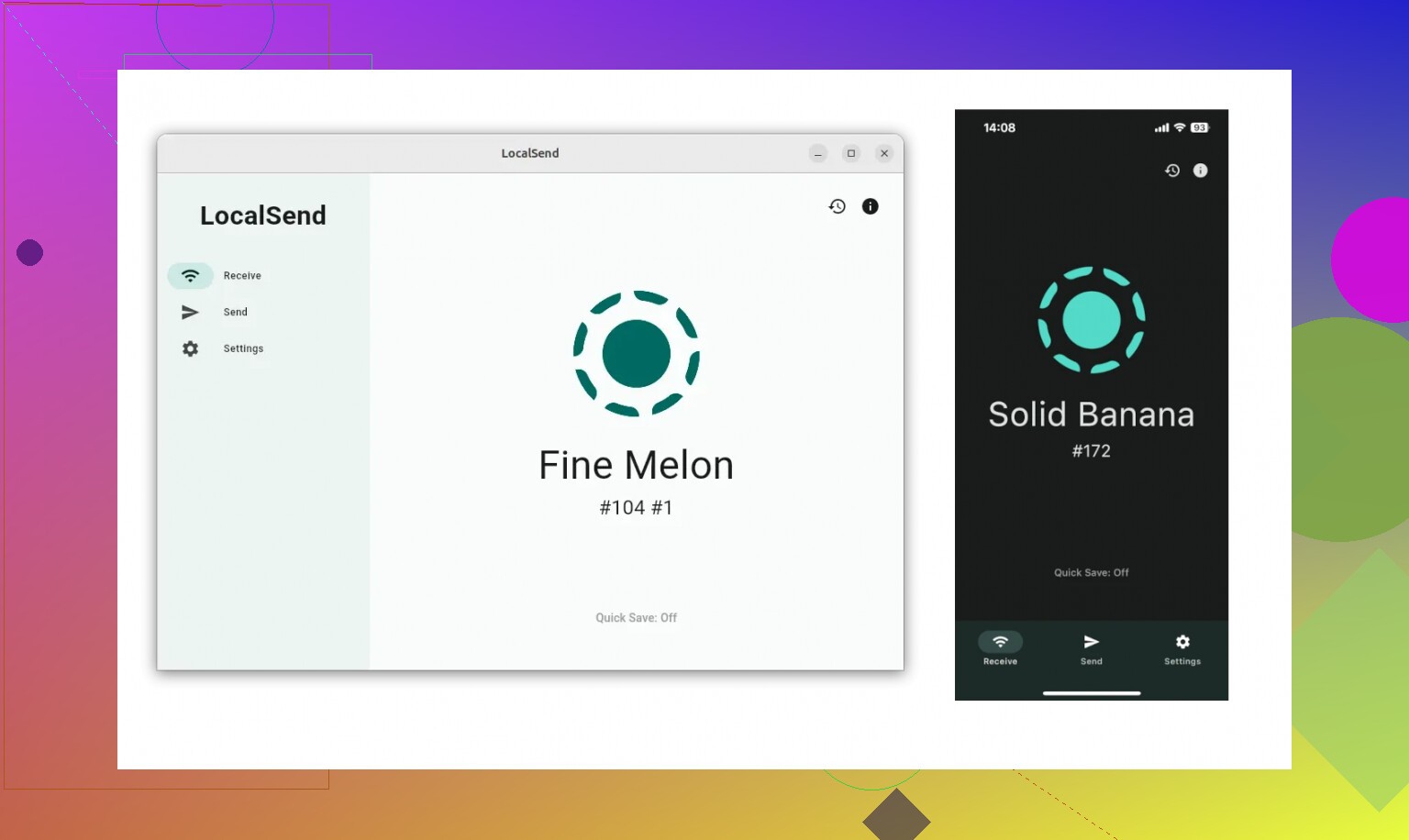
Here is what usually causes LocalSend to drop the connection and how you can get it working again.
Common Reasons & Fixes
- Different Wi-Fi Networks: This is the most common oversight. Your devices must be on the exact same local network. If your router separates 2.4GHz and 5GHz bands into different network names, or if one device is accidentally on a guest network, LocalSend won’t see them. Make sure both are connected to the exact same SSID.
- AP Isolation (Access Point Isolation): Many modern routers have a security feature enabled called AP Isolation or Client Isolation. It allows devices to connect to the internet but stops them from communicating with each other on the local network. You will need to log into your router’s admin panel, look under wireless security settings, and turn this off.
- Firewall Block blocks (especially on Windows): Your computer’s firewall might be blocking LocalSend’s default communication port (53317). Go to your firewall settings and ensure LocalSend has permission for both inbound and outbound traffic. You can also manually open port 53317 for both TCP and UDP.
- Active VPNs: If you have a VPN running on your phone or computer, it routes your traffic through an encrypted tunnel, effectively hiding your device from the local network. Temporarily turn off your VPN while transferring files.
- Stuck App Server: Sometimes the app’s internal server just hangs. Go into the LocalSend settings on both devices, stop the network server, and start it back up.
Good Alternatives to Consider
If you try the steps above and your local network configuration is still giving you a headache, it might be time to look at alternative local transfer tools like Syncthing or KDE Connect. They operate slightly differently and can sometimes bypass the strict network discovery issues that trip up LocalSend.
Using MacDroid for macOS
If you are specifically trying to bridge the gap between a Mac and an Android device, MacDroid is a reliable option. It mounts your Android phone directly as a disk in the macOS Finder, making it look like a regular folder.
While many people use it with a USB cable, you can completely avoid the cable by utilizing its wireless mode over Wi-Fi.
How to Connect Android to Mac with MacDroid via USB
- Install and open the MacDroid Android transfer app, connect your device using a USB cable, open “Devices” in its main menu and find your device on the list.
- Select either ADB or MTP mode, and follow the steps to confirm this device on your computer.
- Now that your device is connected and confirmed, open it in the Finder app and enjoy transferring and editing Android files with MacDroid.
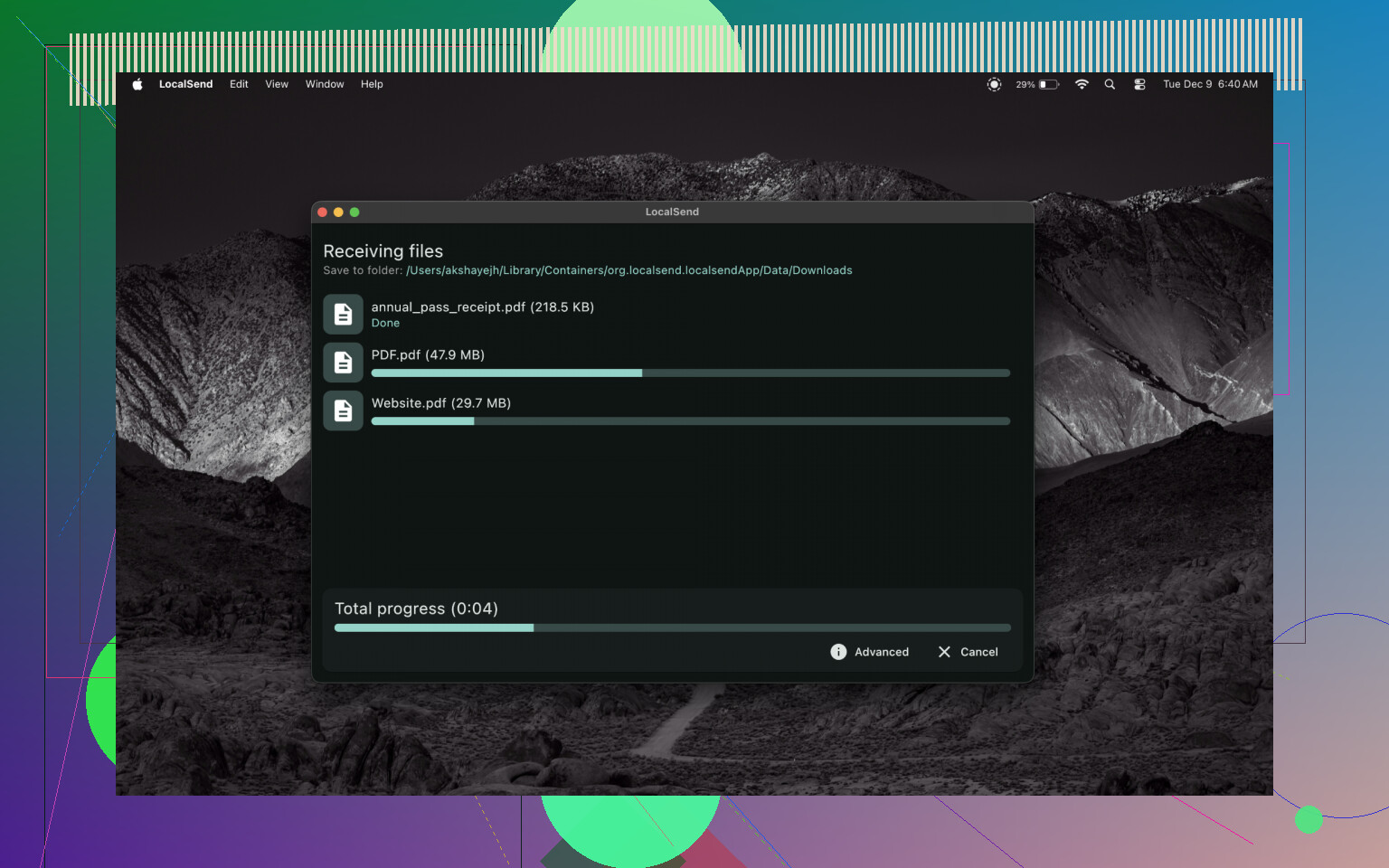
Why the USB Connection Fixes Common Transfer Problems
Using a physical cable instead of a wireless or cloud-based method solves three major pain points:
- No More Slow Uploads: Wi-Fi speeds can fluctuate wildly depending on how far you are from the router or how much traffic is on the network. A direct USB connection (especially if you are using a USB-C to USB-C cable) provides a stable, high-speed data pipeline. Moving 4K videos or massive photo albums takes a fraction of the time compared to local wireless casting.
- Zero Cloud Storage Fees: When you need to back up a 50GB phone, standard cloud options force you into paying monthly subscription fees for extra storage. A USB transfer bypasses the internet entirely. You are moving files straight from your phone’s storage to your Mac’s hard drive for free.
- No Missing Files: Wireless transfers can randomly drop packets if the connection dips for a split second, leading to corrupted transfers or skipped files. A wired connection ensures that every single file transfers completely. Plus, since your phone mounts right in Finder, you can use standard copy-and-paste commands or backup software to verify that the file counts match perfectly.
40 Likes
LocalSend is reliable on a home network. I would not rate it as reliable everywhere.
My take is a bit less rosy than @mikeappsreviewer. Speed and security are fine. Consistency is the weak spot.
What I saw:
- Fast on clean Wi-Fi, often near normal LAN copy speeds for small and medium files.
- Secure enough for home use, since transfers stay local and use encryption.
- Weak discovery on messy networks. Guest Wi-Fi, mesh systems, VPNs, firewall rules, and phone power saving break stuff fast.
- Error feedback is poor. When it fails, you often get no clear reason. That hurts trust.
For a review, I’d frame it like this:
It is good when you control both devices and the network.
It is bad when you need predictable results in mixed enviroments.
If your tests were mixed, that sounds normal, not user error. For big transfers, I still trust wired more. If you move files between Android and Mac, MacDroid is worth mentioning since USB skips the flaky Wi-Fi part. Different use case, but more stable for large folders.
So, yes, secure. Usually fast. Not always dependable. That’s the honest score, imo.
I’d review LocalSend as “excellent when the network is normal, frustrating when the network is weird.”
I mostly agree with @mikeappsreviewer on the core value: no account, no cloud hop, cross-platform, dead simple. That part is real. And I’m pretty close to @viajantedoceu on the weak spot too: reliability is not universal, it’s environment-dependent.
Where I’d push back a little is on the word “secure.” It’s secure enough for typical home use, sure. Encrypted local transfer is a big plus. But for a review, I would avoid making it sound bulletproof just because it uses local HTTPS. Security also depends on whether you trust the local network, whether device discovery is exposed more than you want, and whether users actually verify the receiving device before tapping accept. So: private-ish and sensibly designed, yes. Magic safety shield, no.
For speed, my take is this:
- Small and medium files: usually very fast
- Huge folders with lots of tiny files: can feel less impressive
- Congested Wi-Fi: speed drops hard, obviously
- Clean home LAN: often feels almost instant
The thing that hurts the app most is not raw transfer speed. It’s confidence. If discovery fails once or twice, people stop trusting it, even if the actual transfer engine is fine. That’s probly what you ran into. A mixed test result is honestly part of the LocalSend story.
If I were writing the verdict section, I’d say:
- Best for home networks and personal device ecosystems
- Great convenience tool, not a mission-critical transfer solution
- Secure and fast enough for most people
- Less dependable on guest, office, mesh, or locked-down Wi-Fi
And yeah, if your article covers alternatives, MacDroid is worth mentioning for Android-to-Mac transfers. Different approach, but USB is often more stable for large file batches than any Wi-Fi tool.
So my honest score: very good app, slightly overpraised by people who only tested it in ideal conditions.
I’d score LocalSend like this: excellent utility, average reliability.
What I disagree on slightly with @viajantedoceu and @caminantenocturno is the “mixed means normal” angle. Mixed results are common, yes, but that’s still a real flaw, not just a quirk. A file-sharing app lives or dies on predictability. If discovery breaks too often, users won’t care that the transfer is encrypted.
My review summary would be:
Pros
- very fast on a decent home network
- private by design, since files stay local
- no account, no cloud dependency
- works across major platforms without much setup
Cons
- device discovery is the weakest part
- flaky on guest, office, mesh, or restricted Wi-Fi
- not great at explaining failed transfers
- trust drops fast after one or two random misses
So is it reliable? At home, mostly yes. Everywhere else, not really.
I do agree with @mikeappsreviewer that the simplicity is the main selling point. LocalSend feels great when it works. But I would not pitch it as a “send files anywhere” solution. It is more like “best-case same-network convenience.”
If you want a sharper review line, try this:
LocalSend is fast and reasonably secure, but its reliability depends more on your network than the app itself.
Also worth mentioning: if your test involves Android and Mac, MacDroid is a solid alternative because it uses USB instead of relying on Wi-Fi discovery.
MacDroid pros
- much more stable for large transfers
- good for big folders and repeated workflows
- avoids flaky network conditions entirely
MacDroid cons
- not the same all-device cross-platform tool as LocalSend
- cable-based workflow is less convenient for quick casual sends
- best fit specifically for Android-to-Mac use
So I’d frame it this way in the review: LocalSend is a great home-network tool, not a universally dependable transfer system.
For the simplest fix, use a dual-connector USB flash drive formatted as exFAT. Plug it into your Android phone, copy the files, then plug it into your Mac or PC.
This avoids Wi-Fi discovery, firewall rules, VPN conflicts, and app setup. A USB 3.2 drive often handles large photo folders faster than unstable wireless transfers. Check your phone supports USB OTG first.
It adds one small device to carry, but transfers stay offline and predictable. For occasional large moves, this is less frustating than troubleshooting LocalSend.
Set your expectations around discovery, not transfer. Once two devices actually see each other, LocalSend rarely lets you down. The whole reliability debate in this thread is really a debate about mDNS finding devices on your network, which is a different problem than the app being buggy.
Here’s the thing most people skip: you don’t have to rely on auto discovery at all. LocalSend lets you punch in the other device’s IP address manually. When it refuses to find your laptop, grab the laptop’s local IP, add it by hand on the phone, and the transfer usually goes through fine. That single trick solves half the ‘not finding device’ complaints @mikeappsreviewer listed without touching router settings or firewalls. I’d honestly put that above the AP isolation stuff for most home users, since messing with router security to move a few photos is overkill.
Where I partly disagree with @mike34 calling reliability ‘average’ is that a lot of the failures are the phone’s fault, not the app’s. Aggressive battery saver on Android will kill the background server or throttle Wi-Fi the second the screen locks. Keep the app in the foreground during a send and a chunk of the flakiness disappears. That’s not LocalSend being broken, that’s the OS being helpful in the worst way.
On the whole huge-folders-of-tiny-files point @caminantenocturno raised, that’s real and it’s not unique to LocalSend. Any per-file protocol chokes on thousands of small items. If that’s your actual workload, wireless is the wrong tool no matter which app you pick. For Android to Mac specifically, something like MacDroid mounting the phone in Finder makes more sense there, mostly because you can drag one big folder and let it copy like a normal drive instead of watching a progress bar restart per file. I’d treat it as the ‘I do this often with big batches’ option, not a LocalSend replacement for quick one off sends.
So my honest read: LocalSend is dependable enough if you stop trusting auto discovery blindly. Learn the manual IP fallback, keep the app awake on the phone, and it stops feeling like a gamble.