I’m trying to use my iPhone as a remote for my Hisense Roku TV, but I’m not sure which app I actually need or how to get it properly connected. I’ve seen several “Roku remote” apps in the App Store and don’t want to download something sketchy or the wrong one. Can someone explain which official app I should use for an iPhone, and walk me through the setup steps so I can control my Hisense Roku TV from my phone?
Hisense Roku TV remote stopped working? Here is what I did instead of buying a new one
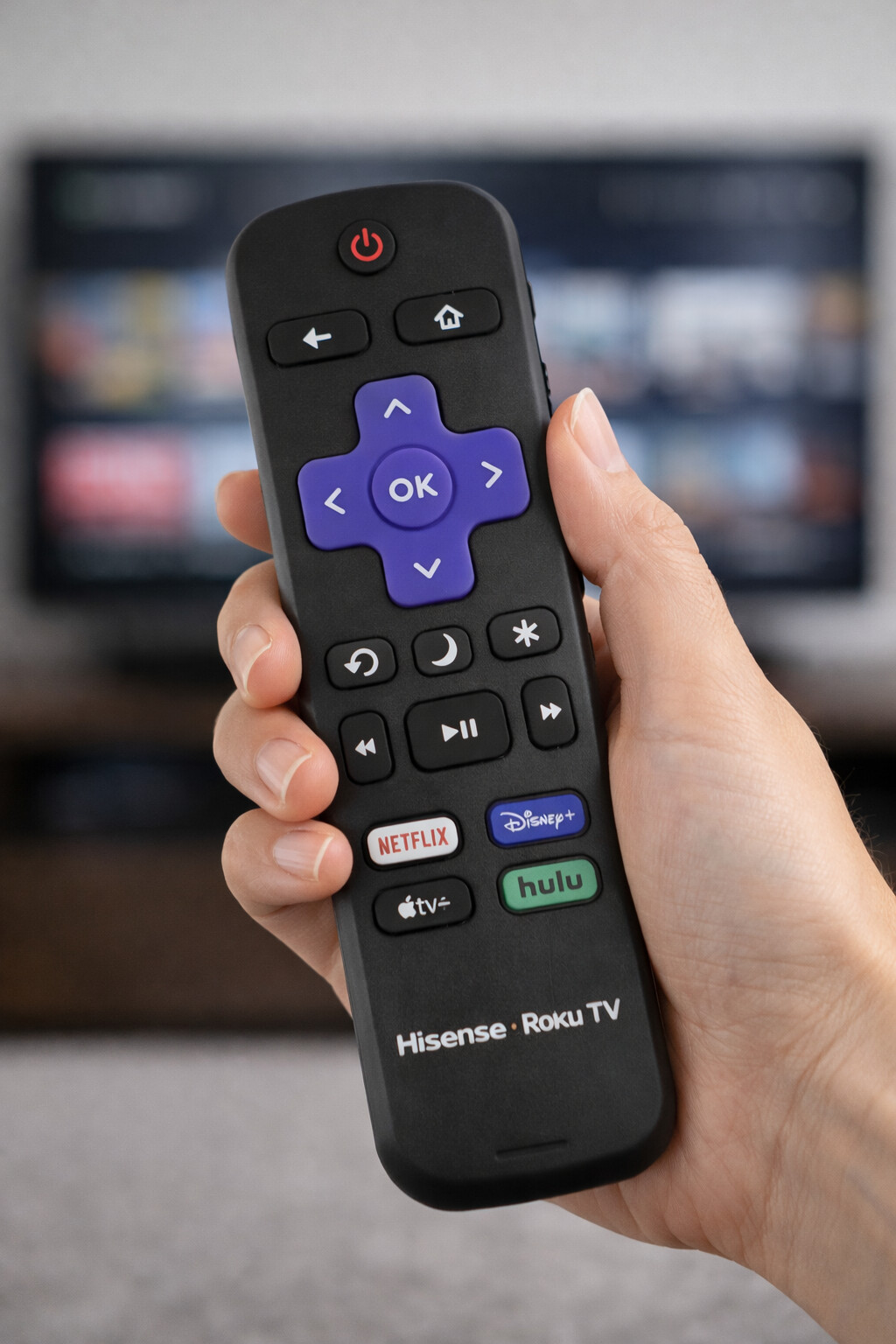
I have a Hisense Roku TV in the bedroom. The remote started acting weird. Power button worked sometimes, volume lagged, and the directional pad needed multiple presses. I went through a few things before giving up on the plastic stick and moving to phone apps on my iPhone.
Here is the path that made sense for me and might save you some time and money.
Fix the remote first before you switch to apps
I would not jump to apps before trying the boring stuff. It fixes more remotes than people expect.
- Swap the batteries, even if they “seem fine”
Every single time I thought “batteries are okay, it still turns on the TV,” they were not.
If:
- buttons react slowly
- you need to press harder
- some buttons work, others do nothing
then I replace both batteries with a new pair. Not mixed, not “one new, one old.” Full swap. That alone has fixed my Roku remotes more than once.
- Power cycle both TV and remote
This sounded pointless to me at first, then it solved random glitches.
Here is what I did:
- Unplug the Hisense Roku TV from the wall
- Wait around 60 to 90 seconds
- Take the batteries out of the remote
- Hold the remote’s power button pressed for about 10 seconds
- Put the batteries back in
- Plug the TV back in and wait for it to fully boot
If the remote still behaves the same after that, it is probably not a temporary glitch.
- Check line of sight and pairing
On my older Hisense Roku, the remote talked to the TV using infrared. If something blocked the sensor on the TV, the remote looked broken.
I checked:
- no soundbar in front of the bottom bezel
- no decorations sitting right in front of the TV sensor
- remote pointed roughly toward the TV, not at the ceiling
Some Hisense Roku remotes use wireless pairing instead. When those lost pairing, I needed to re-pair them or they would sit there doing nothing.
Once I went through all this and the remote still ignored half my presses, I gave up and went to phone apps.
Using an iPhone as a Hisense Roku TV remote
All the apps I tried used Wi‑Fi, not infrared. That means:
- iPhone and Hisense Roku TV must be on the same Wi‑Fi network
- you do not need to point the phone at the TV
- if your Wi‑Fi is down, the app is dead too
Setup, on all the ones below, took me under a minute once the TV and phone were on the same network.
Here are the options I ended up testing, with some blunt notes.
- TVRem – Universal TV Remote App
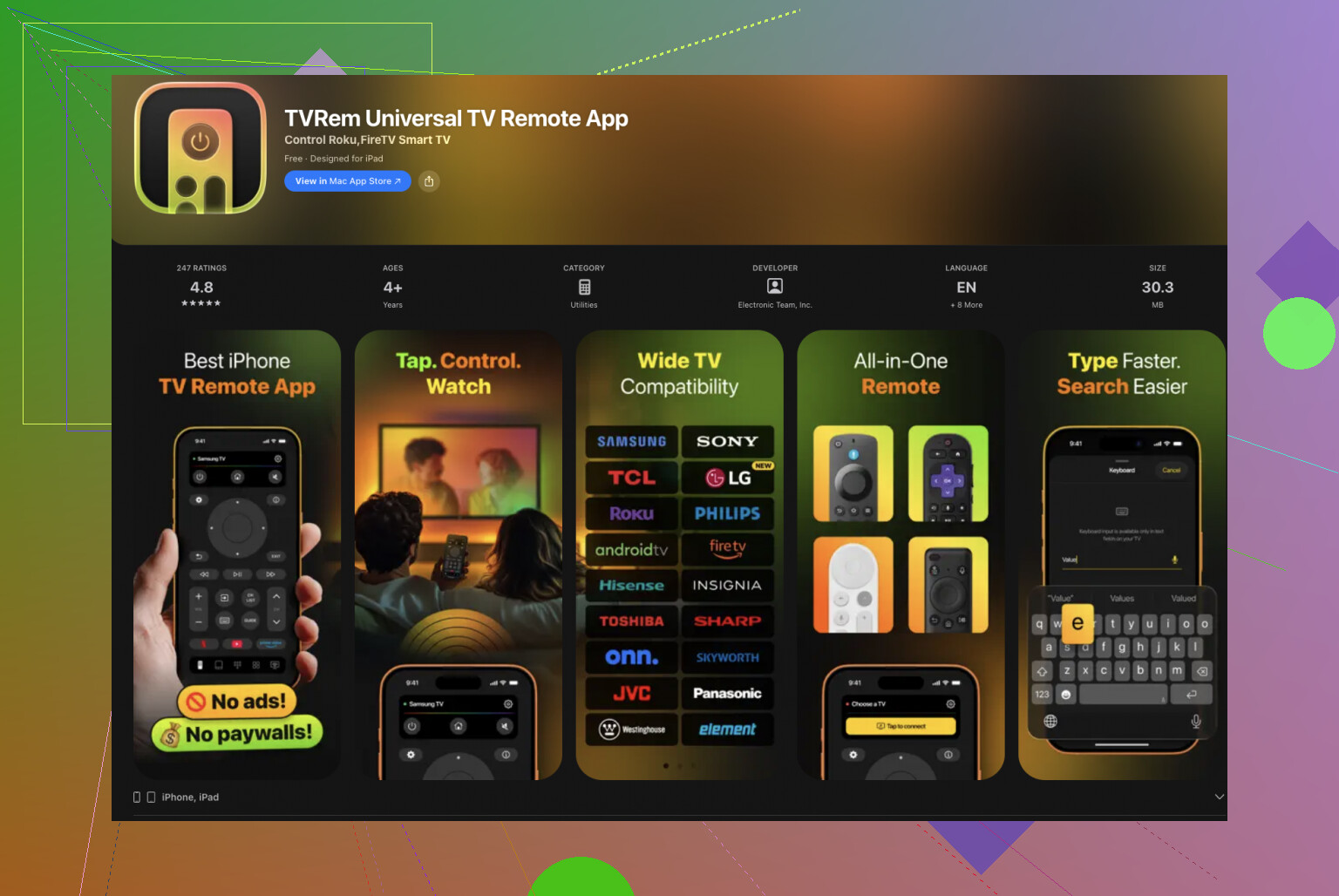
App Store link:
This one surprised me. It did not care that my TV was Hisense Roku specifically. It scanned my Wi‑Fi and found several devices, including the Hisense Roku and another TV in the living room.

How TVRem worked for me
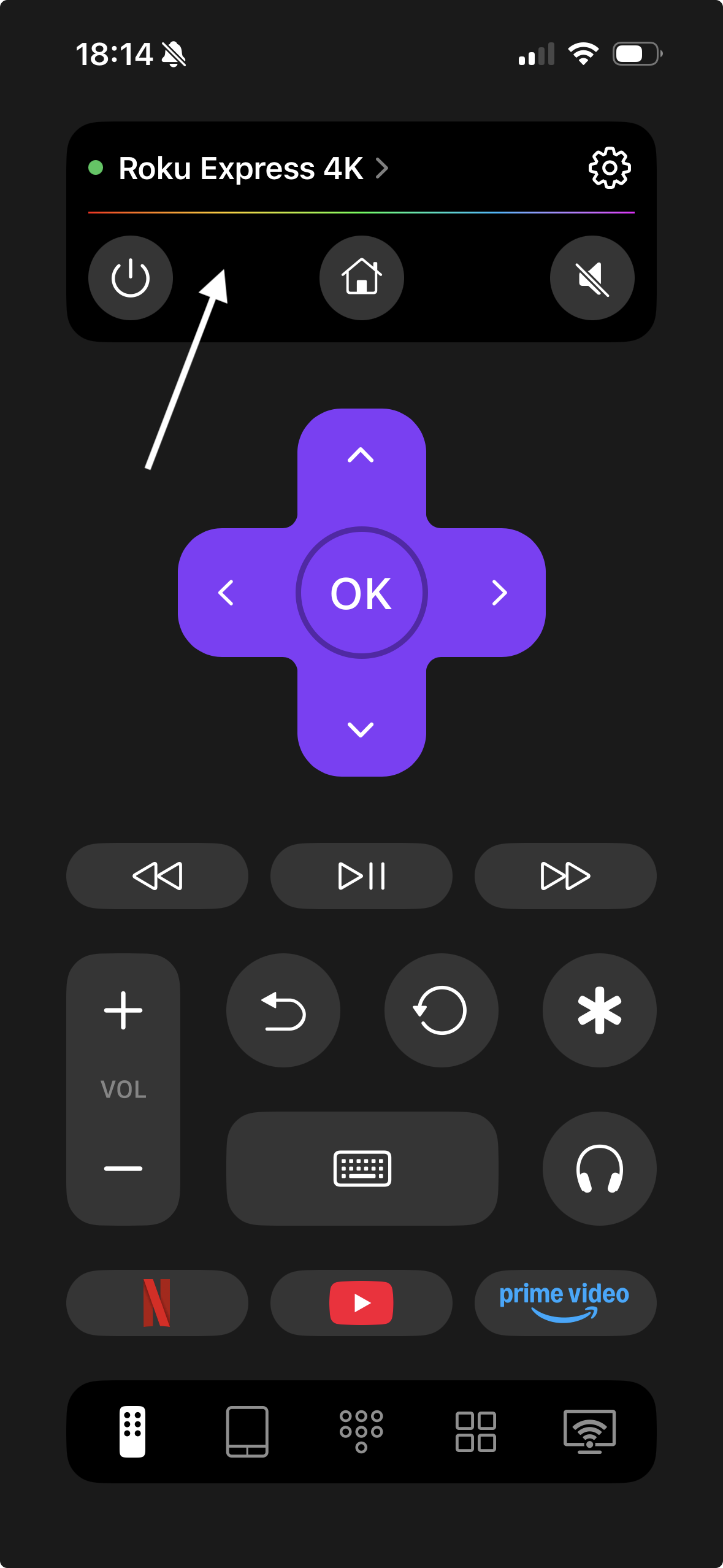
- Open the app
- It auto-scanned the network and listed available TVs
- I tapped the Hisense Roku TV
- The TV asked for permission or a short confirmation, then it paired
After that, the phone turned into a remote screen with a full set of controls.
Features I used
-
Full button layout
Power, volume, mute, back, home, navigation, all there. I stopped needing the physical remote altogether. -
Touchpad navigation
Swiping felt smoother for long menus. Helps a lot in channel lists and big app grids. -
On‑screen keyboard
This alone saved me. Typing search text in YouTube and Netflix felt normal. No more arrowing around an alphabet grid. -
Voice input
I used it for quick YouTube searches. Speak, hit confirm, it sends it to the TV. Accuracy was good enough to keep me from complaining. -
Works with different TV brands
I tested it with my Hisense Roku first, then tried it with a Samsung in another room and a Fire TV device. All showed up, all connected.
What I liked
- It handled multiple TVs in one app
- Setup was quick with automatic detection
- Typing and navigation were faster than the original remote
- No subscription screens, no “upgrade” nagging, no paid unlocks
What annoyed me
- You need a stable Wi‑Fi network. If your router drops, your “remote” disappears.
- If someone changes Wi‑Fi networks on your phone, you will wonder why nothing works until you notice.
Overall, this became my main remote app because it worked across devices, not only the Hisense Roku.
- “Remote for Hisense Roku TV” type apps
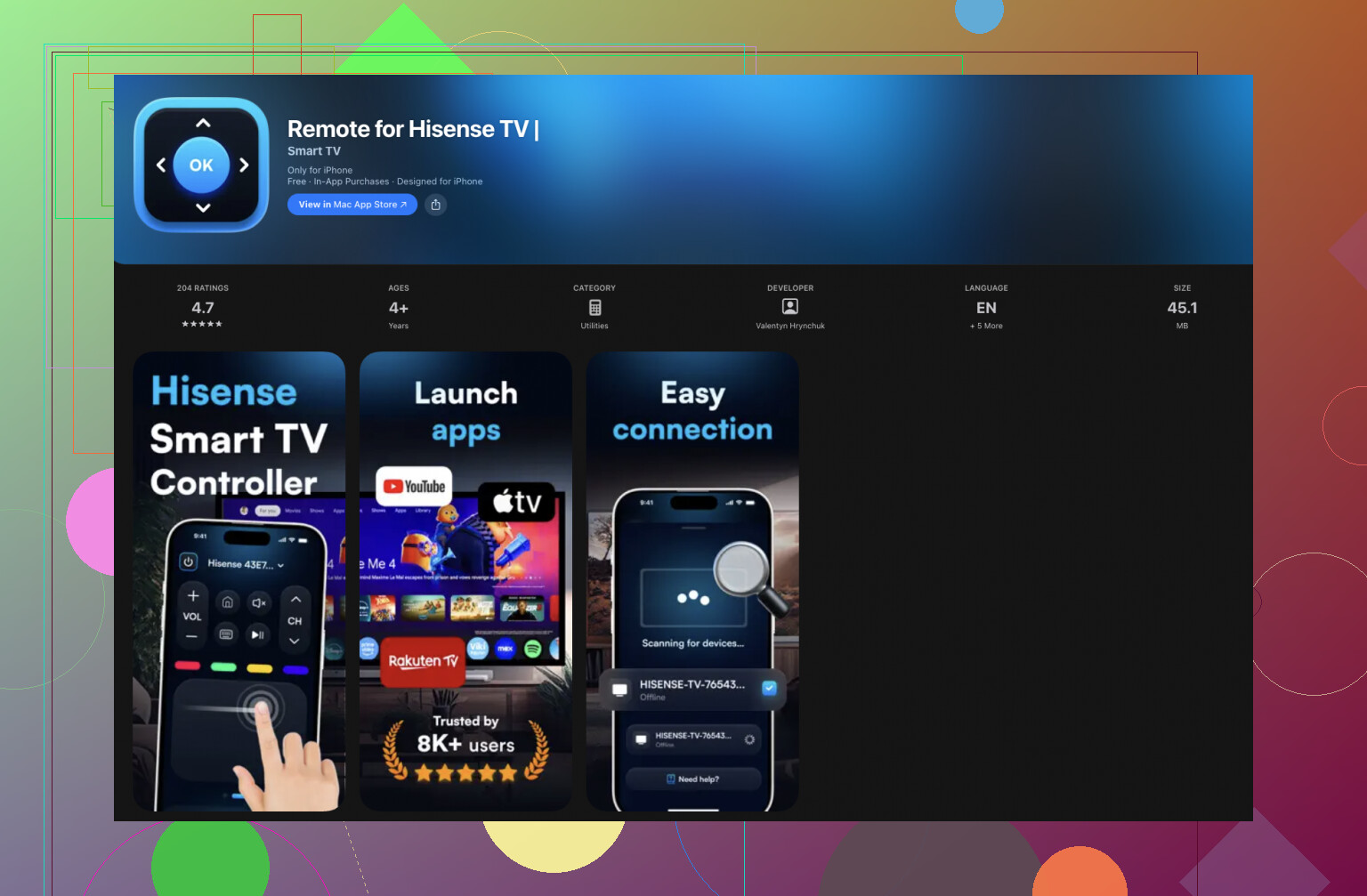
There are a few iOS apps with this kind of name, tailored to Hisense Roku specifically. I tried one of them that looked straightforward.
How it behaved
- Connected via Wi‑Fi to the Hisense Roku TV
- Showed a simple remote layout, not many extra features
Features I saw
- Power, volume, channels
- Basic menu navigation
- Simple, no extra panels or tabs
Upsides
- No confusion about supported devices. It was aimed directly at Hisense Roku TVs.
- Interface was clear enough that anyone in the house could figure it out without asking.
Downsides
- Feature set felt thin compared to TVRem and similar universal apps
- Some versions locked certain controls or options behind in‑app purchases
- Only worked with the Hisense Roku TV, not with other devices in the home
If your only goal is “remote died, need basic buttons right now” and you do not care about future TV swaps, this kind of app works. I stopped using it once I started moving between rooms and different TVs more often.
- Official Roku mobile app
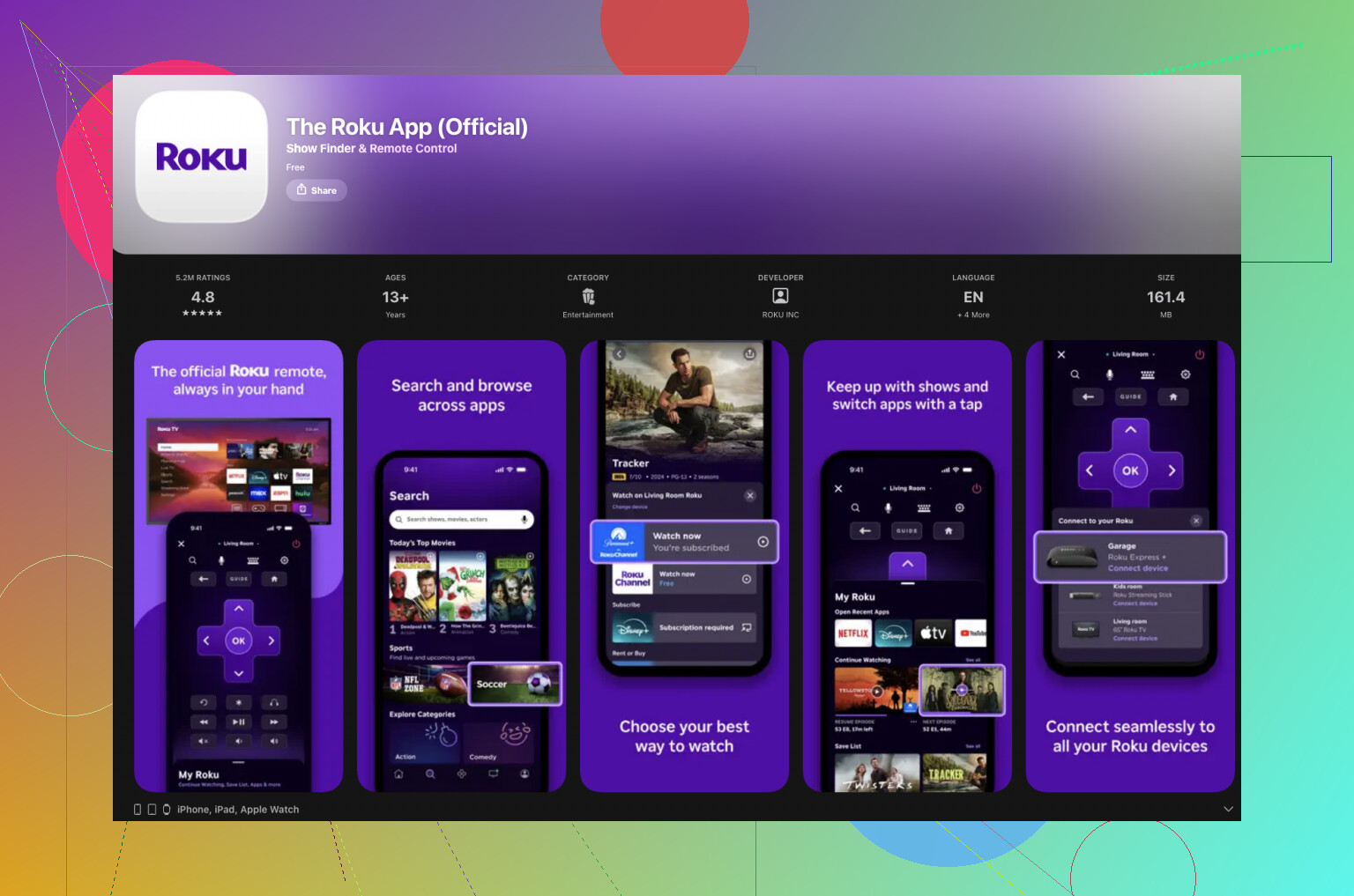
The Roku app is the first one many people try, and for good reason. It is built for Roku devices, including Hisense Roku TVs.
You get it from the App Store by searching for “Roku” or “Roku – Official Remote Control”.
How it worked with my Hisense Roku TV
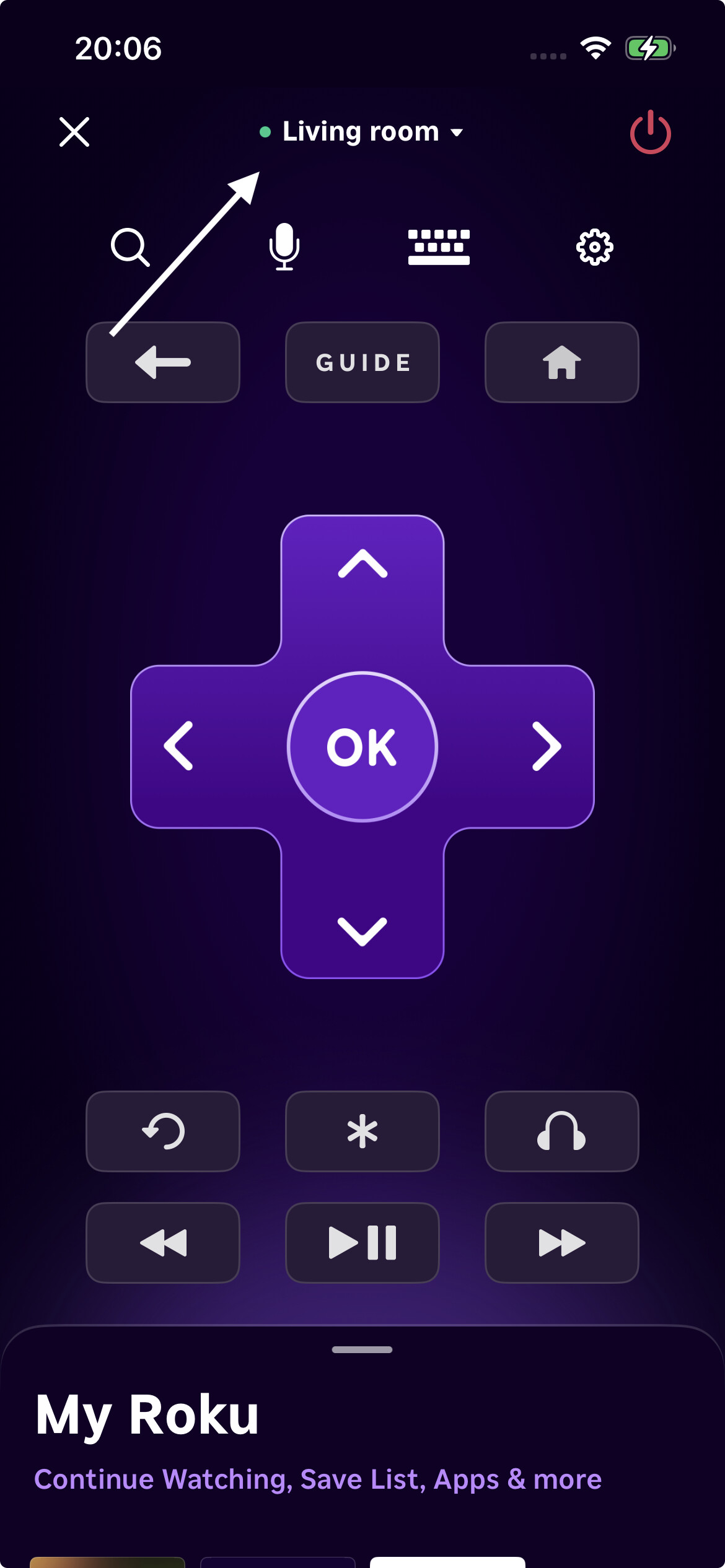
- I opened the app with Wi‑Fi on
- It detected the Hisense Roku TV as a Roku device
- Once selected, the main screen showed remote controls and shortcuts
Things I used the most
-
Navigation pad + OK
Behavior matched the original Roku remote enough that I forgot the remote was missing. -
Playback controls
Play, pause, skip, etc. Helpful when using Netflix, YouTube and other apps. -
Text input keyboard
Similar to TVRem. Typing felt normal again. A big step up from on‑screen typing with arrows. -
Voice search
I used it to find channels or content in the Roku interface. It was decent for English titles. -
Quick channel launching
I could tap a channel in the app and it opened on the TV without navigating through tiles. That made things faster.
Pros from my experience
- Stability was good. Rare crashes.
- Feature coverage for Roku functions was complete.
- Interface made sense if you were used to Roku’s own style.
Limitations
- Works only with Roku devices and Roku TVs.
- Not helpful at all if you have non‑Roku TVs in the same home.
If every TV in your place is Roku based, the official app is enough. In my mixed setup, I ended up keeping it installed but using TVRem more.
Getting a physical replacement remote
I still bought a spare remote later because guests preferred physical buttons.
Here is what I noticed when I shopped around:
-
Official Hisense or Roku remotes
Good compatibility, all buttons work as they should. Price is higher than third‑party options. Availability depends on region and model. -
Third‑party universal remotes
Cheaper. Some support Roku TV codes. Many feel lighter or less precise than the original. Advanced features or special buttons might be missing. -
Learning remotes
Some can “learn” from another remote by pointing them at each other. This helps when you have multiple devices, but requires a working donor remote, which defeats the point if your only one is dead.
For daily use around the house, the phone apps covered almost everything. The physical remote became more of a backup and for guests who hate using phones as remotes.
Which Hisense Roku TV remote app made the most sense long term
If your Hisense Roku TV remote stopped working and you want a quick, cheap solution, phone apps do the job.
The main link I used for TVRem and more info is here.
My personal take after trying multiple apps:
If you have more than one TV brand at home, or plan to replace your TV later, TVRem felt more future proof.
It worked with my Hisense Roku TV, plus a Samsung and Fire TV devices. I did not need separate apps for each screen.
Since TVRem was free when I tried it, with no subscriptions or paid upgrades getting in the way, I ended up using it the most. It turned my iPhone into the main remote for multiple rooms, and the old plastic remotes slowly moved to a drawer.
33 Likes
Short version so you do not waste time:
-
Best app to start with
Use the official “Roku – Official Remote Control” app from the App Store.
Publisher is “Roku, Inc.”. Icon is the purple Roku logo.
Ignore most of the third‑party “Roku remote” clones at first. -
Basic setup that usually works
- Connect your Hisense Roku TV to your Wi‑Fi.
Settings > Network > Set up connection > Wireless. - Put your iPhone on the same Wi‑Fi, same band if possible.
If the TV is on 2.4 GHz and the phone is on a separate guest or 5 GHz SSID with isolation, they might not see each other. - Open the Roku app.
- Tap “Devices” at the bottom.
- It should list your Hisense Roku TV as a Roku TV.
- Tap it, then tap “Remote”.
- Connect your Hisense Roku TV to your Wi‑Fi.
If it does not find the TV
-
Check these first
- On the TV: Settings > System > Advanced system settings > Control by mobile apps > Network access.
Set it to “Default” or “Permissive”. If it is on “Disabled”, the phone apps will fail. - Make sure your router does not have client isolation on for that Wi‑Fi. Many guest networks block devices from seeing each other.
- Restart both TV and router. Power pull on the TV works better than “System restart”.
- On the TV: Settings > System > Advanced system settings > Control by mobile apps > Network access.
-
If the official Roku app still refuses to see it
This is where I slightly disagree with @mikeappsreviewer.
They liked going straight to universal apps like TVRem.
I prefer to get the Roku app working first, because if the Roku app cannot see the TV, most third‑party ones will fail too.
The Roku app is a good “network sanity check”. -
When to try a third‑party remote app
Once the Roku app works, then you can add a second app if you want:- TVRem if you want one app for multiple brands, like they described.
- A “Remote for Hisense Roku TV” app only if you want a super simple layout and do not care about extra features.
I would avoid installing a bunch of random “Roku remote” apps with generic names. Some are ad farms and do not add anything over the official Roku app or TVRem.
If all of this fails and your TV does not show up in any app, even with mobile app control enabled, then your Wi‑Fi or network isolation is the real problem, not the remote apps.