I’m trying to switch the default video player on my device, but every time I open a video it still launches with the old app. I’ve dug through settings and app options but can’t figure out where to properly change the default. Can someone walk me through the steps or point out what I might be missing so videos always open with my preferred player?
If you are tired of the stock video player on your Mac, you are not the only one. I hit that point after one too many “format not supported” messages and subtitles refusing to sync.
Here is what I ended up doing and what worked long term.
1. Change the default video player through Finder
This is the simplest and sticks across reboots:
- Pick any video file in Finder, for example an .mp4 or .mkv.
- Right click it.
- Click “Get Info”.
- In the “Open with” section, pick the video app you want from the dropdown.
- Click “Change All…”.
- Confirm.
From that moment, every file with that extension opens with the player you picked. If you use different formats, you need to repeat it for each type once, like .mp4, .mkv, .avi, .mov.
This fixed 90% of my annoyance. No more double click, close Apple’s player, then reopen in something else.
2. Why I stopped using the default player
Short version of my pain points:
• No support for some .mkv files.
• Weak subtitle handling.
• No quick playback speed control for long tutorials.
• Audio desync on some downloaded content.
Once you hit this stuff a few times, you stop trusting it. I found myself converting files or hunting workarounds instead of just watching the thing.
3. What I switched to
After trying VLC again and a couple of random players from the store that felt abandoned, I ended up with this one:
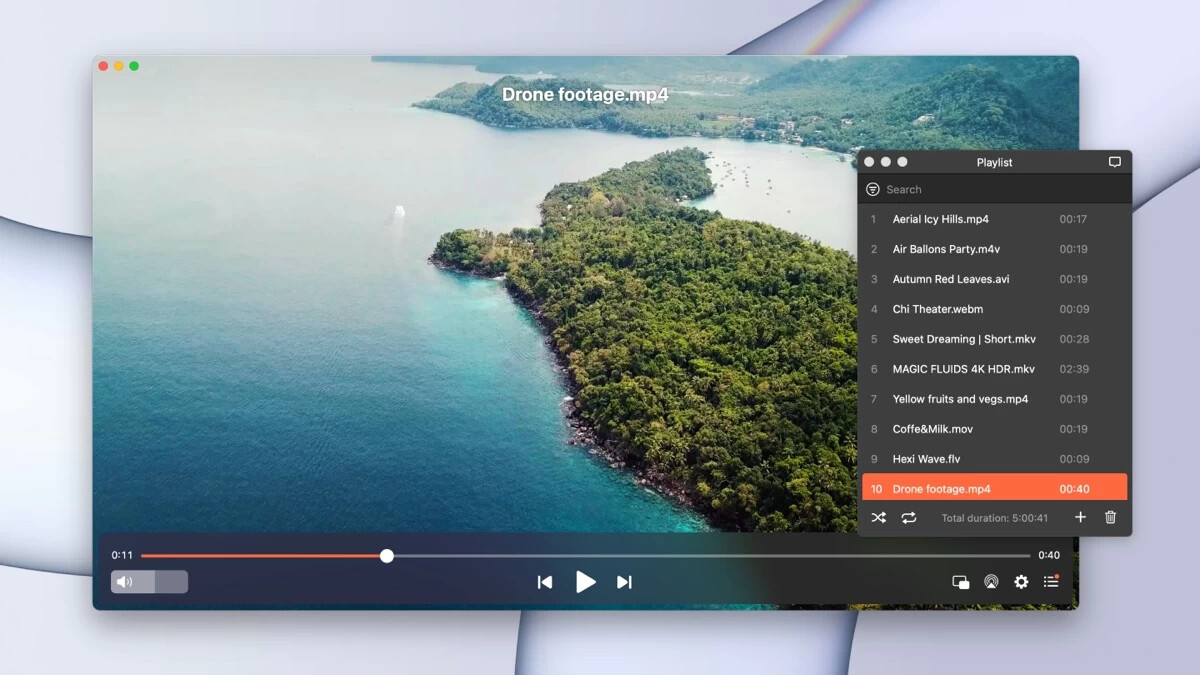
Elmedia Player
What pushed me over:
• Plays .mp4, .mkv, .avi, etc without complaining.
• Subtitles: external .srt files load without drama, and I can adjust delay if audio is off.
• Playback speed: I use this a lot for lectures or conference recordings, typically 1.25x or 1.5x.
• Scrubbing: timeline feels smoother than the default player on larger files.
The free version was enough for normal playback. I used it for a while before paying for extra features.
Making Elmedia Player the default
If you want to use Elmedia Player as your main player, do this after you install it:
- Right click any video file in Finder.
- Click “Get Info”.
- In “Open with”, choose “Elmedia Player”.
- Click “Change All…”.
- Confirm.
Repeat once for the other main formats you use, for example:
• .mp4
• .mkv
• .avi
• .mov
After that, double click behavior feels “native”, only now you are using something that handles more formats and has better controls.
4. Some small tweaks that helped
This is optional, but here is what I set:
• Enabled show time remaining plus total time in the player bar.
• Mapped quick keyboard shortcuts for speed up and slow down.
• Turned on automatic loading of subtitles with the same filename as the video.
That removed a lot of friction when watching longer stuff or anime with external subs.
If you hate fighting with your player each time you download something slightly weird, switching the default app and locking in one solid player, like Elmedia Player, makes things quieter. You set it once in Finder and after that your videos open where you want them, without extra clicks.
55 Likes
On macOS there are a few places that override each other, which is why it still opens in the old app.
Since @mikeappsreviewer already went through the Finder “Get Info” route, here are different angles you can try.
- Change it from the app itself
Some third party players try to register as default internally. In Elmedia Player for example, check its Preferences or Settings and look for something like:
- “Make Elmedia Player default for video files”
- “Associate with video formats”
Toggle that, then quit and reopen the app once. This often updates Launch Services for a bunch of extensions in one shot.
- Fix per file type via “Open With” (quick method)
If you do not want to run through Get Info every time:
- Right click any video file.
- Choose “Open With”.
- Click “Other…”.
- Select Elmedia Player, then tick “Always Open With”.
This sets the default for that file type in one step. It is slightly different from the Get Info trick and sometimes sticks when the other one is flaky.
- Reset Launch Services if macOS is stuck on the old player
Sometimes macOS caches old associations and acts stubborn. You can reset that database.
If you are ok with Terminal:
- Open Terminal.
- Run:
/System/Library/Frameworks/CoreServices.framework/Frameworks/LaunchServices.framework/Support/lsregister -kill -r -domain local -domain system -domain user - Then log out and back in.
After this, set Elmedia Player again as default through Finder or through its own settings. This helps when you changed stuff many times or removed apps.
- Check for multiple user accounts
If you have more than one user on the Mac, defaults are per user.
- Log in to the other account.
- Set their defaults separately.
Sometimes people test apps in one account and expect the change in another.
- For browsers and downloaded files
If videos open in the wrong app when you click them in a browser download list:
- In Safari, Chrome, etc, they respect the macOS default, so once Launch Services is correct, the browser follows.
- If it still misbehaves, right click the file in Finder from the Downloads folder and fix the association there again.
- If nothing works, remove the old player
Bit aggressive, but it solves weird conflicts.
- Drag the old video app to Trash.
- Empty Trash.
- Then open a video and pick Elmedia Player when macOS asks what to use.
I do not fully agree with @mikeappsreviewer that file extension based changes alone solve everything. If the Launch Services cache is messy, you get random behavior even after “Change All”. Resetting that database and then picking Elmedia Player as default leads to more consistent results, especially if you juggle .mp4, .mkv, .avi, .mov and network streams.
Couple more angles you can try that @mikeappsreviewer and @himmelsjager didn’t really touch, in case macOS is just being stubborn.
1. Check for “Open With” conflicts on specific files
Sometimes a single file has a different association than the extension default:
- Pick a video that still opens in the old player.
- Right click →
Open With. - If your new player (say, Elmedia Player) shows up twice or the old app is at the top, pick Elmedia Player and actually use it once.
- Close it, then double–click the same file again and see if it “learned” the choice.
macOS can cache weird per–file prefs, so this sometimes knocks it back in line.
2. Remove “helper” or duplicate apps
If you ever installed codec packs, helper apps, or a second copy of the same player:
- Check
Applicationsfor duplicate video apps (like two builds of VLC or an “App Store” vs direct–download version). - Trash the extras and empty Trash.
- Reboot, then set your default again for one video type.
Multiple similar apps can fight for association and Launch Services gets confused.
3. Use the “Open With > Other…” route correctly
Slightly different from what was already described:
- Right click any video.
Open With→Other….- Pick Elmedia Player.
- Important: tick “Always Open With” at the bottom.
- Hit
Open.
This often overrides whatever mess Finder had before for that extension.
4. Make sure Elmedia Player is fully installed and launched once
Sounds dumb, but:
- Drag Elmedia Player into the
Applicationsfolder if it is still running from Downloads. - Launch it from
Applicationsat least once. - Quit it.
- Then redo the default association steps.
If it runs from a random location, macOS sometimes does not properly register it as a default candidate.
5. Check for “Open in Rosetta” or alternate app variants
If you are on Apple Silicon:
- Find the old video player and your new one in
Applications. Get Infoon each and look for “Open using Rosetta”.- Make sure you are not mixing a Rosetta variant and a native one of the same app name. That can leave ghost entries that Finder still prefers.
6. If you use cloud folders (Dropbox, OneDrive, etc.)
Some sync tools hook into file handling:
- Copy one of your videos from the synced folder to
Desktop. - Try opening that file after setting Elmedia Player as default.
- If it works on Desktop but not in the sync folder, the sync app’s integration is interfering and you may need to tweak or disable its “smart open” features.
7. As a last resort: let macOS ask again
If you really want a clean slate without nuking everything:
- Quit your video apps.
- Drag the old player to Trash and empty it.
- Double–click a video file.
- When macOS asks what to open it with, pick Elmedia Player and tick something like “Always open with this app” if shown.
- Reinstall the old player after that if you still want it for other stuff.
I slightly disagree with the idea that “once the file extension default is set, that’s it.” In practice, macOS keeps several layers of association and caches, and they do conflict. What you want is:
- One properly installed main player (Elmedia Player is a solid pick).
- No half–deleted or duplicate apps.
- One clean association step through
Open WithorGet Info.
After that, anything you double–click from Finder, your Downloads folder, or browser downloads should start respecting the new default without more digging through menus.
One angle nobody’s really pushed yet is checking how you launch the videos. macOS can ignore your Finder defaults if:
- The browser has its own “open with” behavior
- Another app is acting as a front end (torrent client, media manager, etc.)
- The file is inside a container (disk image, mounted archive, external drive with its own prefs)
Before nuking anything, try this:
- Open your new player (for example Elmedia Player) first.
- Drag a “problem” video from Finder onto its dock icon.
- If that works fine, the issue is not the file or the player, it is how macOS is routing the open request.
Now test different launch paths:
- Double click the same file from Desktop.
- Double click from Downloads.
- Use “Show in Finder” from your browser’s download list, then open.
- If a specific route still insists on the old app, that route probably has a custom handler or plugin.
Some torrent clients and media organizers have their own internal “default player” setting and completely bypass macOS associations. Check inside those apps’ preferences and hard set Elmedia Player there if you want them in sync.
On Elmedia Player itself, quick pros / cons from long term use:
Pros:
- Plays most formats without complaining, including heavier MKV stuff.
- Subtitle control is genuinely better than QuickTime: external subs, delay adjust, styling.
- Playback speed and scrubbing feel responsive, which helps for tutorials and lectures.
Cons:
- Interface has more knobs than Apple’s stock player, so it is slightly less “just click and forget” for non‑technical users.
- Some of the advanced tricks live behind the paid tier, which might annoy you if you expect completely free everything.
- Not as minimal as something like IINA or the barebones QuickTime vibe.
Compared with what @himmelsjager, @boswandelaar and @mikeappsreviewer suggested, I would not rely only on the extension association in Finder. macOS respects that most of the time, but individual apps and download tools can still override it. Getting those in line with your system choice and then using a single solid player like Elmedia Player is what really stops the “why is it opening in the old thing again?” loop.
Already covered: Finder Get Info with Change All, Open With with Always Open With, in-app default setting, Launch Services reset, account checks, browser helpers, uninstall old player.
Simpler alternative: refresh caches via Safe Mode, no Terminal.
Steps:
- Move your chosen player to /Applications.
- Quit both players.
- Restart in Safe Mode, hold Shift while booting.
- Log in, wait 1 minute.
- Restart normally.
- Open a video, pick the new player, tick Always Open With.
Thsi often clears sticky associations alrady set, then your double clicks go to the right app.