I lost my LG TV remote and now I can’t adjust the volume at all. I’ve checked the buttons on the TV, but I’m not sure if there’s another way to control sound using the LG TV app, phone, or external devices. Looking for the easiest way to change volume on an LG TV without a remote.
I ran into this with an LG a while back. Volume control without the remote is usually pretty easy once you know where LG hides the controls.
Start with the TV itself
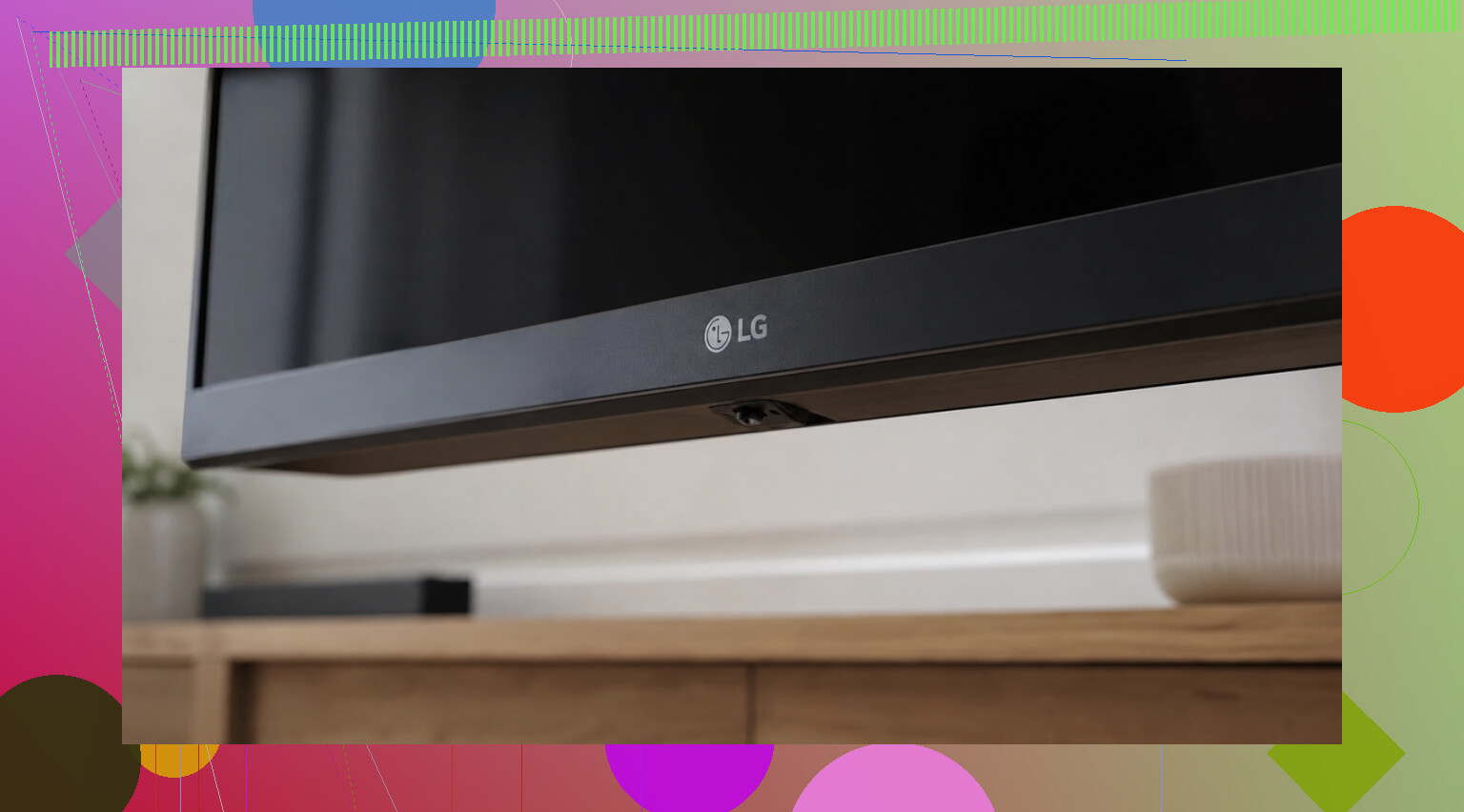
On a lot of newer LG sets, there’s one small control under the screen. I’ve seen it in the middle of the bottom edge, sometimes tucked right under the LG logo. It works like a little stick. Move it up or down for volume. Press it inward and you’ll usually get a basic menu.
Older LG models are different. Those often have separate physical buttons on the side or around the back. Mine took me a minute to find the first time because it was almost flush with the frame. If you’re stuck, check the model number on the sticker on the back and look up the layout for your exact set. LG moves stuff around more than you’d think.
If the TV is on Wi-Fi, use your phone
I’d do this first if your LG is a smart TV and already connected to your home network.
LG ThinQ is LG’s own app for iPhone and Android. Once you pair the TV, the app gives you a remote screen with volume buttons. The part people miss is simple, your phone and the TV need to be on the same Wi-Fi network. I’ve seen people on cellular or a guest network and assume the app is broken.
TVRem (free remote app for iPhone)
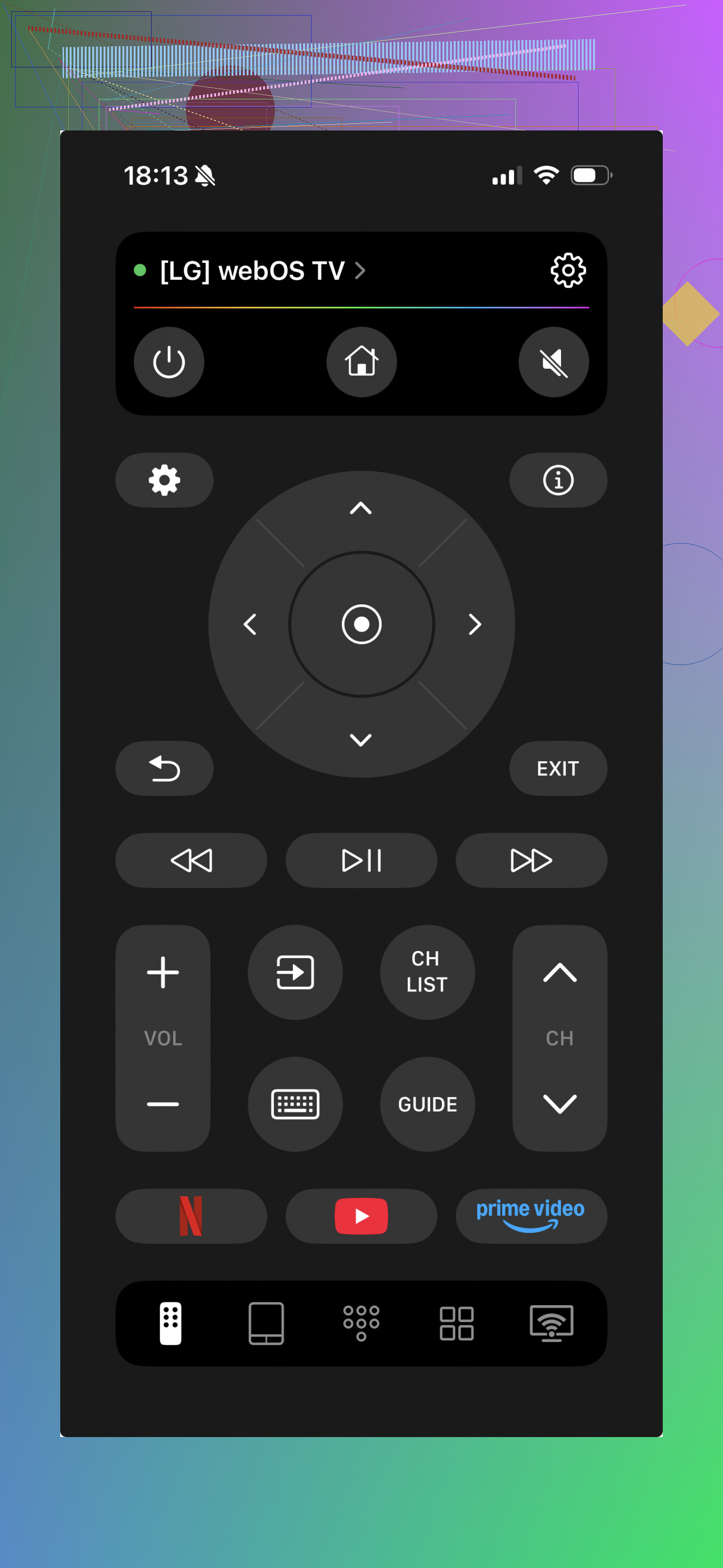
I tested this kind of setup with mixed devices at home, and the handy part is one app handling more than one brand. This one works with LG, Samsung, Roku, Fire TV, Android/Google TV, and Apple TV. If you’ve got a pile of remotes in the couch, it makes life easier. It includes volume and channel control on screen, plus keyboard input and voice search. There’s also a guide here if you want the setup steps spelled out: https://mac.eltima.com/tvrem-universal-tv-remote/
One thing to check before you waste time
Phone remote apps only work if your LG is a smart model with Wi-Fi turned on. If the TV is older, or if it was never connected to your network, the app route won’t help much. In tht case, use the buttons on the TV itself. If those are too annoying, a cheap universal remote usually fixes the problem fast.
If you share the LG model number, I can help narrow down where the control button is hidden.
19 Likes
If the TV buttons aren’t giving you volume, try the stuff around the TV, not the TV.
-
Use HDMI-CEC from a connected device.
If you have a Roku, Fire TV, Apple TV, game console, or cable box, its remote often controls TV volume through HDMI-CEC. LG calls this Simplink. If Simplink was already on, the device remote might raise and lower volume right now. Test it first before doing anything else. -
Use a soundbar remote.
If your LG is hooked to a soundbar, receiver, or speaker set, control volume there. A lot of people think the TV remote is required, but if audio is going out over ARC, optical, or Bluetooth, the external audio device handles sound. This is the fastes fix. -
Try a mouse or keyboard.
I disagree a bit with @mikeappsreviewer on app-first being the best path. If your TV was never paired to Wi-Fi, the app route is dead on arrival. On some LG webOS sets, a USB keyboard or mouse helps you get into Settings, then Sound, then switch output or turn on features tied to volume behavior. It does not work on every model, but it’s worth 2 minuts. -
Temporary workaround.
Plug in wired headphones, if your model has a 3.5mm jack. Volume control is often easier from the headphones or from the source device.
If none of that works, universal remote. Cheap, boring, works.
One angle neither @mikeappsreviewer nor @techchizkid really hit is using your phone as an IR remote, not a Wi‑Fi remote.
If you’ve got an older Android phone with an IR blaster, or one of those cheap USB-C/Lightning IR dongles, you can control LG volume even if the TV was never on Wi‑Fi at all. That’s why I slightly disagree with the “just use the app” route, because ThinQ is useless if the TV isn’t already networked and you can’t navigate to pair it. IR doesn’t care. Point phone at TV, press volume, done.
Another thing: if your source device has fixed vs variable audio settings, check that. Some cable boxes, streamers, and consoles can be set to variable output, which lets their remote change loudness even when the TV remote is gone. People miss that all the time and assume the TV is locked.
Also worth trying if you have smart speakers set up already:
- Alexa with LG ThinQ skill
- Google Home if the TV was previously linked
If it was already connected before you lost the remote, voice commands like “turn volume up on TV” can still work. Setup from scratch is the annoying part.
Worst case, borrow literally any programmable universal remote for 5 minuts, get into settings, enable the stuff you need, and then use your phone after that. Kinda janky, but it works.