I’m trying to free up storage on my iPhone, but I don’t have access to a Mac. I have thousands of photos and deleting them one by one is taking forever. Is there a simple way to delete all iPhone photos at once directly from the phone or using iCloud?
If you’re staring at something like 20,000 photos, don’t try to clean it up one tap at a time. That gets old fast, especially when half the mess is screenshots, repeat shots, random screen recordings, and ten versions of the same picture.
I’d start with the easy wins first, then deal with duplicates after that.
Start inside the Photos app
In Photos, don’t stay in the full “All Photos” view if you’re trying to delete a lot. Pinch out to a wider view so you’re looking by Months or Years instead of individual days. It makes the whole library feel a lot less impossible.
From the Months view, tap “Select” and drag across groups of photos. That’s much faster than tapping every image separately, and it’s useful if you know there’s a certain trip, event, or old stretch of time where you took way too many photos or videos.
Clear the obvious junk first
For screenshots, bursts, and screen recordings, Apple already does some sorting for you. Go to the Collections tab, scroll down to Media Types, and open the type you want to clean up.
The Screenshots album is usually the easiest place to make a dent. Open it, tap “Select,” then use “Select All” if you really want to wipe them out. That button does not show up everywhere in Photos, but it does in some of these filtered albums, which makes it way less painful.
Use Clever Cleaner for duplicates and near-duplicates
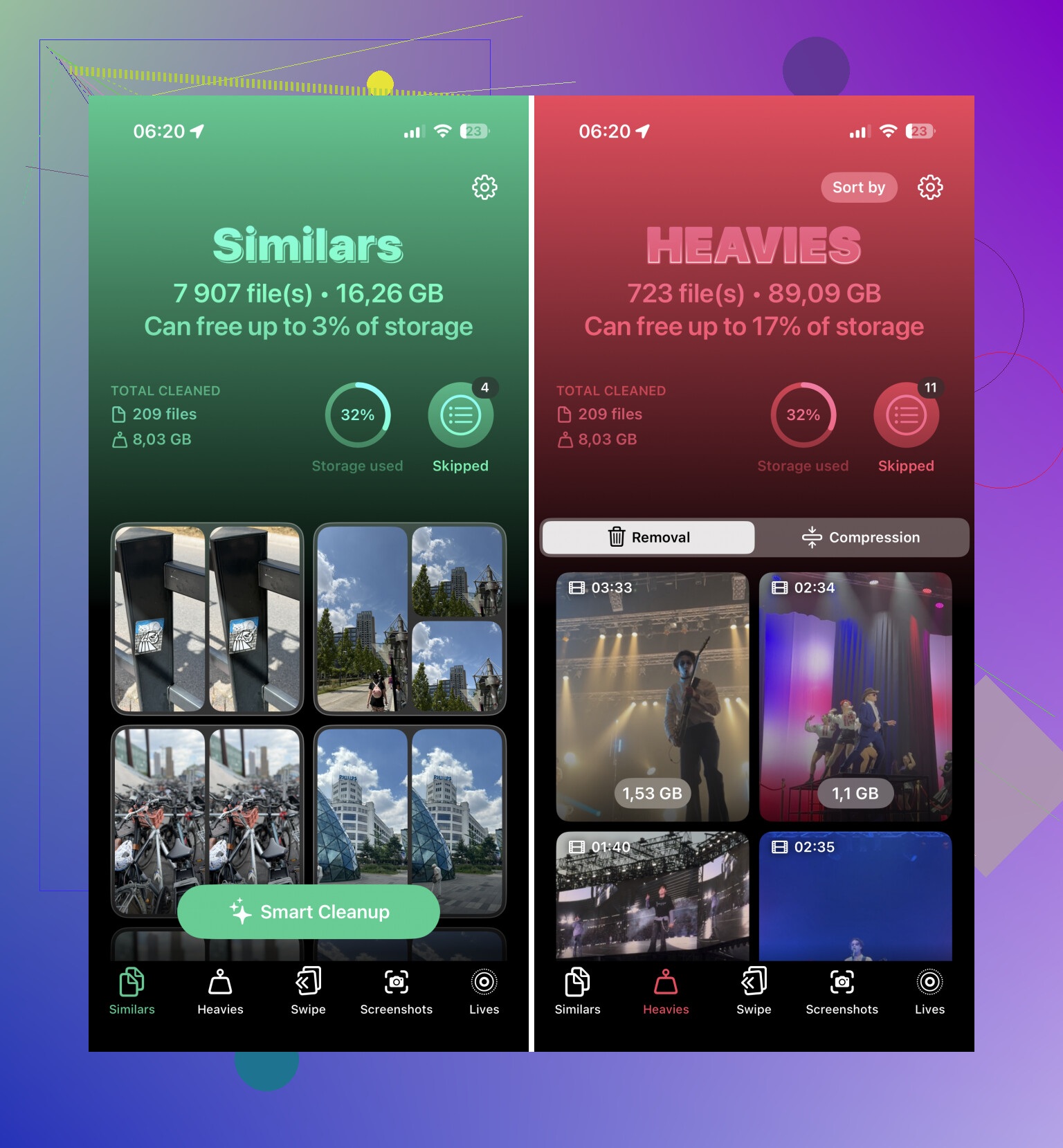
If the problem is a bunch of duplicate or almost-identical photos, manual cleanup is still pretty miserable. For that, Clever Cleaner is worth a look.
I’m usually skeptical of phone “cleaner” apps because a lot of them are packed with ads or subscriptions, but this one is free and actually useful for photo cleanup. The Similars feature groups photos that look nearly the same, then chooses a “Best Shot” and marks the rest for removal. So if you took five versions of the same group photo, you can review the set instead of comparing them all manually. When you’re happy with it, you use the “Slide to Delete” option.
Use a computer if the library is huge
If you’re deleting thousands of files, a phone screen is not the best tool for the job. If your photos are synced with iCloud, open iCloud.com on a desktop browser instead.
From there, you can use the Shift key to select big ranges of photos quickly, then delete them with the trash icon. It’s much easier to control than dragging your finger around on a small screen, and the deletions should sync back to your iPhone.
Empty Recently Deleted or you won’t get the space back yet
This part is easy to miss: deleting photos does not immediately remove them from your phone. They go into Recently Deleted first, and they can sit there for 30 days.
To actually free up storage right away, go to the Collections tab, scroll down to Utilities, open Recently Deleted, tap “Select,” then choose “Delete All.” Until you do that, your available storage may not change much.
One more place to check: the Files app. Images downloaded from Safari or saved from email attachments may be sitting in “On My iPhone” or “iCloud Drive” instead of your Photos library.
A good order is screenshots first, then screen recordings or bursts, then let Clever Cleaner deal with the duplicate-looking stuff. That should clear out most of the junk without making you spend hours sorting every photo by hand.
21 Likes
Don’t turn off iCloud Photos or delete from iCloud unless you understand that it deletes the same library everywhere, not just “from this iPhone.” If you want to wipe the phone’s Photos library directly, the annoying truth is there usually isn’t a clean “delete every photo in Recents” button on the iPhone. The fastest phone-only method is Photos > Library/Recents > Select, then drag-select in big chunks until everything is checked, delete, then go straight to Recently Deleted and hit Delete All. If your real goal is only storage space, check Settings > Photos first. If “Optimize iPhone Storage” is on, many full-size photos may already be in iCloud, so deleting thousands might free less space than expected compared with deleting big videos, apps, Messages attachments, or offline downloads.

If you’re trying to remove the photos from the phone but keep them in iCloud, do not use the trash button in Photos. That is the trap. With iCloud Photos on, deleting from the Photos app means deleting from the synced library, so it can disappear from your iPad, iCloud.com, and any other device too.
For a phone-only cleanup, check Settings > your name > iCloud > Photos first. If iCloud Photos is on, you may be able to turn off syncing for that iPhone and choose the option that removes the local copies from the device. That is very different from deleting the photos themselves. If the phone asks whether to download originals, don’t choose that unless you want the opposite of freeing storage.
If you really mean “I never want these photos anywhere,” then the drag-select method people mentioned is basically the iPhone way, followed by Recently Deleted > Delete All. If this is because you’re selling or giving away the phone, skip all of this and use Erase All Content and Settings after you’ve made whatever backup you need. That wipes the device much faster than fighting the Photos app for an hour.
If you’re okay with the photos being gone everywhere, the Shortcuts app is the closest thing to a “delete all” button on the phone itself. It’s not as obvious as it should be, but you can make a shortcut that finds photos and sends them to deletion in one batch.
Open Shortcuts, make a new shortcut, add “Find Photos,” leave the filter broad if you want everything, then add “Delete Photos” after it. When you run it, iOS should still ask you to confirm before deleting. That confirmation is a good thing, because this is very easy to mess up if iCloud Photos is involved. Afterward, you still need to go into Photos > Recently Deleted and empty that, or the storage won’t really come back yet.
The catch is that this is not the method I’d use if you’re trying to save some photos and remove others. It’s too blunt. For selective cleanup, the drag-select method people mentioned is safer. For duplicate cleanup, something like Clever Cleaner can make sense, but it’s more for trimming the mess than nuking the whole library.
I’d also be careful about judging the result too quickly. Sometimes iPhone Storage takes a while to update after a huge delete, especially if Recently Deleted was just emptied or iCloud Photos is syncing changes. Restarting the phone after the cleanup can make the storage screen refresh, but don’t keep deleting random stuff just because the number didn’t change instantly.
So the realistic answer is: no nice built-in “Delete All Photos” button in the main Photos view, but Shortcuts can do a bulk delete directly on the iPhone if you truly want the whole library gone. If you only want local space back while keeping iCloud copies, don’t use this. That would be the wrong tool.