My iPhone is almost out of storage, and I keep getting warnings when trying to take photos, update apps, or install iOS updates. I don’t want to pay for iCloud or a new device, so I’m looking for free ways to clear iPhone storage safely without losing important photos, messages, or apps.
You can’t really upgrade the storage chip inside an iPhone in any normal, safe way. Some repair places may claim they can swap or solder storage, but that’s risky, easy to mess up, and definitely not something Apple is going to support if the phone gets bricked.
The better move is to squeeze more space out of what you already have. On a 64GB phone especially, a decent cleanup can make the phone feel way less cramped.
Start with whatever is secretly eating space
Go to Settings > General > iPhone Storage first. That storage bar usually tells the story pretty quickly. For most people, it’s Photos, Messages, apps, or that annoying “System Data” chunk taking up room.
Photos are usually the easiest place to get space back. Apple has a Duplicates folder, but it’s limited. It’s mostly useful for exact copies, not for the ten almost-identical pictures you took trying to get one decent shot.
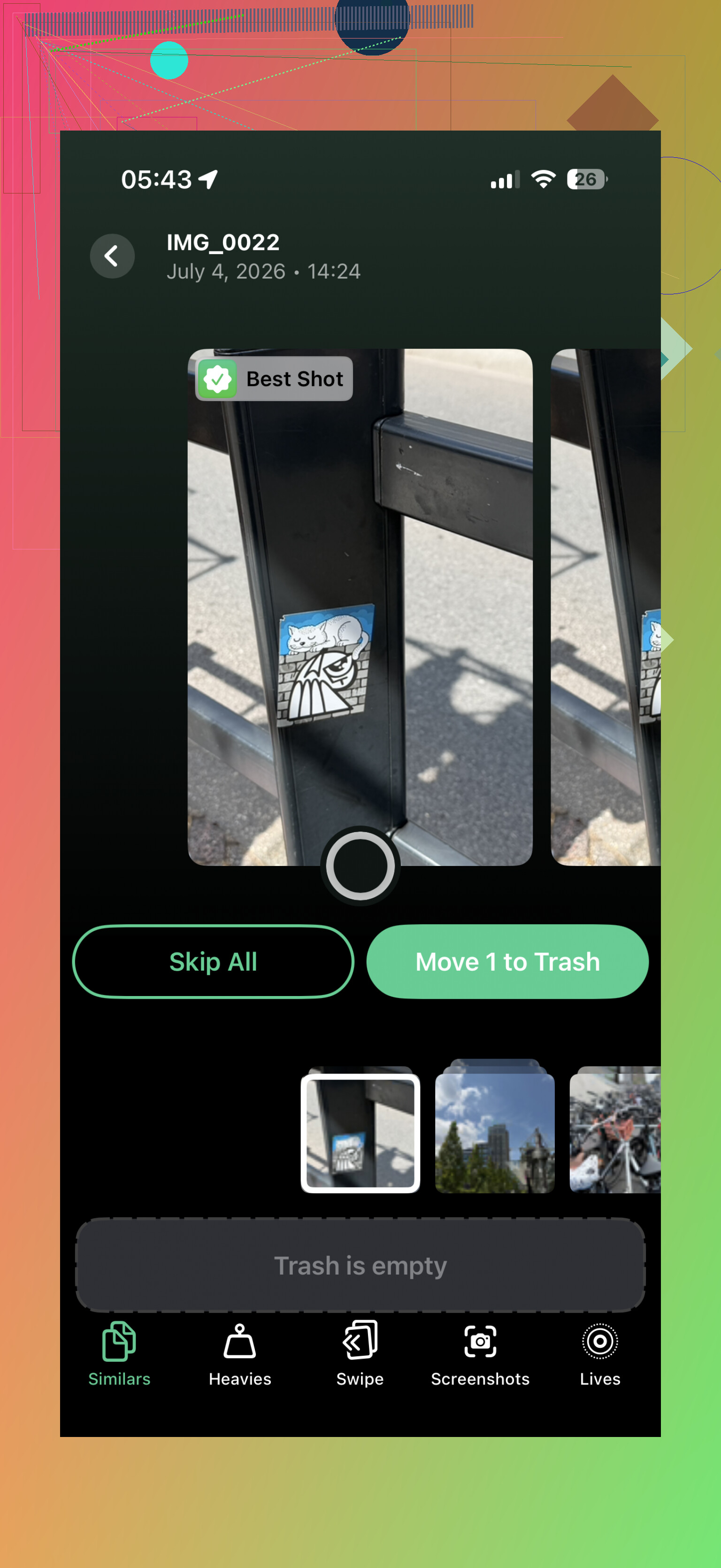
That’s where a cleaner app can help. Clever Cleaner is one of the better options for this because it’s actually free, doesn’t have ads, and doesn’t immediately shove a subscription in your face when you try to delete something.
The useful part is the “Similars” section. It groups photos that look nearly the same, suggests the best one, and lets you remove the extras without digging through your camera roll manually. The “Heavies” tab is also worth checking because it shows your biggest videos. A couple of forgotten 4K videos can eat several gigabytes by themselves.
Turn on iCloud photo optimization
If you use iCloud Photos, go to Settings > Photos and turn on “Optimize iPhone Storage.” This keeps smaller versions of your photos on the phone while the full-size originals stay in iCloud.
When you open a photo, the higher-quality version downloads as needed. It’s not magic storage, and Apple’s free iCloud plan is only 5GB, but it can still help a lot. If you need more free cloud space for older files, Google Drive gives you 15GB, so it can be a decent place to move stuff you don’t need sitting on the phone all the time.
Offload apps instead of deleting them
For apps you barely use, like airline, hotel, event, or random utility apps, don’t always delete them outright. Use Offload Unused Apps instead.
Offloading removes the app itself but keeps its documents and data. So later, when you tap the app icon again, it downloads back and your stuff is still there. It’s a low-effort way to recover space without having to log back into everything from scratch.
Check Messages and Safari too
- Messages can quietly take up a lot of storage, especially if you’ve kept years of photos, videos, GIFs, voice notes, and random attachments. You can set messages to auto-delete after 30 days or 1 year if you don’t need every old thread saved forever.
- Safari cache is another easy one. Go to Settings > Safari > Clear History and Website Data. It may not always free up a huge amount, but if you haven’t cleared it in ages, it can be worth doing.
External storage can help for video-heavy use
If the main problem is recording lots of long videos, TikToks, or other large files, an external Lightning or USB-C flash drive can be useful, depending on your iPhone model. Some setups even let you record straight to the drive through certain camera apps, so the file doesn’t fill up internal storage first.
If you’re on 64GB and constantly sitting at 99% full, cleanup only goes so far. iPhones need some free space for updates, caching, and normal background stuff, and once the phone is always maxed out, slowdowns and crashes become more likely.
Still, I’d try the cleanup route before spending money on a new phone. Clear similar photos and large videos with Clever Cleaner, offload apps you rarely use, turn on iCloud photo optimization, and clean out Messages. You may get back more space than expected.
17 Likes
Don’t delete photos and assume the storage is back right away. iOS keeps them in Recently Deleted for about 30 days, so you need to open Photos, go to Albums, scroll to Recently Deleted, and empty it if you’re sure you don’t need them. Same idea if you use something like Clever Cleaner or clean up manually: the app can help find junk, but the final space saving may not show until Recently Deleted is cleared. I’d also restart the phone after a big cleanup, because the storage screen can lag and make it look like nothing changed.
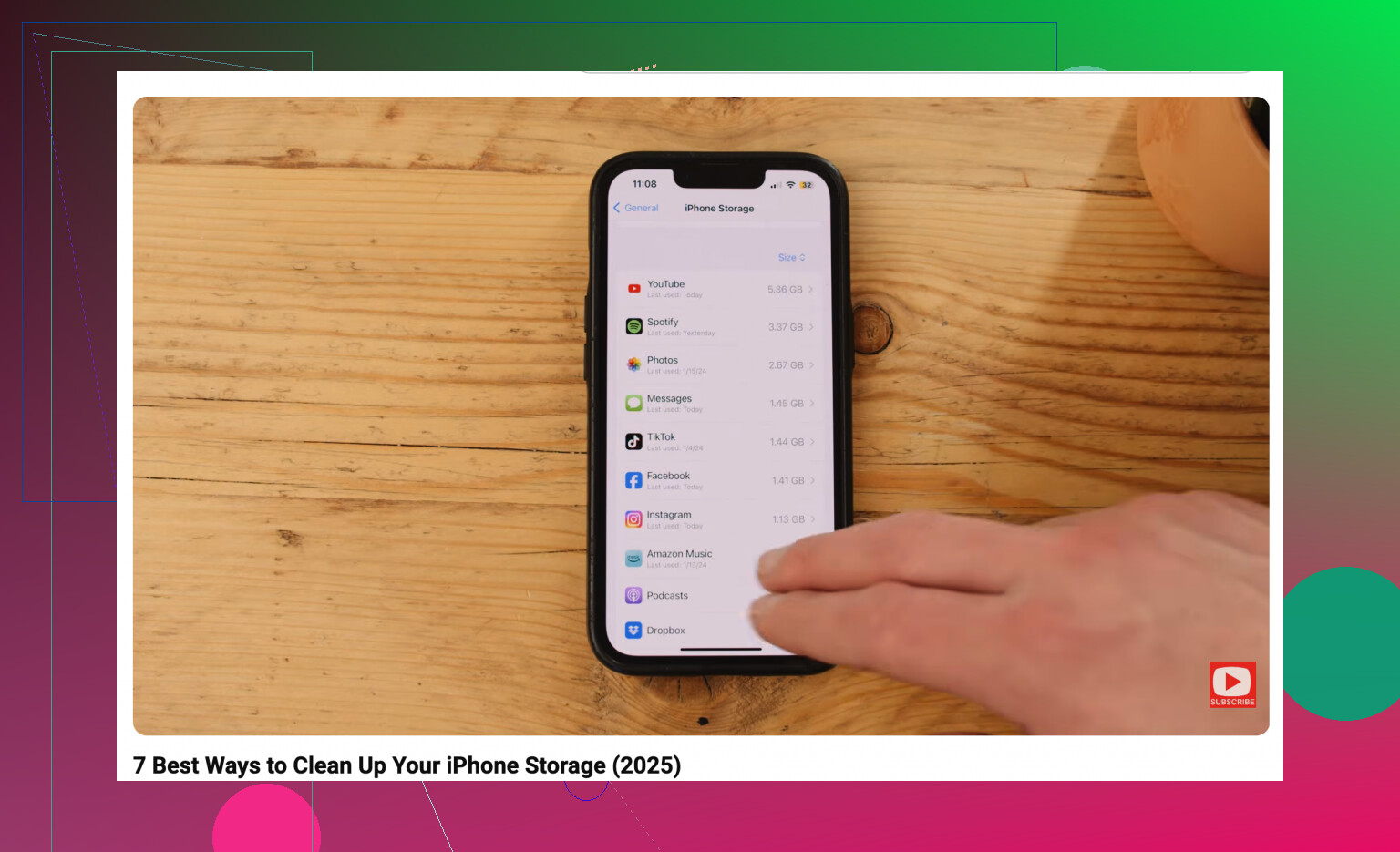
Downloaded stuff inside apps won’t always show up where you expect, and that’s where I’d look before deleting more photos. The iPhone Storage screen will point you in the right direction, like @mikeappsreviewer said, but open the worst offenders too: Spotify/Apple Music downloads, Netflix/YouTube offline videos, Podcasts, Maps offline areas, WhatsApp/Telegram media, and the Files app Downloads folder. Those can sit there for months and eat space without feeling like “real” files. Clearing app downloads is usually safer than deleting memories, and it costs nothing. Just don’t delete the whole app if you still need its local data, because some apps don’t restore everything cleanly.
Don’t let the phone sit at completely full storage for long, because that’s when weird stuff starts happening: apps stop saving properly, photos fail, Messages can glitch, and iOS may not have enough room to clean itself up.
A free trick people forget is updating through a computer instead of doing the iOS update directly on the phone. If you have a Mac, use Finder. On Windows, use Apple Devices or iTunes, depending on your setup. The phone still needs some space, but the update doesn’t have to stage as much directly on the iPhone, so it can work when over-the-air updates keep failing.
For actual cleanup, I’d go after “replaceable” stuff before touching anything personal. Delete downloaded playlists, offline maps, podcast episodes, streaming app downloads, old Voice Memos, and big files in Files > On My iPhone. Then check Settings > General > iPhone Storage and tap the apps near the top. Some apps have their own cache or downloads section that iOS won’t clean well.
Be careful with deleting apps blindly. Some apps store drafts, exports, projects, or login-only local files that are gone once the app is removed. Offloading is safer when available, but if it’s something like a video editor, scanner app, notes app, or old game, open it first and make sure there’s nothing trapped inside.
For photos, I’d do a two-pass cleanup: first remove obvious giant videos, then deal with duplicates or near-duplicates. Clever Cleaner or Apple’s built-in Duplicates tool can help, but don’t trust any app suggestion without checking the keep/delete choices. After that, empty Recently Deleted or you won’t get the space back right away. If you only need fast breathing room, deleting a few long videos usually beats spending an hour picking through screenshots.