My CompactFlash card was working fine in my camera, but now the photos won’t appear on the camera or my computer. I’m worried the image files are still on the CF card and I need help figuring out the safest way to recover them without making things worse. Looking for advice on CF card photo recovery, unreadable memory cards, and how to restore missing camera pictures.
CF card recovery, what I’d do first
Yeah, this sucks. I’ve had a CF card go sideways with a batch of camera shots on it, and the first mistake people make is touching it too much.
If your CF card is still being detected by a computer, your odds are often decent. The big rule is simple. Stop using it now.
When files seem gone, the data is often still sitting there. What’s missing is the file table, the part telling the system where everything lives. Once new data gets written over those old areas, your chances drop fast. So don’t put the card back in your camera. Don’t take test photos. Don’t copy files onto it. Don’t format it because the camera or computer asks you to.
First checks worth doing
Before you assume the card itself is dead, swap the easy stuff.
- Try another USB port
- Try a different CF card reader
- Try another computer
- Check whether the card appears in Disk Management on Windows
- Check Disk Utility on macOS
I’ve seen bad readers cause the whole panic. Card was fine, reader was junk.
Even if the card won’t open in Finder or File Explorer, recovery software still might read it at a lower level.
If the card shows up
At that point, I’d move to recovery software. Disk Drill is one option people use for CF cards, especially with FAT32 and exFAT. It tends to pick up common camera formats, including photos, video files, and RAW files. The preview part matters more than people think, since you get a quick check on what looks intact before saving anything.
Basic recovery flow
- Remove the CF card from the camera.
- Connect it with a proper CF card reader.
- Install the recovery app on your computer, never onto the CF card.
- Pick the CF card in the app and run the scan.
- Look through the found files and preview the important ones.
- Recover the files to your computer or to an external drive.
Read step 6 twice. Do not restore files back onto the same card.
If the card looks unstable
This part gets missed a lot. If the CF card disconnects, throws random errors, or behaves different from one minute to the next, I’d make a disk image before running recovery scans on the card itself.
You’re making a full copy of the card first, including areas normal browsing does not show. Then you scan the copy, not the original. Safer move. Less wear on a shaky card.
Stuff I would not run first
Skip repair tools at the start.
- CHKDSK
- First Aid
- Any repair option
- Any pop-up offering to fix or format the card
Those tools have their place. I still would not touch them until after the important files are off. If your goal is data, recover first. Cleanup comes later.
When I’d stop trying software
If the card:
- is not detected anywhere
- has bent pins
- gets hot
- drops connection over and over
I would stop there and look at a pro recovery service. Repeated scans on failing media sometimes make a bad situation worse. I learned this one the hard way, and yeah, it was not fun.
Short version
If your CF card still shows up, there’s still a shot.
- Stop using it
- Connect it through a good card reader
- Scan it with recovery software
- Preview the files
- Save recovered data somewhere else
That’s the order I’d stick to.
18 Likes
Stop using the card. That part I agree with from @mikeappsreviewer.
Where I differ a bit is this. I would check whether your photos are only hidden from the camera index, not gone from storage. Some CF cards keep the data, but the DCIM folder or directory entries get messed up. If your computer sees the card size correctly in Disk Management or Disk Utility, your odds go up.
What I’d do next:
- Put the CF card in a known good reader.
- Check its reported capacity. If a 16GB card suddenly shows 0 bytes or weird size, stop.
- If the size looks normal, make a byte-for-byte image first if possible.
- Scan the image with Disk Drill, not the card, if the card feels flaky.
- Sort results by file type and date. Look for JPG, CR2, NEF, ARW, MOV, MP4.
- Recover to your computer or another drive, never back to the CF card.
One more thing people skip. Test recovered RAW files in the software preview and then open a few after recovery. Thumbnails lie sometimes. A file with the right name and size is not always a good file.
If the card is detected but folders are blank, photo carving often works better than normal file recovery. Disk Drill does this pretty well on camera media. It’s worth trying before any repair tools mess with the file system.
If you want a visual walkthrough, this step by step CF card photo recovery guide covers the process in a clean way.
If the card is not detected at all, or the pins look bent, stop messing with it. CF cards are old-school and pin issues are annoyngly common.
I mostly agree with @mikeappsreviewer and @nachtschatten on the big thing: do not let the camera ‘fix’ the card. But I’d add one thing people forget with CF cards specifically: check the pins in the camera and the reader, not just the card. A single bent pin can make the card look dead or unreadable even when the files are still there. Seen that more than once, annoyngly.
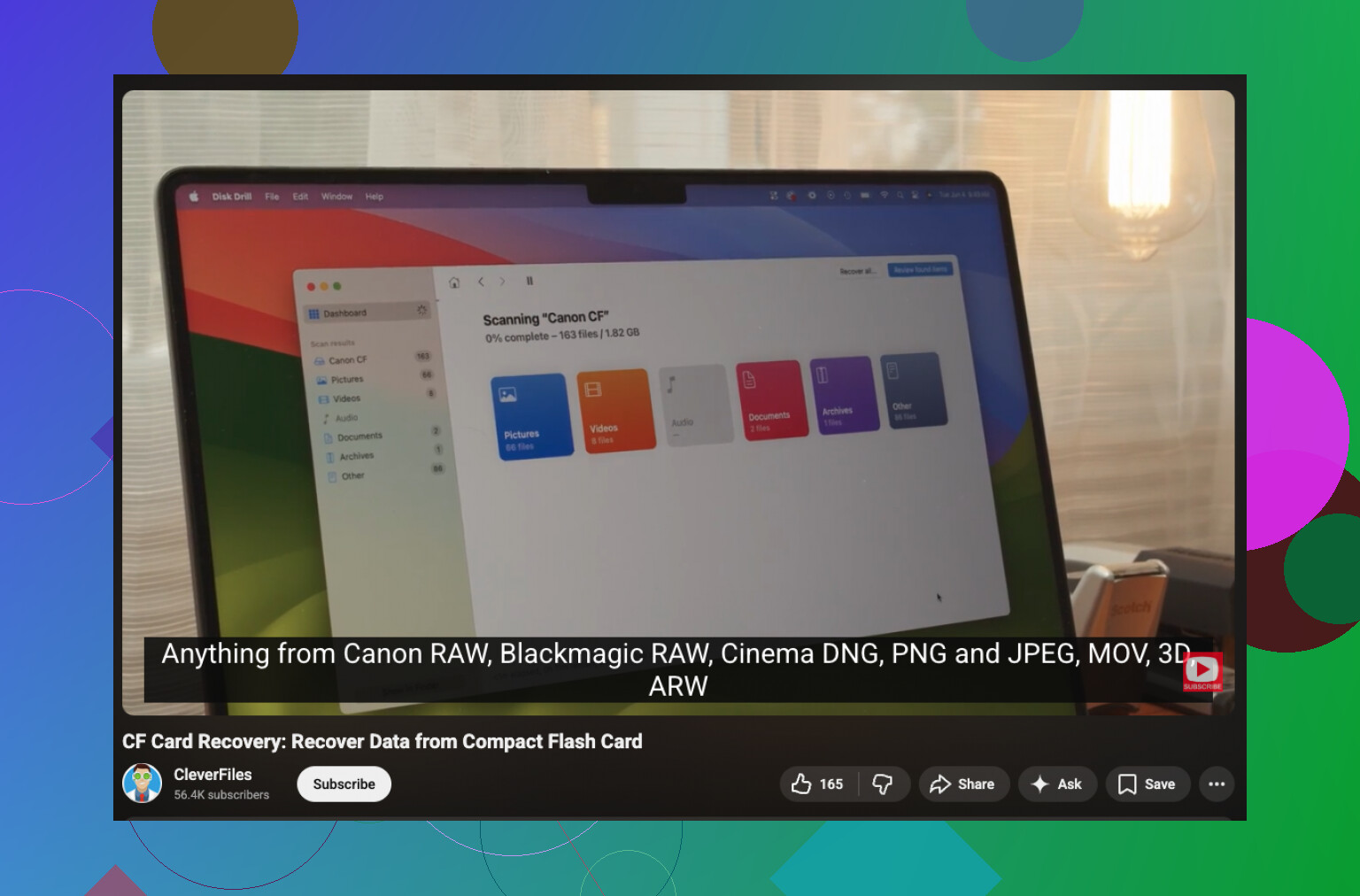
If the card mounts but shows empty, that does not always mean the photos are gone. Sometimes the folder structure is toast, but the image data is still there. In that case, I’d skip trying to browse DCIM over and over and go straight to a read-only recovery approach. Disk Drill is fine for that, especially if you need to recover JPG or RAW photos from a CompactFlash card and want to preview what’s actually recoverable before saving.
One small place I kinda disagree with the usual advice: if the card is perfectly stable and reads normally in the OS, I don’t think imaging first is always mandatory for a tiny CF card. Nice to do, yes. Required every time, not really. But if it disconnects even once, then yeah, image it first and work from the copy.
Also, if you’re on Windows, check whether the card got assigned a weird or missing drive letter. I’ve had cards show in Disk Management with no letter, which makes people think the media is dead when it’s just not mounted right. On Mac, look in System Information, not just Finder.
And don’t ignore the simple possibility that the camera wrote files in a format your computer previewer hates, so test with an actual recovery scan before panicing.
If you want more community troubleshooting examples, this thread on CF card photo recovery tips from real users is worth a look.