I’ve got an external hard drive formatted as NTFS that works fine on Windows, but my Mac only lets me read from it and not write or delete files. I’m confused about what’s safe to install or enable so I don’t corrupt the drive or lose data. What are the best options right now to get reliable NTFS write support on macOS, preferably without risking my files or needing to reformat the whole drive?
Yep, you can write to NTFS on a Mac, but Apple does not make it straightforward. Out of the box, macOS only reads NTFS. If you want to copy, edit, delete files on an NTFS drive, you need extra software.
Here is what I ended up learning and using.
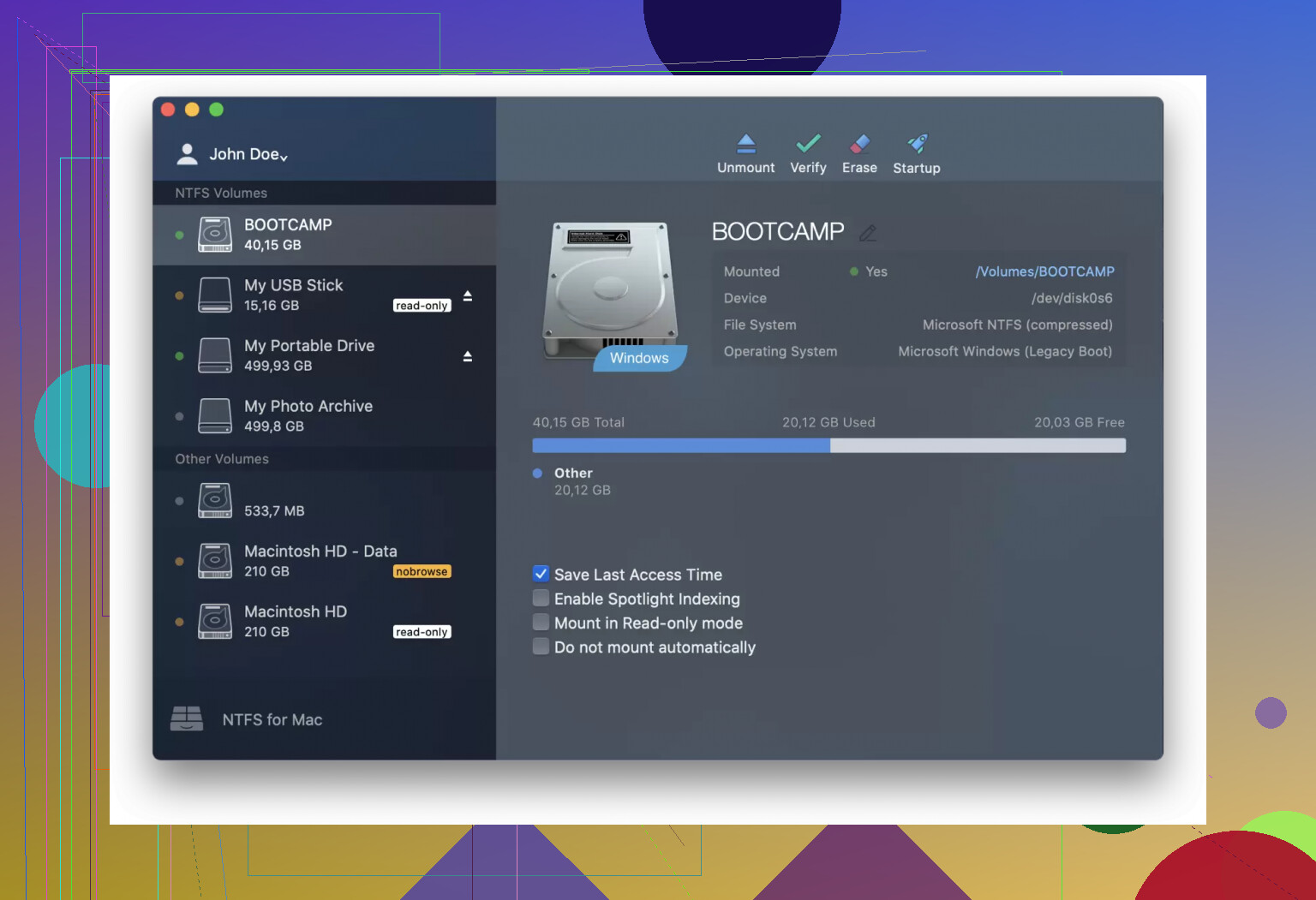
Paragon NTFS for Mac
I used Paragon on a work Mac that had to talk to a bunch of Windows disks every day. Setup took a couple of minutes, then the NTFS drive behaved like any other external disk in Finder. Copy, delete, Time Machine ignores it, everything felt native.
What I noticed:
- Performance was close to native HFS/APFS on USB 3 and SSDs. Large file copies above 50 GB worked without weird stalls.
- It ran as a system extension, so after install I did not touch it again.
- I never hit file corruption, even after unplugging drives by accident a few times, though I would not recommend doing that on purpose.
Paid software, but for me it was a one-time install during a project where losing data would have cost more than the license.
Tuxera NTFS
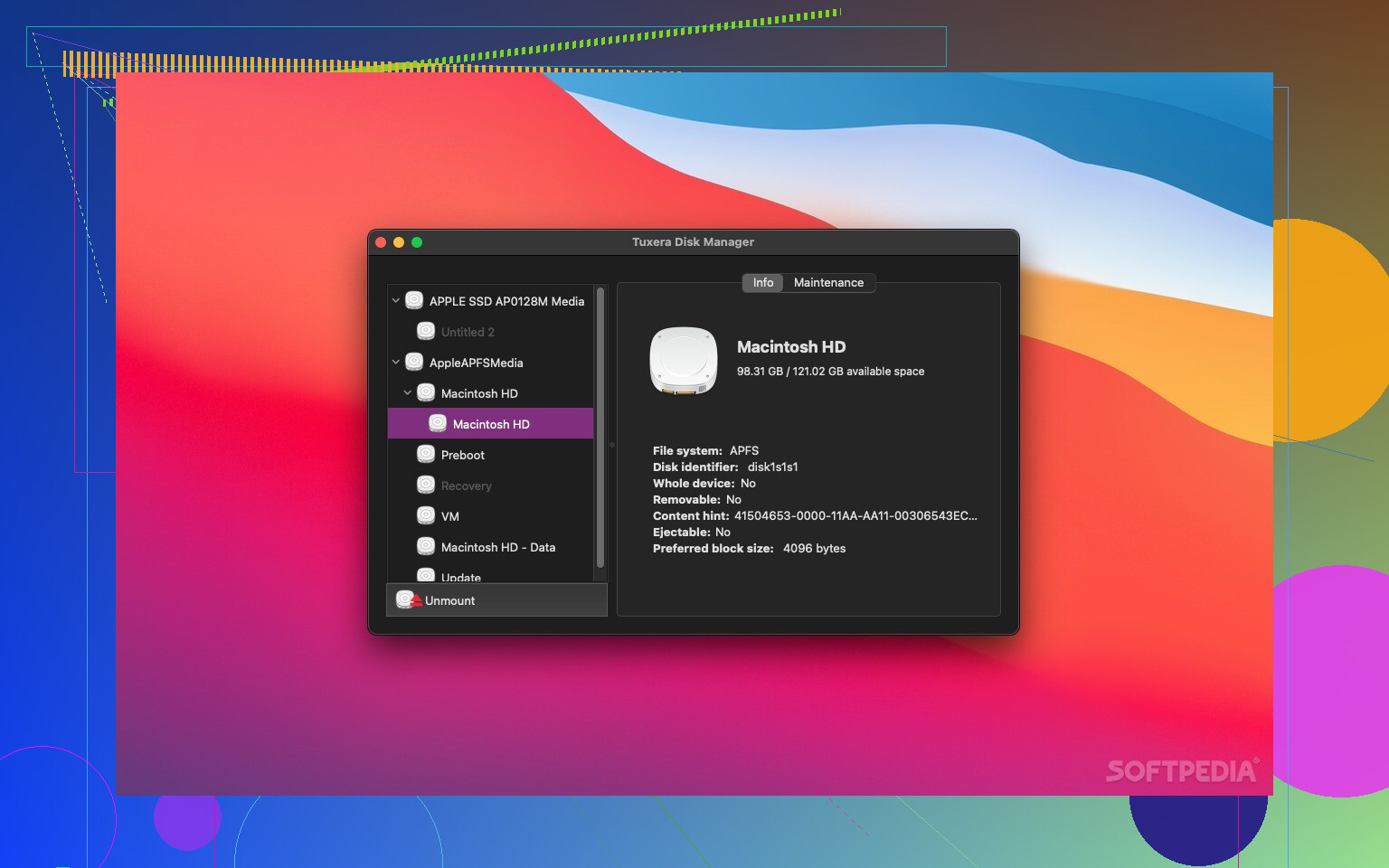
On my personal MacBook I tried Tuxera, mostly because a teammate swore by it. Same general idea as Paragon: NTFS mounts with read and write support, shows up in Finder, and works with normal apps.
My notes from testing:
- It includes a caching layer. On slow HDDs it felt smoother when copying many small files, like a folder with thousands of photos.
- With very large transfers, like 200 GB Steam library backup, it started a bit slower but then stayed stable.
- The UI panel gives a bit more control over settings, which some people like, others ignore.
Also paid. If you juggle NTFS drives a lot, it does the job without drama.
Mounty for NTFS
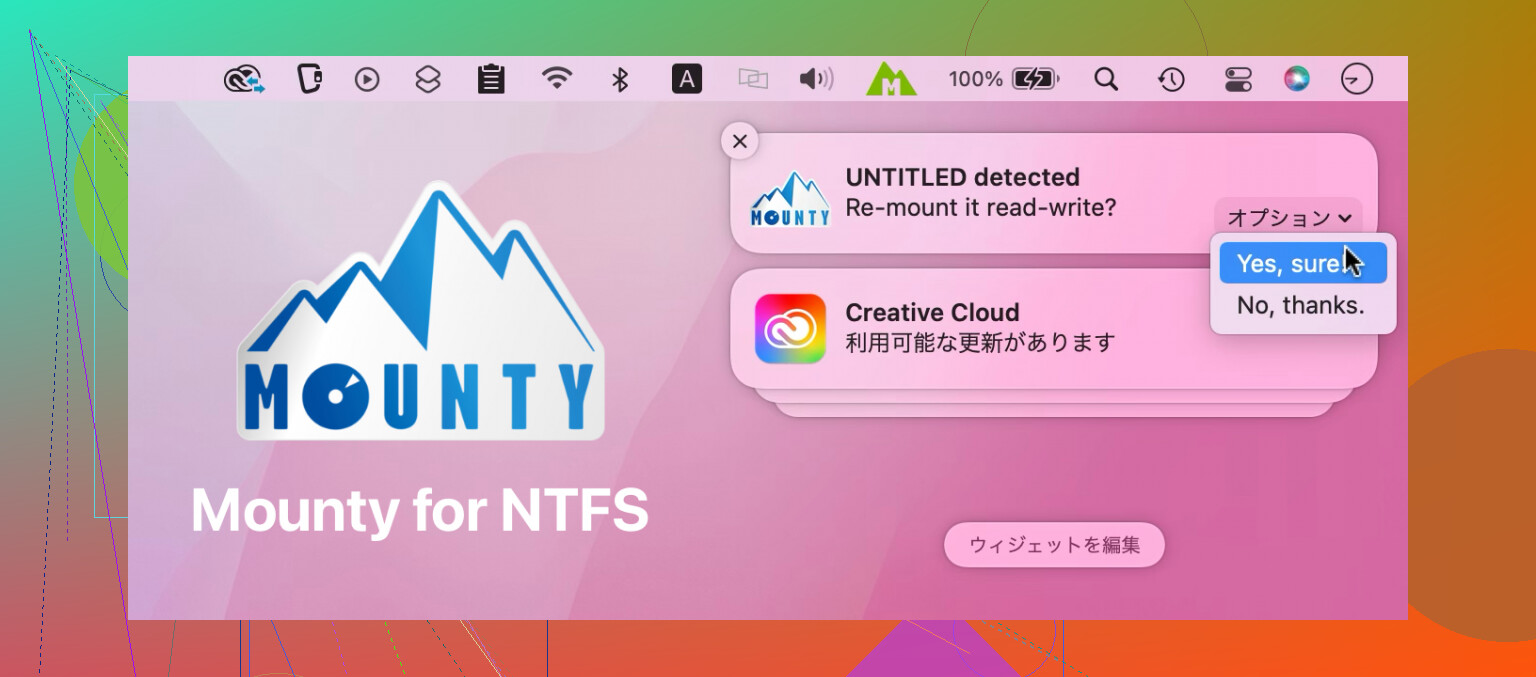
Mounty is what I tried on a friend’s Mac when they did not want to pay for anything. It uses Apple’s hidden NTFS write support, which Apple keeps off by default.
My experience:
- Install, plug in the drive, Mounty remounts it as writable.
- Works fine for small stuff, like copying documents or a few gigabytes of video.
- With big transfers, like 80 GB of mixed media, things got slow and Finder hung a couple of times.
- I got nervous about yanking the cable or a power cut while writing, since this relies on a feature Apple does not support officially.
For light, occasional use and non-critical data, it is okay. I would not use it for backups or anything important.
Quick practical breakdown
If you are unsure what to install, this is how I would pick now:
- If your data matters, and you plug NTFS drives in often: Paragon NTFS for Mac or Tuxera NTFS.
- If you rarely touch NTFS and the files are not critical: Mounty for NTFS.
- If you move multi‑hundred‑gigabyte folders often: go with Paragon or Tuxera, they handle that load better.
Commander One and Reddit mentions
While digging around, I kept seeing Commander One mentioned in threads like this Reddit post:
Commander One is a dual‑pane file manager for macOS that also offers NTFS support through an extra module. I have not used it myself, only saw some users saying they liked the file manager part and treated NTFS support as an add‑on, not the core tool.
If you mainly want a Finder replacement and NTFS access is a secondary need, it might be worth a look. If your only goal is stable NTFS write access for external drives, my experience leans more toward Paragon or Tuxera as the main options, with Mounty as the free but more limited fallback.
25 Likes
You have three safe paths, depending on how often you need NTFS and how much you care about the data.
-
Stop using NTFS between Mac and Windows
This is the most boring, but also the safest long term.• Back up the NTFS drive on a Windows PC.
• Reformat the drive on your Mac to exFAT in Disk Utility.
exFAT works with macOS and Windows with full read and write.
• Copy the backup data back to the exFAT drive.If the drive holds archives, family photos, or work stuff, this avoids all NTFS driver headaches. Performance is decent on USB 3 and SSDs. No third party kernel drivers. No weird corner cases after macOS updates.
-
Use a virtual machine instead of a native NTFS driver
If you are nervous about installing low‑level NTFS drivers in macOS, this is a safer middle ground.Idea: keep NTFS handling inside Windows, even on your Mac.
• Install a hypervisor like Parallels Desktop, VMware Fusion, or the free UTM.
• Attach the NTFS external drive directly to the Windows VM.
• Let Windows read and write the drive natively.
• Share a normal macOS folder with the VM for file exchange.So the flow looks like: macOS folder ↔ shared folder ↔ Windows VM ↔ NTFS drive.
It is slower than native, but safer for the drive format. If macOS or some NTFS helper glitches, the VM boundary keeps the NTFS logic in Windows, which knows its own filesystem.
-
Use an NTFS driver, but set rules and limits
@mikeappsreviewer covered Paragon, Tuxera, and Mounty from a day to day use angle. I agree with most of that, I am a bit more conservative on Mounty though. Apple’s hidden NTFS write mode exists, but Apple does not support it and has not tested it with modern edge cases, journaling issues, or sudden disconnects.My own rules from client machines:
• Only install an NTFS driver on Macs where NTFS is routine, not casual.
• Keep one drive in exFAT for “shuttle” work, and use NTFS only when forced.
• Never run Time Machine or Spotlight indexing on NTFS drives with third party drivers enabled. Turn off Spotlight for those volumes in System Settings.
• Always eject the NTFS drive cleanly, no yanking cables. NTFS is more forgiving in Windows than with third party drivers in macOS.Where Commander One fits
If you dislike Finder and want better file management plus NTFS, Commander One is worth a look. It gives you:• Dual pane file manager for faster drag and drop between locations.
• Optional NTFS support as an extension, so you manage files in a single tool.
• Extra protocols like FTP, SFTP, and cloud storage in the same UI.I would use Commander One if:
• You already plan to change your file manager workflow.
• You want NTFS support, but also need more control of file operations, bulk moves, queueing, etc.If your only goal is “plug NTFS disk in, move files, unplug”, a dedicated driver alone makes more sense. If you live all day in folders and file trees, Commander One gives more value.
What I would do in your shoes:
• If you only sometimes need to share with Windows, reformat to exFAT and avoid NTFS.
• If you must keep NTFS for compatibility, install a stable commercial driver, disable Spotlight on those volumes, and treat that drive like a “do not pull the plug” device.
• If you also hate Finder and move a lot of files, get Commander One and use its NTFS support inside a more capable file manager.
This keeps corruption risk low and avoids surprise issues after a macOS update.
Short version: you’ve got three sane “safe” paths, and only one of them is “install an NTFS driver and hope macOS updates don’t mess with it.”
@mikeappsreviewer and @shizuka covered Paragon, Tuxera, Mounty etc pretty well. I’ll come at it from the “how not to corrupt stuff” angle and disagree a bit on what’s worth doing long‑term.
1. Decide what actually matters on that drive
Before touching anything:
- If the data on that NTFS disk is important at all:
Back it up on a Windows machine first.
Clone it to another NTFS or at least copy the important folders. - Only after you have a backup should you start playing with drivers or formats on macOS.
I know, boring advice. It’s still the most effective “anti‑corruption software” you can install.
2. Safest for the future: stop using NTFS as your bridge
Where I slightly disagree with leaning heavily on Paragon/Tuxera: they’re nice, but you’re still riding a third‑party driver on a proprietary FS that Apple does not care about.
If this disk is meant for ongoing Mac ↔ Windows sharing, the safest fix is:
- On Windows: back up everything on the NTFS drive.
- On your Mac:
- Open Disk Utility
- Reformat that external disk to exFAT (GUID partition map is fine).
- Copy the data back from Windows to the new exFAT drive.
Why exFAT:
- Full read/write on macOS and Windows, no extra drivers.
- No weird “hidden” NTFS write mode.
- Survives macOS upgrades without waiting for driver updates.
If this is your family photos, work docs, etc, this is what I’d do. Honestly, I only keep NTFS around when something forces me to (consoles, specific cameras, corporate stuff).
3. If you must stay on NTFS
If you can’t reformat and have to work directly with NTFS from macOS, I’d treat it like a high‑risk operation and set some guardrails.
a) Use a real NTFS strategy, not just “turning on” Apple’s hidden write
I’m even more skeptical of Mounty than @mikeappsreviewer. Apple’s NTFS write code is:
- Undocumented
- Not supported
- Barely tested in modern macOS contexts
Fine for a couple GB of non‑critical stuff, but I would not trust it for anything that would make you cry to lose. So:
- For critical data: use Paragon NTFS for Mac or Tuxera NTFS if you want direct integration.
- For non‑critical or occasional transfers: Mounty is ok, but treat it like a temporary bridge, not infrastructure.
b) Hard rules to reduce corruption risk
Whichever driver you pick:
-
Disable Spotlight on that NTFS volume
System Settings → Siri & Spotlight → Privacy → add the NTFS drive.
Less background indexing, fewer weird concurrent writes. -
Never use it for Time Machine or any backup target
TM is not designed to work properly on NTFS via third‑party drivers. -
Always eject properly
Use “Eject” in Finder before unplugging. NTFS journaling plus third‑party drivers plus surprise cable pulls is exactly how you get corrupted MFTs. -
Avoid using it for “live” project files
For stuff like Xcode projects, Lightroom catalogs, Final Cut libraries, keep them on APFS/HFS+ and only export finished assets to NTFS.
4. Virtual machine approach: safer than it sounds
This one doesn’t get enough love and I think it’s actually one of the safest technical options:
- Install a Windows VM (Parallels, VMware Fusion, or UTM if you want free).
- Attach the external NTFS drive directly to the VM.
- Share a normal macOS folder with the VM.
Flow looks like:
macOS folder ↔ shared folder ↔ Windows VM ↔ NTFS drive
Upsides:
- Windows handles NTFS natively, which is where NTFS actually belongs.
- If anything glitches, the isolation is at the VM boundary, not your kernel.
- You don’t install any low‑level NTFS driver in macOS itself.
Downside: slower, obviously, and a bit clunkier. But if your priority is “zero corruption horror story,” this is honestly excellent.
5. Where Commander One makes sense
Since you mentioned confusion about what’s “safe,” there is a middle ground between “raw driver” and “Finder chaos.”
If you:
- Move a ton of files
- Hate Finder
- Want some control over what’s going where and when
Then looking at Commander One is worth it. Not just marketing fluff, it actually helps:
- Dual‑pane file manager so you see “source” and “destination” at the same time.
- Optional NTFS support module so you can browse and manage NTFS drives from a single interface.
- Built‑in support for other protocols (FTP, SFTP, clouds) if you end up juggling more than just USB drives.
I’d still pair it with a robust NTFS setup:
- Either use its NTFS module directly
- Or use Paragon/Tuxera and let Commander One act as your main file manager
Where it beats Finder for this use case: queued operations, clearer error feedback, better visibility of big copy moves. All of that reduces the chance that you half‑copy something to NTFS and never notice.
6. Concrete suggestions based on your situation
-
If you can afford to wipe the drive:
- Back up on Windows
- Reformat as exFAT on Mac
- Restore data
This is your cleanest, safest, “future‑you will thank you” option.
-
If you cannot wipe and the data matters:
- Back up first on Windows
- Install Paragon or Tuxera
- Disable Spotlight on that volume
- Use it only as a transfer drive, always eject cleanly
- Optionally use Commander One as your main file manager so you’re less likely to screw up large moves.
-
If you only occasionally need to write a few files and they’re not life‑or‑death:
- Mounty is usable, but keep transfers small and keep another copy of anything important.
I’d personally avoid relying long‑term on Apple’s hidden NTFS write mode or free hacks if this disk is the only copy of anything you care about. Reformat to exFAT or keep NTFS inside a Windows VM, and you won’t have to think about “is this going to corrupt my drive” every time you plug it in.
Leave the NTFS drive connected to your Windows PC and share it over your local network using SMB. Your Mac writes through Windows, so Windows handles NTFS safely.
On Windows, right-click the drive folder, select Properties, Sharing, then Advanced Sharing. On your Mac, open Finder, choose Go, Connect to Server, and enter smb://PC-name/share-name.
This needs no Mac drivers, no reformatting, and no VM. Transfer speeds reach around 80 to 110 MB/s over gigabit Ethernet. Wi-Fi will be slower, but fine for docs and photos. Keep the Windows PC awake during transfers.