My iPhone storage is almost full, and I realized my videos are taking up most of the space. I need help finding a way to sort videos by file size so I can quickly identify the largest ones and delete or move them. I’ve checked the Photos app but can’t find a simple size-sorting option.
I ran into the same wall. Apple still doesn’t give you a real size sort inside Photos, and on a phone full of clips, it gets old fast.
The blunt answer is this: inside the stock Photos app, there’s no proper way to sort videos by file size.
If your library is small, you can brute-force it. Open a video, swipe up, or hit the little info icon. The size shows there. I did this for a while and regretted it pretty quick. With a few files, fine. With 800 videos, no shot.
Sorting by length is the fake workaround people keep mentioning. It helps a little, but it misses a lot. A short 4K60 clip can take more space than a much longer 1080p recording. I saw this in my own library. Duration is a rough guess, not a clean answer.
What worked better for me
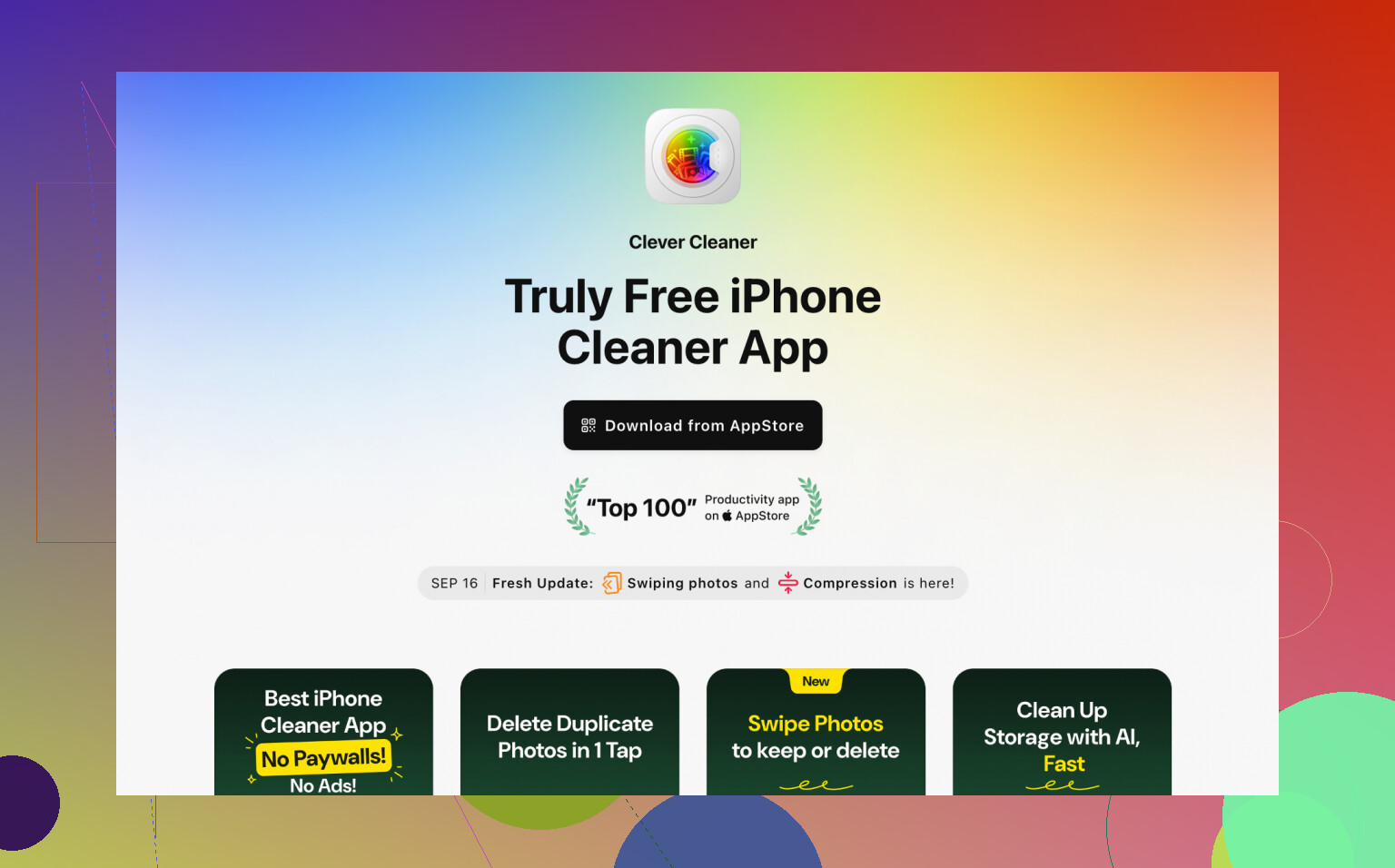
I gave up on the manual route and tried Clever Cleaner. I was skeptical at first because a lot of cleaner apps feel shady or try to trap you in a subscription loop. This one handled the one thing I needed.
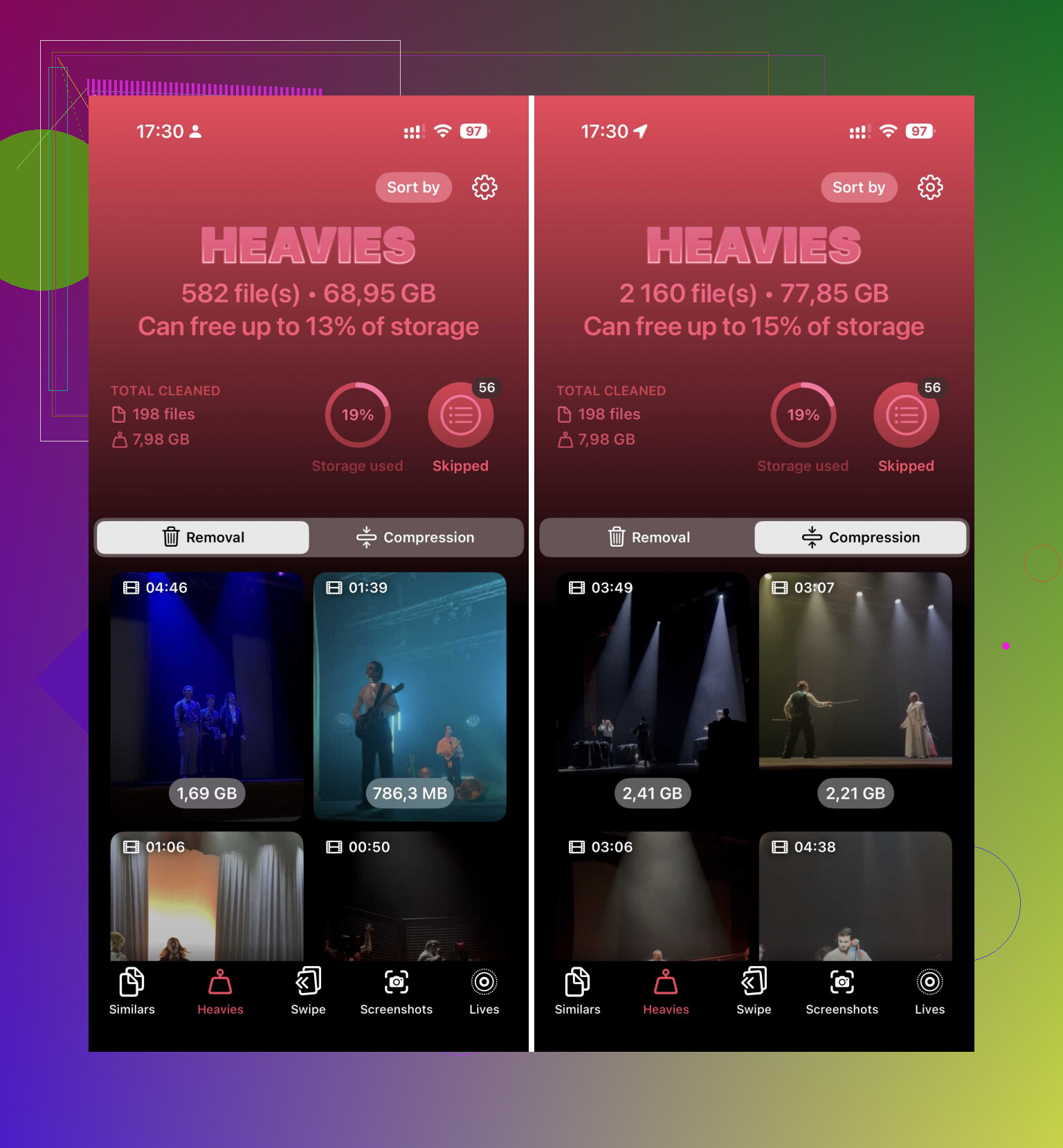
After you give it photo library access, there’s a section called Heavies. That tab lays out your videos from biggest to smallest, with the file size shown in MB or GB right next to each item. No tapping into every clip. No guessing from duration. I scrolled through, picked the worst offenders, and cleared space way faster than I expected.
There’s also a Compress option. I used it on a few videos I didn’t want gone. The files got smaller and still looked fine on the phone screen. For casual viewing, I didn’t notice much.
If you refuse to install anything
There are a few built-in paths, though each one has an annoying catch.
-
Check Settings, then General, then iPhone Storage. Sometimes iOS shows a Review Large Videos suggestion. When it appears, it’s useful. Mine found a few old clips I forgot were even there.
-
You can piece together a Shortcut. In Shortcuts, use Find Photos, set Media Type to Video, then filter by Duration greater than a number you pick, like 5 minutes. After that, sort by Duration, longest first. It still isn’t size sorting, but it gets you closer than Photos does.
-
Use the Files app for videos stored outside the camera roll. If something sits in On My iPhone or iCloud Drive, open the folder, tap the three dots, and sort by Size. This works natively. The catch is big, though. It won’t include the videos sitting in your Photos library. Moving everything out of Photos into Files, sorting it, deleting stuff, then moving it back is possible, but yeah, it feels dumb and kind of painful.
One thing people forget
Deleting a video from a cleaner app or from Photos doesn’t free the space right away if it lands in Recently Deleted. I missed this once and thought the app had bugged out. You still need to open Photos, go to Recently Deleted, and clear it if you want the storage back now instead of 30 days later.
So if your goal is simple, find the biggest videos fast, the cleanest route I found was Clever Cleaner and its Heavies section. The native options exist, sort of. I tried them. They feel half-finished.
15 Likes
You won’t get a true size sort inside Apple Photos. @mikeappsreviewer is right on that part. Where I slightly disagree is the “duration sort is kinda useful” idea. For me, it’s too sloppy to trust if you’re low on storage and need fast cleanup.
A better route is offloading the library to a Mac or PC for one pass.
On Mac:
- Plug in your iPhone.
- Use Image Capture.
- Sort imported videos by file size before keeping or deleting copies.
On Windows:
- Open DCIM from File Explorer.
- Switch to Details view.
- Sort by Size.
- Delete after you confirm what’s backed up.
This works best if your goal is “find the biggest files fast” without poking through each clip on the phone. Bit clunky, yeah, but it’s clean.
If you want to stay on iPhone, Clever Cleaner is still one of the better picks for sorting heavy videos and trimming storage fast. If you want a roundup, this guide on best free iPhone cleaning apps for clearing storage is decent.
Also check your video settings after cleanup. 4K at 60 fps eats space like crazy. Switching future recordings to 1080p saves a ton. I learned this way too late, lol.
You already got the main truth from @mikeappsreviewer and @stellacadente: Photos itself won’t really sort videos by file size. That part is just annoyingly true.
Where I kinda disagree is on using a computer as the “best” answer. It works, sure, but if your whole point is to fix this fast from the phone you already have in your hand, dragging everything through DCIM or Image Capture feels like 2014.
What I’d do instead is this:
- Go to Settings > Camera > Record Video
- Check if you’ve been shooting in 4K/60 fps or higher efficiency modes
- Then in Settings > General > iPhone Storage, look at the app-level storage breakdown
- Open Photos > Media Types > Videos and start with the newest or longest clips you know are probably huge
- If you want actual heavy-file detection on iPhone, use Clever Cleaner because it groups big items way faster than Apple does natively
One extra trick people skip: if you use iCloud Photos, turn on Optimize iPhone Storage. That won’t sort by size, but it can free a ton of local storage without deleting your videos. Not perfect, but honestly super useful if you’re in panic mode.
Also, check Messages and WhatsApp/Telegram if you use them. A lot of people think “my videos” means only Photos, then find out messaging apps are hoarding giant clips too. Sneaky little storage vampires.
If you want a cleaner explainer, this is a decent video walkthrough of Clever Cleaner features for finding large videos and freeing iPhone storage.
And yeah, don’t forget to empty Recently Deleted or iPhone will pretend it helped while keeping all the junk anyway. Classic Apple lol.