I’m trying to enter searches and passwords on my smart TV, but using the remote’s on-screen keyboard is painfully slow. Is there a reliable way to use my phone as a TV keyboard for apps like Netflix, YouTube, or browser searches?
Typing with a TV remote is awful, especially when you’re stuck entering an email, password, or long search term one letter at a time. In most cases, your phone can handle the typing instead, as long as the TV or streaming device supports it.
The easiest place to start is the official remote app for whatever platform you’re using. These usually include a keyboard field that sends text straight to the TV.
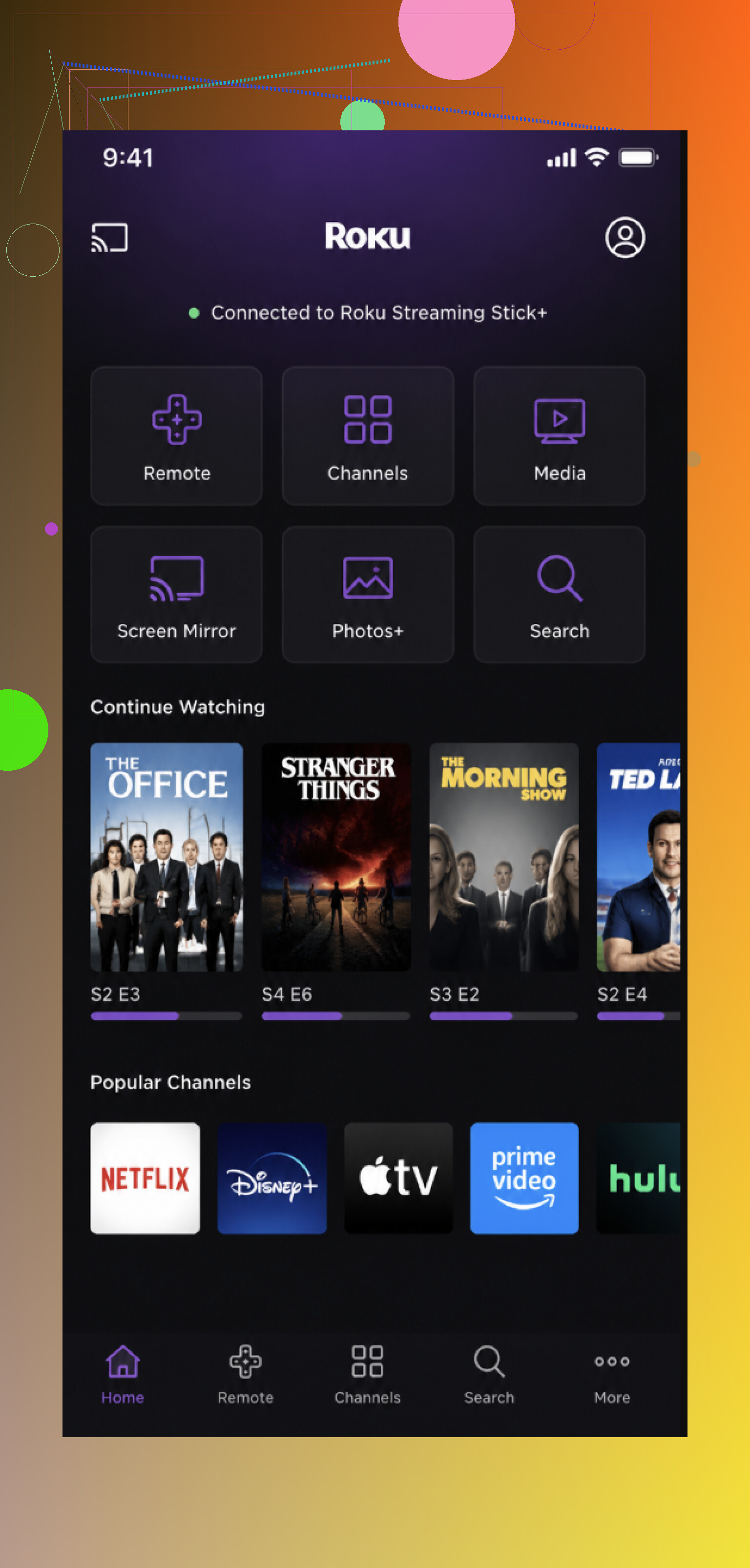
For Roku, the Roku mobile app has a keyboard button you can tap when you’re in a search box or text field. Fire TV works pretty similarly through the Fire TV app, including searches and login fields.
Apple TV is a little smoother if you’re using an iPhone. When a text box appears on the Apple TV, the iPhone will often pop up a typing notification automatically, so you don’t always have to open a separate remote app.
Samsung and LG also have their own routes. Samsung SmartThings and LG ThinQ both can give you phone-based remote controls with keyboard input after the TV is added to the app.
The catch with most of these is boring but important: your phone and TV usually need to be on the same Wi-Fi network. If they’re on different networks, guest Wi-Fi, or one is using cellular, the remote app may not see the TV at all.
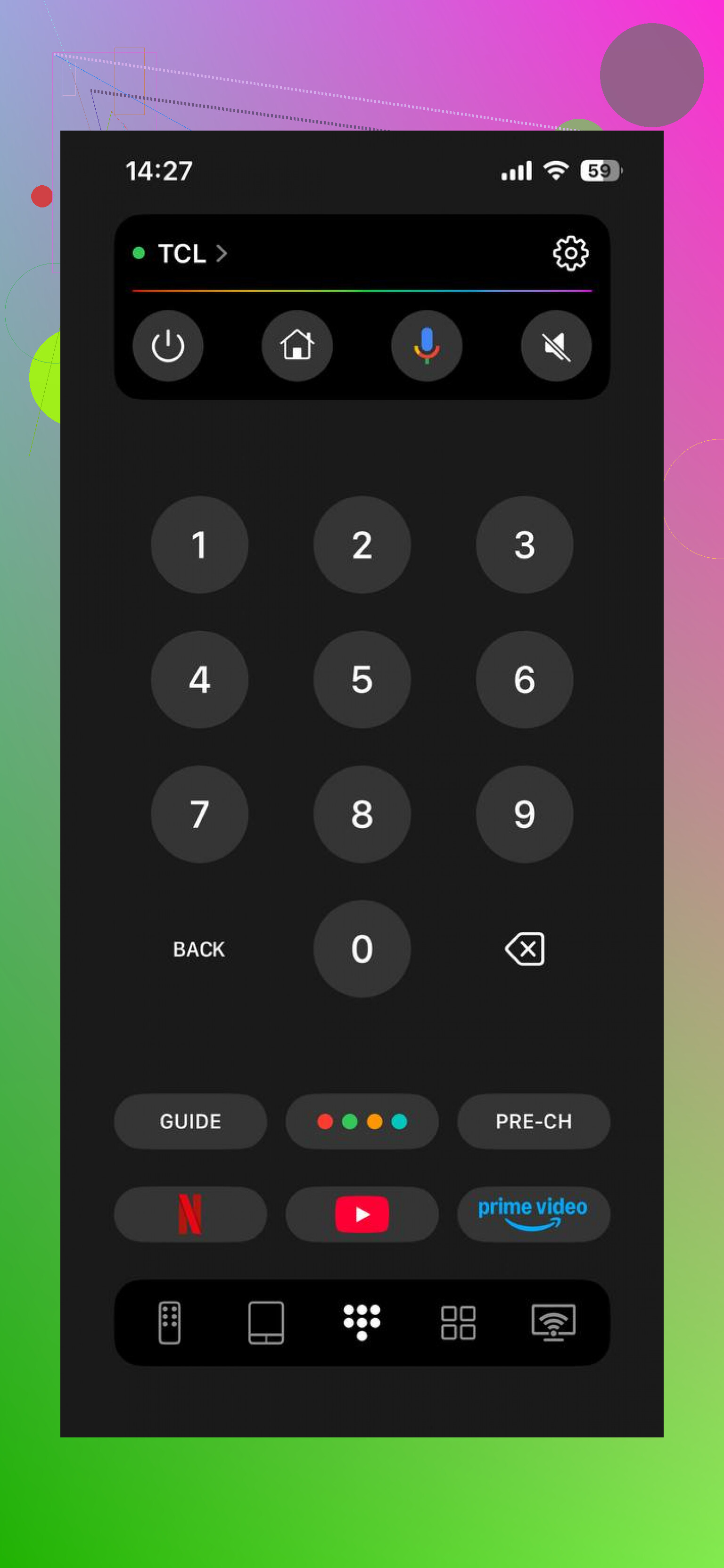
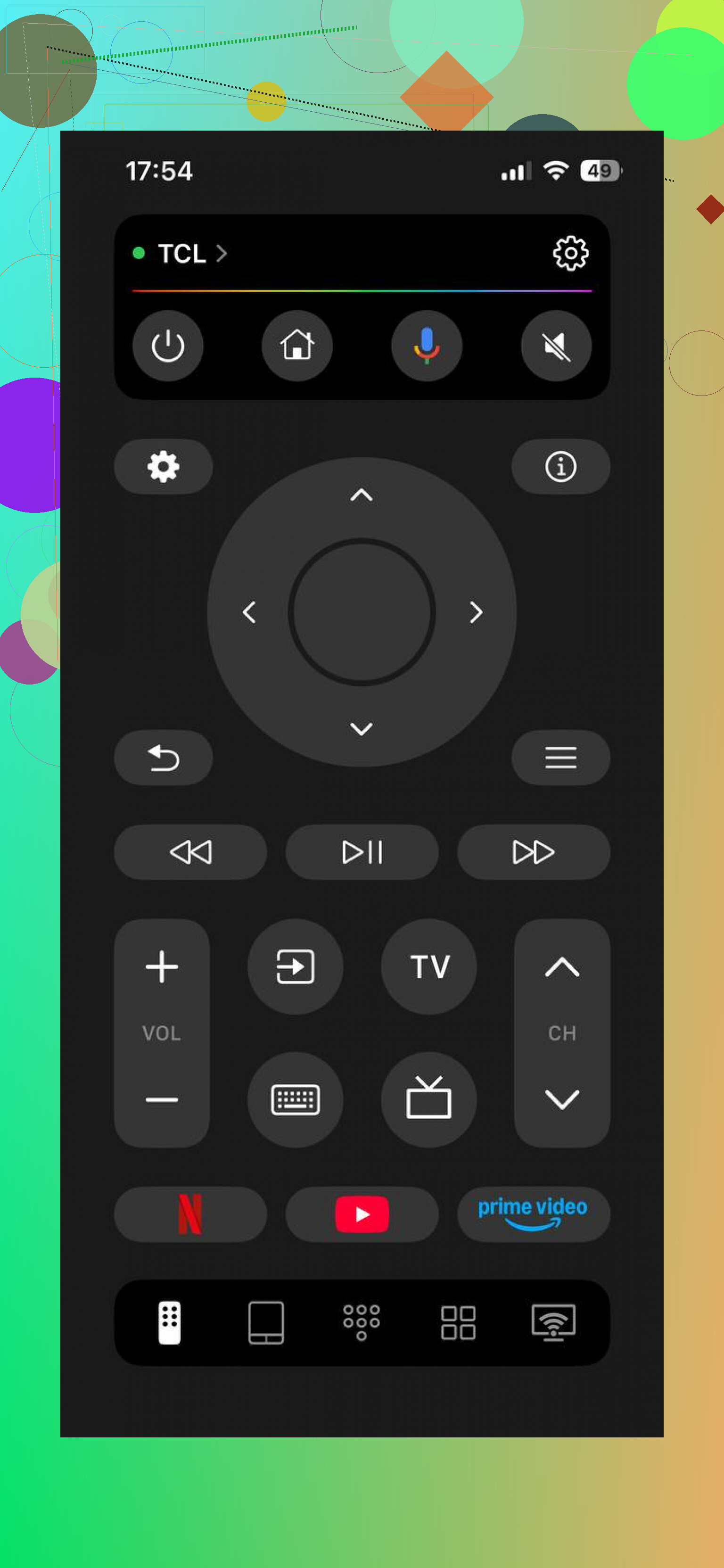
If you have more than one brand of TV or streaming box, a universal remote app can be less annoying than juggling separate apps. One option is TVRem.
mac.eltima.com/tvrem-universal-tv-remote/
TVRem is meant to work across supported Samsung, LG, Roku, Fire TV, Android/Google TV, and Apple TV devices from one app. The main benefit is the phone keyboard and voice search, which is exactly what you want if you’re tired of hunting around an on-screen letter grid. It also says there’s no subscription, and it’s rated 4.8 with a couple thousand reviews.
A few other options are worth trying before you suffer through the arrow keys again.
If your TV remote has a microphone button, voice search is often the fastest way to find a movie or show. Google Assistant and Alexa can do the same thing on supported devices.
For Android TV or Google TV, you may also be able to pair a real Bluetooth keyboard. That’s overkill for occasional searches, but it makes sense if you type logins, browser searches, or longer text often.
And for app sign-ins, check whether the app offers a phone login, QR code, or activation code. A lot of streaming apps let you sign in on your phone or computer instead of typing the whole password on the TV.
One limitation: this really only applies to smart TVs and streaming devices connected to Wi-Fi. If it’s an older non-smart TV with no connected box, there usually isn’t a phone keyboard option. At that point, you’re stuck with the regular remote unless you add a streaming device.
If you know the exact TV or streaming stick you’re using, it’s easier to point you to the right keyboard feature.
Password boxes are where phone keyboards tend to disappoint. A lot of TV apps will let your phone type in search fields, but they may block pasted passwords or ignore the keyboard completely on login screens for security reasons. So if YouTube search works but Netflix sign-in does not, that does not always mean the app is broken.
For the least painful setup, use the remote app that matches the actual device doing the streaming, not just the TV brand. If Netflix is running on a Roku stick, use the Roku app. If it is running on a Fire TV, use the Fire TV app. If it is the built-in Samsung or LG app, then SmartThings or ThinQ makes more sense. People sometimes install the TV manufacturer’s app while the real app is running on an HDMI streaming box, and then wonder why text entry only half works.
For passwords, I’d usually skip TV typing entirely if the app gives you a QR code or “activate on web” code. That is faster and avoids exposing your password on a shared phone keyboard app. For searches, though, the phone remote keyboard is usually fine as long as both devices are on the same Wi-Fi and you are not on guest mode or a hotel network. Universal remote apps can be convenient, but I’d try the official app first because it is less likely to lose keyboard support after an update.
The TV has to be waiting in an actual text box before most phone keyboards will do anything. A lot of people pair the phone remote, see the trackpad/buttons working, then assume the keyboard is broken because typing does nothing on the TV home screen or inside an app menu. Usually you need to click into the search field first, then open the keyboard in the remote app.
I agree with @yozora that the app should match the box doing the work. That trips people up constantly. If your “smart TV” is really just showing a Roku, Fire TV, Apple TV, or Chromecast/Google TV over HDMI, the TV brand app may only control volume and power. It may never send text into the streaming box because, from the TV’s point of view, that HDMI input is just video.
The workaround I use before messing with remote keyboards is to start from the phone app itself when possible. For YouTube, Netflix, Disney+, etc., search on your phone, then cast or use the app’s “connect to TV” feature. That avoids the TV keyboard entirely. It is not the same as using your phone as a keyboard, but for finding a show or video it is usually faster and less flaky.
For passwords, I would avoid any random “universal keyboard for TV” app unless you really trust it. Some of them are fine as remotes, but typing account passwords through a third-party remote app is not something I’d be casual about. Use the official Roku/Fire TV/Apple/Google/Samsung/LG app, or better yet use the QR code or activation code login if the streaming service offers it.
A couple of small annoyances to expect:
Some apps accept phone keyboard input for search but not sign-in.
Some TV browsers are terrible even with a phone keyboard.
Guest Wi-Fi, mesh network isolation, VPNs, and “private address” settings can stop discovery.
Bluetooth keyboards may work on Android TV/Google TV, but not on every TV app.
A reboot of both devices sometimes fixes the “keyboard appears but text won’t enter” problem.
If you just want the least painful path, I’d do it in this order: use the app’s phone login or activation code for passwords, use casting for searches when the service supports it, and use the official remote app for the streaming platform when you need real keyboard input. Universal remote apps are more of a convenience layer, not the first thing I’d trust for account credentials.
Expect it to work for searches more often than for passwords. If the app blocks phone keyboard input on a login screen, a cheap USB or Bluetooth keyboard may be less annoying than fighting remote apps, assuming your TV or streaming box supports keyboards.