I’m trying to control my Android TV using my iPhone and I’m confused about which remote app actually works well and is safe to use. The official Android TV app doesn’t seem obvious in the App Store, and some third-party apps have sketchy reviews. Can anyone recommend a reliable Android TV remote app for iOS and explain how to set it up and connect it to the TV on the same Wi‑Fi network?
If you have ever tried typing a full email address or a weird mixed-symbol password on an Android TV with the stock remote, you already know why people start looking for phone remote apps. I hit that wall after mistyping the same password five times on a Hisense TV and decided I was done with the d-pad life.
Here is what ended up working for me and what did not, so you do not have to waste an evening reinstalling random apps.
TVRem: the remote app that made me stop using the plastic one
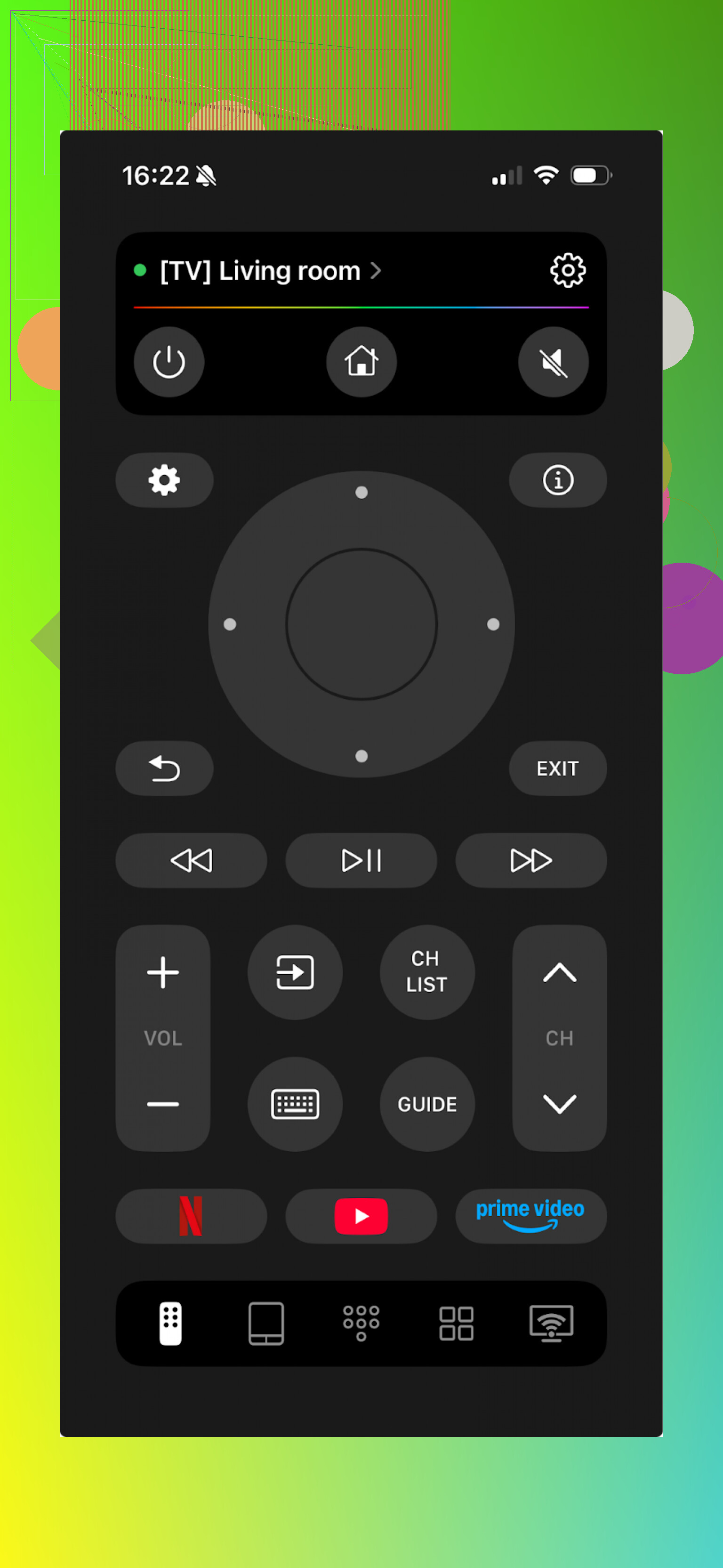
I first saw TVRem mentioned as an iPhone remote, not even specifically for Android TV. Installed it out of curiosity, paired it with a Chromecast with Google TV and then with a Sony TV. Both worked, which surprised me a bit because a lot of these “universal” apps quietly fail on at least one brand.

Here is what made me keep it installed:
-
No ad spam
I tried a few other “free” remote apps before this. One had a full-screen ad every time I pressed Home, another one darkened half the screen with a banner. TVRem stayed quiet. No flashing banners, no countdowns. That alone made it useable. -
Keyboard that does not make you hate your life
When something on TV asks for a search term, TVRem pops up a normal phone keyboard. I timed it once. Entering a 16-character password on the TV remote took me a bit over 40 seconds with two corrections. Doing the same from the phone with TVRem was under 10 seconds. For long movie titles, email logins, or promo codes, this matters. -
Touchpad mode that feels closer to a real UI
The touchpad mode turns the phone screen into a small trackpad. It feels closer to using a laptop trackpad than stepping through each tile with arrows. Apps with messy grids like Netflix or some regional streaming apps become less painful. Instead of tapping right-right-right, you swipe across the phone and move the focus directly. -
One-tap app launching
You can pin shortcuts for apps like YouTube, Disney+, Prime Video on the remote screen itself. I got used to opening TVRem, tapping YouTube, and skipping the TV home screen. Small thing, but when other people in the house ask where “that show” is, this shortcuts list keeps them from rearranging your home screen. -
Voice that does not miss every third word
Voice input through the phone mic has been more accurate for me than the tiny mic in the stock remote. You hold the button in the app, say “search for Andor on Disney Plus,” and it passes through to the TV assistant. Good when you are too lazy to type but want something specific, not random “trending” junk.
Official option: Google TV app as the safe fallback
There is also the official Google TV app from Google. On Android it is usually already installed or easy to grab from the Play Store. On iOS you get it from the App Store. It has a built-in remote mode that talks directly to Android TV and Google TV.
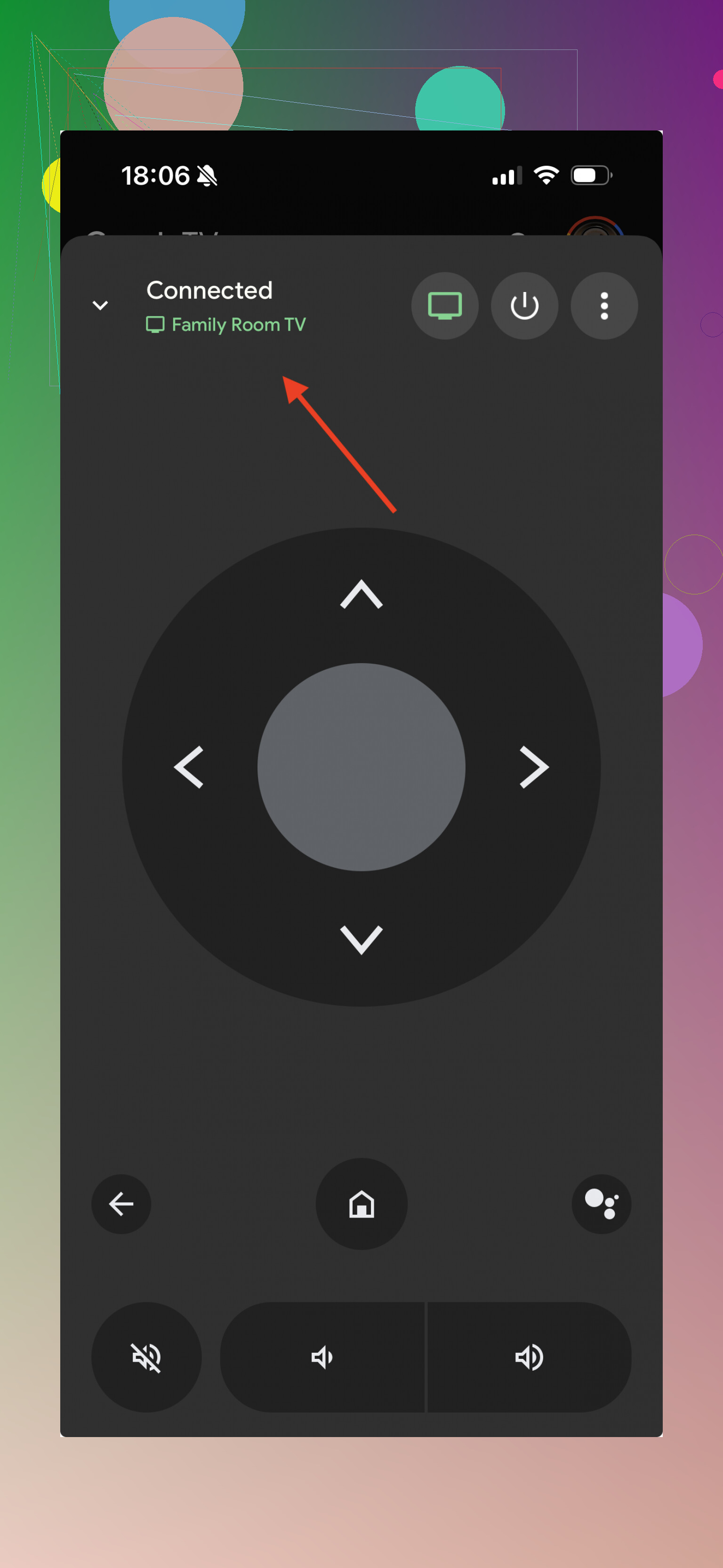
What I liked about it:
• It is tied to your Google account, so pairing tends to be straightforward.
• It feels stable. I did not get random disconnects every few minutes.
• If you live fully inside Google’s ecosystem, it fits right in.
What bugged me:
• The keyboard exists but feels slower and a bit clunky compared to TVRem.
• No separate touchpad mode last time I used it, more of a directional pad layout.
• No nice quick-launch row for favorite apps, so more hopping around the TV UI.
I still keep Google TV installed as a backup. When something behaves weirdly, I test with it to see if the problem is with the network or the other app.
How to Connect Your Phone to Android TV
Setting this up usually takes less than 60 seconds. Just follow these steps:
- Sync your Wi-Fi: This is the most important step. Your phone and your Android TV must be on the same Wi-Fi network.
- Tip: If your router has 2.4GHz and 5GHz bands, make sure both devices are on the same one.
- Enable Network Standby: On your TV, go to Settings > Network & Internet and make sure “Remote Start” or “Network Standby” is ON so you can turn the TV on using your phone.
- Open the App: Fire up TVRem or your chosen app. It will automatically scan your network.
- Pairing: Select your TV from the list. A pairing code will appear on your TV screen — type it into your phone, and you’re linked!
Pro Tips for a Better Experience
- Widget Power: If you’re on iPhone, you can often add these apps to your widgets or use Siri Shortcuts to launch the remote even faster.
- Voice Search: Don’t forget that most Android TV remote apps allow you to use your phone’s microphone. It’s often more accurate than the mic built into the physical remote.
- If it disconnects: If the app loses connection, simply toggle your phone’s Wi-Fi off and back on. This usually refreshes the handshake between the devices.
Where I ended up
If you want one thing that replaces the stock Android TV remote with minimum friction, TVRem has been the most useful for me so far:
No ads during normal use, fast typing, usable touchpad, decent voice control, and app shortcuts all in one place. After a week of using it, the plastic remote slid into the drawer, and I have not gone looking for it unless the phone was dead.
The official Google TV app is still worth installing as a reliable backup and for people who prefer sticking to Google-only tools, but for day to day use, TVRem made Android TV feel less clunky and more like something I control from my pocket without thinking about it.
42 Likes
You have a few solid paths on iPhone besides what @mikeappsreviewer already covered.
- Official option you are probably looking for
Search the App Store for:
Google TV
Publisher should be “Google LLC”.
Install it, sign in with the same Google account as your Android TV or Chromecast with Google TV.
Inside the app, tap the Remote icon in the bottom right.
Your TV needs to be:
• On the same Wi‑Fi as your iPhone
• Running Android TV or Google TV
You pick the TV from the list, enter the pin shown on the TV, done.
It is plain but stable and from Google, so from a safety perspective it is the lowest-risk choice.
I do disagree a bit with the “keyboard is too slow” complaint. On recent iOS versions it feels fine for short searches and login fields. For long passwords, any phone keyboard will beat the stock remote by a mile.
- Alternatives if you want features or do not trust random apps
If you care about safety first, stick to these rules when you test any third party remote, including TVRem or others:
• Check the App Store publisher
Pick developers with an actual company name and a website, not “Super Remote Fun Devs” with no site.
Look for a privacy policy in the App Store listing.
• Look at permissions
On iOS, a remote app should need:
Wi‑Fi / local network access
Microphone if it supports voice search
If it asks for contacts, photos, or location for no clear reason, skip it.
• Read recent reviews
Sort by “Most recent”.
Red flags: complaints about aggressive ads, subscriptions that auto start, or the app trying to “scan” your phone.
- Network setup details that often break pairing
This is where most people get stuck, not on the app itself:
• Same network name on both devices
If your router has separate SSIDs like “Home_2G” and “Home_5G”, put both the TV and the iPhone on the same one. Some routers also enable “AP Isolation” or “Client isolation”. If that is on, your phone will not see the TV. Disable that for your main Wi‑Fi.
• TV settings beyond the obvious
On some Android TVs you also need to allow remote control over the network:
Settings > Apps > See all apps > Show system apps > Android TV Remote Service
Make sure it is enabled and not restricted by battery or background limits.
If you use a Chromecast with Google TV, go to:
Settings > System > About
Restart once after installing the remote app. It fixes a lot of “TV not found” issues.
- Minimalist route using HDMI‑CEC
If your TV has a separate box, like a Chromecast with Google TV plugged into an HDMI port:
• Enable CEC on the TV
Name varies by brand.
Sony: Bravia Sync
Samsung: Anynet+
LG: Simplink
This lets the Google TV device turn the TV on and off, and in many cases, control volume.
Then your iPhone remote app only talks to the Chromecast, which then controls the TV. That reduces weird brand specific bugs on some Hisense and TCL sets.
- My own day to day setup
I keep it simple:
• Google TV app on iPhone as the default, since it is from Google and does not spam ads in my face.
• One third party app as backup for when I want touchpad style control and faster text entry.
• Plastic remote in a drawer for when Wi‑Fi dies, firmware updates glitch, or someone changes the router.
If you want low risk: start with Google TV.
If you want speed and nicer controls: add one third party like TVRem, but check permissions and reviews before you trust it.
Couple of extra angles that might help, on top of what @mikeappsreviewer and @andarilhonoturno already covered.
-
Why you don’t see “Android TV Remote” on iOS
Google basically killed the old “Android TV Remote” app and folded everything into Google TV. So if you’re searching for “Android TV remote” and not “Google TV,” it feels like nothing official exists. That’s normal, not your fault. -
If you’re paranoid about “safe” apps
If you really care about not handing your network to some shady remote dev, I’d actually invert what some folks said and start with:
- Google TV app (Google LLC) for basic control
- Built‑in features from your TV brand before touching third party stuff
For example:
- Sony / Philips Android TVs often support the “Video & TV SideView” legacy stuff and direct IP control.
- Some Hisense / TCL firmwares expose an open remote API that first‑party apps use.
Not pretty, but at least you’re inside the vendor’s ecosystem instead of a random subscription trap.
- Another legit option: vendor‑specific iOS apps
These are usually buried in the store, but worth checking:
- Search “[Your TV brand] remote” and look for the official company name as the publisher (Hisense, TCL, Sony, Sharp, etc).
They’re often uglier and more limited than TVRem, but from a “safe and boring” standpoint they’re actually fine. Most do: - D‑pad
- Keyboard input
- Power / volume
No fancy touchpad, no app shortcuts, but also usually no sketchy ad SDKs.
- If Google TV / TVRem can’t find your TV at all
Everyone says “same Wi‑Fi” which is true, but the thing that really kills discovery is router config:
- Check your router for:
- “AP isolation” or “client isolation” → must be OFF
- Guest network → if the TV or phone is on guest, they probably can’t see each other
- Mesh systems: sometimes put IoT stuff on a different VLAN; that breaks remote apps
If you did everything “right” and the TV still won’t show:
- On the TV: Settings > Apps > See all apps > Show system > “Android TV Remote Service”
- Clear cache & force stop
- Reboot TV
That fixes more “my phone can’t find the TV” issues than any app reinstall.
- LAN‑only, no cloud nonsense
If you’re extra cautious, you want apps that only talk on your local network and don’t require accounts. In that sense I’m actually less excited than others about app‑linked accounts. Nice for convenience, but:
- Pure local pairing with a PIN on screen means:
- No sign‑ups
- No data tied to your profile
TVRem and other IP remote apps generally work this way. As long as:
- They only request Local Network + Microphone
- They don’t try to log in with Google / Facebook
they’re not in a position to do much more than send commands over your LAN.
- When not to use an iPhone remote
Nobody mentioned this, but: keep the physical remote nearby for:
- Router crashes / Wi‑Fi down
- TV in a different subnet / guest Wi‑Fi situation
- Initial setup after factory reset
The iPhone remote can’t help if the TV is stuck at a “Connect to Wi‑Fi” screen.
So in short:
- Official route: Google TV app from Google, accept that it’s functional, not fancy.
- Brand route: check if your TV maker has its own iOS remote app, especially if you want “safer than random dev” without features.
- Power‑user route: one third‑party like TVRem for quality of life, but only after checking permissions and privacy policy.
If you post your exact TV brand/model, it’s a lot easier to say “use X, ignore Y” instead of you trial‑and‑erroring through 10 clones in the App Store.