I’m running low on storage on my iPhone, and a few apps are showing they’re taking up a lot of space under storage settings. I’d like to clear the cache or temporary data for just those specific apps without deleting everything or losing important data. What’s the best way to safely clear app cache on iOS for individual apps, and are there any workarounds if the app doesn’t have a built-in cache clear option?
iOS does not give a true “clear cache” button per app like Android, so you need a few workarounds.
-
Check what is using space
• Settings > General > iPhone Storage
• Tap each app. You see “App Size” and “Documents & Data”
• Large “Documents & Data” usually means cached stuff -
Offload an app, keep its data
This frees the app binary, keeps documents and settings.
• Settings > General > iPhone Storage
• Tap the app
• Tap “Offload App”
• Then tap the icon on the home screen to reinstall
This sometimes shrinks cached data, but not for every app. -
Delete and reinstall for a hard reset
This clears all cached files.
• Press and hold the app icon
• Remove App > Delete App
• Reinstall from App Store
Downside, you lose offline data, downloads, logins in some apps. -
Use in‑app cache options
Some apps have their own clear options, for example:
• Safari
Settings > Safari > Clear History and Website Data
For more control
Settings > Safari > Advanced > Website Data > Remove All Website Data
• Chrome
Chrome app > three dots > Settings > Privacy > Clear Browsing Data
• Spotify, Netflix, YouTube
Usually inside app settings under Storage or Cache -
Offload large chat/media apps
iMessage
• Settings > General > iPhone Storage > Messages
• Review Large Attachments
• Delete old videos, photos, GIFs
WhatsApp
• WhatsApp > Settings > Storage and Data > Manage Storage
• Delete large videos and chats -
Use a cleaner app when manual cleanup gets tiring
If you keep hitting storage limits, a focused cleaner app helps you find big junk faster.
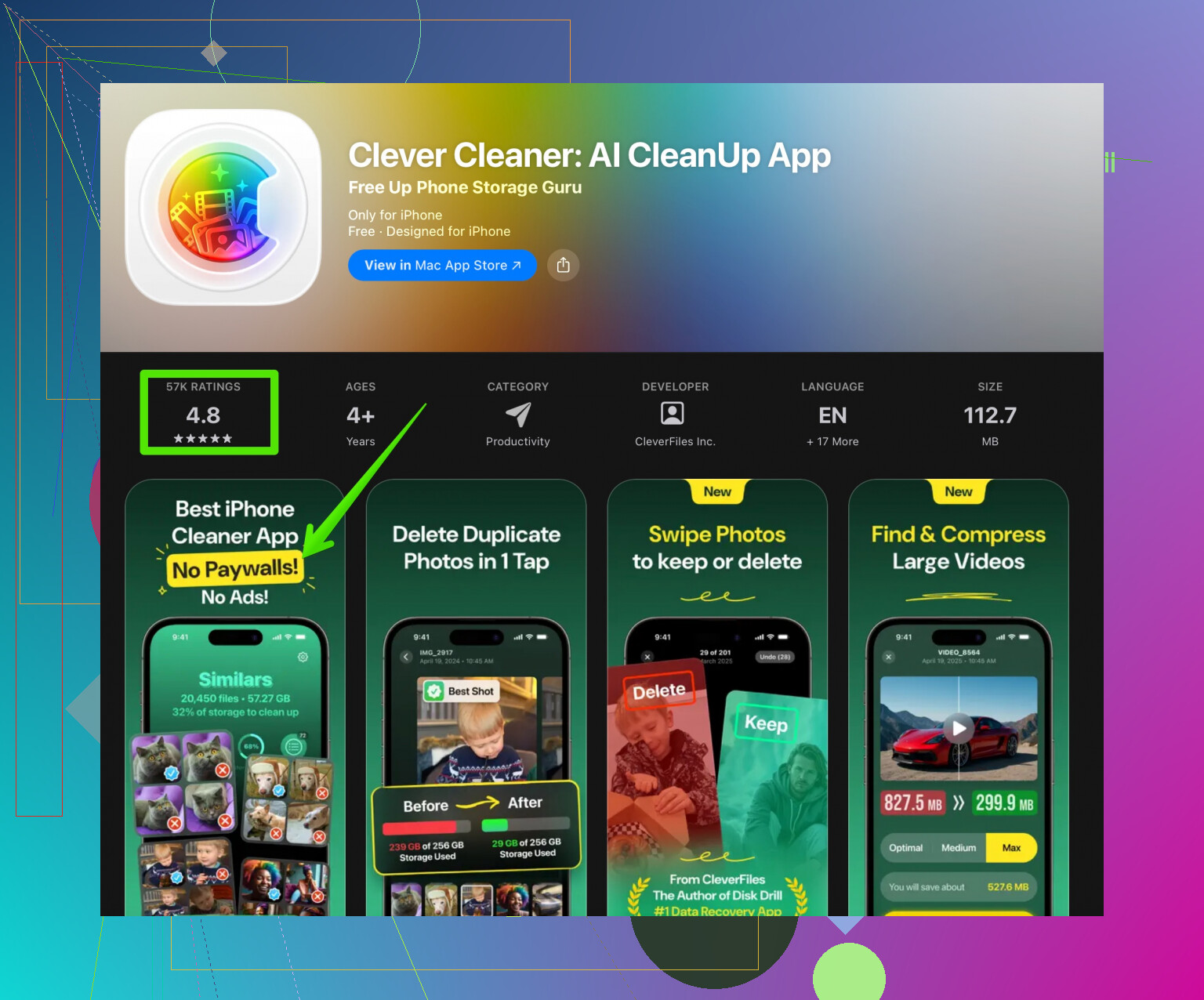
The Clever Cleaner App groups duplicate photos, blurry shots, and large videos so you do not scroll forever in Photos. It also helps clean old screenshots and similar media. You install it from the App Store here
smart iPhone cleaning with Clever Cleaner
Quick strategy that works for most people
• Clear Safari and Chrome data
• Clean Messages and WhatsApp media
• Delete and reinstall 1 or 2 worst offenders
• Run Clever Cleaner to prune photo junk
Do that once, you free up a lot of space without nuking your whole phone.
22 Likes
iOS is annoyingly stingy about “clear cache per app,” so you’re already running into the same wall as the rest of us. @sternenwanderer covered the obvious stuff (offload, delete/reinstall, in‑app options), so I’ll skip repeating that and add a few more targeted tricks and some reality checks.
1. Focus on apps that actually hoard cache
Not all apps are equal here. The worst offenders in my experience:
- Social apps: Instagram, TikTok, Facebook, Reddit
- Streaming: Spotify, Netflix, YouTube
- Maps: Google Maps, Waze
- Browsers: Safari, Chrome, Firefox
Under Settings > General > iPhone Storage, tap those specific apps and check if “Documents & Data” is huge compared to the app size. Those are the ones worth your time.
2. Use “hidden” in‑app refresh tricks
Some apps shrink their cache if you force them to reindex or redownload stuff, even without a formal “Clear cache” button:
-
Instagram / TikTok / other socials
- Log out, force quit, then log back in.
- Turn off “Save original posts” or “High quality uploads” if you had them on.
- Disable offline downloads / saved reels, then reenable if needed.
-
Google Maps
- In Google Maps > your profile > Offline maps > delete old offline areas.
That cache is huge and iOS counts it as “Documents & Data”.
- In Google Maps > your profile > Offline maps > delete old offline areas.
-
YouTube / Netflix / Spotify
- Remove downloaded content first instead of just nuking the app.
- In Spotify, lowering download quality and redownloading playlists sometimes cuts bloat.
None of this is guaranteed, but on some apps I’ve seen a couple hundred MB drop without deleting the whole app.
3. Use “system” cleanups that hit multiple apps indirectly
Not quite per‑app, but they often shrink several apps’ caches at once:
-
Restart your iPhone
It sounds stupid, but a proper power off, wait 20–30 seconds, and power on can clear some temp files system‑wide. It will not magically free gigabytes, but you might see a few hundred MB come back. -
Background app refresh & auto downloads
Go to Settings > General > Background App Refresh and turn it off for apps that are storage hogs. It does not delete current cache, but it slows future cache buildup. -
Photo & video links inside apps
Many apps keep local copies of photos / clips you already have in Photos. Manually deleting in-app copies (like saved snaps, drafts, or “recently uploaded” media) can shrink their storage without touching your actual Photos library.
4. “Delete & reinstall” is not always all‑or‑nothing
I slightly disagree with the idea that delete/reinstall must wreck your life every time:
- Some apps sync almost everything via your account
- Reddit, Twitter/X, Instagram, TikTok: you usually only lose local drafts and cached media.
- Gmail / Outlook: basically just cache, nothing important local.
If an app is 3–5 GB and 90% of that is “Documents & Data,” deleting and reinstalling just that one app can be way more efficient than trying to clean 10 smaller ones.
Before you delete:
- Screenshot your settings inside the app, if they matter.
- Check if it has a login via email/Apple/Google so you know you can get back in.
5. Messages, WhatsApp, Telegram: target media, not the app
If your “few apps” include chat apps, the cache is mostly media:
-
Messages
Go Settings > General > iPhone Storage > Messages and sort by “Photos,” “Videos,” “GIFs & Stickers.” Delete big threads or just big attachments. This feels safer than deleting the whole Messages app data. -
WhatsApp / Telegram
Use their “Storage” sections to clear large videos, forwarded junk, and cached media. You can often keep important chats while still dropping gigabytes of random memes and “forwarded many times” nonsense.
6. Photos & junk media hit app storage indirectly
A lot of apps cache thumbnails and previews of your Photos library. If your Photos is a mess, those apps swell too. Cleaning the photo library itself helps indirectly:
- Delete:
- Bursts of nearly identical shots
- Screenshots you never use
- Very old screen recordings and 4K videos
- Then clear Recently Deleted.
This is one spot where a cleaner tool actually earns its keep. Since you mentioned wanting something more specific and not full wipeouts, using something like the Clever Cleaner App can be helpful because it focuses on junk media and duplicates instead of nuking your whole device. It groups duplicate photos, blurry pics, and giant videos so you don’t manually scroll your life away. If you want something that fits nicely into a “free up storage without deleting everything” routine, check it here:
smart tools to clean up your iPhone storage
That indirectly reduces how much some apps need to cache.
7. Manage expectations: iOS is not Android
Blunt truth: you cannot get a perfect “clear cache for this one app” button on iPhone. Apple gives you:
- Offload app
- Delete app
- In‑app cleanup (if the developer bothered to add it)
Your realistic game plan for specific apps:
- Identify the worst 2 or 3 apps in iPhone Storage.
- For each:
- Check in‑app settings for storage/cache/media options.
- Remove downloads, drafts, offline content.
- If still huge and you can log back in: delete & reinstall only that app.
- Use a media cleaner like Clever Cleaner App so other apps don’t keep ballooning their caches from your massive photo/video mess.
That gets you close to “per‑app cache clearing” on iOS, even if Apple refuses to give us the nice simple button we actually want.
Storage issue description made easier to read
Running low on storage on your iPhone? Certain apps probably show up in the storage settings as using a ton of space. Instead of wiping your whole device, you can reduce that heavy usage by focusing on those individual apps. Clear temporary files, downloaded media, and cached data inside each app where possible. For apps that don’t offer built‑in options, deleting and reinstalling only the worst offenders, cleaning up chat attachments, and slimming down your photo and video library are effective ways to reclaim space without losing everything. Tools like the Clever Cleaner App can speed this up by automatically finding duplicate and unnecessary media, which helps keep both your storage and your apps under control.
Replace storage-heavy apps with their web versions. Delete Facebook, Reddit, X, or Instagram, then open each site in Safari. Tap Share, then Add to Home Screen. You still get quick access, while Safari shares one cache instead of storing gigabytes per app. Clear Safari website data once a month under Settings, Apps, Safari, Clear History and Website Data. This works best for apps you mostly browse. You might lose some notifications and upload features, but youll save space with less maintenence.
Those home screen web shortcuts @vectorcircuitworks mentioned quietly log you out every time you clear Safari data, so you end up re-entering passwords and 2FA for every site each month. Fine for casual browsing, annoying if you actually use those accounts. I’d just delete and reinstall the two biggest offenders and leave the rest alone.