Messenger is taking up a lot of storage on my iPhone, and I’m trying to clear its cache from the Settings menu without deleting important chats. I can’t find a clear cache option, so I need help figuring out the right steps.
If you’re trying to clear Messenger cache on an iPhone, the annoying part is that iOS doesn’t give you the same simple “Clear Cache” button you might be used to on Android. Apple keeps app storage more locked down, so Messenger has to be cleaned up through iPhone Storage settings instead.
The good news is you can usually fix crashes and free up some space without losing your conversations.
Option 1: Offload Messenger if you want the safer cleanup
Go to Settings > General > iPhone Storage, then scroll until you find Messenger. Tap it and choose Offload App.
This removes the app itself, but keeps its documents and data on your phone. That usually means your login info and settings stay in place. After it finishes, tap Reinstall App.
This is the lighter option. It can clear out some temporary junk and refresh the app without fully wiping everything locally. If Messenger is just being buggy or crashing here and there, I’d try this first.
Option 2: Delete and reinstall Messenger if the app is huge or broken
If Messenger is taking up multiple gigabytes, or it keeps crashing even after offloading, then do the full reinstall.
Go to Settings > General > iPhone Storage > Messenger and choose Delete App. You can also long-press the Messenger icon on your home screen and remove it from there.
This deletes the app, its temporary files, and local app data. After that, download Messenger again from the App Store.
Yes, this will log you out. You’ll need to sign back in.
No, it should not delete your conversations. Messenger chats are stored on Meta’s servers, so once you log back in, your messages should sync back to the app.
What you’re really clearing out here is the cached stuff Messenger collects over time: photo thumbnails, stickers, GIFs, watched video fragments, and other temporary files it keeps around so things load faster. That pile of cached data can get bloated, and sometimes it gets messy enough to cause crashes.
One thing to keep in mind
Clearing Messenger cache helps, but it’s usually not a permanent storage fix. Messenger will start rebuilding its cache as soon as you use it again. You might free up a couple gigabytes today, then see the app grow again over the next week or two.
If your iPhone is still slow or you’re constantly fighting the “Storage Almost Full” warning, the bigger problem is usually photos and videos. Screenshots, duplicate shots, old screen recordings, and huge 4K videos tend to eat way more space than app cache.
What I’d use for the bigger cleanup: Clever Cleaner
I used to waste a lot of time scrolling through my camera roll trying to figure out what was taking up space. A lot of cleaner apps also get annoying fast because they’re free until you actually try to delete something, or they’re packed with ads.
Clever Cleaner is the one I’d recommend for the photo-library side of the problem. To be clear, it does not clear Messenger cache. The steps above are what you use for Messenger. But it does help with the stuff that usually causes the real storage pressure.
- Heavies: This sorts your media by file size, which makes it easy to find massive videos you forgot about. Deleting a few 1GB videos can free up more space than clearing Messenger over and over.
- Similars: It groups photos that are almost the same, so if you took a bunch of shots to get one good one, you can keep the best and remove the extras.
- Screenshots: It helps find old screenshots that are just sitting there taking up space.
- Privacy: The cleanup runs on your iPhone, so your photos aren’t being uploaded somewhere else for analysis.
So if Messenger itself is crashing, start with offloading or deleting and reinstalling it. If the real issue is storage, go after the photo and video library too. That’s usually where the biggest wins are.
16 Likes
Offload App keeps the part that is probably bothering you: Messenger’s Documents & Data. So I wouldn’t expect that to shrink a huge Messenger install much. If your goal is actually clearing the cache from the iPhone Settings menu, the closest real method is Settings > General > iPhone Storage > Messenger > Delete App, then reinstall it. Before doing that, make sure you know your Facebook/Messenger login and check any encrypted chat/secure storage prompts inside Messenger, since that’s the only area where people sometimes get surprised. Normal cloud-synced chats should come back after sign-in, but saved local downloads and app clutter are what get wiped.
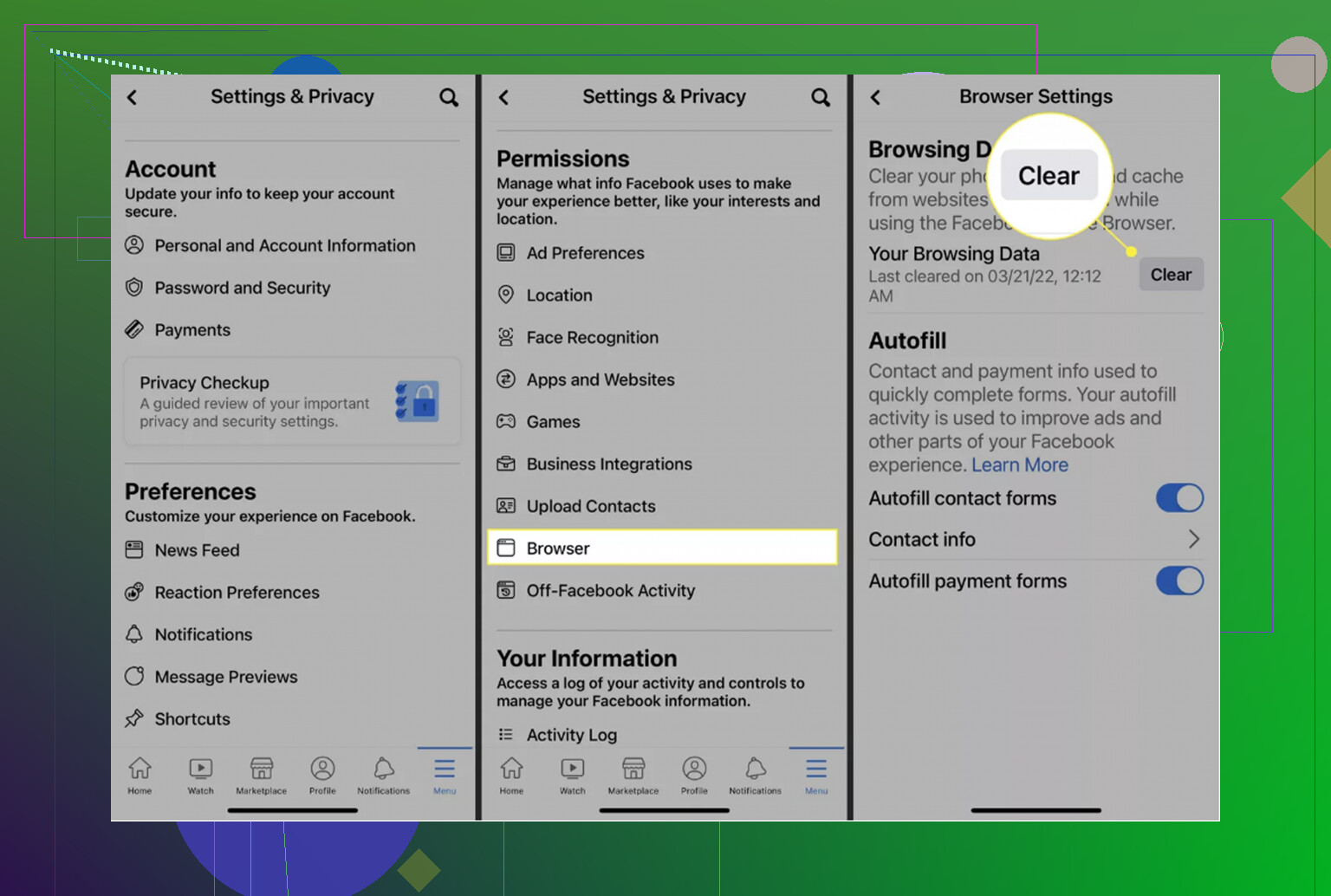
Expect the Settings menu to be disappointing here: iPhone doesn’t expose a Messenger cache switch for Messenger.
The closest “from Settings” cleanup is still the delete-and-reinstall route that @byteguru mentioned. Offload is useful when you want to save the app’s local data, but that is exactly why it often does not solve the storage problem. If the number you’re seeing is mostly “Documents & Data,” offloading can leave the bulky part sitting there.
What I would do before deleting it is check where the space is actually being counted:
Go to Settings > General > iPhone Storage > Messenger.
If Messenger itself is huge, delete the app from that screen and reinstall it from the App Store. If Messenger is only a few hundred MB and your iPhone is low on storage anyway, then Messenger probably isn’t the main problem.
The annoying detail people forget is that iPhone Storage does not always refresh instantly. After you delete Messenger, give the phone a minute, then restart if the storage number still looks wrong. Sometimes iOS takes a while to recalculate “System Data” and app leftovers, so it can look like nothing changed right away.
For chats, normal Messenger conversations should return after you sign back in because they are tied to your account, not that specific app install. The stuff more likely to disappear is local convenience data: downloaded media, cached previews, unsent drafts, login state, notification settings, and anything Messenger had stored only on the phone.
I would be more careful if you use encrypted chats or have switched devices recently. Before deleting Messenger, open the app and make sure you know your login, have access to any two-factor method, and check whether Messenger is asking you to set up or enter a PIN/secure storage setting. That is the area where “my messages came back” can be less straightforward.
So the short version is:
Delete App clears the most Messenger junk.
Offload App is safer but often too weak for storage cleanup.
There is no real “clear cache only” button for Messenger in iPhone Settings.
Reinstalling should not wipe regular account-synced chats, but you should verify login and encrypted chat recovery first.
And don’t bother with random cleaner apps expecting them to clean Messenger itself. iOS does not let them reach into Messenger’s private cache. A cleaner app like Clever Cleaner might help if Photos and videos are the real storage hog, but it is not a Messenger cache tool. For Messenger specifically, Settings gives you only the blunt tools.
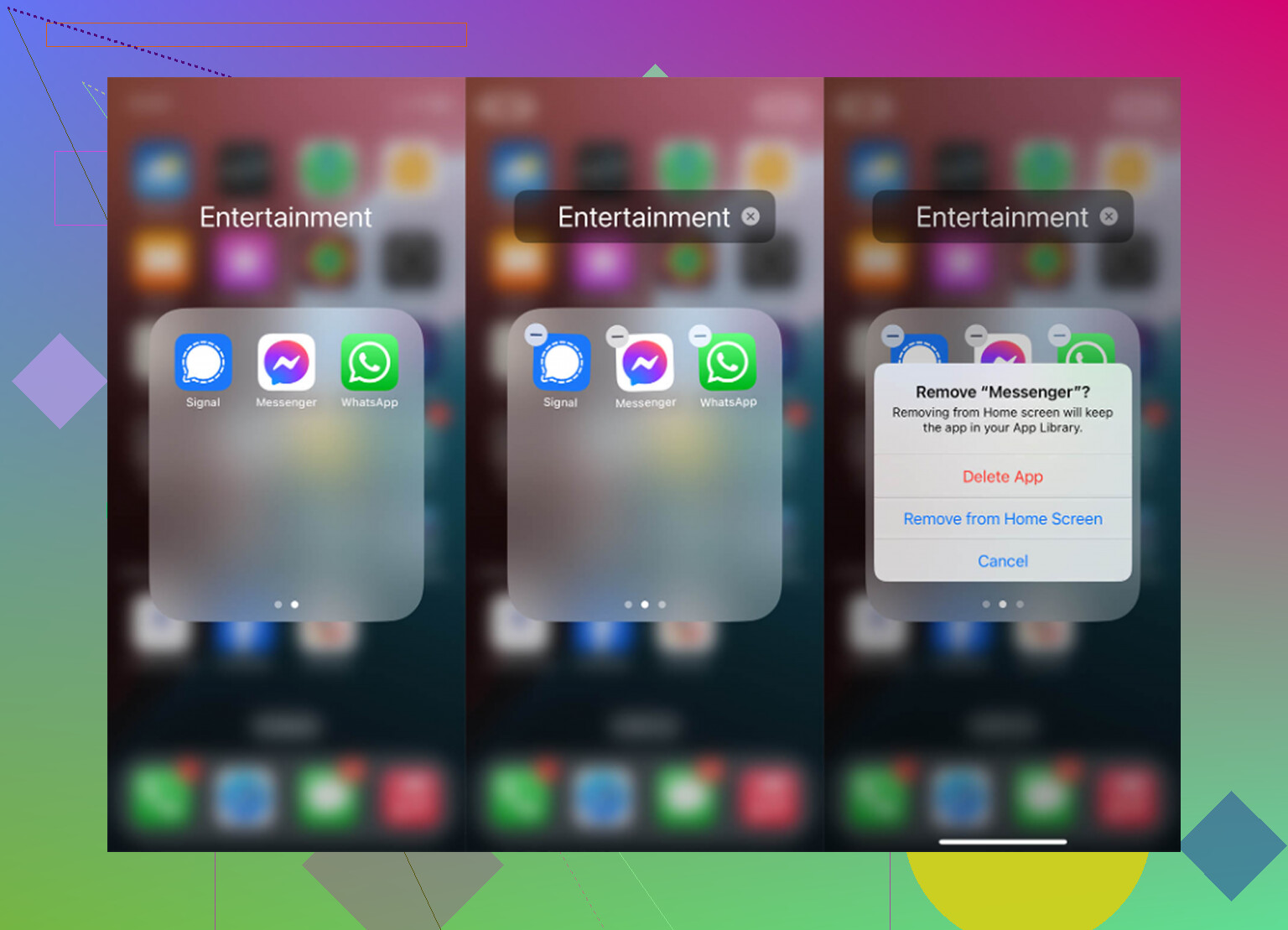
The sneaky downside is that deleting Messenger can make the Messenger number look better while your iPhone still feels full, because some of the “Messenger stuff” people think is cache may already be saved outside Messenger, especially photos and videos in the Photos app.
For the actual Settings menu question: no, there isn’t a clean “Clear Cache” button for Messenger on iPhone. The only useful place is Settings > General > iPhone Storage > Messenger. If you choose Offload App, iOS removes the app but keeps its local documents and data, so it is not a real cache purge. If you choose Delete App, that is the closest thing iOS gives you to clearing Messenger’s local cache and stored app data.
I’d treat Delete App as the practical fix, but not as a totally risk-free “cache only” button. It can remove downloaded media inside the app, drafts, local search/history-type convenience data, notification preferences, and your signed-in state. Regular chats should come back after you sign in, but I would not do it unless you know your login and have any two-factor or recovery setup ready. If you use encrypted chats, check Messenger’s secure storage/PIN settings before removing the app.
After reinstalling, give iPhone Storage a little time to recalculate. If the storage barely changes, check Photos next. Videos saved from Messenger, duplicates, screen recordings, and old downloads won’t disappear just because Messenger was reinstalled. That’s where a photo cleanup app like Clever Cleaner can be useful, but only for the camera roll side of the problem. It won’t reach into Messenger’s private cache.
So the realistic answer is: from Settings, use Delete App and reinstall if you want the biggest Messenger cleanup. Use Offload App only if you mainly want a safer refresh. And if your phone is still low on space afterward, Messenger probably wasn’t the whole problem.
Back up your encrypted chats before you delete anything. This is the piece the thread keeps waving at but nobody nailed down. Messenger switched a lot of conversations to end-to-end encryption by default, and once that happens, some of those messages live on your device, not just on Meta’s servers. If you wipe the app without setting up secure storage (a PIN or a saved recovery method), those specific chats can be gone for good after reinstall. The ‘don’t worry, chats sync back’ advice is true for old-style cloud chats and shaky for the encrypted ones.
So before you touch iPhone Storage, open Messenger, go into your privacy or security settings, and confirm secure storage is turned on with a PIN you actually remember. Do that first, then do whatever cleanup you want.
On the actual cleanup, I agree with the crowd that Delete App is the only real lever iOS hands you, and @byteguru is right that Offload barely dents a bloated install because it leaves Documents and Data sitting there. Where I’d push back a little is on treating this as a Messenger problem at all. Before deleting, look at the number on that Messenger storage screen. If it says a few hundred megabytes, deleting and reinstalling is a lot of hassle and login risk for almost nothing. People do this whole dance and free up 300MB, then wonder why the phone is still full.
That ties into the Clever Cleaner mentions above. It came up for a reason, and it’s a fair call for the camera roll side, but keep the expectation honest: it does nothing for Messenger’s cache and it won’t make your decision for you. It just shows you where the weight actually is. Half the time the answer is that some 4K video or a pile of saved memes is the real hog and Messenger was never the issue.
Quick order I’d follow: check the Messenger storage number, verify your encrypted chat PIN, then delete and reinstall only if the number is genuinely large. Give the storage screen a few minutes to recalculate afterward, because it lies for a bit before it catches up.