Twitter/X has been running slow on my iPhone, taking up more storage than expected and lagging when I open posts or load my feed. I’m trying to clear app data, cache, or old files without deleting anything important. What’s the best way to free up space and make Twitter run faster on iPhone?
If you’re trying to clear the Twitter/X cache on an iPhone, don’t bother digging around in iPhone Settings. The cache controls are inside the app, which is annoying but that’s where they are.
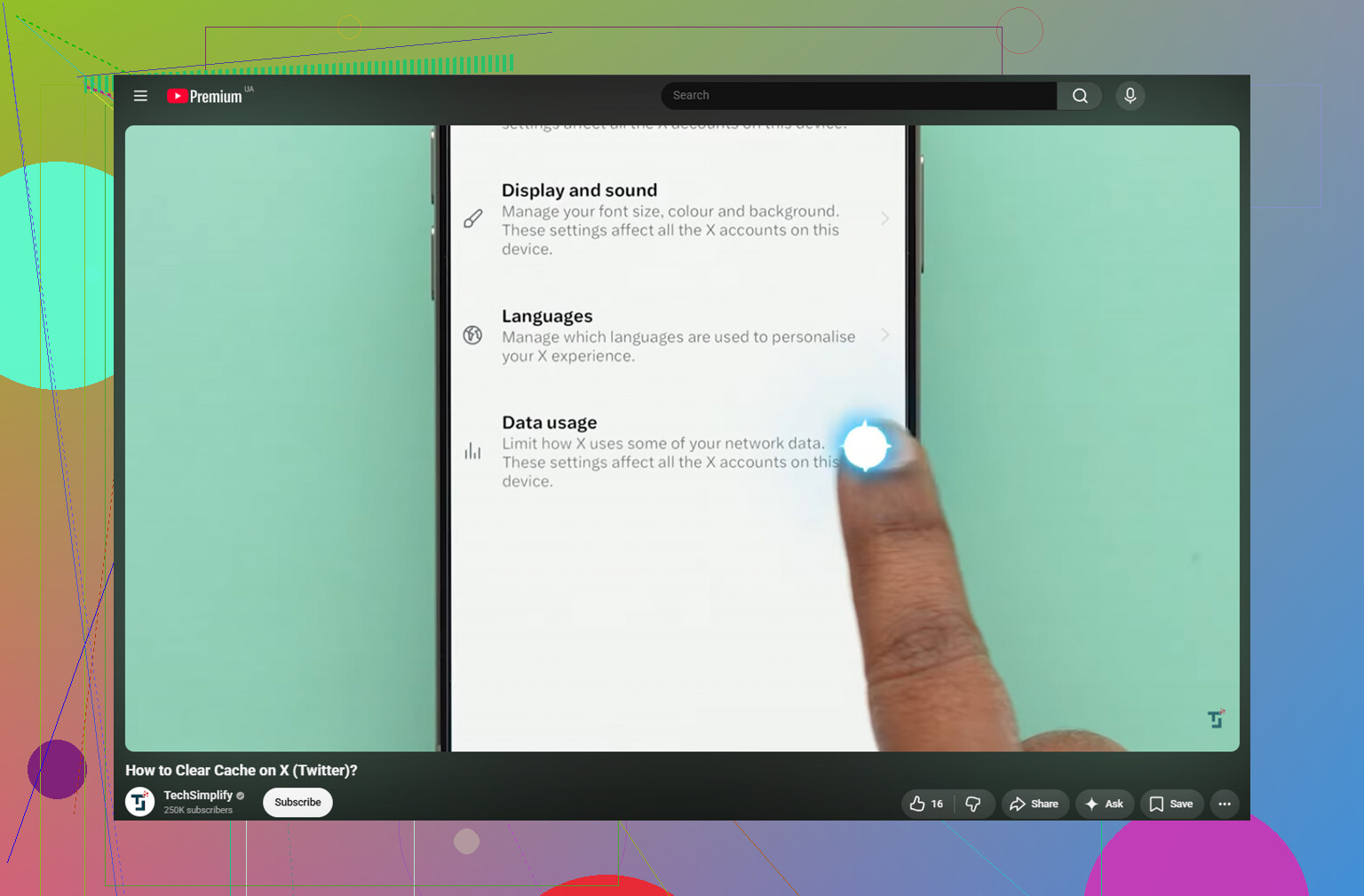
Open Twitter/X, tap your profile icon in the top left, then go here:
- Settings and Support
- Settings and Privacy
- Accessibility, Display, and Languages
- Data Usage
- Scroll down to Storage
You’ll see two cache-related options there.
Media storage is the one most people want. It clears cached images, GIFs, video previews, and other media the app saves while you scroll. It’s safe to clear and it should not sign you out.
Web storage is for stuff loaded through Twitter’s built-in browser, like cookies and cached web pages. Be more careful with this one. If you clear all web storage, there’s a decent chance you’ll get logged out, so make sure you know your password first. If you only want to clean things up without risking that, clearing just the web page storage is the safer move.
Clearing the media cache removes things like thumbnails, loaded images, and video fragments. It does not delete saved posts, your account data, or anything like that. Search history is separate too. That’s under Settings and Privacy, then Privacy and Safety, then Clear Search History.
Will this help if the app feels slow or your iPhone is running out of storage? For a little while, yes. Depending on how much you use Twitter/X, clearing media storage can free up around 1 to 3GB. The catch is that the cache comes back pretty quickly with normal use.
That was the issue here. Clearing the Twitter cache gave back some space, but about a week later the storage warning showed up again. The cache wasn’t really the main problem. It was the photo library: years of screenshots, repeated burst shots, similar photos, and big videos that had just been sitting there.
When an iPhone is almost full, iOS has less room for temporary system files, so the whole phone can feel slower no matter which app cache you clear. App caches usually aren’t the biggest storage hog anyway. A single forgotten 4K screen recording can take up more room than a long stretch of Twitter cache.
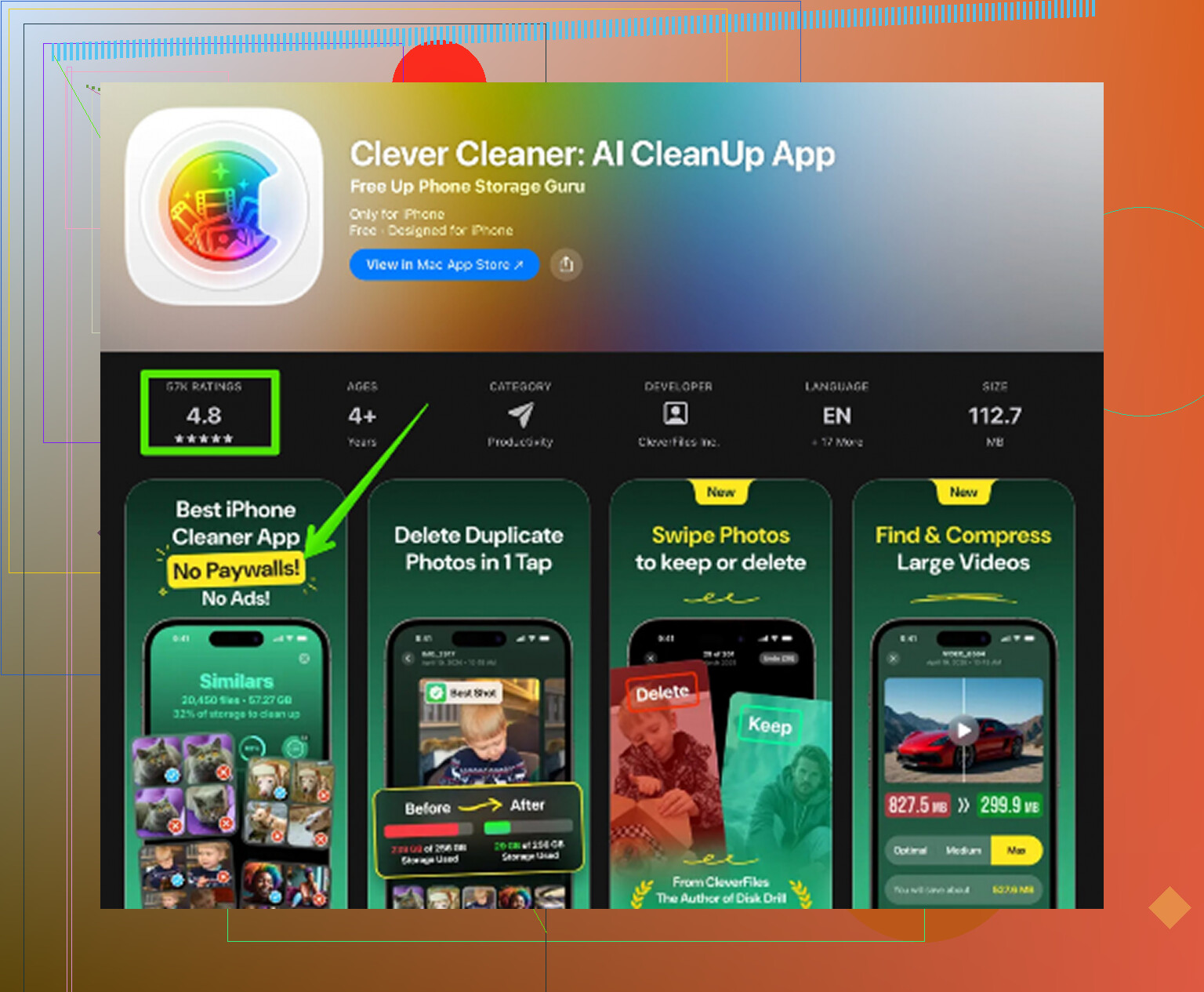
What actually helped was cleaning up the photo library properly. Clever Cleaner made that part manageable, and it’s free with no ads or subscription.
It does not clear Twitter cache or app data. You still have to do that manually using the steps above. What it does is show the photo and video files that are taking up the most space.
The Heavies tab sorts files from largest to smallest, with the exact size shown on each one. That makes it easy to spot huge screen recordings and videos instead of hunting through thousands of items.
The Similars tab groups near-duplicate photos together and picks a Best Shot from each set. So if you took ten versions of the same picture, you can clean them up much faster instead of checking each one manually.
It also shows file sizes on screenshots before you delete anything, which is a lot better than guessing. Everything runs on the device too, so the photos are not uploaded to an outside server.
The practical order is: clear Twitter/X media storage first to get some quick breathing room, then use Clever Cleaner to find the real storage problems in Photos. The cache clear helps temporarily. The photo cleanup is what actually fixes the bigger issue.
One last thing: after deleting photos or videos, go to Photos, then Recently Deleted, then Delete All. Otherwise the storage number may not change yet.
8 Likes
Check iPhone Storage before you start deleting anything, because X may not be the thing using the space. Go to Settings > General > iPhone Storage > X and look at the size there. If the app itself is small but “Documents & Data” is huge, clearing media storage inside X is the right first move. If the number barely changes afterward, iOS may just be slow to recalculate, so give it a bit or restart the phone.
The one caveat I’d make to the earlier advice is about “Offload App.” A lot of people try that because it sounds safer, but it usually keeps the app’s documents and data. So if the goal is to wipe X’s local junk, offloading may not do much. The stronger option is Delete App, restart the iPhone, then reinstall X from the App Store. That should remove the local app data, but assume you may need to sign in again, verify 2FA, and reset some app preferences.
If the phone is nearly full, cleaning X alone probably won’t fix the lag for long. iPhones get weird when storage is tight. X may feel like the problem because it loads tons of media, but Photos, Messages attachments, downloaded podcasts, and old videos are often the real space eaters. Something like Clever Cleaner can be useful for finding large or similar photos, but it won’t clear X cache directly. For X itself, your real options are the in-app storage buttons or a delete-and-reinstall.
Update X first, then restart the phone before you start deleting and reinstalling stuff. Cache can make the app fat, but lag when opening posts is often a bad app build, weak connection, VPN/ad-block DNS, or video autoplay choking things. I agree with clearing Media storage inside X, but after that I’d go into X’s Data Usage settings and turn off video autoplay or set it to Wi-Fi only. That cuts down how fast the cache comes back and makes scrolling feel less heavy. If X is still huge after that, then delete and reinstall is cleaner than offloading, but make sure you can get back into your account first.
A bloated X app and a slow X app are two different cases. If X is using a ton of storage, clear Media storage inside the app first. If X is only a few hundred MB but still hangs when opening posts, cache cleaning probably won’t fix much. That points more toward connection issues, autoplay, a buggy app update, or the phone being low on free space overall.
Before doing the delete/reinstall route, check for anything local you care about. Unsent post drafts are the easy thing people forget. I would assume drafts, some app preferences, and maybe logged-in browser sessions inside X can disappear if you wipe the app completely. Saved posts, followers, DMs, likes, and account stuff live on X’s side, but drafts are the “don’t trust it unless you’ve copied it somewhere” category.
My quick order would be: clear Media storage, set video autoplay to Wi-Fi only or off, close X fully, restart the phone, then check iPhone Storage again. If X’s Documents & Data is still huge, delete and reinstall it instead of offloading. Offload is fine when you want to save the app icon and data, but that is exactly why it often does not solve cache bloat. And if the whole iPhone is nearly full, clear some Photos/Messages/videos too, because X will just feel slow again once iOS has no room to breathe.
Before anyone runs off to delete and reinstall X like @techchizkid and @nachtdromer suggested, make sure you can actually get back in. If your 2FA is tied to a phone number you don’t use anymore, or your authenticator app is on a different device, a clean reinstall can lock you out of your own account for days. That’s a much bigger headache than a laggy feed. Screenshot your backup codes or confirm your login before wiping anything.
That said, the reinstall advice is correct about one thing: offloading really is close to useless for cache bloat. It keeps the documents and data, which is the exact junk you’re trying to get rid of. So if you go the nuclear route, go all the way.
Where I’d push back a little is the whole framing that this is a storage problem. Slow-loading posts and a laggy feed usually aren’t about cache size at all. Check whether Background App Refresh is hammering X, and look at whether you’ve got a content blocker or a custom DNS profile running. Those break the in-app browser and image loading constantly, and people blame the app when it’s really the network layer. Turning autoplay off, like was mentioned above, helps, but I’d also just kill the app fully and reopen it before assuming anything is broken. Half the ‘lag’ I’ve seen is a stale session that a restart fixes in ten seconds.
On the photo cleanup point, Clever Cleaner makes sense if iPhone Storage shows Photos eating most of your space. It’s a reasonable way to find the giant videos and near-duplicates without scrolling forever. Just don’t expect it to touch anything X-related, it won’t, and clearing photos does nothing for feed lag if your storage isn’t actually tight. Use it to solve the storage problem, not the speed problem. Those are two separate issues and mixing them up is why people keep clearing cache and staying annoyed.
My honest take: update the app, restart the phone, turn off autoplay, and check for a DNS or VPN profile before you delete a single thing. If X is genuinely huge in iPhone Storage after that, then clear Media storage, and only reinstall if the number stays stupid high.