I deleted a bunch of screenshots from my iPhone, but they still seem to be showing up in iCloud and taking up storage. I’m not sure if I missed a step in Photos or iCloud settings, and I need help removing them completely without deleting anything important.
I ran into the same mess. My photo library got clogged with login screens, shipping receipts, random memes, and screenshots I grabbed for two minutes of use, then forgot. When you go looking for one real photo and hit a wall of junk first, it gets old fast.
There is a clean way to remove screenshots without wiping normal photos. A few parts are easy. A few parts are annoying. Here’s what worked for me.
Use the Screenshots album, not All Photos
If you want to avoid mistakes, stay out of the main library view. Open Photos, switch to Albums or Collections, scroll down to Media Types, then open Screenshots.
That album is the safest place to work from. Delete items there, and you’re deleting screenshot files, not your regular camera shots.
For a small cleanup, tap Select and drag across the thumbnails. iPhone highlights them pretty fast. If your library is a landfill like mine was, hit Select and look for Select All in the top left.
On iOS 18 and newer
Apple changed the layout a bit. In the library view, tap the filter icon with the two arrows near the bottom. Pick Filter, then choose Screenshots.
Once the filter is on, the grid shows screenshots only. From there, tap Select, then do the press-and-swipe move from the bottom right upward to grab a huge range fast. Hit the trash icon when you’re done.
Don’t delete 5,000 at once unless you like freezes
I learned this the dumb way. Big deletes can hang the Photos app, and sometimes it kicks you out. If you’ve got thousands, batch them.
I had better luck deleting around 500 to 1,000 per round. It feels slower at first, but it saves time compared with waiting on a frozen app and redoing the selection. My phone stopped choking once I switched to smaller chunks.
If you repeat this a lot, set up a Shortcut
This part helped more than I expected. Open the Shortcuts app and make a new shortcut with these actions:
- Find Photos
- Add a filter for Is a Screenshot
- Delete Photos
One setting matters or the shortcut fails on the first run. Go to Settings → Apps → Shortcuts → Advanced and turn on Allow Deleting Large Amounts of Data.
After that, you can tell Siri to run your screenshot-delete shortcut. I named mine something short because I got tired of repeating a long phrase lol.
When the built-in stuff isn’t enough
Sometimes you’re not trying to clean for neatness. You’re trying to get storage back now. In that case, file size matters, and Photos doesn’t show enough detail.
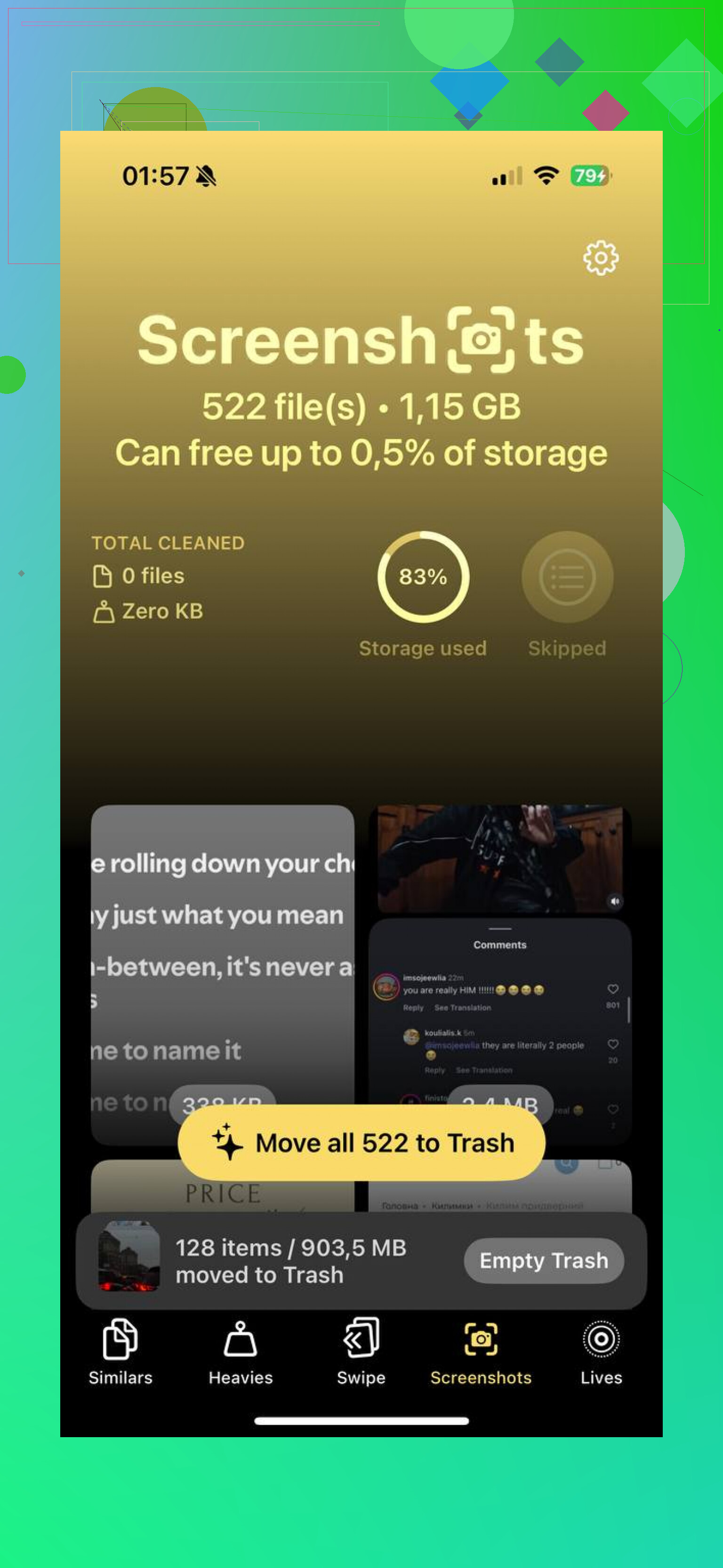
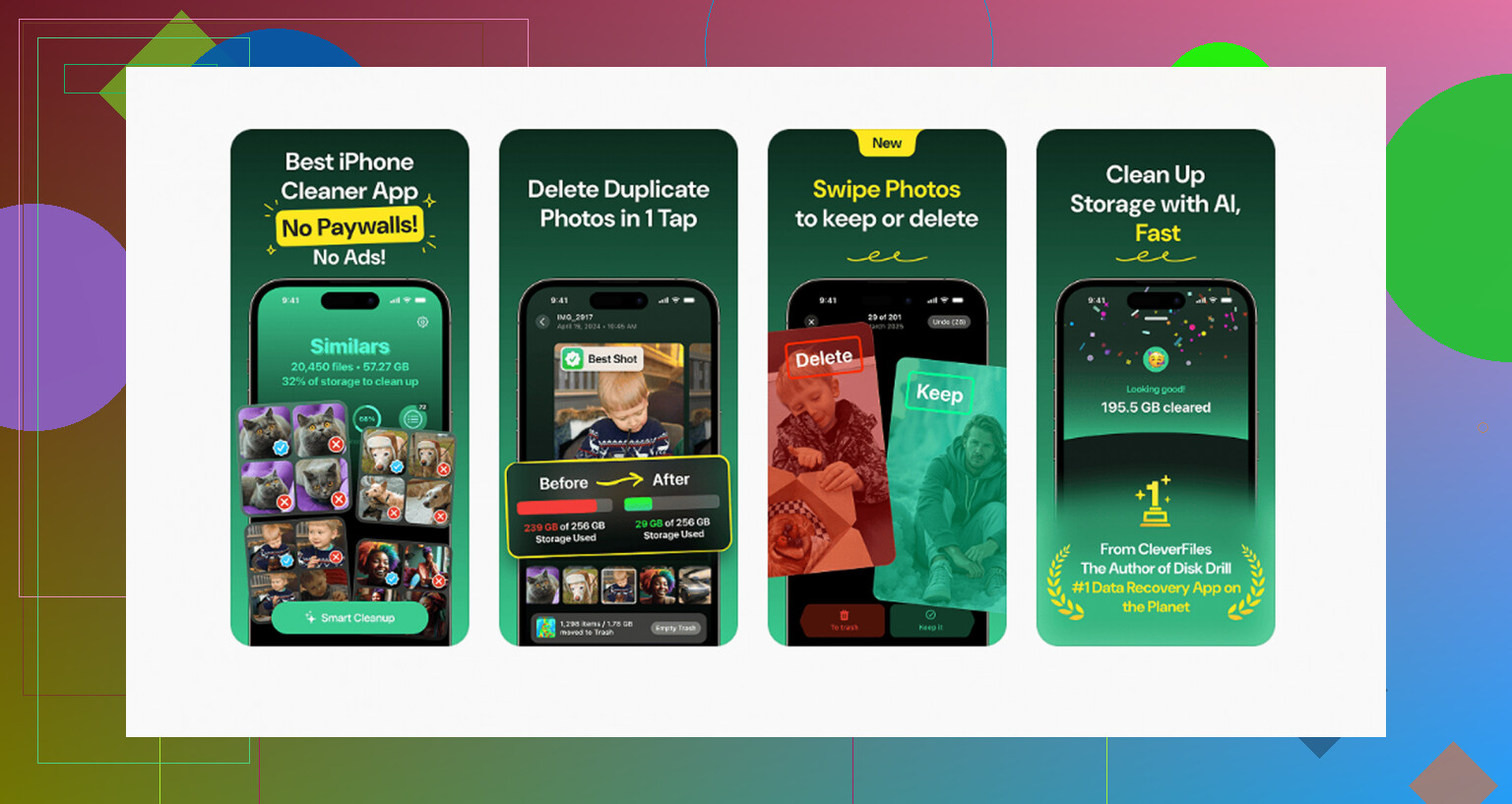
I tried a pile of cleanup apps. Most were pushy, paid, or weird about access. One option people keep pointing to is Clever Cleaner. The parts people seem to like are pretty plain:
- No paywall, no ads, no subscription wall on basic cleanup.
- Heavies view, so you sort by size and remove the biggest junk first.
- Similars detection, useful for duplicate screenshot bursts.
- On-device processing, so your photo library stays on the phone.
If your storage is pinned and you need to see what’s eating space, a tool like that makes the job less blind.
Watch out for iCloud Photos
This part trips people up all the time. If iCloud Photos is enabled, deleting a screenshot on your iPhone removes it from your other Apple devices too, and from iCloud. Usually it happens fast.
Also, if the trash icon is gray and nothing deletes, those images were often synced from an older computer by cable. I had this happen once with an old folder from years back. The fix was not in Photos at all. I had to reconnect the phone to the same computer and remove them through sync settings there. Dumb, but yep, still a thing.
Empty Recently Deleted if you need space now
This is the part people skip, then wonder why storage didn’t move.
Deleted screenshots go to Recently Deleted for 30 days. So if your goal is free space, open that folder under Utilities, tap Select, then Delete All.
If you deleted the wrong screenshot, that 30-day buffer saves you. If the file is gone after that, or sync made a mess, recovery software is usually the next step people try.
Once I cleared mine out fully, the library felt usable again. Hitting zero screenshots was weirdly satisfying, not gonna lie.
6 Likes
If they’re still in iCloud storage, the usual issue is sync delay or Recently Deleted. Deleting from your iPhone does not erase the storage count right away.
Do this in this order.
-
Check iCloud Photos is on.
Settings, your name, iCloud, Photos, Sync this iPhone.
If it’s off, you might have deleted local copies only, or sync got stuck. -
Open Photos on iCloud.com from a browser.
Sign in, go to Photos, search or filter screenshots, delete them there too if they still show up.
This is the fastest way to verify what is still in Apple’s cloud. -
Empty Recently Deleted in both places.
On iPhone, Photos, Albums, Recently Deleted, Select, Delete All.
On iCloud.com, open Recently Deleted and remove them there too.
This step matters. Apple keeps deleted photos for 30 days, and they still count for a bit. -
Wait for storage to recalculate.
Apple’s storage meter is slow. I’ve seen it take a few mins, and I’ve seen it take 24 hours. Annoying, yep. -
If sync looks stuck, restart the phone, connect to Wi-Fi, plug into power, and leave Photos open for a while.
I slightly disagree with @mikeappsreviewer on one part. Bulk deleting in Photos is fine, but if your goal is iCloud storage recovery, checking iCloud.com is the key step people skip.
If your library is a mess, Clever Cleaner helps sort large junk faster, espeically screenshots and other space hogs.
Best cleaner apps for iPhone, easy ways to free up storage and remove photo clutter. Also worth a look, watch this iPhone cleanup guide.
What usually gets missed is this: sometimes the screenshots are not really “still in iCloud”, they’re just still being counted by Apple’s storage system after deletion. So I kinda disagree a bit with @mikeappsreviewer and @shizuka on making it mostly a Photos cleanup problem. Sometimes it’s an iCloud accounting lag problem first, cleanup second.
A few things to check that are different from the usual delete/Recently Deleted routine:
- Go to Settings > your name > iCloud > Manage Account Storage > Photos
Look at whether the storage number changes over time. If it does, sync is catching up and Apple is just being slow. - Check iCloud.com > Account Settings and compare total storage there with what your iPhone shows. They do not always refresh at the same time, which is super annoying.
- Make sure you did not turn off iCloud Photos right before deleting. If you did, you may have only removed device copies and left cloud copies hanging around.
- If you use Shared Library, verify the screenshots were not moved there. Stuff in Shared Library can make people think deleted pics are “coming back.”
- On a Mac or iPad signed into the same Apple ID, open Photos and see whether it says syncing, updating, or restoring from iCloud at the bottom. One stalled device can slow the whole thing down.
If the photo count looks wrong everywhere, sign out/in of iCloud is usually overkill and can make it worse, so I would not do that first. People suggest it way too fast imo.
If your real goal is just freeing storage fast, not babysitting Apple’s sync nonsense, an app like Clever Cleaner can help surface large screenshots and junk faster before you do the final delete pass.
Also, if you want a cleaner breakdown of this same discussion around cleanup/security stuff, this is worth a look:
compare secure iPhone cleaner apps and storage cleanup options
If after 24 to 48 hours the storage number still hasnt moved, then it’s probly time to contact Apple Support because that starts looking like a stuck iCloud Photos index, not user error.
One angle the others barely touched: optimize vs remove. If your screenshots are gone from Photos but iCloud storage still looks bloated, check whether device backups are holding old photo data.
Go to Settings > your name > iCloud > Manage Account Storage > Backups > this iPhone. If an older backup was made before the screenshot purge, that backup can still be large until it gets replaced. Turn off unnecessary app backup data, then make a fresh backup.
I also slightly disagree with @shizuka and @voyageurdubois on one point: if the screenshots are truly deleted everywhere, this is not always a Photos problem anymore. Sometimes it is backup retention or delayed storage reporting.
If you want to mass-review junk before deleting, Clever Cleaner is decent.
Pros: simple scan, good at surfacing screenshot clutter, easy bulk actions.
Cons: you still need to verify before deleting, and cleanup apps cannot force Apple’s iCloud meter to refresh.
@mikeappsreviewer was right to focus on storage lag, but I’d check backups too before waiting around.