My iPhone storage is almost full because Messages has saved hundreds of large photo and video attachments over time. Deleting them one by one is taking forever, and I need a faster way to clear space without removing important texts. I’m looking for the best way to delete large attachments on an iPhone when there are a lot of them.
Deleting message attachments sounds easy right up until you start thinking, “wait, what else is this going to remove?” I went through this on my iPhone, so here’s the plain version.
If you delete an attachment, do saved photos disappear too?
No. If somebody sent you a photo in Messages and you hit Save Image, iPhone puts a separate copy into the Photos app. From there, it’s its own file. If you remove the attachment from Messages later, the copy in Photos stays there. I tested this myself because I did not trust it at first.
Does deleting attachments wipe the conversation?
Nope. The text thread stays. You lose the image or video file attached to the chat, not the written messages. So if you're deleting from the Info screen in a conversation, or from iPhone Storage settings, the conversation itself remains.
Why storage sometimes does not go down right away
I ran into this too. You delete a pile of stuff, check storage, and the number barely moves. Usually it comes down to two things.
First, deleted message attachments sit in Recently Deleted for 30 days before iOS removes them for good. If you want the space back now, open Messages, tap Edit in the top left, choose Show Recently Deleted, then remove everything there permanently.
Second, the storage number updates slow. iOS seems to lag behind after cleanup. A restart fixed it for me and forced the phone to recalculate storage.
What about iCloud?
If Messages in iCloud is enabled, deleting an attachment on one device removes it from iCloud and from your other Apple devices tied to the same Apple ID. If Messages in iCloud is off, the deletion stays local to the device you used.
Why clearing a lot of attachments by hand gets old fast
Apple gives you the Review Large Attachments section under Settings, General, iPhone Storage. It works. The problem is there’s no select-all button. You tap files one by one. If you’ve got a few hundred videos, screenshots, and random clips in old threads, it turns into a dumb chore pretty fast. I did it once and would not do it again.
A quicker way if the problem is bigger than Messages
When my storage got crowded, Messages attachments were only part of it. The phone had started lagging, apps hung for a second, camera felt slower. iPhones need free space to breathe a bit. Native cleanup tools help, but they don’t give you a good full-library pass.
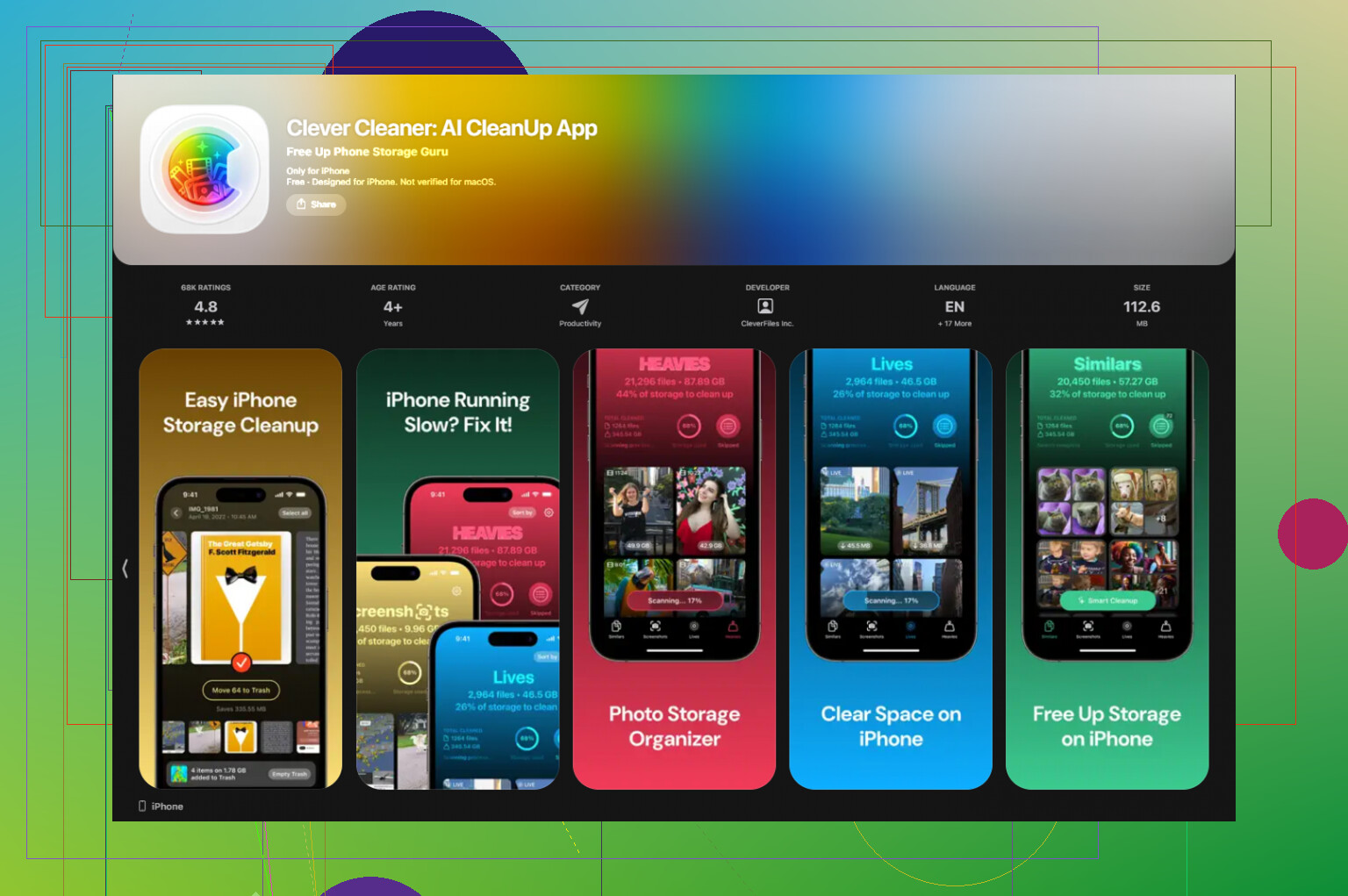
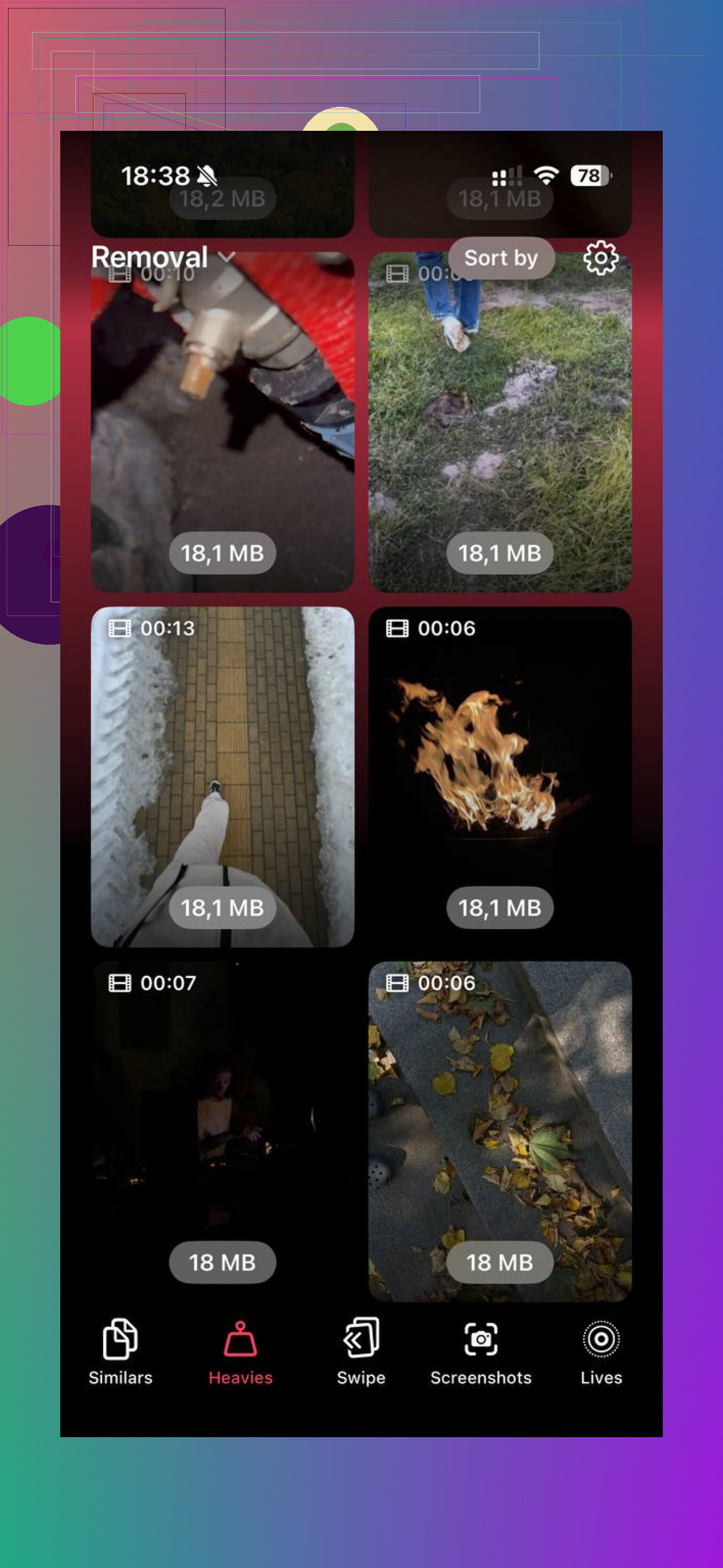
Clever Cleaner did the broader cleanup job for me. It’s free, no ads, no subscription. The Heavies tab shows your biggest files first, with sizes visible on each thumbnail, so the huge 4K videos and oversized junk show up fast instead of hiding in the library. The Similars tab groups near-duplicate photos too, not only exact duplicates, which helped me clear burst shots and repeated tries of the same pic. Processing stays on the device.
After I cleared about 30GB of large videos and screenshots there, then emptied Recently Deleted, my storage updated and the lag went away. Kinda annoyed I waited so long tbh.
20 Likes
The fastest route is to change how long Messages keeps old stuff.
Go to Settings, Apps, Messages, Keep Messages. Set it to 1 Year or 30 Days. iPhone will ask to delete older messages and their attachments in bulk. This is way faster than picking 300 videos by hand. The catch, it removes old messages too, not only attachments. For me, that tradeoff was worth it.
If you want to keep the convos, export or save anything important first. Then trim whole threads with lots of media. Swipe left on big group chats you do not need anymore. One old family thread with years of videos ate like 8GB on mine.
I slightly disagree with @mikeappsreviewer on doing all cleanup inside Messages first. If your storage is near full, broad cleanup usually works faster. Clever Cleaner helps if the problem is spread across Photos and message-saved media, espeically huge videos. This guide is decent for a quick walkthrough: see how to clean up large iPhone files fast.
Also check Settings, General, iPhone Storage, Recommendations. Sometimes iOS flags large attachments there, plus downloaded media from apps. Delete from the worst offenders first. That gets space back quicker.
What helped me more than digging through each attachment was changing the message history per-thread instead of per-file.
Open the worst conversations, tap the contact/group name, then scroll the photo section and use Select to wipe chunks from that one thread. It’s still manual, yeah, but way faster than the iPhone Storage screen because you can clear a whole media-heavy chat in batches. Old group chats are usualy the biggest pigs.
I’ll kinda disagree with @cazadordeestrellas on using Keep Messages as the first move. It’s fast, but it’s a blunt axe. If you want to keep old texts, that setting can nuke stuff you forgot you cared about. I’d target the fattest threads first, then decide if the 1 Year/30 Days option is worth it.
Also, search in Messages for file-heavy keywords like “video,” “IMG,” or shared links. Weirdly useful for surfacing junk convos.
And if the storage mess is not just Messages, then @mikeappsreviewer has the right idea going broader. see why Clever Cleaner is useful for clearing large iPhone files is worth a look. Clever Cleaner is handy when the real space hogs are spread across Photos and saved media, not just iMessage attachments.
One more thing people miss: after deleting, check Photos > Recently Deleted too. A lot of “freed” space is fake until that trash gets emptied. iOS loves pretending it helped lol.
One angle nobody’s mentioned enough: use a Mac or iPad if you have one. Deleting media in Messages is way less miserable there because you can scroll faster, right click, and clear chunks from old threads without fat-fingering every thumbnail on the phone. If Messages in iCloud is on, those deletions sync back to your iPhone.
I also would not rely only on iPhone Storage’s “Large Attachments” view. It’s useful, but oddly incomplete sometimes. Some giant videos are easier to find by opening the actual thread and checking shared media.
Quick reality check on the other suggestions:
- @cazadordeestrellas is right that changing retention is the fastest nuclear option.
- @reveurdenuit is right that thread-by-thread cleanup is safer if you care about old texts.
- @mikeappsreviewer is right if your storage problem is not just Messages.
If the clutter spills into Photos too, Clever Cleaner is decent for finding the biggest files fast.
Pros:
- surfaces heavy videos quickly
- useful beyond Messages
- simple to scan
Cons:
- won’t selectively manage iMessage attachments inside every conversation for you
- you still need to review before deleting
- less helpful if Messages is the only problem
Also, after deleting a lot, connect to power and Wi-Fi for a bit. iOS sometimes takes hours to recalculate storage properly.