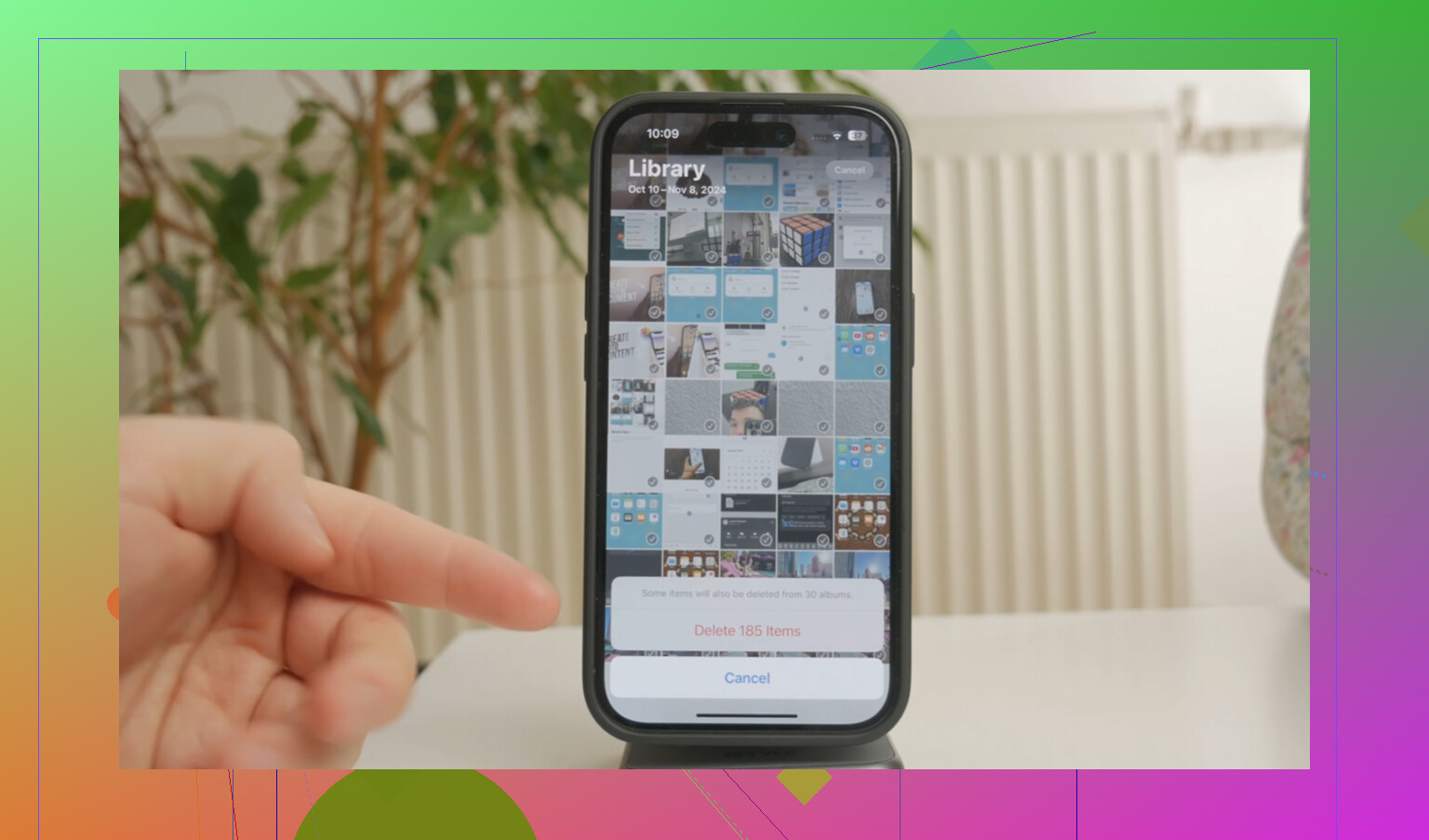
I have thousands of photos on my iPhone and only some are marked as favorites. I’m trying to clear storage without deleting the favorites, but I can’t find an easy way to bulk delete every non-favorite photo. Is there a safe method or shortcut for this?
The annoying part is that Apple still doesn’t give you a clean “delete everything except favorites” option. And yeah, once the library gets huge, Photos can get miserable to use. Mine got up around 15,000 items and the phone was barely usable: slow scrolling, apps hanging, Photos freezing, the whole thing.
The catch is that Favorites is not really a protected album. It’s more like a label on the photo. So if you select a huge chunk from Recents or All Photos and delete it, your favorites can get deleted right along with everything else.
The safest built-in workaround is to temporarily hide the favorites first. Go to the Favorites album, tap Select, then Select All. Use the three-dot menu or share menu, depending on your iOS version, and choose Hide. That moves those photos into Hidden, so they’re out of the main library view for the moment.
After that, go back to All Photos or Recents, select what’s left, and delete it. Then open Hidden, select everything you hid, and choose Unhide. It’s clunky, but it works without needing a Mac or PC.
If you’re on a newer iOS version, like iOS 18.4, there’s another option that can work. Put your favorites into a temporary album, maybe called “Keepers.” Then go back to the main library and use the filter button in the lower-left corner. If “Not in Album” is available, you may be able to show only the stuff that is not in your Keepers album and delete that batch. Just check carefully before deleting, because that filter can be weird and may not appear depending on where you are in Photos.
You can also do it with the Shortcuts app if you don’t mind setting up a small workflow. Use “Find Photos,” add a filter for “Is Not Favorite,” then add an action to create or add them to an album named something like “To Be Deleted.” Run the shortcut, open that album, select all, and delete. This is probably the least painful method if the library is too big to scroll through manually.
That said, once my phone was lagging so badly that even selecting photos was causing problems, the built-in stuff felt pretty useless. I tried some of those cleaner apps too, and most of them were awful. Tons of ads, fake “free” features, or a subscription wall right before the part where you actually delete anything.
The one I ended up keeping was Clever Cleaner. It’s free, doesn’t have ads, and doesn’t do the usual “start a trial to continue” thing. It also works on-device, which matters if you don’t want your photos or screenshots uploaded somewhere just to be sorted.
The best part for me was the Heavies tab. It sorts the library by file size, which Apple Photos really should already do. I found a few huge 4K screen recordings and old videos that were taking up more space than thousands of normal photos. The Similars tab was useful too, especially for all those near-duplicate shots where you took the same picture ten times and only needed one. It also shows screenshot file sizes on the thumbnails, so you can make better decisions instead of deleting randomly. Clearing the big files and duplicates was what finally stopped the lag for me.
One thing people miss after deleting: your storage may not update right away. iOS sends deleted items to Recently Deleted, and they still take up space there for 30 days. Go to Albums, scroll to Recently Deleted, and use Delete All if you actually want the space back now. If storage still looks wrong after that, restart the phone. That usually makes iOS recalculate it properly.
24 Likes
Deleting from the phone is very different from freeing space only on that phone. Before you use the hide-album or shortcut method, check whether iCloud Photos is on, because deleting non-favorites from the iPhone will delete them from iCloud and your other Apple devices too. If the real goal is storage, the safer first move may be Settings > Photos > Optimize iPhone Storage, then only delete after you have a separate backup somewhere that is not just iCloud Photos. @mikeappsreviewer is right that Favorites are only a label, but I’d be more worried about people thinking they are cleaning the phone when they are actually cleaning their whole synced library.
Make a real backup of the favorites before you delete anything. Not an album inside Photos, not just iCloud sync, but an export to a computer, external drive, Google Photos, Dropbox, whatever you actually trust. Albums and Favorites are organization tools, not a safety net.
If you have access to a Mac, this is much easier there than on the iPhone. In the Mac Photos app you can make a Smart Album with the rule “Photo is not favorite,” then select everything in that smart album and delete it. Let iCloud Photos sync the deletion back to the phone if that’s how your library is set up. It is still destructive, so check the smart album before deleting, but it beats trying to tap-select thousands of items on a phone screen.
If you only have the iPhone, I’d probably use the Shortcuts method before the hiding method, just because hiding thousands of items and then unhiding them is another huge operation that can bog down or make you second-guess what state things are in. Have the shortcut gather “not favorite” items into a temporary album, inspect that album, then delete from there. And after deleting, empty Recently Deleted or you won’t actually see the storage come back right away.