I’m trying to recover deleted files/photos on my iPhone, but I can’t find a Trash or Recycle Bin icon anywhere. I’m not sure if iOS stores deleted items in different apps or if they’re gone for good. Where should I look to restore deleted items on iPhone?
The annoying thing about iPhone storage is that there isn’t one main trash can you can empty. If you’re used to Windows or macOS, that feels weird at first. Apple spreads deleted stuff across different apps, so deleting a photo, message, note, or file often just moves it into that app’s own “Recently Deleted” area.
That’s usually the first place to check if your iPhone says storage is almost full. Most of those deleted items sit around for 30 days, and Messages can keep them for up to 40 days. So the files are “deleted,” but they may still be taking up space.
Photos is the big one for most people. Open Photos, go to Albums or Collections, then scroll down to Utilities and open Recently Deleted. On newer iOS versions, you’ll need Face ID or your passcode to get in. Once you’re there, tap Select, hit the three-dot menu, and choose Delete All if you’re sure you don’t need anything. Otherwise those old 4K videos and HDR shots are still sitting on the phone.
Messages has its own version of this too. In the Messages app, tap Edit in the top-left corner, then choose Show Recently Deleted. This can get huge if you’ve had long text threads with photos, videos, and attachments. You still have to select the conversations and delete them again before that space is actually cleared.
Files and Notes are worth checking as well. In Files, go to Browse and look under Locations for Recently Deleted. In Notes, back out to the main Folders screen and look for Recently Deleted there. Same basic idea: the stuff is removed from view, but not fully gone yet.
I ran into this on an iPhone 13 Pro a few months back. It started lagging, apps were crashing, and even opening the camera felt slow. Low storage can cause that because iOS needs some free space for temporary files and normal background stuff. When you’re down to the last gigabyte or so, the whole phone can start dragging.
I tried clearing everything manually at first, but jumping between Photos, Messages, Files, Notes, and the rest got old fast. It felt like I kept finding another hidden “Recently Deleted” folder every few minutes.
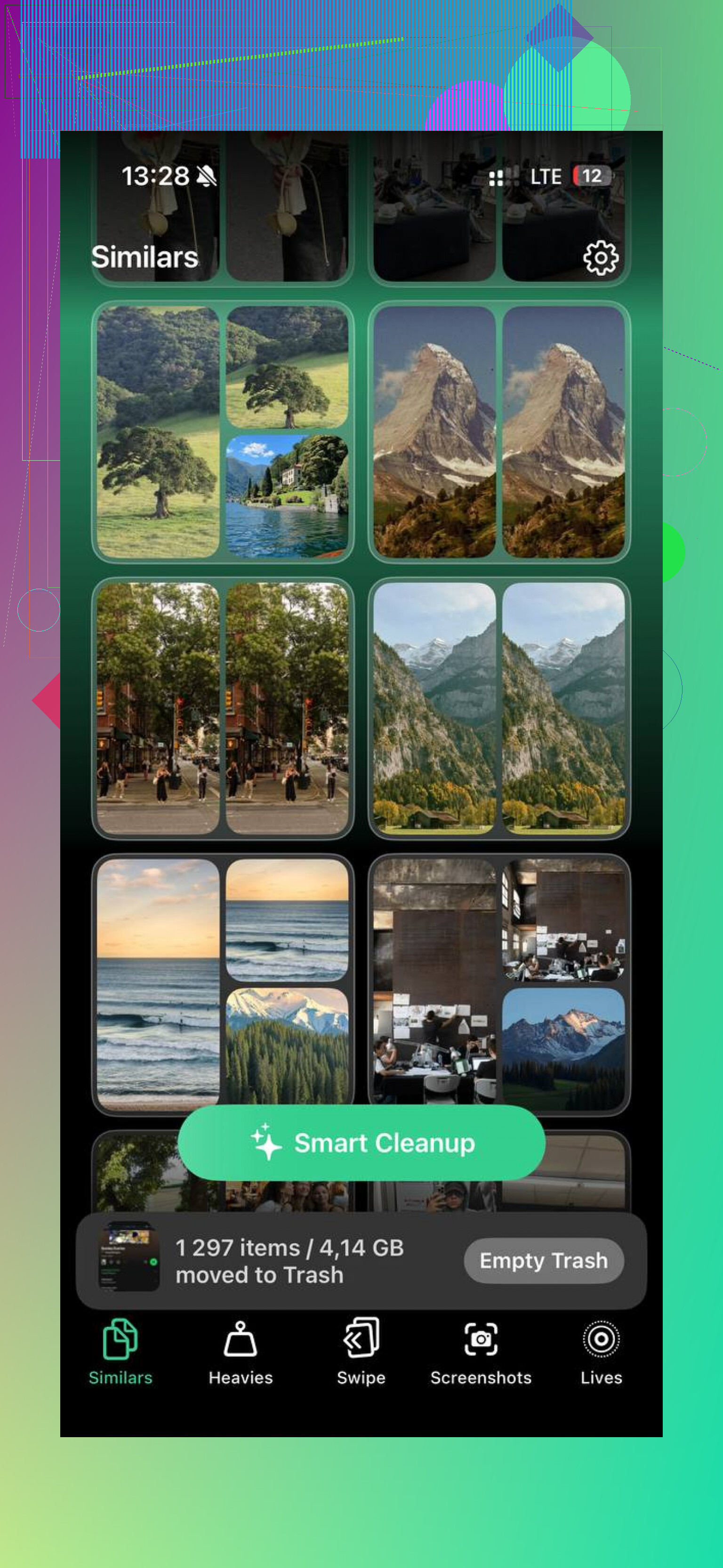
If you don’t want to keep digging through menus, Clever Cleaner is the free cleaner I’d use. No ads, no subscription, no paywall. The useful part is that it shows file sizes for screenshots and videos, so you can actually see what’s eating space before deleting anything.
The “Heavies” section sorts your biggest media files by size, which makes it easy to spot the videos you forgot about. The “Similars” section is also handy if you take a bunch of almost-identical photos and only need to keep one. It finds the near-duplicates and lets you choose what stays. It also handles the processing on the phone instead of uploading your photos somewhere else.
After clearing around 15GB, the phone felt normal again. So yeah, you can empty each app’s trash manually, but if the problem is mostly photos and videos, a cleanup app is a lot less annoying.
One more thing: if System Data still looks huge after you’ve emptied all the Recently Deleted folders, try a forced restart. Sometimes iOS just needs a reboot before old cache files and logs get cleaned up properly.
25 Likes
Open iCloud.com in a browser and check Photos and Drive there before assuming the phone is the only place to look. If iCloud Photos or iCloud Drive is turned on, deleting from the iPhone may have deleted it from iCloud too, but the “Recently Deleted” folder can still be visible from the web. That sometimes makes it easier to recover than digging around on the small screen.
The big catch is that there is no hidden iPhone-wide recycle bin. If something is no longer in Recently Deleted inside Photos, Files, Notes, Messages, or the matching iCloud section, then recovery depends on whether you had a backup from before the deletion. For photos, check whether they were in iCloud Photos, Google Photos, OneDrive, Dropbox, a Mac Photos library, or an old iTunes/Finder backup. Restoring a whole iPhone backup can bring things back, but it can also overwrite newer stuff, so don’t rush into that unless you know what’s in the backup.
I’d separate “recovering files” from “freeing storage.” Clever Cleaner or similar cleanup apps can help you find big videos, duplicates, and junk you no longer want, but they are not magic undelete tools. Once an item has been permanently deleted and there’s no backup, most iPhone recovery claims get pretty shaky. If you want a checklist of the different places to look, this iPhone recycle bin guide covers the same idea: check each app’s deleted folder first, then move on to backups.
Expect the answer to be boring: on an iPhone, “Trash” usually means that app’s own Recently Deleted folder, and after that you’re looking at backups, not a secret bin.
The caveat I don’t see mentioned enough is to stop “cleaning” until you know whether you’re trying to recover or free space. Those are opposite jobs. If the missing item matters, don’t empty Recently Deleted, don’t run cleanup apps, and don’t start deleting more stuff just to make room. Check Photos, Files, Notes, Messages, and iCloud.com first, like @kakeru said. Then check any other app that might have held the file, because apps like Google Photos, Dropbox, Voice Memos, and Mail can have their own deleted/recovery areas too.
For photos especially, make sure you’re in the right Apple ID and library setup. If iCloud Photos was enabled, the deletion may have synced across devices, so your iPad or Mac may not be a separate backup unless it was offline or had exported copies. Shared Albums, Hidden, and imports saved on a computer are easy to forget. A Finder/iTunes backup can help, but restoring it is a blunt tool since it rolls the phone back to that backup state.
Clever Cleaner and apps like it are fine when the goal is finding giant videos or duplicates after you’ve recovered what you can. I wouldn’t treat any cleaner as part of the recovery process, though. First look in the app-level deleted folders and backups. If it’s not there, the honest answer is usually that the iPhone doesn’t have another recycle bin waiting somewhere.

A simpler option is to replace the missing item from its original source, rather than recover the deleted copy.
If someone sent you the photo or document, ask them to resend it. If you shared it with someone, ask for their copy back.
For downloads, search your email by sender or filename, then save the orginal attachement again. For website downloads, revisit the source page.
Try this first for files you received or shared. You avoid a full phone restore and leave your current files alone.
Don’t toggle off iCloud Photos or sign out of your Apple ID while you’re still looking for a deleted shot. People do that thinking it’ll ‘reset’ something, and all it does is scramble which device is syncing what. Leave the settings alone until you’ve decided whether this is a recovery job or a cleanup job.
@cazadordeestrellas nailed the real split, those two goals fight each other, but there’s a detail nobody’s flagged: the Recently Deleted folders aren’t a safe parking spot. Each item has a countdown, and the clock keeps running whether you’re ready or not. If a photo went into Recently Deleted three weeks ago, you’ve got days, not a month. So if something actually matters, go recover it now and sort out storage later. Don’t sit on it while you read guides.
The replace-from-source idea from @vectorcraft8176flow is honestly the one I’d try first for anything you received, email attachments especially. Faster than any recovery dance and you can’t mess up your current library doing it. For the storage half of this, once you’re sure you’re done recovering, Clever Cleaner is worth a look mainly because the scan finishes quick and it never asks you to make an account or hand over anything. Just don’t run it until the recovery part is settled, a cleaner has no idea what you meant to keep.