I accidentally formatted my flash drive and lost important photos and work documents that were on it. I’m looking for the best way to recover data from a formatted USB flash drive without making things worse, and I’d really appreciate advice on safe recovery steps or software that actually works.
Yep, I’ve recovered files from a formatted USB before, but the first move matters more than anything else. Stop writing to the flash drive now. If you keep copying stuff onto it, you raise the odds of wiping out the old data for good. Once parts of those files get overwritten, recovery tools won’t pull them back.
The next thing I’d check is what kind of format happened. If the format finished fast, it was likely a Quick Format. That’s the better case. Quick format usually resets the file system records and clears the file listing, but the file data often stays there until new data takes its place. A full format is rougher. That process writes over the storage, so recovery odds drop hard.
I would skip the usual forum folklore, especially random Command Prompt fixes and repair tools. CHKDSK is a big one people throw around for everything. I’ve seen it make a mess when the goal was file recovery, not file system repair. If the drive was formatted, CHKDSK is not the tool I’d trust for getting files back.
This is the order I’d use:
- Stop using the USB drive.
- Install recovery software on your computer’s internal drive, not on the USB.
- Plug in the formatted flash drive.
- Run a full scan.
- Preview the files before you recover anything.
- Save recovered files to a different drive, never back to the same USB.
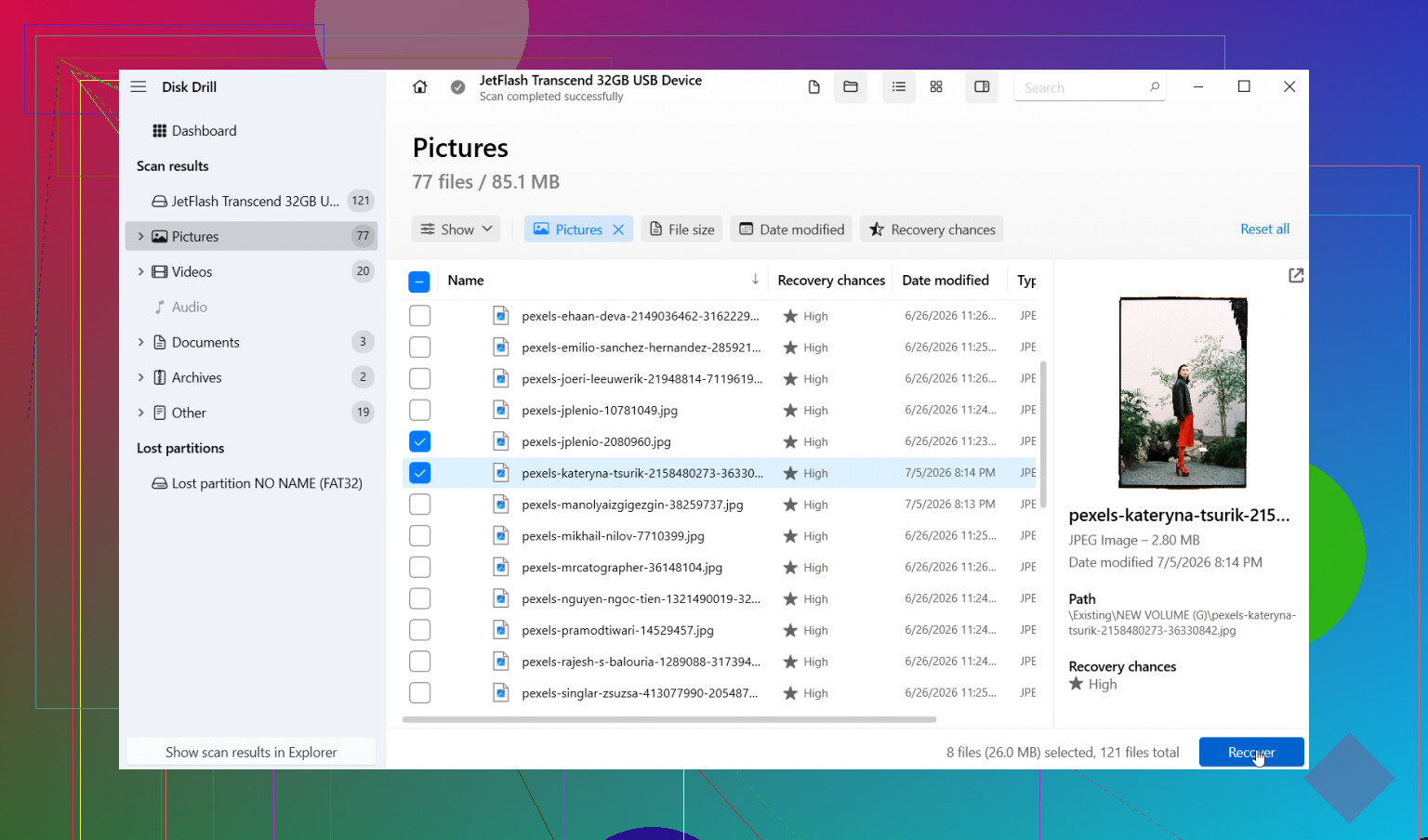
I’ve had decent results with Disk Drill. It’s one of the easier ones if you haven’t done this before. I’d select the USB, run Universal Scan, then wait. For formatted drives, that scan mode tends to be the one worth using. After it finishes, you sort through the results. It groups files by type, which helps when filenames are gone, and the preview tool saves time. If a photo opens in preview, or a document loads there, I usually take that as a good sign the file is still usable.
One part I liked more than I expected was the disk image option. If the flash drive is acting weird, dropping connection, freezing Explorer, or throwing file system errors, I’d image it first and scan the image instead. I learned this the hard way on an old USB stick that kept disconnecting halfway through scans. Working from an image puts less stress on the original device.
A few things change the odds quite a bit:
- Did you add new files after the format? If no, recovery odds are better.
- Did you keep the same file system, or switch it? Either one still leaves a chance, but a file system change sometimes strips out more useful metadata.
- What was stored on it? Photos, documents, and videos are usually handled well by most recovery tools.
If the scan shows your files but the names are missing or scrambled, don’t read too much into it. I’ve seen that a lot after formatting. Sorting by type, size, or modified date usually gets you through the mess faster than trying to rely on folder names.
Also, don’t kill the scan early. I know it’s tempting once you see a few files pop up. Still, I’d let it finish. On one drive I worked on, the useful stuff didn’t appear until late in the scan, and the early results looked half empty.
If the USB is not detected at all, keeps disconnecting, or Windows shows the wrong capacity, I’d treat it as a hardware problem first, not a simple format mistake. Repeated scans on failing flash storage are a bad habit. More reads can push it further downhill. In that case, making an image first is the safer route if the drive stays online long enough. If the files matter a lot, I’d stop there and hand it to a recovery shop.
So yes, getting data back from a formatted flash drive without a backup is often possible. The two big factors are whether it was a quick format and whether anything new was written after it happened. If it was quick and the drive has been left alone since, I’d say your chances are still decent.
16 Likes
If the format was quick, your odds are still decent. If it was full, odds drop fast. One small disagreement with @mikeappsreviewer, I would image the USB first even if it seems stable, if the files matter. Flash drives fail with no warning, and one clean image gives you multiple recovery tries without touching the original again.
My order would be:
- Check Disk Management and confirm the drive shows the right size.
- Make a byte-for-byte image of the USB.
- Scan the image, not the USB, with Disk Drill or another recovery app.
- Recover files to your PC or another external drive.
- Sort results by file signature and date, not folder name. Formatted drives often lose original structure.
For photos, look for JPG, PNG, RAW. For work docs, search DOCX, XLSX, PDF. Preview matters. If a file opens, that’s a solid sign.
If the drive shows 0 bytes, wrong capacity, or disconnects, stop. Software recovery gets riskier then.
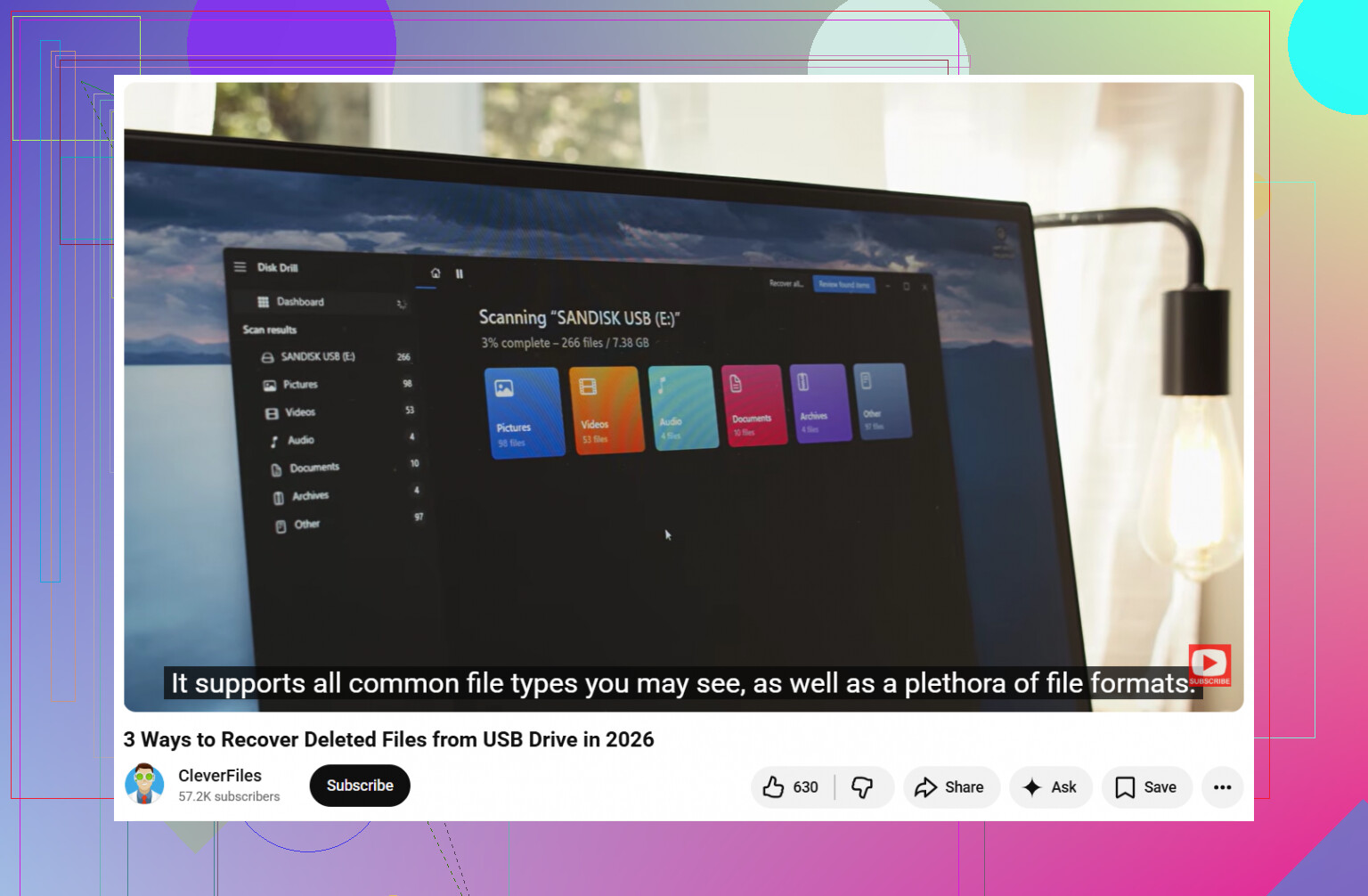
This guide is close to what you need for flash drive data recovery after formatting: watch this USB flash drive recovery guide
Biggest mistake people make is recovering stuff back onto the same USB. Dont do it.
One thing I’d add to what @mikeappsreviewer and @reveurdenuit said: before you even scan, check whether Windows assigned the USB a new empty file system but the old partitions are still visible in a partition tool. Sometimes after a format, the real loss is more “logical” than total, and a partition recovery pass can find the old volume faster than raw file carving. That matters because carved files often come back with junk names and no folders.
So my take is:
- do not reformat it again
- do not run CHKDSK
- do not recover files back onto the same stick
What I’d try first is a read-only inspection with something like TestDisk for partition/file system traces. If that shows nothing useful, then move to file recovery software. Disk Drill is fine for that, especially if you want previews for photos and docs instead of staring at a wall of unnamed files. I just wouln’t start with “deep carve everything” unless the simpler route fails.
Also, if the flash drive is tiny-cheap/no-name, be a little skeptical. Some failing USB sticks fake capacity, and recovery gets weird fast. If your documents are super important, stop experimenting after one pass and consider a pro.
This is a solid walkthrough for recovering data from a formatted USB flash drive step by step.
If it was a quick format and you haven’t saved anything new, your chances are honestly prety decent.