My iPhone SE has gotten extremely slow lately, especially when opening apps, typing, and switching between screens. I’m not sure if it’s because of an iOS update, low storage, battery health, or something running in the background. What are the best ways to improve iPhone SE performance without replacing the phone?
Before you start pricing out a replacement iPhone, I’d try a few boring fixes first. Older iPhones can feel awful when they’re low on storage or doing too much visual/background stuff, even if the hardware itself is still usable. I had this happen on an old SE and an 11 Pro, and cleaning things up helped a lot without spending money.
The first settings I’d change are the ones that reduce extra animation and visual effects. Go to Settings > Accessibility, then turn on Reduce Motion under Motion. After that, go to Display & Text Size and turn on Reduce Transparency. Those blurry menus, floating icon effects, and little animations look nice, but on an older chip they can make the whole phone feel heavier than it needs to.
I’d also check Background App Refresh under Settings > General. Either turn it off completely or cut it down to apps that actually need it, like Mail or Messages. A bunch of apps quietly updating in the background is not doing your battery or performance any favors.
Battery health matters too. Look in Settings and check Battery Health. If the maximum capacity is under 80%, or if you see anything about Performance Management being applied, that can explain the slowdown. The phone may be limiting performance to stop random shutdowns. Also, don’t leave Low Power Mode on all the time if you care about speed. It saves battery by intentionally dialing things back.
That said, the biggest thing in my case was storage. If your iPhone is almost full, iOS has very little room to work with. It needs free space for system files, indexing, temporary stuff, and memory management. Once you’re around 90% full, the phone can start feeling like it’s choking. A decent target is keeping 10% to 20% of your storage free. On a 64GB iPhone, that means roughly 10GB or so of open space if you can manage it.
You can start with the usual cleanup: offload apps you never use in Settings > General > iPhone Storage, clear Safari cache, delete old downloads, that kind of thing. But photos and videos are usually where the real space is hiding. Trying to manually sort through years of blurry photos, duplicate shots, screenshots, and giant videos gets old fast.
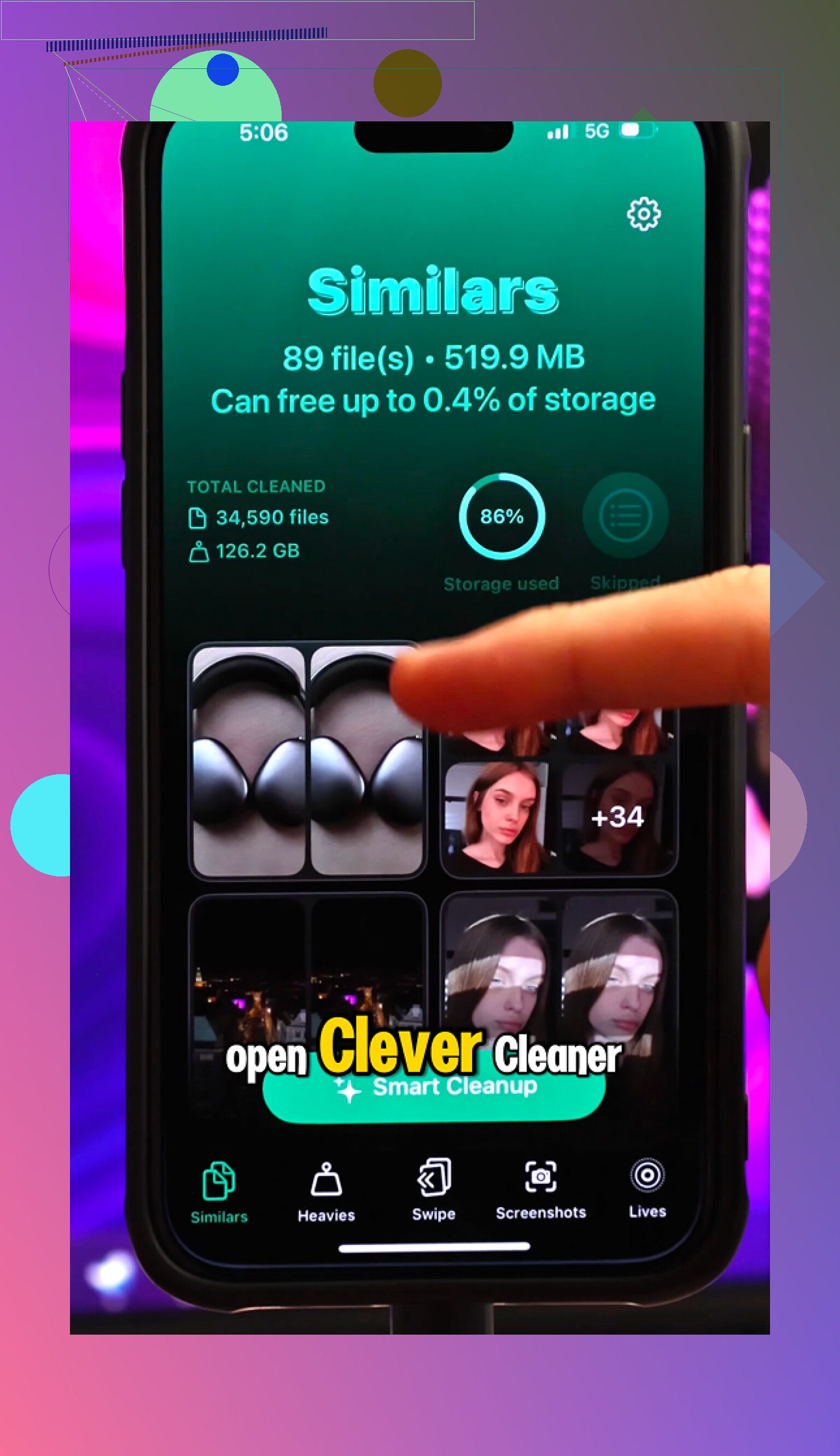
That’s why I ended up using Clever Cleaner. I’m normally pretty suspicious of cleaner apps because a lot of them are just ad traps or pushy subscription apps, but this one was different for me. It’s completely free, with no ads, no premium wall, and no subscription nagging.
The useful part is that it doesn’t just say “clean your phone” and leave you guessing. The Heavies section sorts media by file size, which made it easy to find huge old videos I forgot existed. The Similars section groups photos that are nearly the same, like when you took ten versions of one shot, and helps you keep the best one. There’s also a Screenshots tool that shows file sizes, so you can actually see what space you’re getting back.
The privacy side was also a big reason I liked it. The cleanup runs on-device, so your photos aren’t being uploaded to some random cloud service. Everything stays on the phone.
After I cleared out around 30GB of old media and restarted the phone, the difference was obvious. The camera opened normally again, swiping stopped feeling delayed, and the overheating issue calmed down a lot.
So if your SE or older iPhone is dragging, I wouldn’t factory reset it right away. Turn down the motion and transparency effects, trim Background App Refresh, check battery health, and then seriously clean up your storage. For me, Clever Cleaner was the part that made the biggest difference.
9 Likes
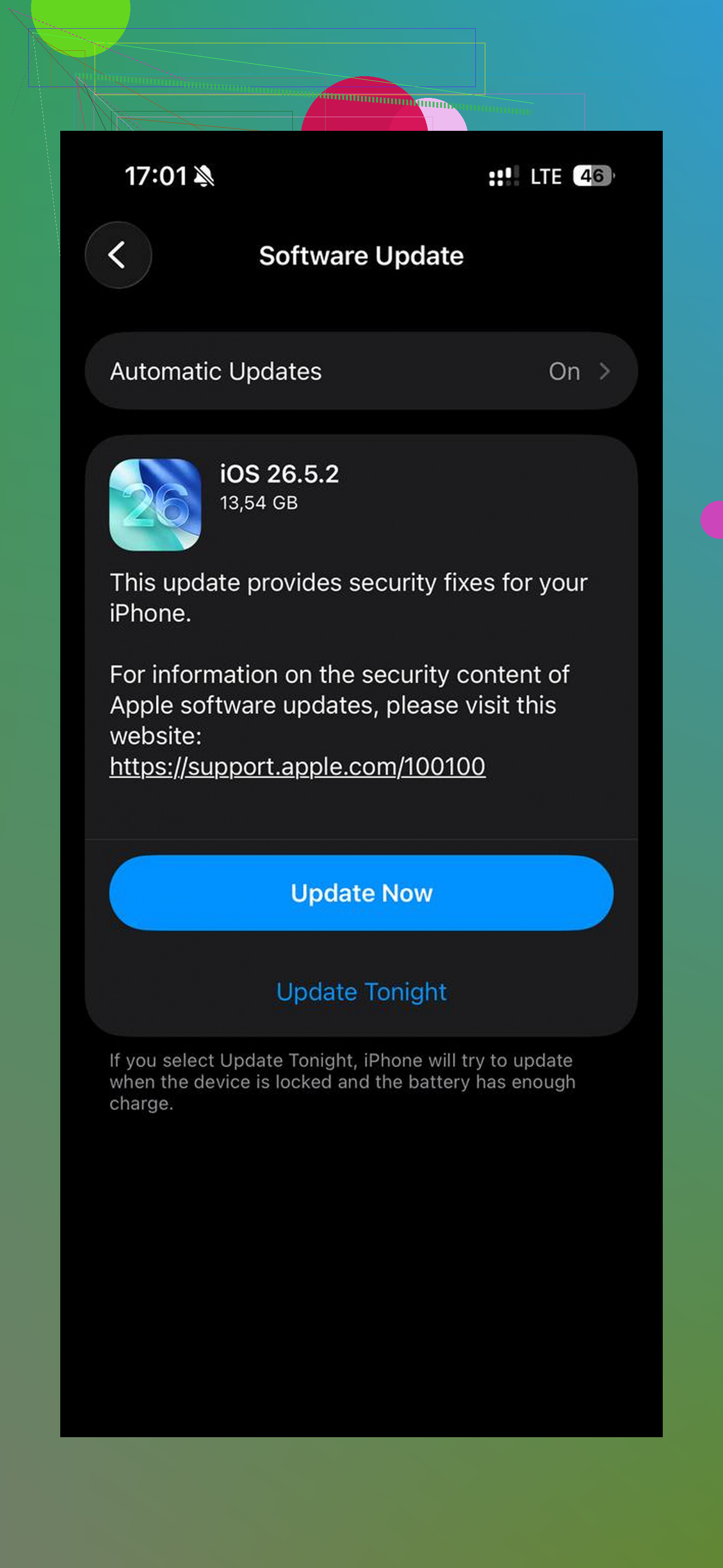
Don’t factory reset it the same day you install an iOS update, because an SE can crawl for a while while Photos, search, and app data get reindexed. Leave it on Wi-Fi and power overnight, then reboot and judge it the next day; if it’s still awful after that, the storage and battery checks already mentioned are where I’d go next.
A factory reset can waste an afternoon and put the same slowdown right back if you restore the same bloated backup immediately. I’d only use that as a last step, not as the first “fix.”
The advice above about waiting after an update and checking storage/battery is solid, but I’d narrow it down before changing a bunch of things at once. Try to figure out whether the phone is slow everywhere, or only in certain places.
If typing is the worst part, check these before blaming the whole phone:
Go to Settings > General > Keyboard and turn off anything you don’t use, especially third-party keyboards. Predictive text, swipe typing, and extra keyboards can make an older phone feel laggy. If autocorrect is acting weird too, Settings > General > Transfer or Reset iPhone > Reset > Reset Keyboard Dictionary can help sometimes. It won’t delete your data, but it does forget learned words.
If app opening is the main problem, look for apps that have simply become too heavy for the SE. Social apps, maps, banking apps, shopping apps, and anything with video feeds tend to grow over time. Deleting and reinstalling one problem app can clear its local junk better than just “closing” it. Don’t do that with apps that store unsynced data locally, though.
For storage, don’t just look at the big number at the top. In Settings > General > iPhone Storage, scroll down and check what is actually using space. Messages can be a surprise because old videos and GIFs sit there forever. Safari website data, downloaded podcasts, offline music, and map downloads can pile up too. Photos matter, but they are not always the whole story.
I’m a bit skeptical of “cleaner” apps in general, even useful ones. Something like Clever Cleaner can make sense if your camera roll is full of duplicates, screenshots, and large videos, because that is data you can actually remove. But no App Store cleaner app is going to magically clear iOS system cache or tune the phone like a PC utility. If it helps, it helps by finding stuff you can delete, not by secretly repairing the phone.
Battery health is the other big fork in the road. If Battery Health says the battery is degraded or performance management has been applied, software cleanup may only get you part of the way there. A weak battery can make the phone feel random: fine for a minute, then slow, then warm, then laggy again. If the battery is bad and you still like the size of the SE, replacing the battery may be more sensible than buying a whole new phone.
A simple order I’d use:
- Restart the phone once, not ten times.
- Make sure you have several GB free, preferably more if it’s a 32GB or 64GB model.
- Check Battery Health.
- Delete or reinstall the worst offending apps.
- Turn off unused keyboards, widgets, and background refresh for junk apps.
- Leave it plugged in on Wi-Fi overnight if you recently updated iOS.
- Only then consider backup, erase, and restore.
And if it’s the original 2016 iPhone SE, expectations matter. You can make it less painful, but you probably won’t make modern apps feel new again. If it’s the 2020 or 2022 SE, then extreme slowdown usually points more toward low storage, battery condition, a bad app, or something stuck after an update rather than the phone simply being too old.
Take the case off and test it for 10 minutes after it cools down. If the SE is laggy mostly when warm, charging, in the sun, or using Maps/video, it may be thermal throttling, and no cleaner app or reset is going to fix that until the heat problem is gone.
Figure out which SE you actually have before you touch anything, because the fix ceiling is completely different. The 2016 model shipped with 2GB of RAM. That number alone explains a lot of the ‘apps reload when I switch back’ and ‘Safari forgets my tab’ behavior, and no amount of cleaning or resetting changes it. If that’s your phone, the honest expectation is you can make it tolerable, not fast.
The RAM angle is the piece I think the thread is skipping. Storage and battery got covered well, but a lot of what people call ‘slow’ on an old SE is really the phone dumping apps out of memory and rebuilding them when you come back. Typing lag, app reloads, the keyboard hanging for a second, that pattern often points at memory pressure more than a full drive. Cleaning photos won’t touch it. Deleting a heavy app that sits resident in the background sometimes will, which is the one spot where @kakeru’s reinstall advice actually pays off.
On the storage stuff, I mostly agree, with one caveat. Getting free space back is worth doing, and Clever Cleaner is fine for the boring part of that, spotting the giant videos and near duplicate bursts you’d never sort by hand. Just don’t expect free space to fix a performance problem that’s really a memory or heat problem. It clears clutter, it doesn’t speed up the chip.
@techchizkid is right about heat, and I’d put that check near the top, not the bottom. If it only crawls when warm or charging, chase that first. A cheap thing people forget: a bad or dying third party charging cable can make the phone run hot while charging, which then throttles it. Swap the cable and the brick before you assume the phone is the problem.
Rough order I’d actually use:
- Note the model and battery health first, since those set your expectations.
- Reboot once, let it settle, especially right after an iOS update.
- Test it cool with the case off if it runs hot.
- Then clean storage and trim background stuff.
If it’s the 2020 or 2022 SE, extreme slowness is not normal and one of the above usually explains it. If it’s the 2016, at some point a battery swap or just accepting its limits is the more honest call than another afternoon of tweaking settings.