I accidentally took a lot of pictures with Live Photo turned on, and now they’re using extra storage and making it harder to share them. I need help finding the fastest way to convert all Live Photos to still photos on my iPhone without editing them one by one.
I ran into this too after my iPhone started throwing storage warnings. Live Photos look harmless, but they stack up fast. Each one is a still image plus a short video clip and audio, so the file size ends up a lot bigger than a normal photo. If your library is packed with them, the wasted space adds up into gigabytes.
Yes, you can strip Live Photos down to still images in bulk after they’ve already been taken. The annoying part is how Apple set it up.
The built-in iPhone method
If you want to stay inside the Photos app, there’s a workaround. Open the Live Photos album, tap Select, choose the shots you want, hit the three-dot menu, then pick Duplicate, then Duplicate as Still Photo.
This works, but it’s messy. iOS keeps the original Live Photo and makes a second version as a plain still. So at first, storage use goes up, not down. Then you need to remove the original Live Photos yourself, then empty Recently Deleted too. I tried this on a large library once and it felt slow and easy to mess up.
The Shortcuts route
You can also do it with the Shortcuts app. People build workflows which find Live Photos, export them as JPEG or PNG, then save them back into Photos.
I tested this a while back. It does the conversion part, but setup takes time, and cleanup still tends to be manual. If you like tinkering, it’s fine. If you want the job done fast, it gets old.
Cleaner apps
For a handful of photos, Apple’s tools are enough. For hundreds or thousands, I’d skip the manual route.
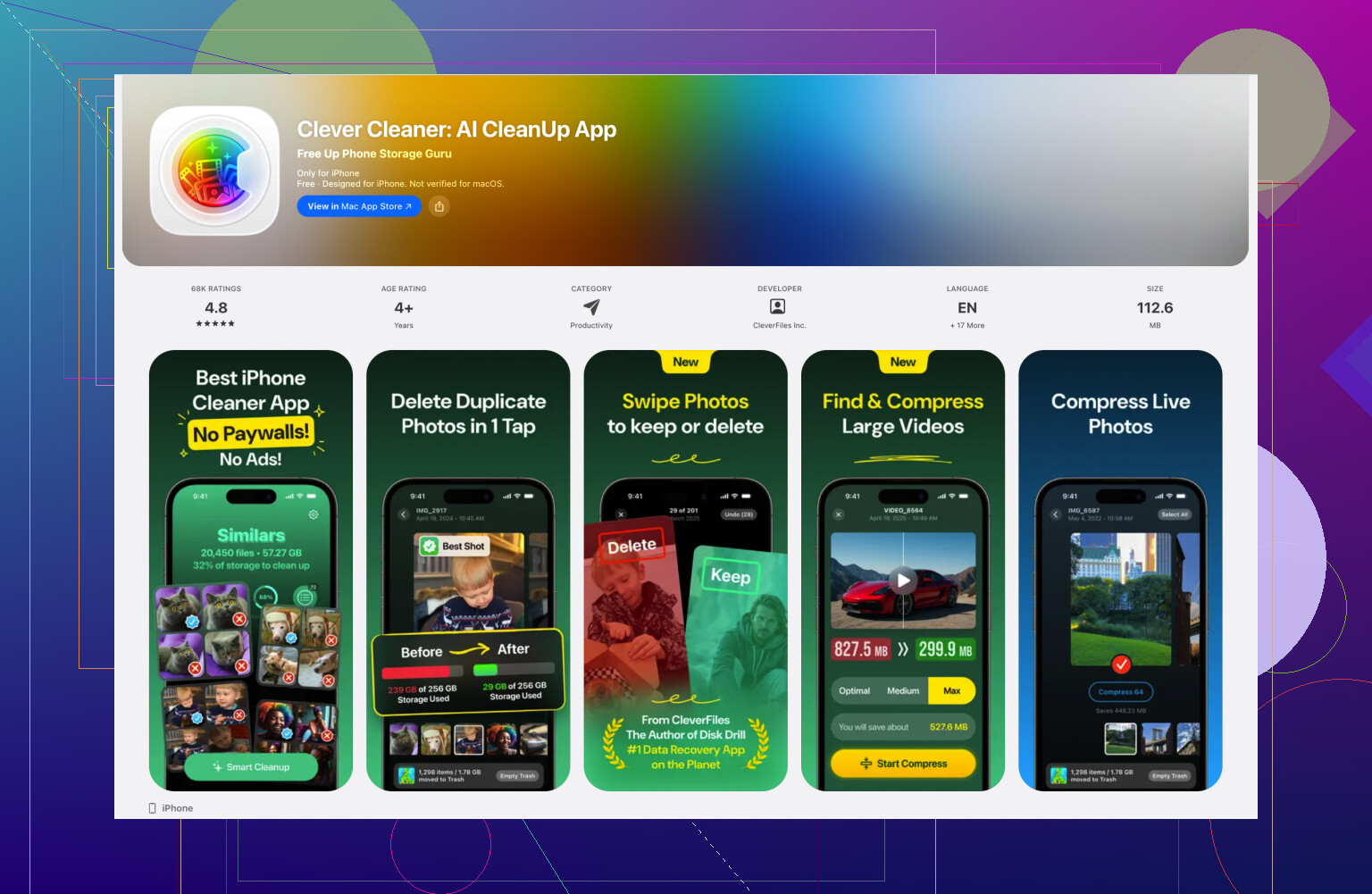
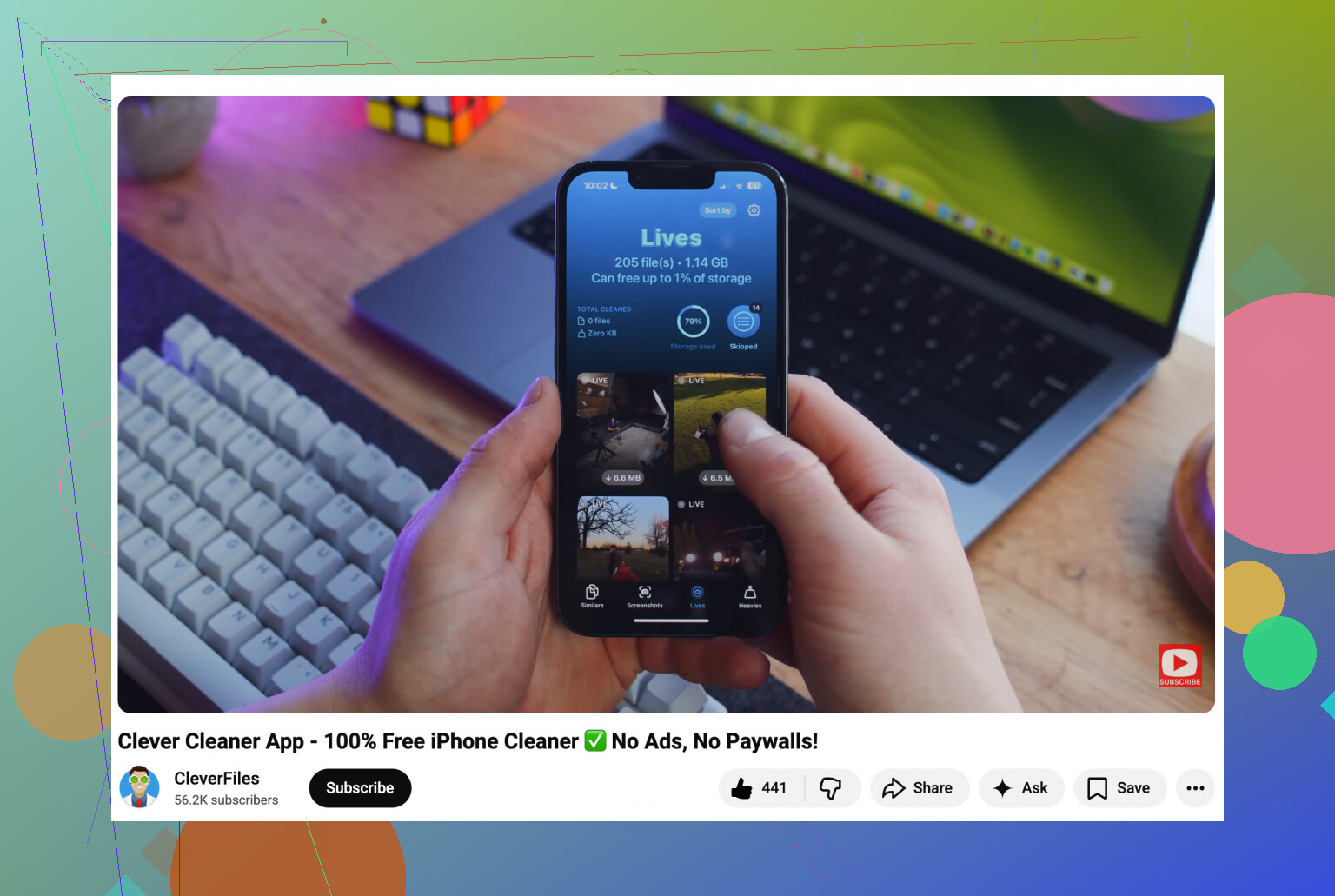
What worked best for me was Clever Cleaner. It has a Live Photos section where everything is grouped for review, usually by date or file size. You can select all of them and use the Compress option. The label says compress, but what it’s doing here is removing the motion part and leaving you with still photos.
The part I liked was the cleanup flow. After processing, it asks what to do with the original Live versions instead of leaving you to sort out duplicates later. It also shows how much space you’re about to get back, which made it easier for me to decide if the batch was worth doing. For big photo libraries, this felt less irritating than Apple’s method.
Stop it from happening again
After you clean up the current mess, lock the camera settings down so Live Photos stay off.
Go to Settings > Camera > Preserve Settings, then turn on the Live Photo setting there. Weird wording, I know. What this does is save your choice, so if you switch Live Photos off in the Camera app, the phone remembers it.
Then open the Camera app, tap the yellow Live Photo icon, the concentric circles thing, and turn it off. After I did this, mine finally stopped switching itself back on.
38 Likes
Fastest path, if you want all of them handled in bulk, is not the Photos app. I know @mikeappsreviewer mentioned Apple’s duplicate-as-still trick, and I kind of disagree with using it for a big library. It’s too easy to end up with doubles and more cleanup than you started with.
What I’d do:
- Back up your photos first.
- Use Clever Cleaner to scan your library.
- Open the Live Photos section.
- Select all, or sort by size/date first.
- Run the compress option to strip the motion part and keep the still image.
- Delete the original Live versions after you confirm the stills saved right.
Why this is faster:
- Live Photos often take about 2x the space of a normal still, sometimes more.
- Sharing gets easier since apps don’t try to send the mini video part.
- You avoid the duplicate mess from Apple’s built-in method.
If you want a plain iPhone-only route with no extra app, there isn’t a clean one-step “convert all” button. Apple made this wierdly clunky.
Also, stop future Live Photos:
Settings > Camera > Preserve Settings > turn on Live Photo.
Then open Camera and switch Live off once. Your phone should remember it.
If you want more user feedback before doing it, I found this Reddit recommendation for cleaning up iPhone Live Photos useful too.
Honestly, I wouldn’t bother with Apple’s duplicate trick unless you only have, like, 20 photos. @mikeappsreviewer and @andarilhonoturno already covered the usual paths, but the part I kinda disagree on is Shortcuts. It sounds smart until you’re 40 minutes deep into a workflow that still leaves cleanup behind. Been there, super annyoing.
Fastest way if you want this done in bulk on iPhone only: use a cleanup app that can strip the Live component instead of making copies. Clever Cleaner is the one I’ve seen do this without turning the whole thing into a duplicate-management side quest. It keeps the still image and removes the motion part, which is what you actually want.
Before doing anything:
- Back up your photos.
- Check a few converted pics first so the key frame looks right.
- After deleting originals, empty Recently Deleted or storage won’t change right away.
Also, if your main issue is sharing, a lazy workaround is just sharing from Photos with Live turned off per image before sending. Not a real fix, but useful.
And for future-proofing:
Settings > Camera > Preserve Settings > enable Live Photo
Then turn Live off in Camera once.
If you want a cleaner explainer, this video is decent: see how rare bulk Live Photo to still conversion is among iPhone cleaner apps. Apple really should’ve made this a one-tap thing, but… Apple.
One angle the others only partly touched: if your goal is **storage**, converting Live Photos to stills does not instantly free space unless you also remove the original motion version and clear **Recently Deleted**. That’s the part people miss.
I slightly disagree with doing this entirely inside Photos for a large library. @andarilhonoturno, @mike34, and @mikeappsreviewer covered the usual routes, but Apple’s own tools feel fine only for smaller batches.
What I’d check first:
- In Photos, filter your **Live Photos** album
- Review a few images where timing matters because the chosen key photo can be bad
- Make sure iCloud Photos has finished syncing before bulk edits
If you want less manual cleanup, **Clever Cleaner** is probably the more practical route.
**Pros**
- groups Live Photos together
- easier bulk review
- can remove the motion part without creating a giant duplicate mess
- useful if storage recovery is the main point
**Cons**
- still a third-party app, so some people will hate granting photo access
- always test on a small batch first
- if you use iCloud Photos, changes can take time to reflect across devices
One more thing: if sharing is the problem more than storage, you may not need full conversion. Open a Live Photo, tap **LIVE**, switch it to **Still**, then share that version when needed. Slower, yes, but safer for favorites.
And definitely disable Live going forward in Camera settings, or you’ll be cleaning this up again next month.