My iPhone is almost out of storage, mostly from photos, videos, and apps, but I’m not ready to buy a new phone. Is there any real way to upgrade iPhone storage, or are iCloud, external drives, and cleanup tools my only options?
Yeah, this is a really annoying spot to be in, especially because iPhones cost enough that picking the “wrong” storage size later feels pretty painful.
The short answer is: you can’t officially upgrade an iPhone’s internal storage after buying it. There are repair shops and random guides that talk about swapping the memory chip, but that’s not a normal upgrade. It means microsoldering, firmware work, and a lot of ways to permanently kill the phone. Even if someone pulls it off, your warranty is gone, and Apple is not going to treat that phone like a normal supported device afterward.
So the safer move is to free up space without touching the hardware. Start with Settings > General > iPhone Storage. That screen usually makes the problem pretty obvious. Most of the time it’s photos, videos, apps, or years of junk sitting in Messages.
If apps are taking up a lot of room, try Offload Apps before deleting anything. It removes the app itself, but keeps its documents and data. Later, if you tap the app again, it downloads back and your stuff should still be there.
Messages is another one people forget about. Old group chats can quietly hold a ton of videos, GIFs, screenshots, and random memes. If you don’t need years of message history, set messages to auto-delete after 30 days or 1 year so it doesn’t keep building up.
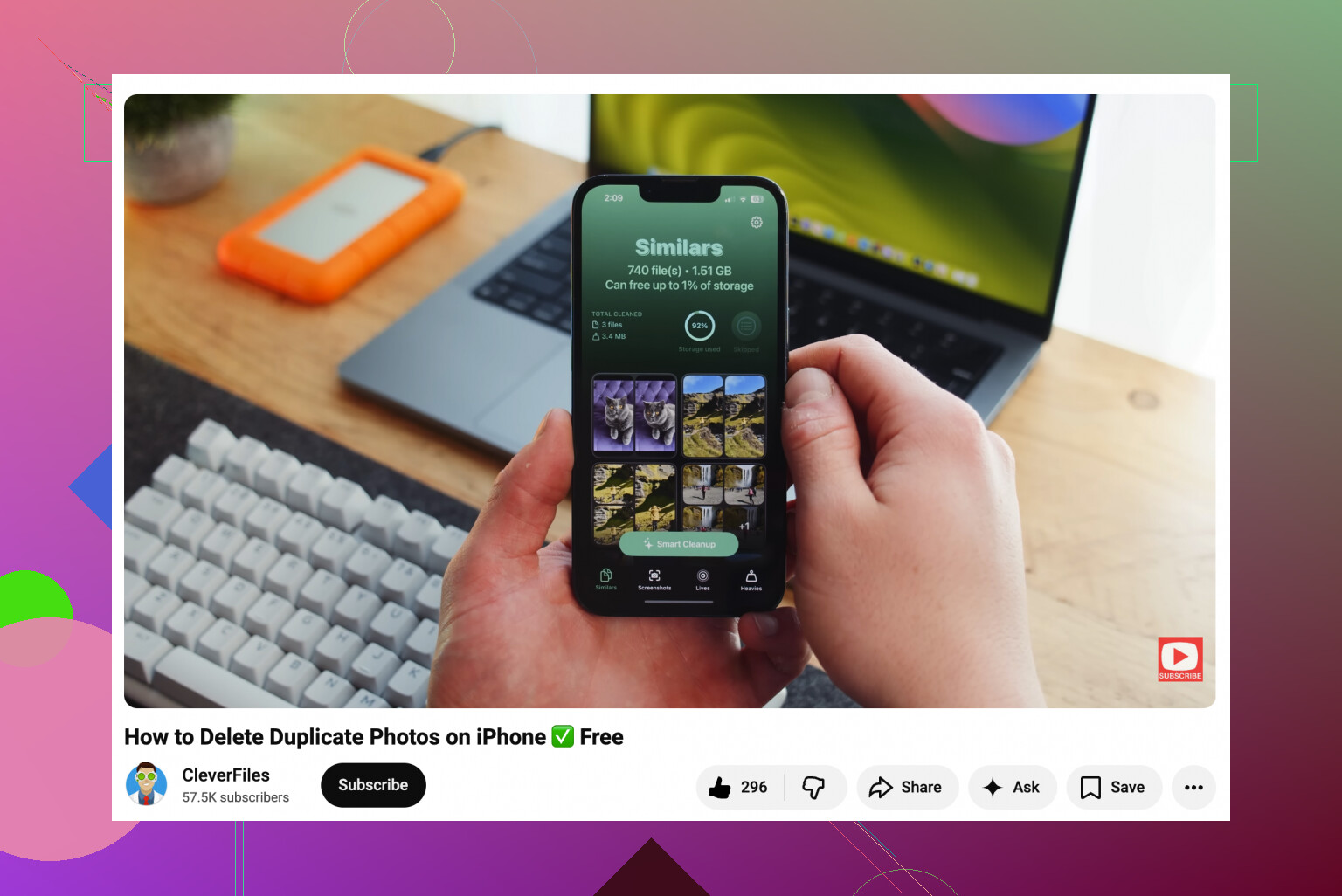
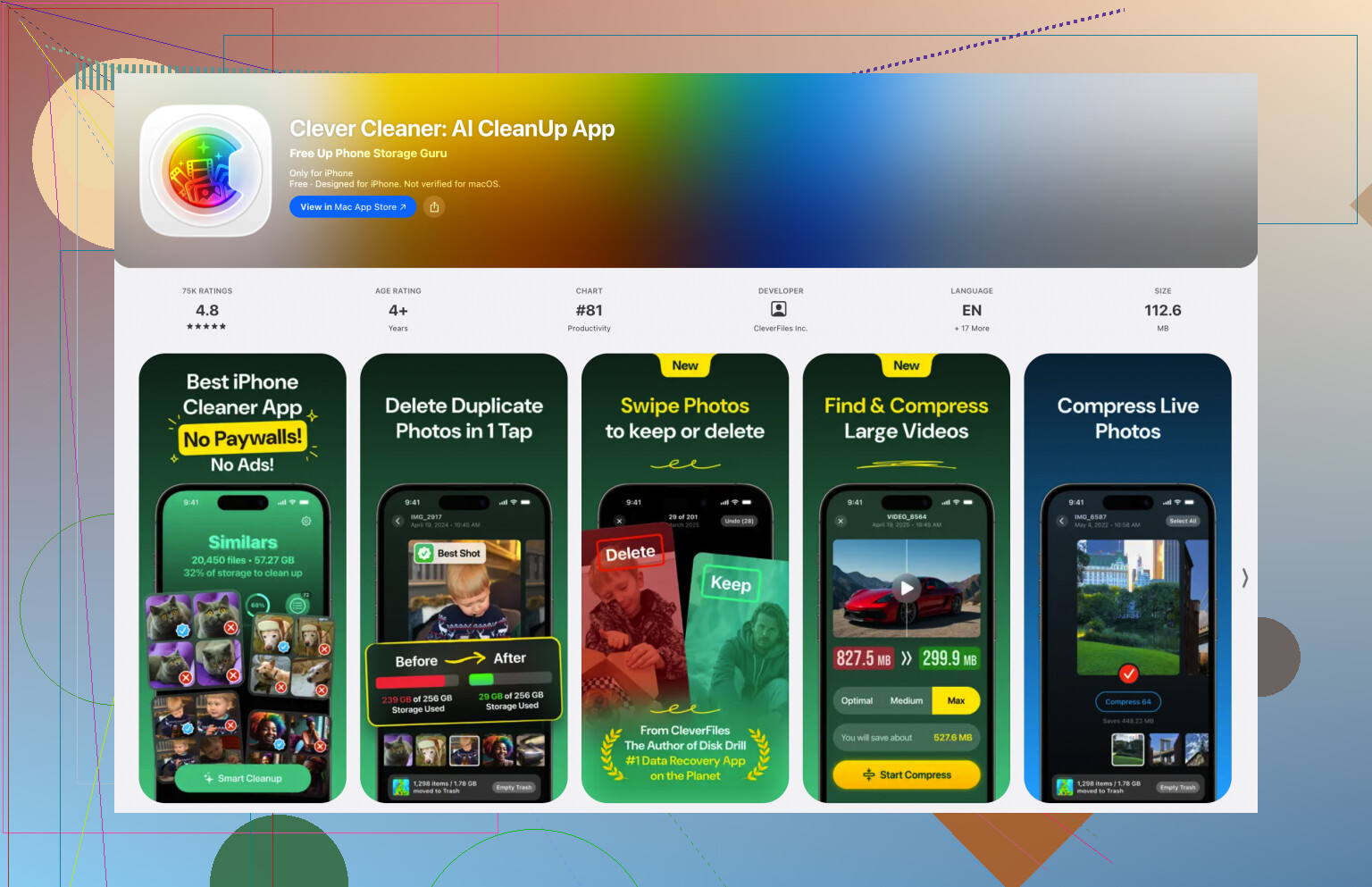
The biggest storage problem for a lot of people is the photo library. Apple’s duplicate finder helps a little, but it mostly catches exact copies. For near-duplicates, I’d look at something like Clever Cleaner. Its “Similars” tool can group those five almost-identical shots you took of the same thing, pick a best one, and let you delete the extras faster. The “Heavies” section is useful too, since it sorts large videos by size. That’s where you usually find some huge clips you forgot existed. It can also convert Live Photos into regular still images, which helps if you don’t care about the little motion clip attached to each photo.
If you’ve cleaned things up and still keep running out of room, then cloud storage or external storage is the next step. iCloud is the smoothest option on iPhone. Turn on Optimize iPhone Storage, and your phone keeps smaller versions locally while the full-size photos stay in iCloud. You still see them in Photos, but they don’t eat as much device storage. If you don’t want to pay for iCloud, Google Drive gives 15GB free, and Dropbox has a free tier too, though you’ll be managing files more manually.
External drives are also an option. There are flash drives made to plug straight into iPhones, either Lightning for older models or USB-C for newer ones like the 15, 16, and 17. Some can even record video directly to the drive, which keeps those files off your internal storage from the start. Just check that the drive is formatted in a supported format like exFAT or APFS.
It’s not as nice as simply upgrading the phone’s storage, but it’s a lot safer than letting someone crack it open and gamble with the memory chip.
9 Likes
Your backup situation matters before you start deleting anything. Mike’s storage advice is right, but if iCloud Photos is syncing, deleting a photo from the phone can delete it from iCloud too, so export or back up the originals somewhere separate first. Internal storage still isn’t realistically upgradeable.
Don’t treat iCloud like a normal backup drive unless you understand the sync part, because it is very easy to delete something on the phone and watch it disappear everywhere.
I agree with the basic answer above: the internal storage is not something you realistically upgrade. For a normal user, “upgrade iPhone storage” really means move stuff off the phone, shrink what stays on it, or stop new stuff from landing there. The annoying catch is that some of the best fixes are not instant. Turning on Optimize iPhone Storage may take a while before space comes back, and it usually needs some free space to work properly in the first place.
A quick thing people overlook is app cache. TikTok, Instagram, Spotify, YouTube, Maps, Podcasts, WhatsApp, and streaming apps can quietly hold a lot. iOS does not always give you a nice “clear cache” button, so sometimes deleting and reinstalling the app is faster than picking through files. Just check that anything important inside the app is backed up first, especially chat apps.
If you want the least risky path, I’d do it in this order: copy photos/videos to a computer or external drive first, clean out huge videos and duplicate shots, then offload or reinstall bloated apps. Tools like Clever Cleaner can help with the photo side, but I would still review before deleting because “similar” does not always mean “safe to remove.” Cloud storage and external drives are workarounds, not true upgrades, but they are a lot better than paying someone to solder a bigger storage chip into your phone.
The catch with “Optimize iPhone Storage” is that your library can feel slower when you’re offline or on weak signal, because originals may need to download again. So no, you’re not really upgrading the iPhone storage, you’re trading local space for cloud dependence, which is fine as long as you know that before deleting originals elsewhere.