Frequently having issues with your WiFi? It’s a common headache, but luckily, there are several ways to check the signal strength and potentially pinpoint the problem. Here are a few methods you can try:
-
Built-in Operating System Tools:
- Windows: Open the 'Command Prompt’ and type
netsh wlan show interfaces. Right there, you’ll see signal strength listed as a percentage. - MacOS: Hold down the ‘Option’ key, then click the ‘WiFi’ icon in your menu bar. You should see your WiFi’s details, including ‘RSSI’ (Received Signal Strength Indicator).
- Windows: Open the 'Command Prompt’ and type
-
Router’s Admin Page:
Log into your router’s admin interface. Many routers show signal strength for each connected device. Though these signals are usually in the negative dBm format (e.g., -70 dBm). The closer to 0, the stronger the signal. Anything from -30 dBm to -67 dBm is considered good. -
WiFi Analyzer Apps:
Use software tools or mobile apps like ‘WiFi Analyzer’ for Android or ‘AirPort Utility’ for iOS. These apps show detailed signal strength info and can help find less crowded channels. Really handy if your living space has multiple overlapping WiFi networks. -
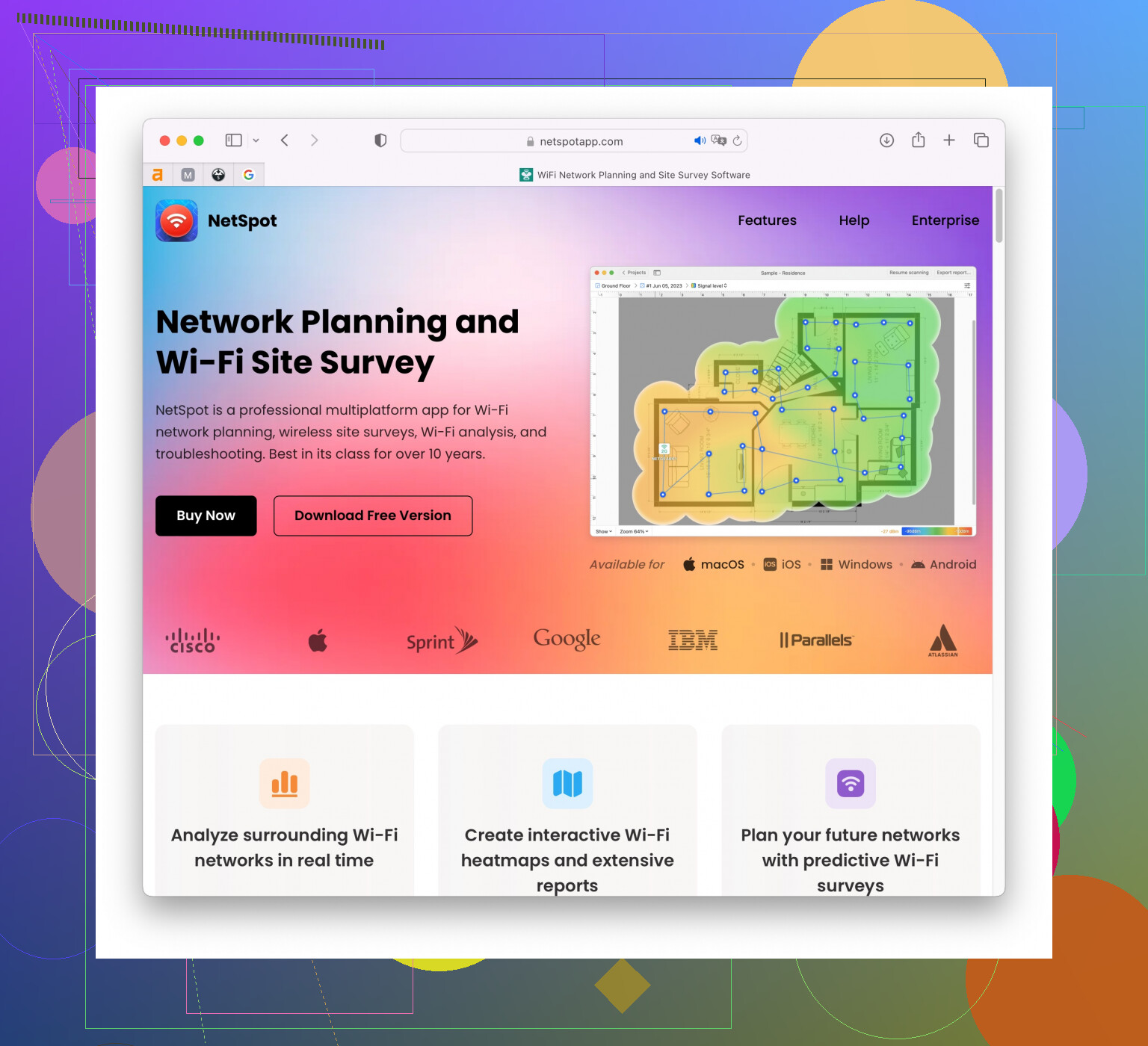
NetSpot
Site Survey Software:
If you want more comprehensive insights, NetSpot is a solid option. It’s a software solution that allows you to carry out a detailed site survey. You can visualize your WiFi coverage and locate weak spots in your home. Go to https://www.netspotapp.com and download it. It’s genuinely a game-changer for WiFi troubleshooting. -
Manual Check with a Device:
Walk around your house with a laptop or mobile device connected to WiFi. Check how many bars of signal you get in different rooms. This isn’t the most precise method, but it’s simple and quick. If you notice significant drops, it might indicate where the weak spots are.
Common Fixes
If you find that your signal strength is indeed weak, here are a few things you can try to improve it:
- Reposition Your Router: Place your router in a central location, elevated, and away from obstructions or electronic devices that could interfere.
- Update Firmware: Check if your router has the latest firmware. Manufacturers often release updates that improve performance.
- Use a Repeater or Extender: These devices can help extend your WiFi signal to hard-to-reach areas.
- Change the Channel: Sometimes, switching to a less crowded WiFi channel can vastly improve performance. Most routers automatically select the best channel, but it’s worth checking.
Hope this helps! If you’re still having trouble after all this, it might be worth reaching out to your ISP to see if there’s an issue on their end.