I’m trying to delete a folder in the Files app on my iPhone, but the delete option is missing or nothing happens when I tap it. I recently moved some documents around and now I can’t remove an empty folder I no longer need. I need help figuring out if this is a permission issue, an iCloud sync problem, or if I’m missing a step.
I kept tripping over iPhone file cleanup for longer than I want to admit. The Files app feels off at first. Then you learn where Apple hid stuff, and it stops being a fight.
Deleting files in the Files app
This is where I kept finding PDFs, ZIPs, Safari downloads, and random attachments saved from Mail.
If you want to remove one file or one folder:
- Open the Files app, then go to the item.
- Press and hold on the file or folder icon.
- When the menu pops up, scroll down. On iOS 18, Delete often sits all the way at the bottom in red with a trash icon.
- Tap Delete.
If you’re clearing a bunch at once:
- Hit the three-dot button in the top right.
- Choose Select.
- Tap each item you want gone.
- Press the trash icon at the bottom.
Deleting a folder without messing up the wrong thing
Folders work the same way. I held the folder, waited for the menu, scrolled down, and hit Delete. If you want the folder to stay but the stuff inside it to go, open the folder first, use Select All, then delete the contents from there. Easy to miss, tbh.
When a file refuses to delete
I’ve seen this a lot with iCloud-synced files. You delete something, or try to, and the icon hangs around like it still exists. Most of the time the file already moved or synced away, and Files hasn’t refreshed.
- Close the Files app completely, then open it again.
- If the file still shows up, restart the iPhone.
- After reboot, iOS usually rebuilds its view of what is stored on the phone.
Freeing up phone space without wiping the file from iCloud
This part matters. If you see a cloud icon next to a file, it lives in iCloud too. If you hit Delete, it disappears from every device using your Apple ID. I learned this the annoyng way.
If your goal is local storage, look for Remove Download instead. That strips the copy off the phone but leaves the file sitting in iCloud Drive. Later, you tap it and it downloads again.
Why storage stays the same after you delete stuff
This is one of those Apple things. Deleted files do not vanish right away. They move into Recently Deleted for 30 days, and during that time they still take up space.
If you want the storage back now:
- Open Files.
- Go to the Browse tab.
- Find Recently Deleted under Locations.
- Tap the three dots.
- Choose Select, then Delete All.
Photos works the same way. Deleted pictures and videos go into its own Recently Deleted area, so you have to clear that separately too.
Why cleaning the Files app often barely helps
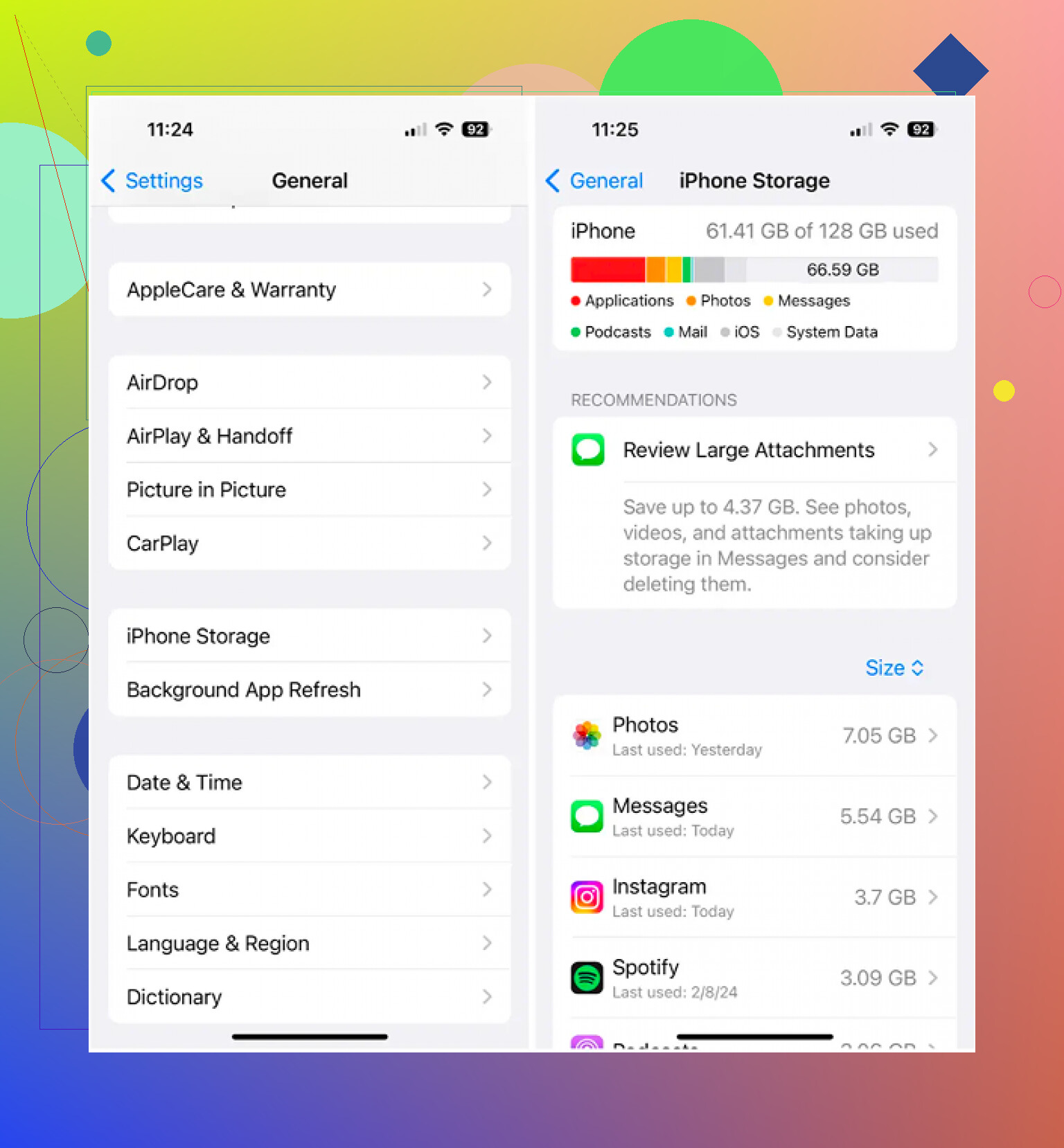
Here’s the part people skip. In my case, documents were rarely the main problem. Storage usually got chewed up by photos and videos, mostly 4K clips and those burst-photo piles where every shot looks the same. You can wipe hundreds of PDFs and get less space back than from deleting one old video.
The built-in Duplicates album in Photos only catches exact copies. Clever Cleaner goes wider.
What stood out to me:
- The Heavies section lists the biggest files first, with sizes shown clearly, so the worst storage hogs show up fast.
- The Similars section groups near-matching photos and picks a Best Shot, which helps when your camera roll is full of burst junk.
- Swipe mode lets you go month by month, left to delete, right to keep. Kinda faster than pecking through the library one screen at a time.
- Processing stays on the device, so your library is not being sent somewhere else.
After I cleaned out Files and then went through the photo library, the storage number still didn’t move until I emptied both trash bins. One in Files. One in Photos. Miss either one, and iPhone storage keeps lying to your face.
2 Likes
If Delete is missing, the folder usually sits in a spot where Files has limited control.
Check these first.
-
Look at the folder location.
If it is under On My iPhone or iCloud Drive, you should be able to remove it.
If it is inside Google Drive, Dropbox, OneDrive, or a shared work folder, deletion is often controlled by that service. You might need to delete it in that app instead. Files is kind of bad at showing this clearly. -
Try from Browse, not from inside Recents.
Recents shows shortcuts, not the true folder location. Long press in Recents often gives weird results or no Delete option at all. Go to Browse, then open the real location. -
Check if the folder is still syncing.
An ‘empty’ folder is sometimes not empty yet. Hidden sync files, failed uploads, or a file still moving will block deletion. Wait a minute, pull down to refresh, then try again. -
Rename it first.
Sounds dumb, but I’ve had stuck folders delete right after renaming them. Long press, Rename, then try Delete again. iOS gets glitchy sometimes. -
If Delete is still gone, move the folder.
Create a temp folder in On My iPhone. Move the stuck folder there. Then delete it. This works more often than it should. -
Check permissions.
If the folder came from a shared iCloud folder, school account, or company provider, you might only have view or edit rights, not delete rights.
I slightly disagree with @mikeappsreviewer on one part. Restarting helps, sure, but I’d check the storage provider first. Most “won’t delete” folder issues I’ve seen were tied to Dropbox, OneDrive, or shared iCloud permissions, not iPhone storage bugs.
If your goal is cleanup and space, folder deletion often saves almost nothing. Large videos and duplicate photos eat way more storage. Clever Cleaner is worth a look for that side of the mess.
Apple’s support page for managing files on iPhone is here too, manage and delete files in the iPhone Files app.
If you want, post which location the folder is in, On My iPhone, iCloud Drive, Dropbox, etc. That narrows it down fast.

One thing I’d add to what @mikeappsreviewer and @caminantenocturno said: check whether the folder is actually a result of a tag/filter view, not a real folder. Files sometimes shows stuff in a way that looks like a normal folder, but it’s really just a grouped view from Recents, Shared, or a provider cache. In that case, Delete won’t show because there’s nothing “real” there to remove.
Also, if the folder is empty but still won’t go away, try this weird fix:
- open the folder
- create a tiny throwaway file inside it from another app, or move one note/pdf into it
- then move that file back out
- now try deleting the folder again
I know that sounds dumb, but stale metadata in Files is a real thing and this sometimes forces iOS to refresh the folder state. Apple stuff can be… special lol.
Another angle: if the folder name has a weird character, extra space, or came from another system like Windows/Zip extraction, Files may choke on it. Renaming with a simple name like Temp can help before deleting.
If your real goal is clearing storage, I slightly disagree with the idea that Files cleanup is the main fix most of the time. Folders in Files are usually tiny. Photos and videos are the real storage vampires. If that’s what you’re after, Clever Cleaner is honestly more useful for finding big videos, duplicate pics, and similar shots than poking at empty folders in Files for 20 minutes.
Also, for a visual walkthrough, this quick iPhone Files app folder deletion demo might help.
If you say where the folder lives, On My iPhone, iCloud Drive, or a third-party app, the answer gets way less guessy.
One extra check nobody’s really hit hard: the parent folder may be read-only even if the folder itself looks normal. I’ve seen this with files saved from Mail, ZIP extracts, and app-created directories. In Files, tap the folder once, then look at the top path and back out one level. Try creating a new folder there. If you can’t create one, that location is the problem, not the folder.
I’d also push back a bit on the “move it first” advice from @caminantenocturno. If Files is desynced, moving can just create a second ghost entry. Better test whether the location allows write/delete actions at all.
Two more things:
- Check Settings > Screen Time > Content & Privacy Restrictions. Rare, but file changes can get blocked there.
- If it came from another app, delete it from that app’s storage manager. Some apps expose folders in Files but don’t fully let Files remove them.
If your real goal is space, I agree more with @ombrasilente and @mikeappsreviewer that empty folders are usually irrelevant. Clever Cleaner helps more for actual storage cleanup.
Pros: fast at spotting large media, duplicate/similar cleanup, simple UI.
Cons: not useful for fixing Files permission bugs, best value depends on how messy your photo library is.