I’m trying to clear out the Hidden album in the iPhone Photos app, but deleting items one by one is taking too long. Is there a way to select everything and remove all hidden photos and videos at once without missing anything?
You don’t have to unhide photos before deleting them. If anything, deleting them right from the Hidden album is the cleaner way to do it, since they never pop back into your regular library view.
Open Photos, then go to Albums. On newer iOS versions, this may look a little different and may be under Collections instead. Scroll down to Utilities and open Hidden. Since iOS 16, Apple locks that album by default, so you’ll need Face ID, Touch ID, or your passcode before you can see anything in there.
Once you’re inside Hidden, tap Select in the top-right corner. If you want to clear the whole thing, choose Select All, then hit the trash icon. That removes the photos from the Hidden album.
The part that trips people up is that this still isn’t permanent yet. Deleted photos go to Recently Deleted first, where they usually sit for 30 days. If you want them gone now, go back to Albums or Collections, scroll to Utilities again, open Recently Deleted, unlock it, tap Select, then choose Delete All. That’s the step that actually wipes them from the phone right away.
If you use iCloud Photos, deleting hidden photos also deletes them from iCloud and your synced Apple devices. Hidden isn’t a separate storage area. It’s still part of your photo library, just tucked away from the main view. So if you delete something from Hidden on your iPhone, it should also disappear from your iPad, Mac, and anywhere else using the same iCloud Photos library.
If you only want the Hidden album itself to stop showing up, you can hide the album from view. Go to Settings -> Photos, then turn off Show Hidden Album. That doesn’t delete the hidden photos. It just removes the Hidden album from the Photos app until you turn that setting back on.
After that, it’s worth checking the rest of your library too. A packed Hidden album is usually only part of the storage problem. The bigger mess is usually duplicate-ish shots, old screenshots, huge screen recordings, and videos you forgot were sitting there.
For that part, Clever Cleaner is a decent option to look at. It’s free, doesn’t have ads, and doesn’t hit you with a paywall right when you’re trying to delete stuff.
It’s useful because it breaks down the junk in ways Apple’s Photos app doesn’t really make easy. Screenshots show their file sizes, which helps if you’re trying to figure out what’s actually taking space. The Heavies section sorts large media files, so those huge 4K videos are easier to find. The Similars section looks for near-duplicate shots, like a bunch of almost identical pet photos or burst shots, and lets you keep the one you want while deleting the rest.
One important limitation: Clever Cleaner can’t clean the Hidden album directly because of Apple’s privacy restrictions. You still need to delete Hidden items manually through Photos using the steps above. But for the rest of the library, it can save a lot of time.
12 Likes
Expect two deletes, not one, if you want the storage back right away. Delete everything from Hidden with Select > Select All > trash, then go to Recently Deleted and empty that too, but check it carefully first because that second delete is the no-undo step.
Don’t turn off Hidden Album and think it’s empty. That setting only hides the folder, it does not clear anything. The actual bulk delete is still inside Photos: open Hidden, unlock it, tap Select, use Select All if your iOS shows it, then delete. After that, empty Recently Deleted if you really want the space back. Small caveat: if iCloud Photos is on, give it a bit of time to sync before checking another device or judging storage, because it may not look instant even though the delete has been started.
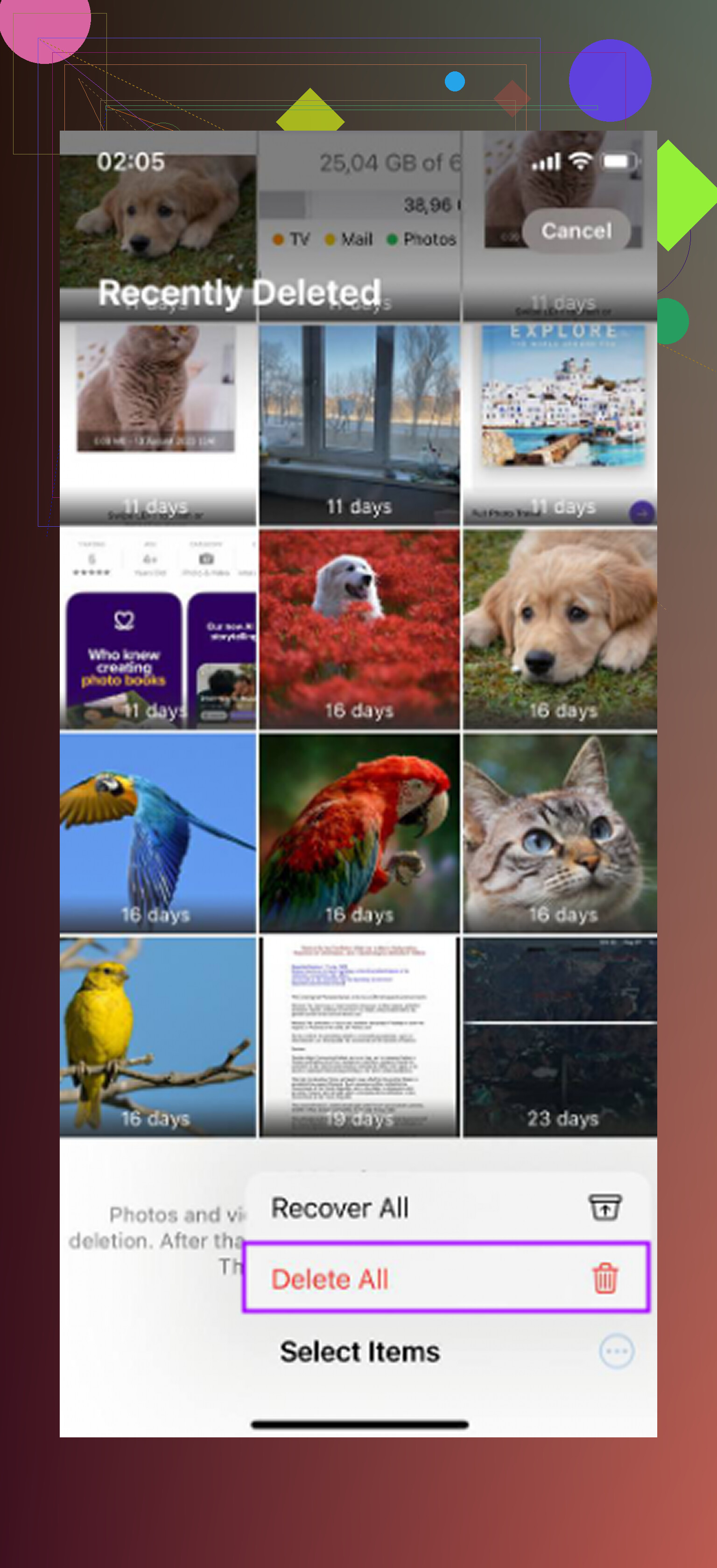
Deleting from Hidden is not the same as “emptying” it until Recently Deleted is cleared. If Select All is missing on your screen, tap Select, drag across the thumbnails and hold near the edge to auto-scroll through the album, then trash the batch and clear Recently Deleted afterward.
Select All grabs everything, including the stuff you hid for a reason and forgot about. That’s the real trap nobody flagged yet. People treat the Hidden album like a junk drawer, but it’s usually a mix of screen recordings you don’t care about and a few things you deliberately tucked away. Blowing the whole thing away in one tap means those go too, and after Recently Deleted is emptied they’re not coming back. Scroll it once before you trash it.
The two-delete point from @sternenwanderer is correct and worth repeating, so I won’t rehash it. What I’d push back on slightly is the assumption that clearing all this gives you a noticeable chunk of storage back. If you’re on iCloud Photos with Optimize iPhone Storage turned on, most of your full-size files live in iCloud and only thumbnails sit on the phone. Delete a pile of hidden 4K videos and the local free space may barely move. The saving shows up in your iCloud number, not your device number. That confuses a lot of people who expect gigabytes to appear.
On @vrijheidsvogel’s sync caveat, agree completely, but I’d go further. Give it more than a minute. If you check your iPad or Mac too soon and the hidden items still show, don’t panic and delete again from the other device. It’s the same library, so a double action just makes a mess. Let one device finish, then look.
The Clever Cleaner mention above is fair for the leftover clutter, and the honesty about it not touching Hidden is the right call since Apple locks that off. Just don’t expect it to solve the Hidden problem you actually asked about. That part stays manual. Use a tool like that afterward for the Similars and the big videos sitting in your main library, which is usually where the real bloat is anyway.