My hard drive still appears in Windows, but it seems corrupted and I can’t access some files without errors. I’m trying to recover important data and figure out whether I should run CHKDSK, use recovery software, or replace the drive before it gets worse.
If the files matter, don’t start by trying to repair the drive. That’s where a lot of people make things worse. Windows might tell you to run CHKDSK or format the disk, but if the file system is already messed up, either one can make recovery harder.
First step is boring but important: stop using the drive. Unplug an external HDD until you’re ready to work on it. If it’s an internal drive, don’t copy anything to it or install anything on it. Every new write lowers your odds a bit.
Try to pin down what “corrupted” looks like in your case. It could mean Windows wants to format it, the partition shows as RAW, the drive letter appears but won’t open, or the drive is making clicking or grinding sounds. Those are very different situations.
If Disk Management still shows the drive with the right capacity, that’s usually not the worst sign. A lot of the time that points to a partition or file system problem rather than a totally dead drive.
I’d recover the important stuff before touching repairs. Disk Drill is a good option for this because it can make a byte-to-byte image first, then scan the image instead of beating up the original drive. That matters if the drive is acting flaky.
The basic order would be:
- Install Disk Drill somewhere else, not on the problem drive.
- Make a disk image if the drive is readable enough.
- Run Universal Scan on that image.
- Preview the files you care about.
- Recover them to a different healthy drive.
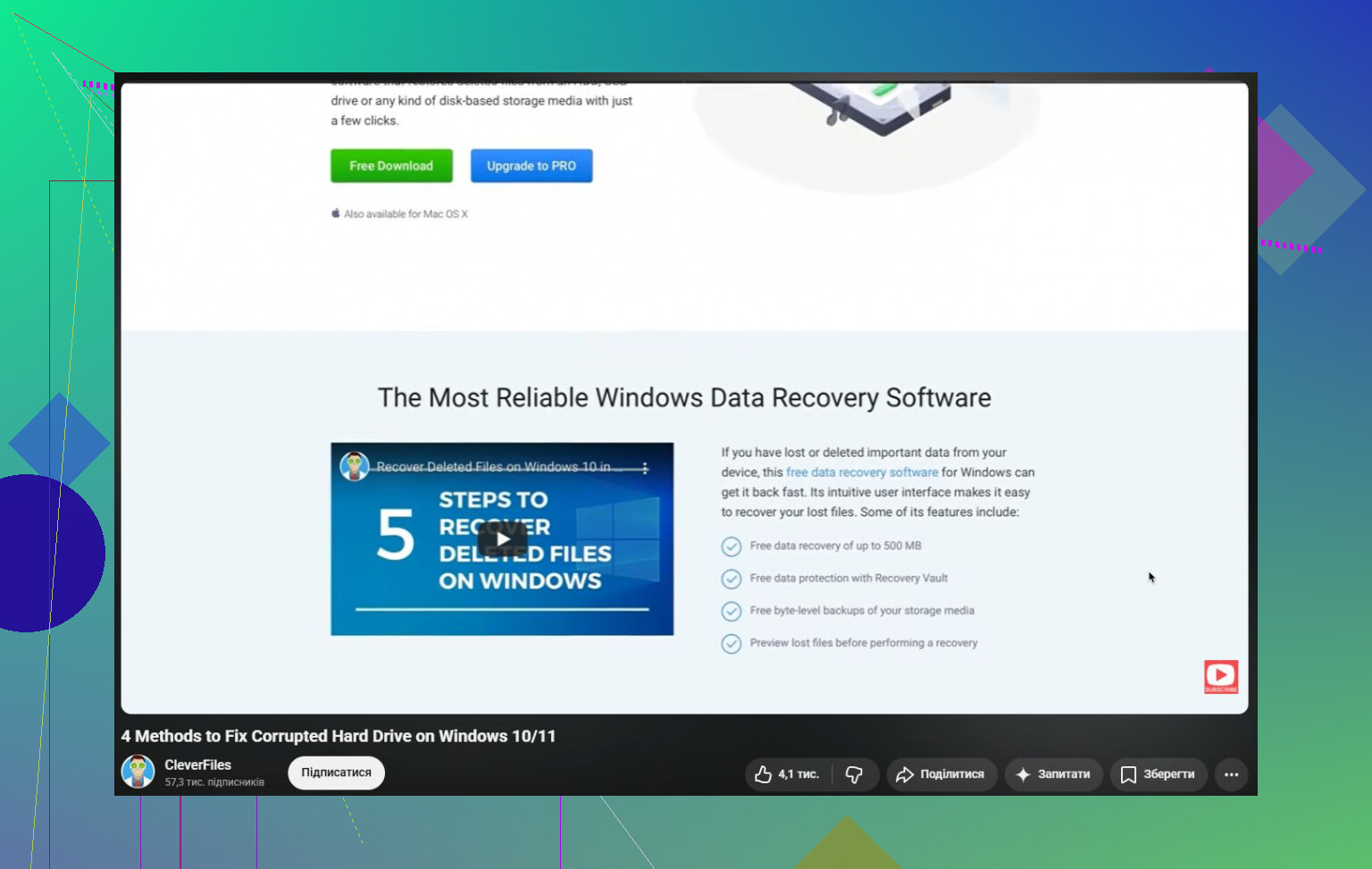
On Windows, it also lets you recover up to 100 MB for free, which is enough to see if the files are actually recoverable before you spend money.
Once the data is safe, then you can mess with fixing the drive. Start with the simple stuff first: swap the USB cable, try another port, and test it on a different computer. A surprising number of “corrupted” external drives are really just bad cables, docks, or enclosures.
If the drive is not showing as RAW, you can try CHKDSK:
chkdsk X: /r
Just be careful with it. CHKDSK changes the file system while trying to repair it, and sometimes that means damaged entries get removed or data gets moved around. That’s why it’s better to recover your files first instead of hoping the repair goes perfectly.
If the drive is RAW, CHKDSK usually isn’t the right tool. Recover the files first, then look at something like TestDisk for partition repair, or just format the drive afterward if you don’t need to preserve the existing structure.
Also pay attention to how the drive behaves. If it keeps clicking, randomly disconnects, reads extremely slowly, or disappears from Disk Management, stop with the DIY attempts. That usually points to hardware failure, and the more you keep trying, the harder recovery can get. If the data is valuable, send it to a professional recovery service.
A corrupted hard drive isn’t automatically dead. A lot of the time the data is still there and the problem is logical corruption. The safest order is simple: recover first, repair or format later. That gives you the best shot at saving the files, and maybe the drive too.
15 Likes
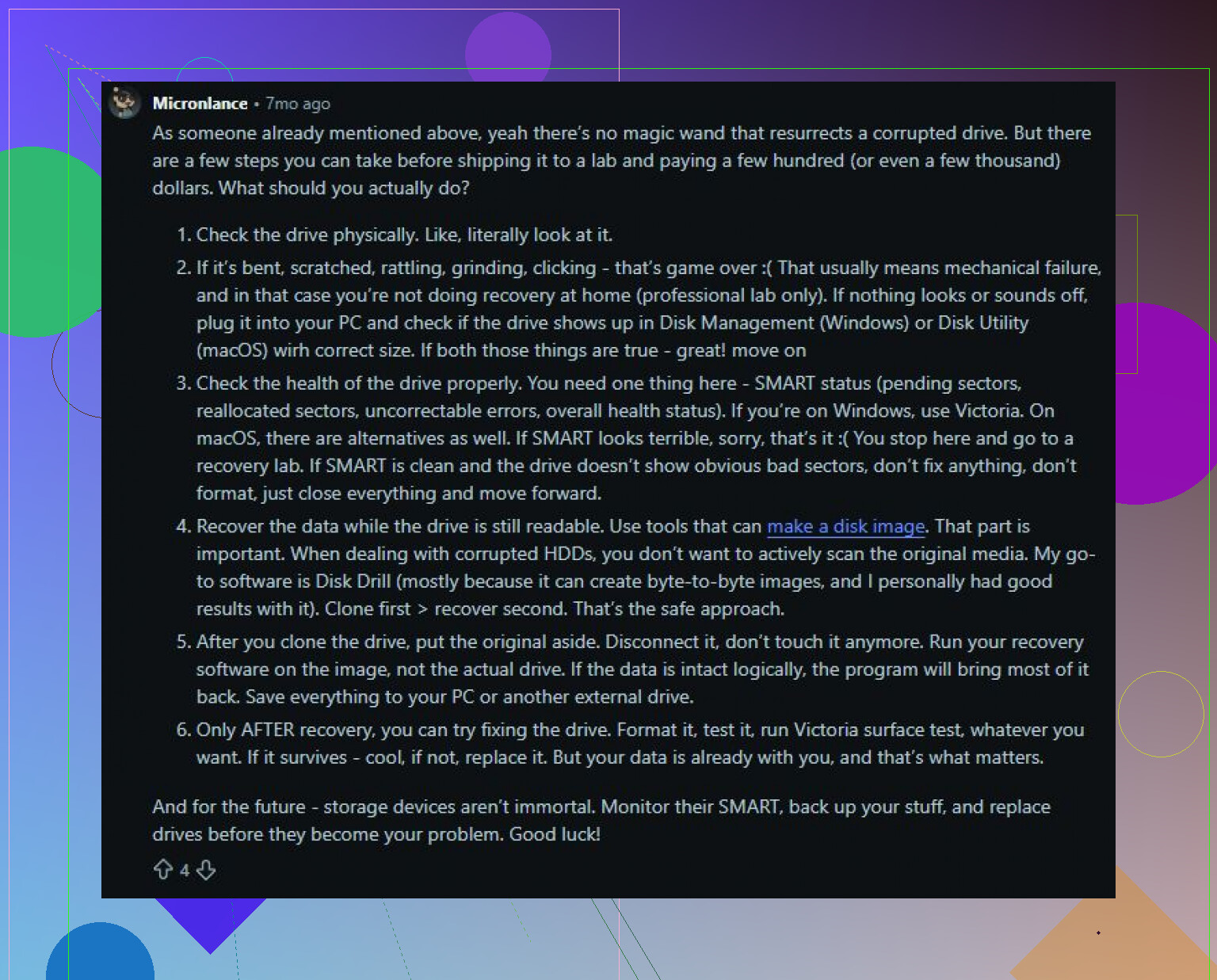
Do not run CHKDSK on your only copy. I agree with the “recover first” advice, but I’d check the drive’s SMART/health status before doing long scans, because a dying disk can get worse just from hours of reading. If it shows pending sectors, reallocated sectors, read errors, or keeps dropping offline, skip repair tools and make an image/clone to another drive first. Then scan the clone with something like Disk Drill or another recovery tool and save recovered files somewhere else. CHKDSK is for after the important files are off, not for proving a bad drive is fixable.
Stop letting Windows “help” it.
If the drive is throwing errors, Windows Explorer is one of the worst tools to poke around with because it keeps trying to read thumbnails, index folders, update metadata, and generally act like everything is normal. That can turn a slow failing drive into a much worse one. If this is an external drive, leave it unplugged until you have another disk ready to receive an image or recovered files. If it is your Windows boot drive, don’t keep booting from it if the important data is on that same disk. Pull it and connect it to another machine as a secondary drive if you can.
I agree with the “recover before repair” advice, but I’d separate two different cases:
If the drive is healthy and the corruption is mostly file system damage, recovery software is a reasonable first move. Disk Drill, R-Studio, DMDE, GetDataBack, etc. can scan the file system and pull files out without trying to “fix” the original disk. Save the recovered files to a different drive. Never recover back onto the corrupted one.
If the drive has bad sectors, stalls, disconnects, clicks, or takes forever to read certain folders, don’t start with a normal file recovery scan. Those scans can hammer the same bad areas over and over. In that case, the better move is to clone/image the disk first with something that handles bad reads properly, like ddrescue or HDDSuperClone. They keep a log and can skip bad spots, then come back later. That is a big difference from a basic copy or drag-and-drop attempt.
CHKDSK is not evil, but it is the wrong first tool when you still need files. It is a repair tool, not a recovery tool. It can delete broken directory entries, move fragments into FOUND.000, truncate damaged files, or make the file system mountable while sacrificing stuff you actually wanted. Sometimes that tradeoff is fine. It is not fine when this is your only copy of important data.
A practical order I’d use:
- Check whether the disk is physically acting bad. Slow reads, clicking, disconnecting, weird SMART warnings, or I/O errors mean stop browsing folders.
- Get another drive with enough space. You need somewhere safe for an image or recovered files.
- If the drive seems unstable, image it first.
- Scan the image, not the original, whenever possible.
- Recover only the important files first. Don’t waste the drive’s remaining life trying to save old installers and cache folders.
- After the files are safe, then run CHKDSK, rebuild partitions, or format the disk.
There is one edge case people forget: encryption. If the drive used BitLocker or came from another Windows install with encrypted folders, make sure you have the recovery key or the old user credentials before you start doing anything destructive. File recovery tools may find the data, but encrypted data without the key is still useless.
Another small thing: try a different USB cable or enclosure, but don’t confuse that with “repair.” A bad USB bridge can make a perfectly okay drive look corrupt. If it is a removable SATA drive inside a cheap external case, connecting the bare drive through another adapter can sometimes make it readable again. But if the bare drive still gives read errors, treat it like a failing disk.
Once you get your files back, I would not trust that drive for anything important. Even if CHKDSK makes it look normal again, corruption plus read errors is enough reason to retire it or use it only for disposable data after a full wipe and diagnostic test. The fix is the cheap part. The mistake is trying to fix it before you’ve copied the data somewhere safe.
The catch with cloning first is that you need a spare drive big enough, and people often waste time because they only have somewhere to put recovered files, not a full image. If that’s your situation, recover the most important folders first with something like Disk Drill to a different disk, then worry about making the drive “normal” again. Don’t run CHKDSK until you’ve accepted that whatever it changes may be permanent.