My iPhone says there isn’t enough storage to install the latest iOS update, and I need to update it as soon as possible because some apps are starting to act up. I already deleted a few photos and apps, but it still won’t go through. What’s the fastest way to free up enough space and finish the update without losing anything important?
I hit this wall more than once. iPhone shows free space, then the update throws the same storage error again. Annoying, and a little misleading.
The part I missed at first was this. The number listed for the update is not the full amount your phone needs. If the update says 2 GB, iOS usually wants a lot more room while it downloads, unpacks, and installs. Think closer to 2x the listed size. For a big version jump, like iOS 26, I’d want 20 GB to 30 GB open before trying it. Less than that, and I started seeing failed installs.
What worked for me:
Use a cleaner app first
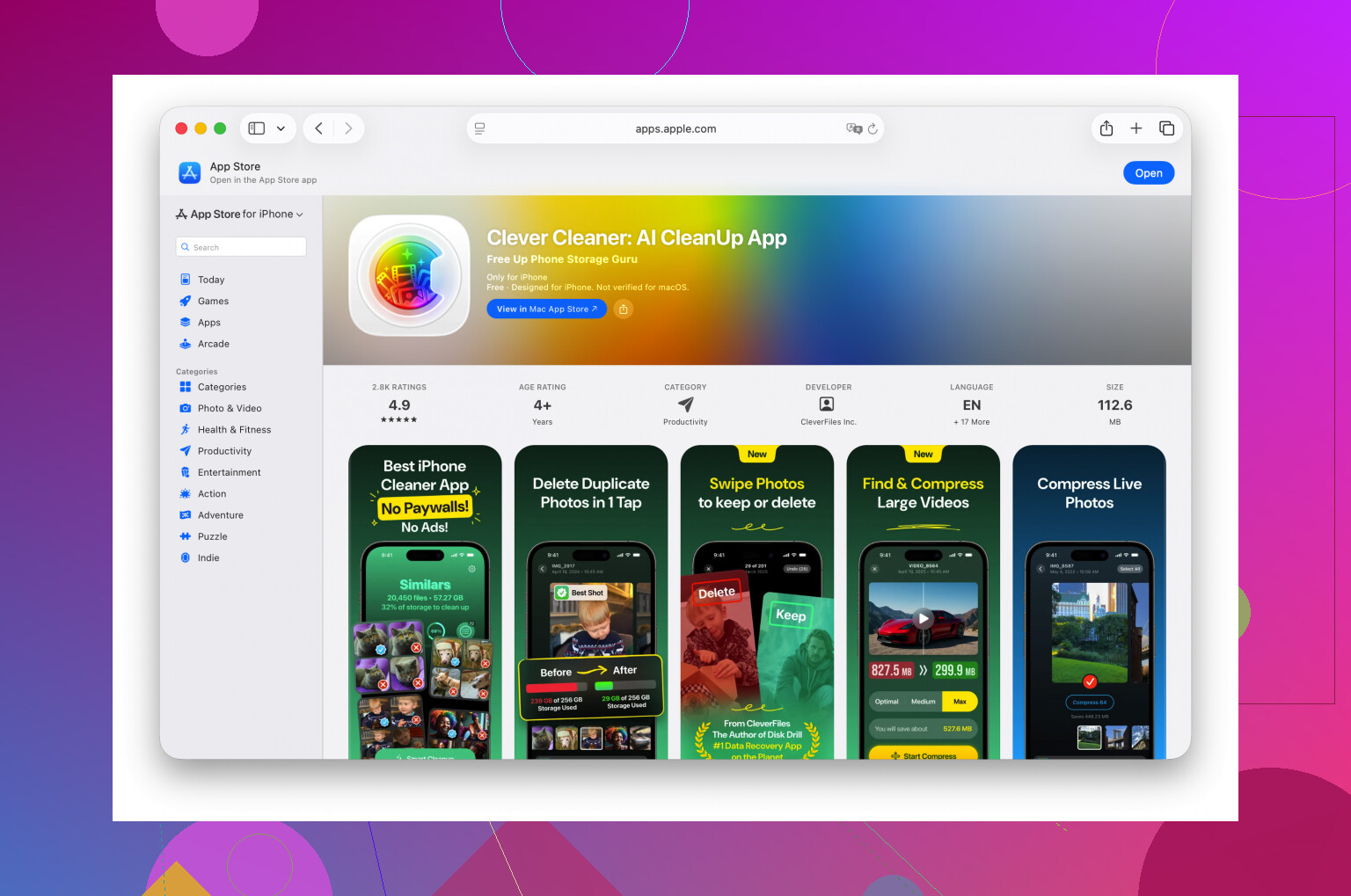
If your Photos library is the problem, doing it by hand takes forever. I’ve sat there deleting screenshots and duplicate pics one by one. Bad use of time. I had better luck with Clever Cleaner.
The useful part is sorting big files fast. Its ‘Heavies’ section puts your largest videos up front. One forgotten 4K clip from a concert or trip can eat multiple gigabytes. Delete two or three of those, and you might be done.
It also flags similar photos. If you took 14 shots of the same dog, receipt, sunset, whatever, it helps cut those down without digging through the whole camera roll yourself.
One thing people miss. After deleting photos or videos, open Photos, go to Recently Deleted, and clear it out. If you skip that step, the storage does not come back right away. iPhone holds it for 30 days.
Remove apps with bloated data
Go to Settings > General > iPhone Storage.
I’d sort by size and look for apps I barely touched. Games are usualy bad for this. Social apps too. Streaming apps also pile up junk over time. The app itself might not look huge, but ‘Documents & Data’ gets out of hand.
Deleting the app wipes that extra baggage. If you need it later, reinstall it.
Check the spots people forget
A few places kept surprising me:
- Files app
Open Files, then look in ‘On My iPhone’ and especially ‘Downloads.’ Old PDFs, ZIP files, saved videos, random work docs, junk from Safari, it stacks up slowly. I found stuff in there from years ago.
- Messages attachments
In iPhone Storage, open Messages and look for ‘Review Large Attachments.’ This one was ugly on my phone. Old videos, image threads, giant clips people sent in group chats. Some were ancient and still taking space.
- Safari data
Go to Settings > Apps > Safari, then tap ‘Clear History and Website Data.’ This won’t solve a huge storage problem alone, though I’ve seen it free a few hundred MB. When you’re short by a small amount, it helps.
Update with a computer instead
If the phone still refuses, stop doing the update on the phone.
Plug it into a Mac and use Finder, or a Windows PC and use iTunes. This worked for me when the on-device update kept failing. The computer handles more of the download and prep work, so the phone needs less temporary free space.
Last resort
If none of this gets you there, back up your iPhone to iCloud, erase the phone, install the update on the clean device, then restore your backup.
It’s a pain. Still, if storage is a total mess and nothing else frees enough room, this is the one route I’ve seen work every time.
25 Likes
Try this first. It’s the fastest path if you need the update ASAP.
-
Restart the iPhone.
Temporary system junk sometimes hangs onto storage. A restart frees a bit more than people expect. -
Delete the old update file if it already downloaded partway.
Go to Settings, General, iPhone Storage.
Look for iOS update in the list.
Tap it, delete update.
Then try again after freeing space. -
Turn off Apple Intelligence downloads if your phone supports them.
Some models keep extra local files for Siri, writing tools, image features, and language packs. Those eat space fast. Check Settings, Apple Intelligence and Siri, then remove anything you do not need right now. -
Offload apps instead of deleting them.
I know @mikeappsreviewer mentioned deleting apps with bloated data. I’d disagree a little here. Offloading is faster when you need the update today and don’t want to lose app sign-ins or local stuff.
Settings, General, iPhone Storage, tap large app, Offload App.
This removes the app binary but keeps documents. -
Remove downloaded media, not the app.
Spotify, Netflix, YouTube, Podcasts, Audible. Downloads in these apps often take 5 GB to 20 GB by themselfs. Deleting one season of a show frees more than wiping random photos. -
Check Mail.
The Mail app stores attachments and old cached message data. If your mail account is huge, remove the account, restart, then add it back later. Crude, but it works. -
Sync messages to iCloud, then change retention.
Settings, your name, iCloud, Messages.
Then Settings, Apps, Messages, Keep Messages, set to 1 Year or 30 Days if you need space fast. -
Update at night while plugged in and on Wi-Fi.
iPhone does some cleanup before install when charging. I’ve seen updates fail in daytime, then install overnight.
If your Photos library is the mess, Clever Cleaner helps speed up the cleanup. This is a solid overview of its photo cleanup tools and storage-saving options, see how Clever Cleaner frees up iPhone storage fast.
If nothing moves, use Finder or iTunes. On-device updates are kinda picky and annoyng when storage is tight.
I’d actually push back a little on one part of what @mikeappsreviewer and @reveurdenuit said. If you need the update ASAP, don’t spend an hour micro-managing every app and photo first. That turns into a storage scavenger hunt real fast.
What helped me once was forcing iOS to clean up “System Data” a bit. Record a short video in 4K, then delete it. Sounds dumb, but it sometimes triggers storage recalculation faster than waiting around for iPhone to catch up. Same with toggling iCloud Photos on if your originals are still local and you have iCloud space. Let the phone optimize storage for a while, then retry.
Also check if the update is trying to download over 5G with low power mode on. I’ve seen weird update behavior there. Turn off Low Power Mode, plug in, lock the screen, leave it on Wi-Fi for 20-30 mins.
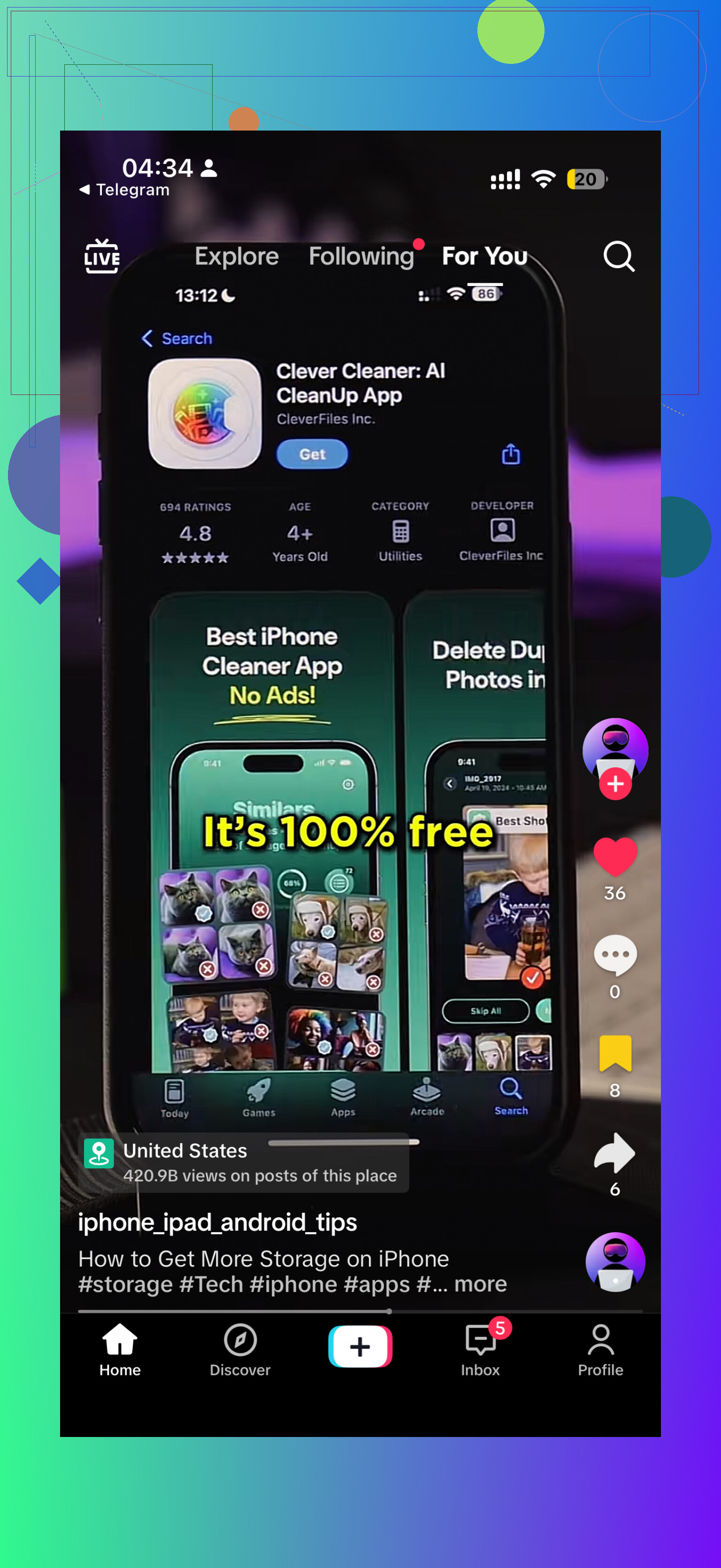
If photos are the main issue, Clever Cleaner is probly the fastest route since it can surface the biggest space hogs quicker than doing it by hand. And if you want a quick visual on freeing space fast, this TikTok showing how to free up iPhone storage for updates is pretty on-point.
One more thing people skip: if the update still fails, check battery health. Very degraded phones get weird during major iOS installs. Not always the cause, but worth a peek.
Skip the OTA update entirely. That’s where I slightly disagree with @reveurdenuit and @nachtschatten. If you need this done ASAP, the fastest move is often:
- Connect iPhone to a Mac or PC
- Update through Finder on Mac or Apple Devices/iTunes on Windows
- Let the computer handle the download
That usually needs less temporary space on the phone than updating directly on-device.
Another thing not mentioned enough: check for pending app installs. Stuck App Store downloads can quietly reserve space. Open App Store, cancel anything waiting, then restart.
Also look at Voice Memos, GarageBand projects, CapCut/iMovie exports, and downloaded map areas in Apple Maps or Google Maps. Those are sneaky storage hogs.
If photos are still the bottleneck, Clever Cleaner can speed that up.
Pros:
- fast for spotting huge videos and duplicates
- easier than digging manually
Cons:
- you still need to review before deleting
- cleanup apps are less useful if your issue is app data, not photos
So I’d combine @mikeappsreviewer’s storage check with computer-based updating first, then use Clever Cleaner only if your library is the real problem.