I accidentally deleted important photos from my Canon camera SD card while reviewing images, and I stopped using the card right away so nothing new would overwrite them. These pictures are really important, and I need help figuring out the best way to recover deleted Canon SD card photos safely before they’re gone for good.
I’ve been in this exact mess with a Canon body, and the first move is simple. Stop using the camera now. Don’t shoot one more frame. Don’t record a clip. Pull the SD card out and, if it has a lock tab, switch it to read-only.
The reason is boring but important. When you delete photos or do a quick format, the camera usually does not erase the photo data right away. It marks the space as free. On Canon cameras, there’s no trash folder sitting around waiting to save you. So the files often stay on the card until new data lands on top of them. Once you keep shooting, recovery odds drop hard. I learned this the dumb way years ago and lost half a card of RAWs.
Before you install anything, check the obvious stuff once. If you used image.canon on your phone, look there. A lot of people forget it holds uploads in the cloud for up to 30 days. If the files were copied to your computer before they went missing, look in Recycle Bin on Windows or Trash on macOS. It sounds dumb, but I’ve seen people spend an hour scanning a card for photos already sitting in the bin.
If there’s no backup, use recovery software on a computer with a card reader. Don’t connect the Canon camera over USB and expect the same result. In my testing, direct camera connection is hit or miss because recovery apps often need raw access to the card. A separate SD card reader works better.
I’ve tried a few tools after deleting cards, formatting by accident, and one weird case where a batch of CR3 files vanished after a transfer. Disk Drill gave me the best results. It picked up Canon RAW files like CR2 and CR3, plus JPEGs and video, without much fuss. The preview part matters more than people think. You get to see whether the file is intact before saving it. On Windows, there’s also a small free recovery allowance, which helps when you only need to confirm the card is recoverable.
If you want a free route and don’t mind a rougher workflow, PhotoRec is worth a look. It’s open source and good at pulling image data off cards. The downside is the interface. It runs in a text window, and sorting the results is a pain because original names and folders usually don’t come back. You end up with a pile of recovered files and some cleanup work ahead. Recuva is easier to use on Windows, but I had weaker results with RAW recovery, especially on deeper scans.
The recovery steps stay about the same no matter which app you pick.
Install the recovery app on your computer, never on the SD card you’re trying to rescue.
Insert the SD card with a reader, select the card in the software, then run a deep scan. Big cards take time. Leave it alone and let it finish.
Save recovered files to your computer or another drive, never back onto the same SD card. Writing recovered files to the source card is how people ruin a good recovery.
If the scan finds your shots, recover them first, back them up second, then deal with the card later. Afterward, I’d format the card in-camera before using it again. Deleting one by one tends to lead people into weird file system problems over time. Hope you get the files back. I did on two cards, and one of them looked cooked.
19 Likes
You did the most important part already. You stopped using the card. That gives you the best shot.
I agree with @mikeappsreviewer on using a card reader, not the camera USB link. I slightly disagree on one point though. I would make a full image backup of the SD card first, then scan the copy if your recovery tool supports it. If the card is flaky, working from an image is safer. Fewer reads on the original card.
What I’d do:
- Put the SD card in a reader.
- If your PC asks to fix or scan the card, hit no.
- Check Disk Management or macOS System Information and confirm the card size looks normal.
- Run recovery software. Disk Drill is a solid pick for deleted Canon JPG, CR2, CR3, and MP4 files.
- Sort results by file type and file size. This helps you find intact photos faster.
- Recover to your internal drive, not back to the SD card.
A tip people skip, look at file health, not file count. Finding 2,000 files means nothing if half are zero-byte junk or broken previews. Previews matter. Full-size recovery matters more.
If the card was formatted in-camera after deletion, recovery still works a lot of the time on SD cards, esp if it was a quick format. If you shot even a few new bursts after the mistake, newer files likely overwrote older ones in chunks, so you may get partial RAWs or damaged JPEGs. That part sucks, but it’s common.
If software finds nothing useful, stop there. A lab is the next step, and the cost jumps fast.
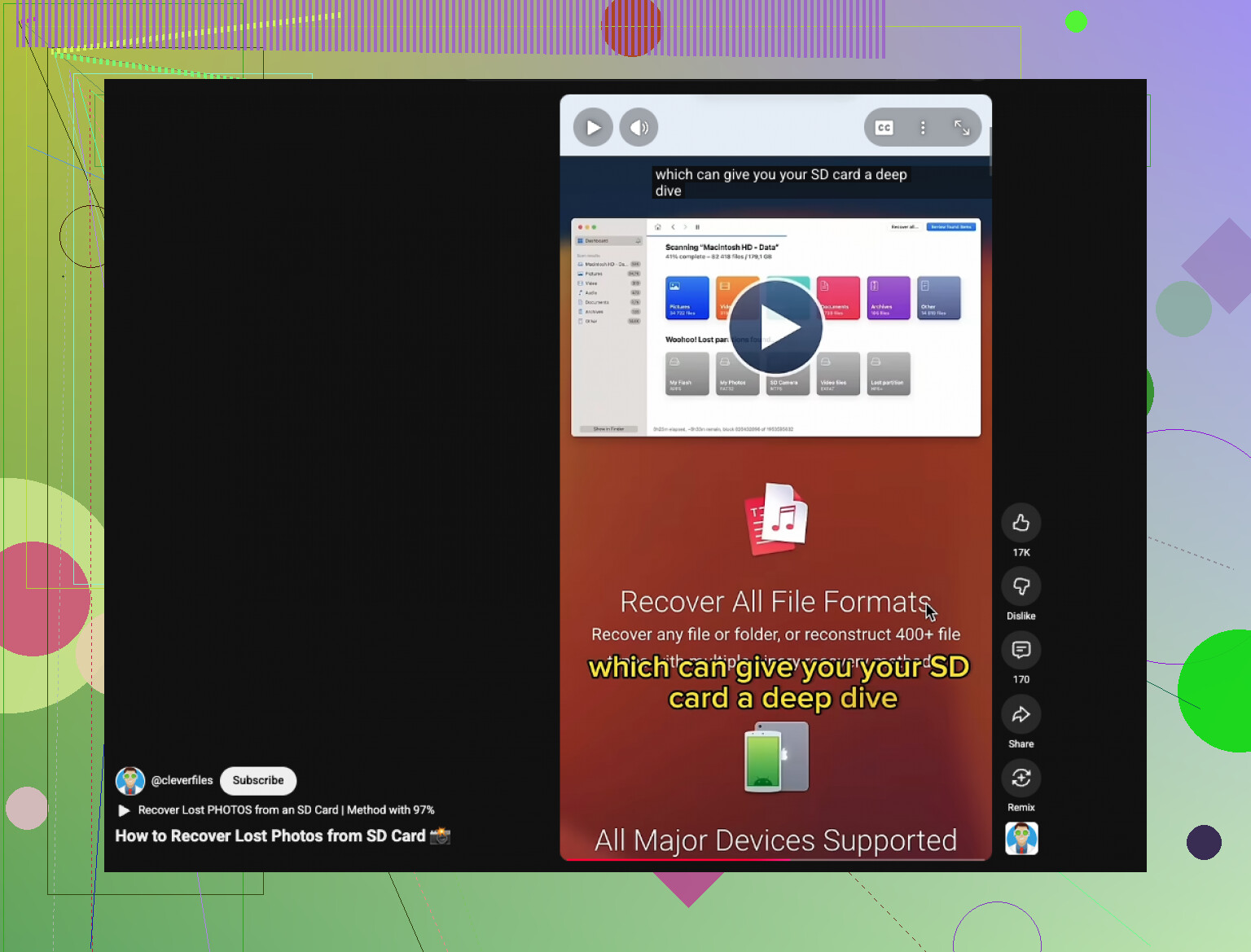
Also, this short guide is decent if you want a quick visual walk-through:
watch how to recover deleted photos from an SD card
Small thing, once you get the photos back, retire the card if it’s old or has had weird errors before. Cards fail slowly, then all at once. Happened to me once, was not fun lol.
One thing I’d add to what @mikeappsreviewer and @viajantedoceu said: check whether your Canon wrote dual copies anywhere. Some Canon bodies can record to a second card slot, and a lot of ppl forget that in panic mode. If your camera has dual slots, inspect the other card before doing anything else. Same idea if you had Wi-Fi transfer turned on to your phone or tablet. Not super common, but it saves a lot of pointless scanning when it hits.
I also slightly disagree with the “recover everything you see” approach. Don’t just dump thousands of found files blindly. Filter by date taken, camera model metadata, and file type first if your recovery app allows it. Canon RAWs can get mixed with old deleted junk from months ago, so being selective makes it way easier to spot your actual missing shots.
For software, yeah, Disk Drill is one of the better options for Canon SD card photo recovery, esp for CR2/CR3 + JPG. The preview and file grouping are what make it useful, not just the scan itself. That matters more than ppl think.
Also, if the card starts disconnecting, makes your system hang, or shows the wrong capacity, stop DIY stuff. That points more to card failure than simple deletion.
And if you want an example of a real-world recovery outcome, here’s a decent post: real Canon SD card photo recovery success story
Biggest rule now: recover to another drive, then retire that SD card if it’s been acting even a little weird. Sometimes cards go bad slooowly, then all at once.

One extra angle nobody’s really stressed enough: check the card’s file system state before doing a deep recovery. I’m not saying repair it, actually I’d avoid that at first. But if the card mounts and you can still browse DCIM, try a read-only copy of the visible files first, even if the folder looks incomplete. Sometimes “deleted” Canon photos are really just missing from the camera index, while the files still sit there.
I agree with @viajantedoceu, @voyageurdubois, and @mikeappsreviewer on avoiding any new writes, but I slightly disagree with jumping straight to the longest deep scan every time. If the card is healthy and only a few shots were deleted, a normal scan can surface intact JPG/CR3 files faster and with less junk to sort through.
My order would be:
- Test with a card reader
- If the card opens, copy whatever is still visible
- Then scan for deleted items
- Only use deep scan if the quick pass misses them
For Disk Drill, the good:
- very good with Canon JPG, CR2, CR3, MP4
- previews help separate real recoveries from garbage
- easier filtering than a lot of rivals
The not-so-good:
- can return lots of old deleted clutter
- deeper scans can take a while
- best features are not fully free on every platform
If the card shows RAW files with broken previews, recover them anyway. Canon thumbnails can fail while full data is still usable in Lightroom or DPP. That catches people out a lot.