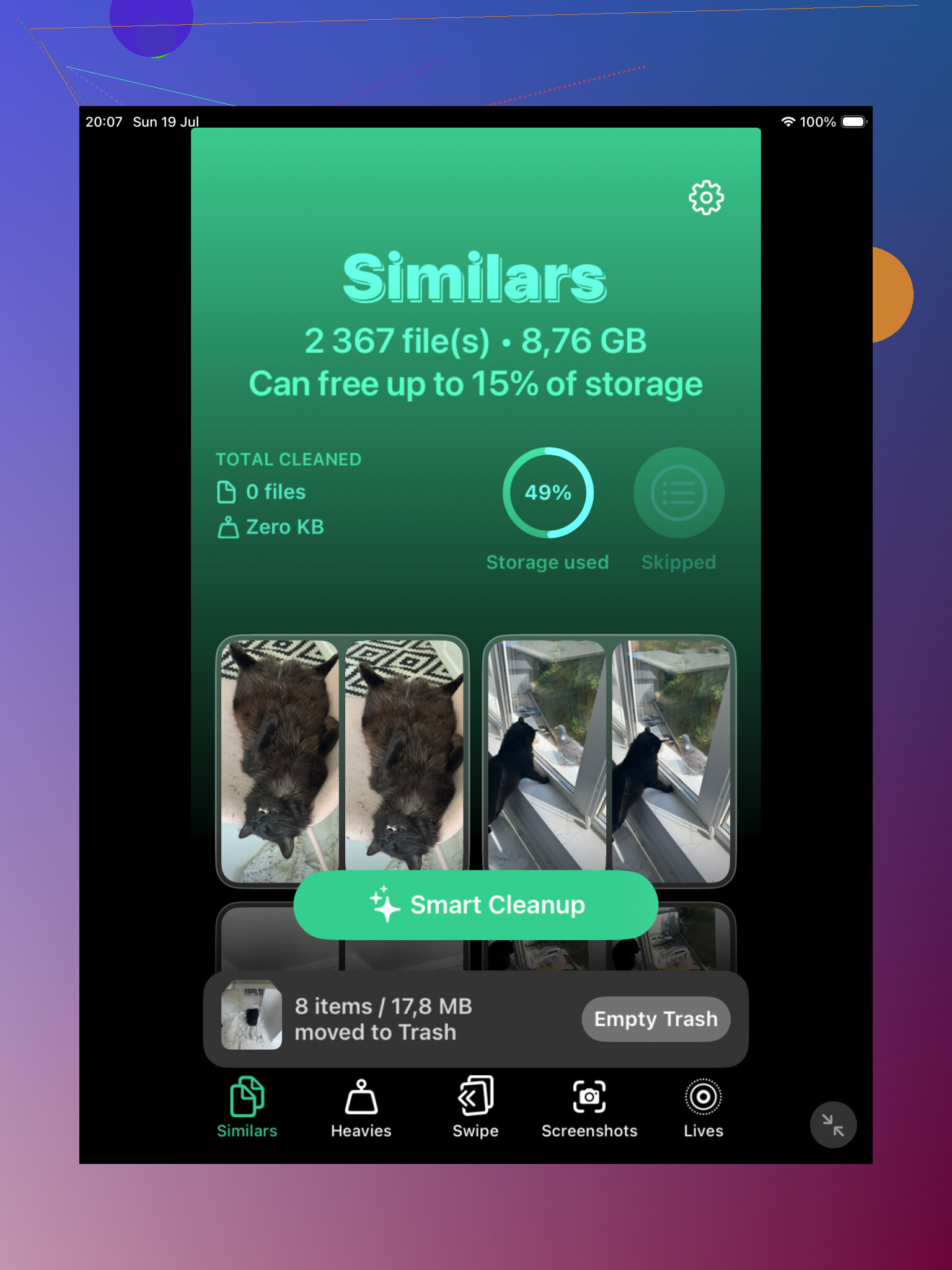
I’m trying to clean up duplicate photos on my iPad, but many identical or nearly identical pictures don’t appear in the Photos app’s Duplicates album. I need help finding a safe way to identify and remove these duplicate iPad photos without accidentally deleting originals I want to keep.
No, your iPad is not going to automatically delete photos on its own. Apple doesn’t usually mess with your photo library without you taking action first. So if your storage is getting eaten up by old duplicate pictures, you’ll need to start the cleanup yourself.
The fastest built-in option is the Duplicates album in Photos, as long as your iPad is on iPadOS 16 or newer. Open the Photos app, check the sidebar or Collections area, then scroll down to Utilities. If your iPad has found duplicates, you should see Duplicates there.
Inside that album, Apple groups photos it thinks are true duplicates. You can tap Merge, and it will keep what it considers the best version, usually the one with the highest quality and the most complete metadata, like location or tags. The other copies get moved to Recently Deleted, so they are not permanently erased right away.
If you don’t see the Duplicates album, that doesn’t always mean you have no duplicates. A few things can cause it:
- Your iPad may still be scanning your library. This can take a while, especially after a big import or software update. Leave it locked and plugged in for some time, sometimes even a few days.
- If you’re on iPadOS 15 or older, the built-in duplicate finder is not available.
- Apple’s version is strict. It mainly catches actual duplicate files, not ten nearly identical shots of the same sunset or selfie.
That last part is where people usually get annoyed. Photos that look the same to you may still look different to the iPad because the angle, lighting, or timestamp changed slightly. So they won’t show up as duplicates, even if you clearly don’t need all of them.
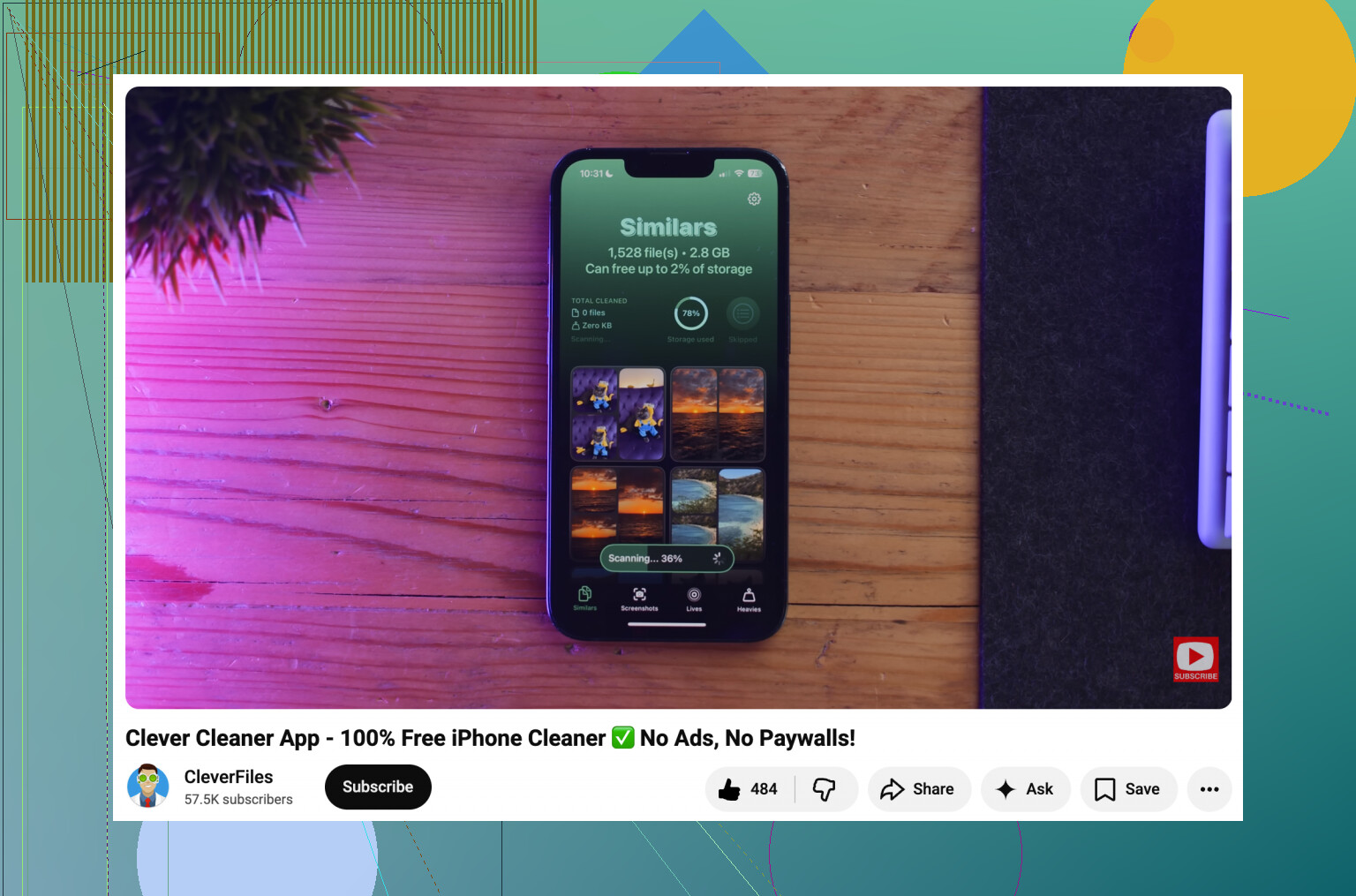
For those “almost the same” photos, a third-party cleaner can save a lot of time. Clever Cleaner is one option since it has a Similars section and can group look-alike photos together. It can also suggest the best shot from a group, which makes it easier to delete the rest without comparing every single photo manually.
If you’d rather not install anything, use search inside the Photos app. Type things like “beach,” “dog,” “receipt,” or whatever you know you have too many pictures of. Photos is decent at grouping by subject, and it makes similar shots easier to find. You can also jump through Months or Years if you know the clutter came from a certain trip, event, or time period.
One thing people miss: deleting or merging photos does not immediately free the storage. The removed photos go into Recently Deleted and can stay there for 30 days. If you need the space now, open Recently Deleted and empty it manually.
Also, if iCloud Photos is turned on, deleting photos on your iPad deletes them from your other synced Apple devices too, like your iPhone or Mac. That’s useful when you’re cleaning things up, but double-check before permanently deleting anything.
11 Likes
Don’t trust “similar” matches blindly. Apple’s Duplicates album is conservative, but third-party apps can be too aggressive with burst shots, edited versions, screenshots, and photos saved from messages.
I’d sort by date first, clean one month at a time, then empty Recently Deleted only after you’ve checked the same library on any iCloud-synced device.
If the photos came from Messages, screenshots, edits, or different apps, they may never show in Apple’s Duplicates album because they are not true duplicates to Photos. Same-looking image, different size, crop, timestamp, or metadata means Apple often treats it as a separate photo.
I’d be a bit stricter than just running a cleaner across the whole library. Use any app like Clever Cleaner as a sorting tool, not as the final judge. Let it group the similar shots, then manually keep the best one from each group. Pay extra attention to Live Photos, burst shots, edited copies, and anything with text in it, because those are easy to delete by mistake.
A low-tech method that works better than people expect is to search by subject or location, then switch to a month view and delete in small batches. If your real goal is freeing space, check videos first too, since a few long clips can matter more than hundreds of duplicate stills. There are broader iPad cleanup ideas here if storage is the bigger problem: ways to clean up iPad storage.