I’m trying to upload files to my WordPress site with FTP, but I’m not sure which folder to use or if I’m doing it safely. I ran into upload limits in WordPress, so I switched to FTP and now I’m worried I might place the files in the wrong directory and break something. I need help with the correct steps for uploading files to WordPress with FTP.
I had to sort this out the hard way the first time I touched WordPress files. Before you move anything, get an FTP client. It connects your computer to your hosting account so you can move files back and forth, check folders, and fix stuff when the dashboard stops helping.
Picking an FTP client
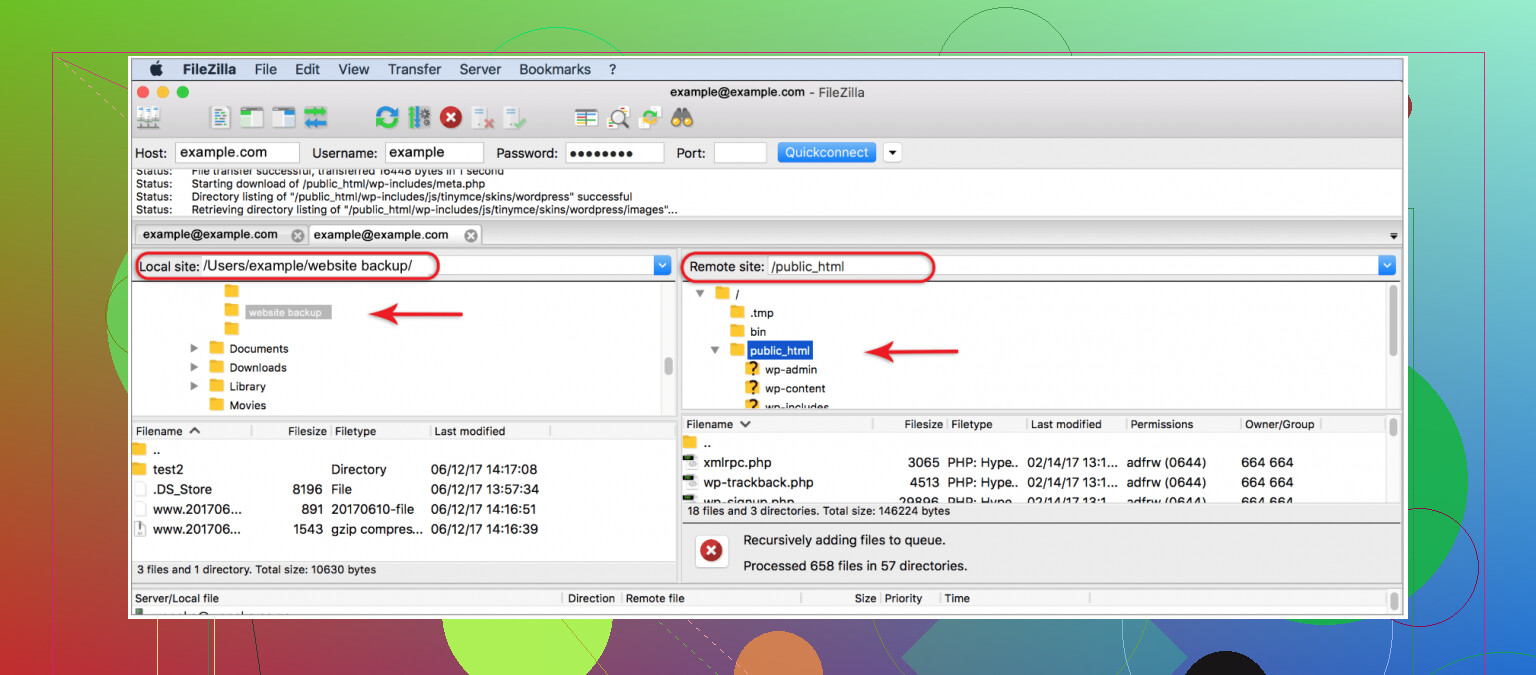
If you want the common free pick, FileZilla works on Windows, Mac, and Linux. I used it for basic uploads and it did the job. Where it started to drag for me was big folders and lots of small files. It still worked, it felt slow.
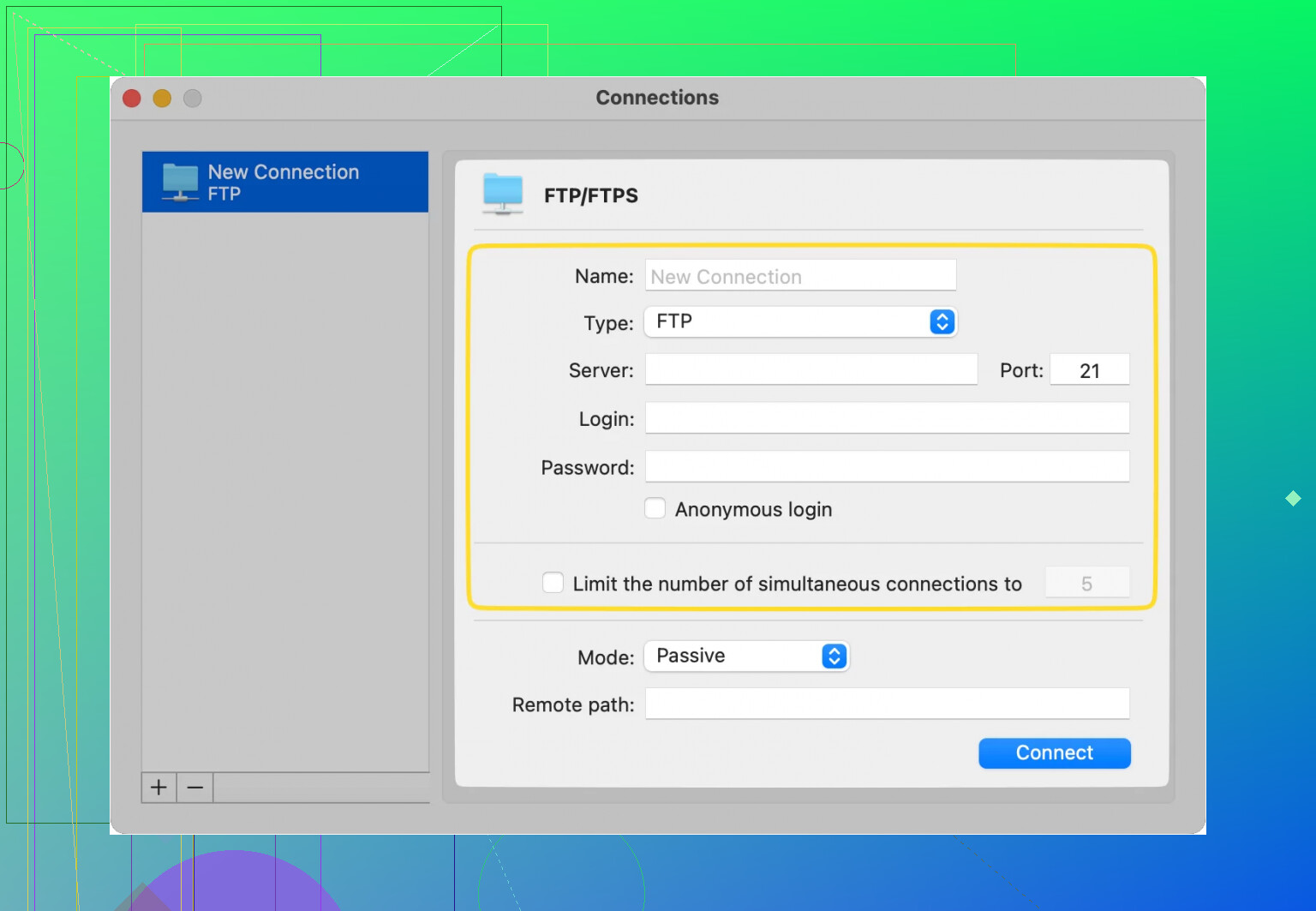
On Mac, I leaned more toward Commander One. It is paid. Still, I found it smoother for FTP and SFTP work, and archive support saved me time when I was moving zipped project files around. Cyberduck is another free Mac option people mention a lot. I saw a few odd file handling issues with it, so I stopped using it for anything important.
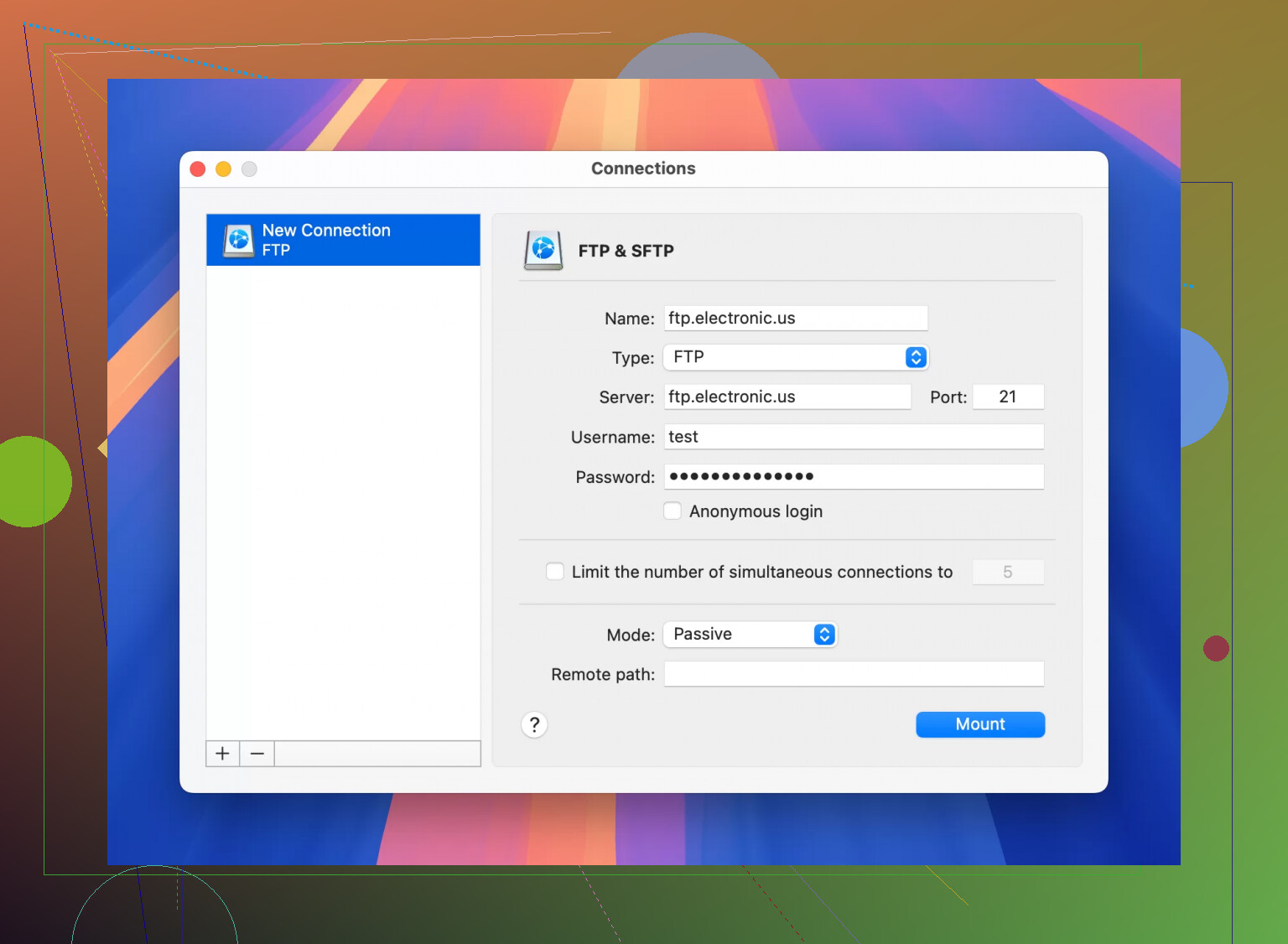
If dedicated FTP apps feel clunky, CloudMounter felt easier to me. It mounts the server in Finder or File Explorer, so working with remote files feels closer to moving folders on your own machine. For beginners, that setup is less weird.
First upload, small test first
After your FTP client connects, do one tiny upload before touching themes or plugins. I always do this now.
Open Notepad on Windows or TextEdit on Mac.
Make an empty file and save it as test-upload.txt.
In your FTP app, the left pane shows files on your computer. The right pane shows files on the server.
On the left side, open the folder where test-upload.txt sits.
On the right side, go to the main WordPress folder, your install root.
Right-click test-upload.txt and pick Upload.
If the transfer finishes, your connection is working. The file lands on the server. The copy on your computer stays there.
One thing I learned after one dumb mistake, skip drag and drop when you are new to this. Use right-click and upload. Dragging feels faster until you drop a file into the wrong folder and spend twenty minutes figuring out why the site looks broken. WordPress expects files in specific places. Put the wrong thing in the wrong directory and stuff starts failing fast.
Common WordPress file locations
These are the folders I check first:
Media files, images, PDFs, and similar uploads go in
/wp-content/uploads/Themes go in
/wp-content/themes/Plugins go in
/wp-content/plugins/
Example from normal use. If you install a plugin by hand, download it from WordPress.org and unzip it on your computer. You should end up with one plugin folder holding all the files. In the FTP client, open that folder on the left side. On the server side, open /wp-content/plugins/. Then upload the whole plugin folder there, not random files from inside it.
Once I got used to the left side being local and the right side being the server, things stopped feeling messy. Most FTP work in WordPress comes down to one habit, knowing which folder you are in before you upload anyhting.
17 Likes
If your goal is bypassing the WordPress upload limit, FTP works fine, but placement matters.
For normal media, upload into wp-content/uploads. Best practice is to match the year and month folders WordPress already uses, like /wp-content/uploads/2026/04/. If you dump images in the root of uploads, they still sit on the server, but your Media Library will not list them by itself. That part trips people up a lot.
Small disagreement with @mikeappsreviewer, I do not think the install root is the best first target for a test file. I prefer uploading a harmless txt file into /wp-content/uploads/ first. Less risk, less clutter.
A few safe rules:
- Use SFTP, not plain FTP, if your host offers it.
- Do not edit core WordPress folders unless you know why.
- Keep plugin zip files unzipped before upload if you are placing them by hand.
- After upload, check file permissions. Common setup is 755 for folders, 644 for files.
- Back up before replacing theme or plugin files. One wrong overwrite and your site goes white scren fast.
If you are on Mac, Commander One is solid for this. It handles FTP, SFTP, and big transfers better than a lot of free tools I tried. Easier to browse, fewer weird hangs.
One more thing. FTP uploads do not register media in WordPress. If you need files inside the Media Library, use a plugin like “Media Sync” after uploading. That saves a lot of confsuion.
The folder depends on what you’re uploading, and that’s the part people mix up.
If it’s just media because WordPress blocked the upload size, put it in wp-content/uploads/ and ideally inside the same year/month folder structure WordPress already uses. I slightly disagree with @mikeappsreviewer on using the site root for tests. Root stays cleaner if you leave it alone unless you have a reason. @techchizkid is closer to how I handle it.
A few things that matter more than the upload itself:
- use SFTP if your host supports it
- do not overwrite random files in
wp-adminorwp-includes - themes go in
wp-content/themes/ - plugins go in
wp-content/plugins/ - media files are safest in
wp-content/uploads/
Big gotcha: uploading an image by FTP does not automatically make it show in the Media Library. The file is on the server, but WordPress may not “see” it until you import/sync it with a plugin or regenerate things.
Also, don’t use FTP as the default fix for upload limits forever. Sometimes the better fix is raising upload_max_filesize, post_max_size, or server limits in hosting settings. FTP works, but it’s more of a workaround than the cleanest fix.
If you’re on Mac, Commander One is actually a solid choice for WordPress FTP/SFTP uploads because browsing folders is less annoying and big transfers tend to be more stable. FileZilla is fine too, just uglier than sin.
Short version:
upload media to wp-content/uploads/, plugins to wp-content/plugins/, themes to wp-content/themes/, and stay out of core folders unless you know exaclty why you’re in there. That’s the safest path.