My Mac SSD with an APFS volume suddenly won’t mount, and Disk Utility isn’t repairing it. I need help figuring out whether APFS data recovery from an SSD is possible, what tools or steps are safest, and how to avoid making the lost files harder to recover.
I’d treat the drive like it’s fragile until the files are recovered. The main thing is to stop using the APFS drive right away. Don’t save anything to it, don’t install recovery tools on it, and don’t let macOS keep writing to it if you can avoid it. Deleted data can be overwritten by normal use, and once that happens, recovery gets a lot worse.
The type of drive matters a lot here.
If this is an external HDD, or an older Mac with an APFS-formatted hard drive, the odds can still be decent as long as nothing has overwritten the deleted data.
If it’s an SSD, especially an internal Mac SSD, it’s more time-sensitive because of TRIM. TRIM lets the SSD know which deleted blocks are safe to clear. After those blocks are actually wiped, recovery software can’t rebuild them. So if the files were deleted from an APFS SSD, don’t keep using the Mac and hope for the best. On newer macOS versions, you usually can’t turn off TRIM for the internal SSD anyway, so the best move is to stop using it and act fast.
Before scanning, check the easy recovery options first:
- Time Machine backups.
- APFS snapshots, if any exist.
- FileVault encryption. If the drive is encrypted, most tools need it unlocked or decrypted before they can scan it properly.
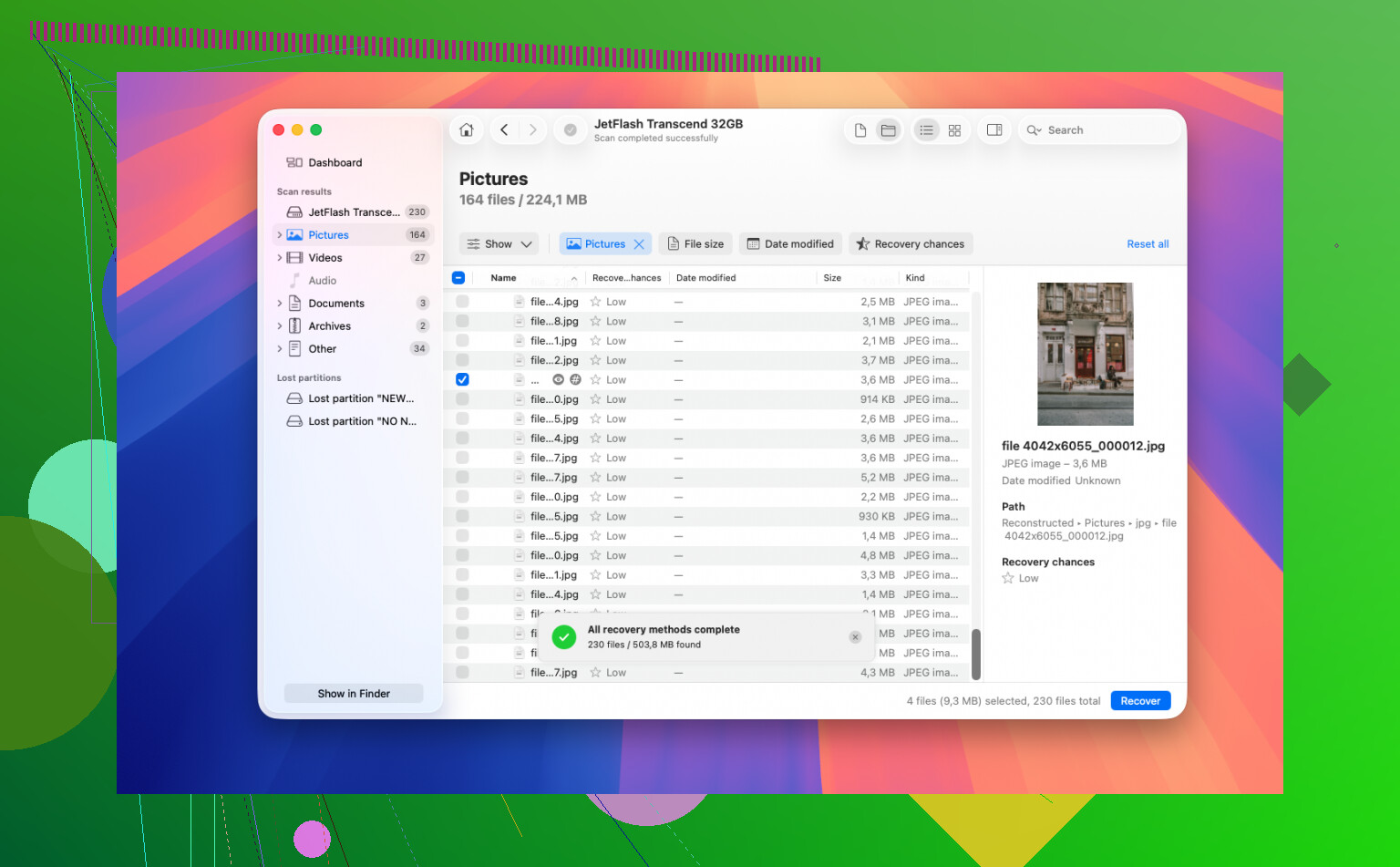
For the actual recovery, Disk Drill is the tool I’d try. It handles APFS in a more useful way than tools that only search for file signatures, so when the file system metadata is still there, you may get the original names and folder layout back instead of a pile of random files.
The safer workflow is something like this:
- Install Disk Drill on a different drive, not the one you’re recovering from.
- Connect the affected APFS drive.
- Run a full scan.
- Use preview to check whether the files are actually readable.
- Recover the files to another disk. Never restore them back onto the problem drive.
Don’t skip the preview step. It can save you a lot of time because it shows whether the files are likely intact before you commit to recovering everything.
If the drive won’t mount, randomly disconnects, or is making weird noises, I wouldn’t start running repair tools yet. Avoid First Aid or anything else that might write changes to the disk until the important files are copied out. Get the data first, then worry about fixing the drive.
If this is just accidental deletion or file system damage, your chances are usually much better than if the drive itself is failing.
12 Likes
Don’t run First Aid over and over or try random terminal “fix” commands before you have a copy of the disk. First Aid can be fine for a volume you don’t care about, but on a damaged APFS container it may change metadata while attempting repairs. If the file system is already shaky, that can turn a recoverable directory tree into a mess.
I mostly agree with @mikeappsreviewer on stopping writes, but I’d be even more cautious about scanning the original SSD directly if the drive is acting unstable. If it is an external SSD and it stays connected reliably, make a byte-for-byte image or clone to another drive first, then scan the image. If it is the internal SSD in a newer Mac, that may be harder because you can’t just pull the drive, but the same idea applies: boot from another Mac or external system if possible, avoid booting normally from the problem volume, and copy/recover to separate storage only.
APFS recovery is possible, but the expectation should be realistic. If the APFS container metadata is damaged but the SSD still has the data, tools like Disk Drill may find files with names and folders. If TRIM has already cleared deleted blocks, or the SSD controller is failing, software will not magically bring those blocks back. The important distinction is whether this is a logical APFS problem or a physical/device problem. If the SSD disappears, shows the wrong size, repeatedly disconnects, or recovery tools hang while reading it, stop and think lab recovery rather than “try another app.” Continuing to hammer a failing SSD can make the last readable areas unreadable.
A clone is only useful if you clone the whole APFS container, not just the volume that refuses to mount. APFS can have multiple related volumes in the same container, and the useful metadata may not live where you expect, so a file-level copy or “image this one volume” approach can leave recovery tools with less to work with. I agree with the caution above about not beating on the SSD with repairs, but I’d check this before spending hours scanning: in Disk Utility, enable “Show All Devices” and see whether the physical disk and APFS container are visible even if the Data volume won’t mount. If the container is visible and the drive reads steadily, image/clone that to separate storage and scan the copy with something like Disk Drill. If only the volume is missing but the hardware looks normal, recovery is very possible. If the physical SSD itself is vanishing or showing a nonsense size, software recovery is the wrong fight.
Do not click “Initialize,” “Erase,” or accept any macOS prompt that says the disk is unreadable unless you have already imaged it. That warning can show up even when the APFS container is still recoverable, and turning it into a “fresh” disk is a fast way to make tools like Disk Drill work with scraps instead of the original structure. If the SSD appears with the right size, recovery is still possible; if it doesn’t, stop treating it like a software problem.