I accidentally deleted important files on my Windows 11 PC and emptied the Recycle Bin before realizing I still needed them. I’m looking for help with the best way to recover deleted files in Windows 11, especially if there’s a safe method that won’t make things worse.
First thing, don’t write it off yet. I’ve deleted files in Windows, assumed they were gone, then found them later. The big mistake is continuing to use the same drive like nothing happened.
What Windows usually does is remove the file’s listing and mark its space as free. The raw data often stays there for a while. If you keep using the PC, new downloads, temp files, updates, and random saves start taking over those sectors. Once that happens, recovery gets ugly fast.
SSDs make this worse. A lot of Windows 11 systems run on SSDs, and TRIM tends to wipe deleted blocks in the background. So if your file was on an SSD, time matters more than people think. I wouldn’t wait around.
Before installing anything, I’d check the obvious spots people skip:
- Recycle Bin
- OneDrive Recycle Bin, if your desktop or documents sync there
- File History backups
- Previous Versions on the folder where the file lived
- Any cloud backup app tied to your PC
I’ve seen “permanently deleted” files turn up in one of those more than once. It sounds dumb, but check anyway.
If it’s not in any backup or trash folder, then I’d move to recovery software.
I’ve had good luck with Disk Drill. On my side, it did a decent job finding deleted files, and it handled damaged or formatted volumes better than I expected. When file system data was still there, filenames and folder paths came back too, which saved a lot of sorting. The part I liked most was the option to make a byte-to-byte backup first, then scan the copy instead of stressing the original drive.
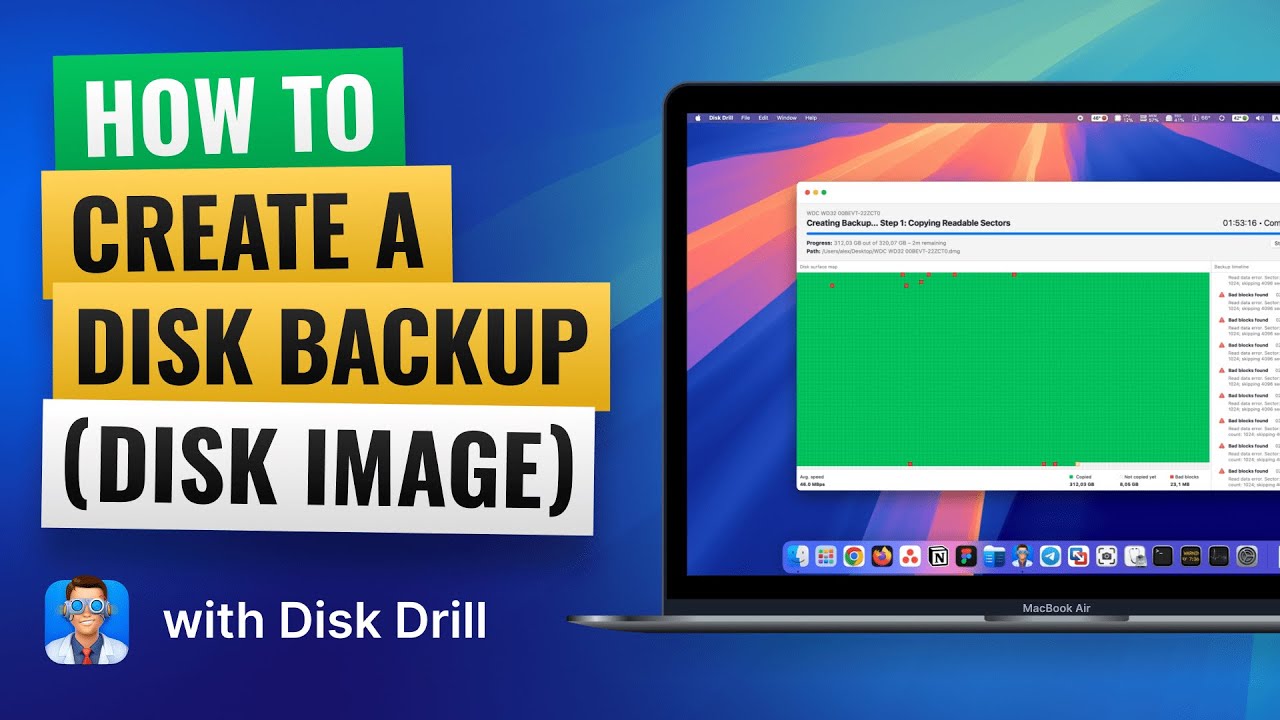
That matters if the drive is acting weird or you don’t want recovery attempts touching the source disk more than needed.
The Windows free tier gives you unlimited scanning, file previews, and recovery up to 100 MB. For a lot of people, that’s enough to test whether the missing file is still recoverable before paying for anything.
There’s also Microsoft’s Windows File Recovery tool. It’s free, and I’ve seen it work, but it runs in Command Prompt. No normal interface, no hand-holding. If you’re fine with commands, go ahead. If not, it feels rough compared with something like Disk Drill.
What I’d do, in order:
- Stop using the drive as much as you can.
- Check Recycle Bin, OneDrive, File History, Previous Versions, and any backup service.
- If the file is still missing, run recovery software soon.
- Recover the file to a different drive, not the same one you’re scanning.
I’ve seen recoveries work hours later, and I’ve seen them fail after someone kept using the machine all day. Speed helps.
21 Likes
Yes, file recovery in Windows 11 is still possible after emptying the Recycle Bin. The odds depend on two things. What type of drive you use, and how much you used the PC after deletion.
I agree with @mikeappsreviewer on stopping drive activity. I’d add one thing. Shut the PC down if the deleted files were on the system drive and you do not need it running. Windows writes logs, cache, updates, and temp data all the time. Every minute hurts.
A lot of people skip this part. Figure out where the file lived first.
If it was on:
C: drive, risk is higher.
USB stick or SD card, recovery odds are often better.
External HDD, often better than SSD.
SSD with TRIM, recovery rates drop fast.
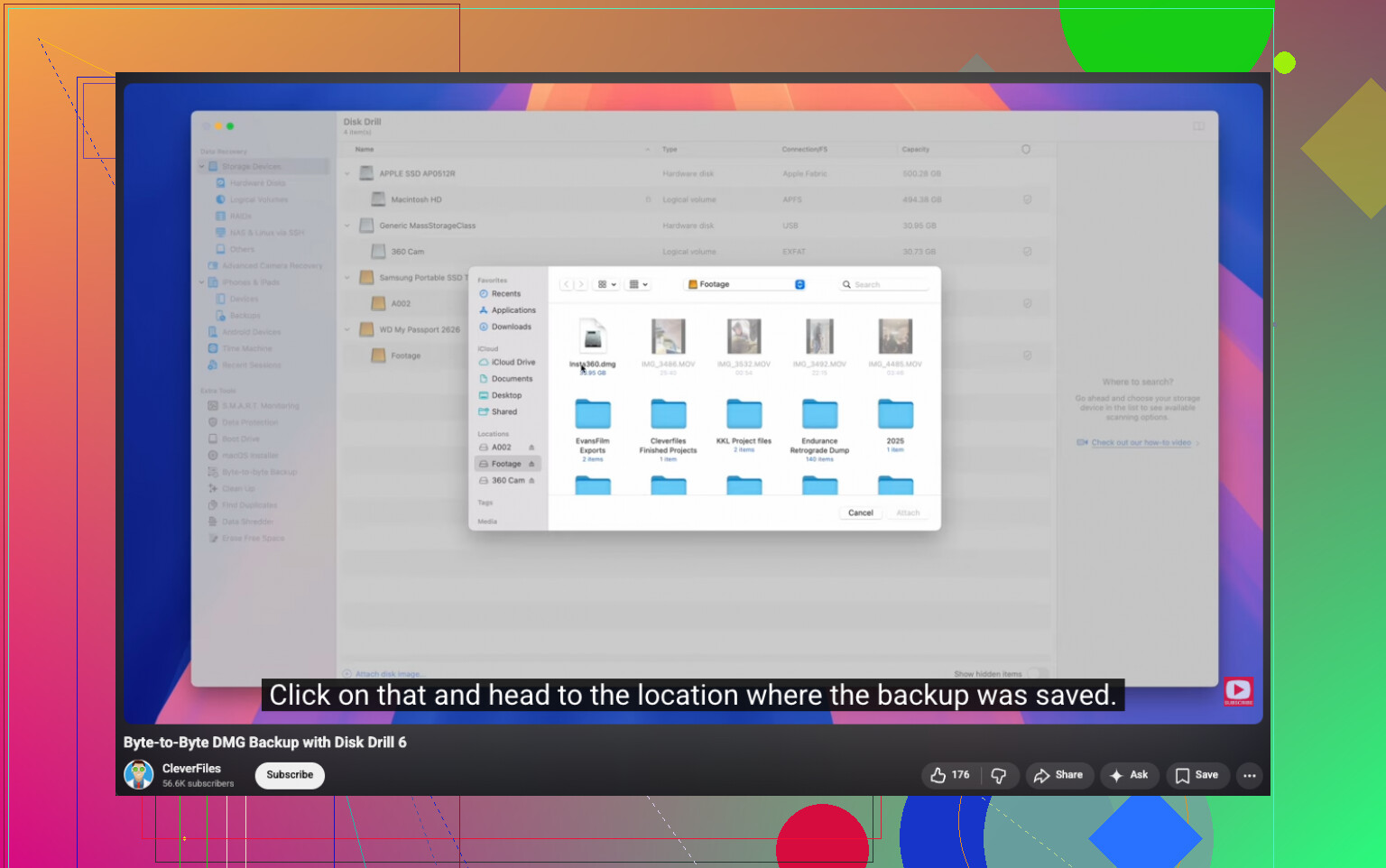
My take is a bit different on tools. Microsoft’s Windows File Recovery is free, but for most people it’s slower to learn than the recovery itself. If you want speed and preview support, Disk Drill is easier to work with. Scan first, preview what’s still there, then recover to another drive. Do not save recovered files back onto the same disk. Thats a common mess-up.
If the files are photos, videos, docs, or PDFs, file signature scanning often finds them even when folder names are gone. If you need original names and folder structure, your chances are best when deletion happened recently and the file system records are still intact.
I’d do this:
- Stop using the affected drive.
- Connect a second drive for recovered files.
- Run Disk Drill or another recovery app from a different drive if possible.
- Sort results by file type and date.
- Recover the most important files first.
If you want a step guide, this is a solid watch for Windows 11 deleted file recovery:
step by step Windows permanently deleted file recovery guide
One more thing. If the file was stored in an app folder, like Outlook, Adobe, or a game save location, check inside the app too. Some apps keep local temp copies or autosaves. People miss taht a lot.
Yep, it’s possible, but I’ll slightly push back on @mikeappsreviewer and @vrijheidsvogel on one thing: people hear “stop using the PC” and assume that means “do nothing until I have the perfect plan.” In reality, if the files matter, the smarter move is to check for versioned copies first, because that can be way faster than a full recovery scan.
What I’d check that hasn’t been stressed enough:
- Office apps sometimes keep AutoRecover copies
- Adobe apps may have temp/project recovery folders
- Browser downloads can still exist in the original download source or history
- Email attachments may still be in mailbox caches
- Shared files might still exist on another synced device
Also, search Windows for the filename extension, not just the name. Example: *.docx or *.jpg. Sometimes the file got moved, duplicated, or renamed and people panic for no reason.
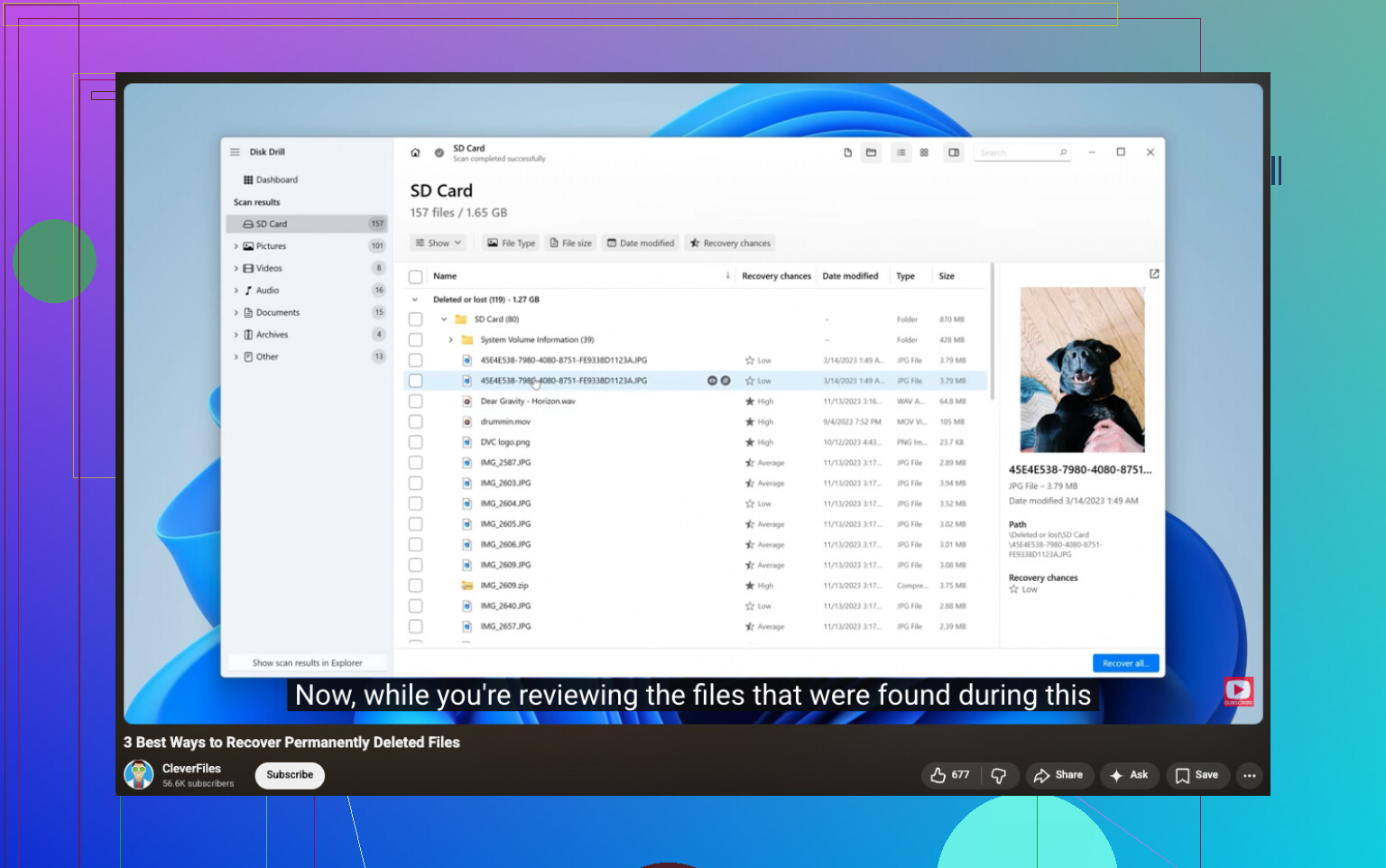
If you do need actual undelete software, Disk Drill is one of the more practical Windows 11 file recovery options because previewing results matters a lot before you commit. I’d also focus on recovering the most important stuff first, not everything. Big deep scans can turn into a mess fast.
One more angle people forget: check whether Windows Security or Controlled Folder Access quarantined or blocked something rather than it being truly deleted. Rare, but it happens.
For more detailed help on recovering deleted files from a hard drive in Windows, that thread is worth a look too.
If it was deleted from an SSD a while ago, honestly, chances drop hard. If it was an HDD or USB drive, odds are usualy better.