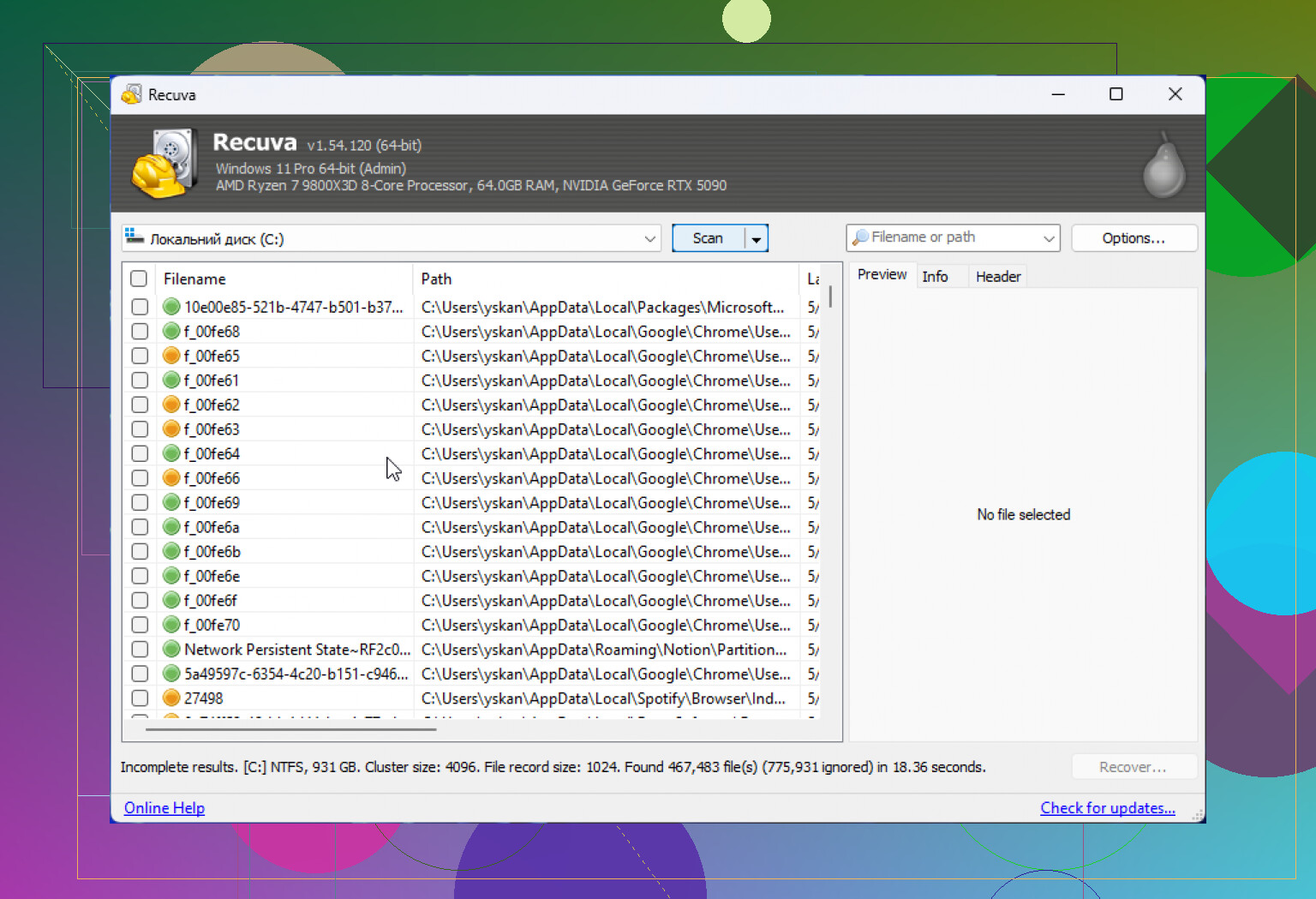
I accidentally deleted some important files on my Windows 11 PC and I’m thinking about using Recuva to try to recover them. Before I install it, I want to know if Recuva is safe, legit, and compatible with Windows 11, and if there’s any risk of malware or making file recovery harder.
People ask this all the time, and I never answer with a clean yes or no. If you mean malware, then yes, Recuva is safe. It is not a virus. It does not show up as some shady payload trying to wreck your PC. If you mean privacy, or whether it is safe for the files you already lost, then the answer gets messier fast.
I have used a pile of recovery apps over the last few years, mostly after my own mistakes and a few family disasters. Recuva still comes up because it is free and easy to grab. But using it wrong is how people make a bad situation worse.
About the old malware scare
The rumor most people heard traces back to the 2017 CCleaner mess. Same developer, Piriform. Their official CCleaner update got poisoned in a supply chain attack, which is about as bad as it sounds. A lot of users got hit.
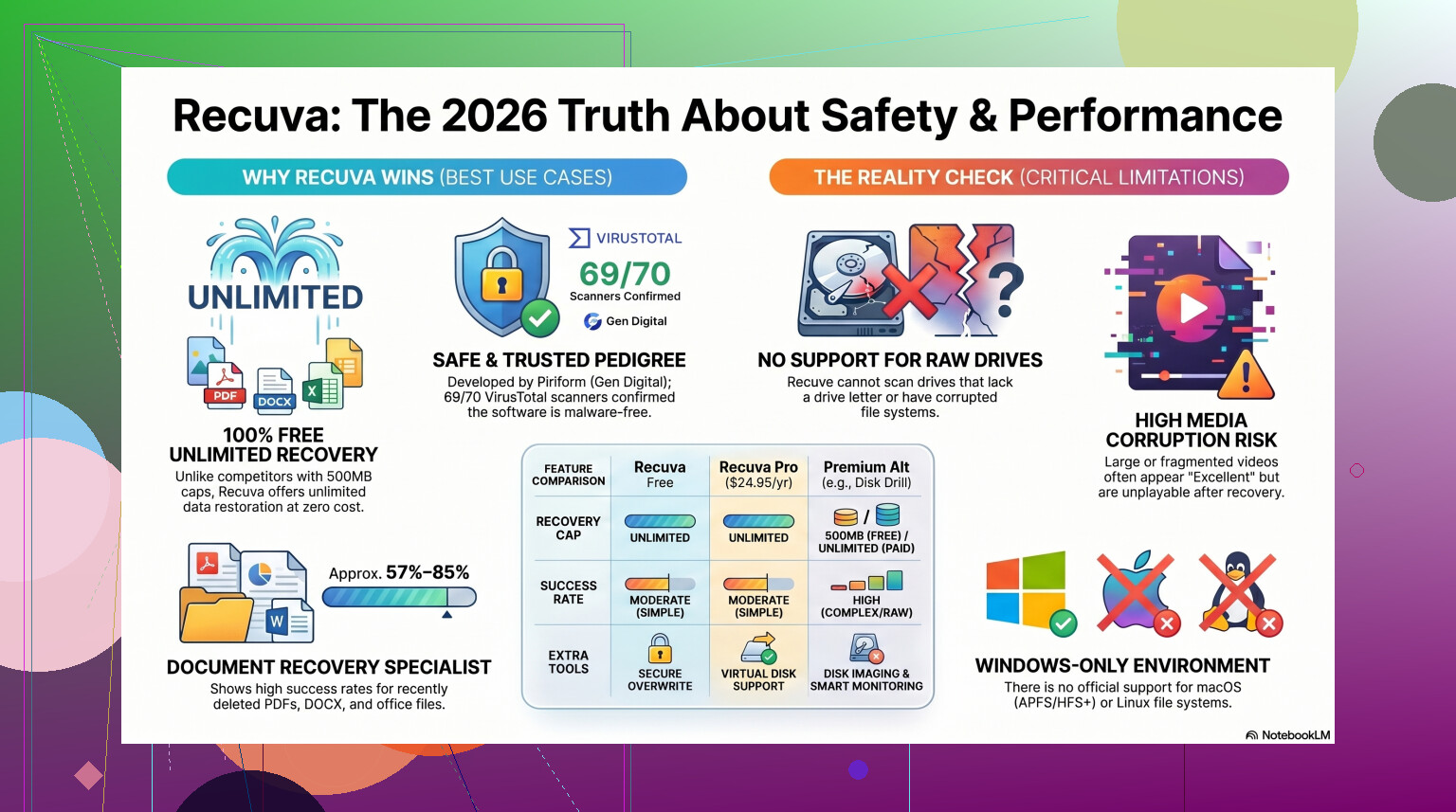
Even so, people keep mixing up CCleaner in 2017 with Recuva today. Those are not the same event. Piriform ended up under Avast, and later under Gen Digital. These days, the current Recuva installer is watched a lot more closely. I checked current builds through VirusTotal before recommending it to anyone, and the result was usually clean or close to clean, with one weird engine tossing a flag for heuristic behavior. I have seen security tools do this with recovery software before, since file recovery tools poke around at low levels and some scanners hate anything with deep disk access.
If you get Recuva from the official source, the malware risk looks low. If you pull it from some random download mirror, then you are rolling dice for no reason.
Privacy is a separate issue
This part gets skipped too often. Safe from malware does not mean private.
Under Gen Digital, there is telemetry. From what I saw in their policy and the app settings, they collect standard stuff like IP address, device details, OS info, and location signals tied to licensing and fraud checks. Some people shrug at this. I do not. When I installed it on a test machine, the first thing I did was open Options, then Privacy, then turn off the usage sharing box.
If you care about this sort of thing, do that early. Do not wait until after a scan. Their docs also mention IP retention for a long stretch before anonymizing it. I remember it being 36 months, which is long enough for me to notice.
The part where users ruin their own recovery
This is the main thing. Recuva is not what destroys your files. Your install habits do.
If the deleted files were on drive C, do not install Recuva on drive C. I know people do this because it feels harmless. It is not. Deleted data often still sits there until new writes land on top of it. So if you save the installer, install the app, write temp files, then start scanning, you are writing fresh data onto the same disk area you are trying to save. I have done this once with old photos. Learned that lesson the annoying way.
The safer move is the portable build. Put it on a USB drive. Run it from there. Then recover files to a different disk, not back onto the source. If your lost files came from the same drive you are scanning, keep writes off it as much as you can. Small rule, big difference.
How well it works in 2026
Here is where people get disappointed.
Recuva still works fine for simple undelete jobs on Windows. Empty Recycle Bin by mistake, deleted a document ten minutes ago, healthy SSD or hard drive, normal partition, no file system damage, then sure, it is worth a shot. It launches fast. It is light. The wizard is easy enough for someone who has never touched recovery software before.
Past that, it starts showing its age. The core app feels old because it is old. It got maintenance updates to stay alive on newer Windows builds, but it does not behave like a modern recovery suite. It is closer to a classic undelete utility with extra scanning modes bolted on.
I saw this in testing on formatted USB sticks and damaged partitions. On easy cases, okay. On harder cases, not great. RAW drives are a pain point. If Windows wants you to format the disk before use, Recuva often does not get far. Sometimes it does not detect the volume in a useful way at all. On formatted flash media, I saw outcomes all over the place. Recovery rates in public tests tend to land somewhere around the mid 60s. That lines up with what I saw. And even when it lists files as recoverable, some of them come back broken.
The fake hope part is rough. You recover a JPG, status says excellent, then Windows Photo Viewer throws an error and the file is dead. I have seen it dump thousands of files into one folder too, with generic filenames and no folder structure left. If you are trying to rebuild years of family photos, that turns into its own little nightmare. Kinda usable, kinda not.
When I would stop using it
If the files matter, I would not spend too long forcing Recuva to solve a hard case.
Examples. A drive shows as RAW. The partition is damaged. The disk makes odd noises. The files are videos from a camera. The storage was formatted. The system is from a Mac. In those cases, I would move on early instead of burning time on repeated scans.
Repeated scanning is not free. It adds wear and stress, especially on shaky hardware. If the drive is failing, your first serious attempt matters more than people think.
I had better luck with Disk Drill once the problem moved beyond simple deletion. It handles damaged partitions and RAW situations better than Recuva did in my tests. The big feature I wish more free tools had is byte to byte imaging. Clone first, scan later. That approach is safer because you are no longer hammering the original disk during recovery. If the hardware gives up halfway through, at least you still have the image.
It also does better with photo and video formats. Recuva can struggle with fragmented media files and some camera RAW types. If your work involves Nikon, Canon, or larger video clips, I would not trust Recuva as my only try. Been there. Regretted it.
For a direct comparison, here is the video mentioned earlier:
https://www.youtube.com/watch?v=z0CVd7PxOms
My take after using it
If you deleted something on a healthy Windows machine and you need a free first attempt, Recuva is fine. I would still treat it carefully.
Get it from the official site.
Use the portable version if you can.
Turn off usage sharing in the privacy settings.
Recover files to another drive, never the same one.
Do not expect miracles on damaged or formatted disks.
If it finds nothing, or if the recovered files are corrupted, stop poking the drive. That is the point where I would switch tools and avoid more random trial and error. Recuva is safe enough as software. The bigger risk is people assuming free and familiar means effective for every case. It dosent.
For easy mistakes, it still earns a spot. For higher stakes, I would treat it as a quick first pass, not the whole plan.
17 Likes
Yes. Recuva is legit, safe to install on Windows 11, and it runs fine for simple file recovery jobs.
I only partly agree with @mikeappsreviewer on the age issue. Recuva is old, sure, but old does not mean unsafe. It means limited. Big diffrence.
What matters more is your situation:
If you deleted files recently from a healthy drive, Recuva is a decent first try.
If the drive is corrupted, formatted, showing RAW, or acting weird, skip it and move to Disk Drill faster. Disk Drill tends to do better on harder recovery cases and gives you a stronger shot at getting intact files back.
A few practical points:
- Download Recuva from the official Piriform source only.
- Windows 11 compatibility is fine.
- The software itself is not known as malware.
- The main risk is overwriting deleted data after the loss.
- SSD recovery is hit or miss because TRIM often wipes deleted file traces fast.
That last part gets missed a lot. On many Windows 11 PCs with SSDs, deleted files disappear for good much faster than people expect. So time matters.
If your files are important enough that you do not want to gamble, look at top data recovery software for deleted files and damaged drives. Recuva is fine for basic undelete. Disk Drill is often the better pick when the case is more serious.
Short version, yes, safe to install. Safe for your lost data depends more on what you do next and what kind of drive you have.
Yes, Recuva is generally safe to install on Windows 11 if you get it from the official source. It’s a legit Windows file recovery tool, not some fake cleaner app pretending to help. Windows 11 compatibility is fine, so that part is not really the issue.
Where I kinda disagree a bit with @mikeappsreviewer is this: people sometimes overstate the danger of installing it like the installer itself is the main threat. Usually it isn’t. The bigger problem is whether your deleted files were on the same drive you keep using. Every minute you keep browsing, installing stuff, or saving files, recovery odds can get worse. That part matters more than the app’s reputation.
Also, @kakeru is right that SSDs make this messier. If your Windows 11 PC uses an SSD, TRIM can wipe deleted file traces surprisingly fast. So Recuva may be safe, but “safe to install” is not the same thing as “likely to recover everything.”
My take:
- Safe? Yes.
- Legit? Yes.
- Works on Windows 11? Yes.
- Best choice for every recovery job? Nope.
If this was just a recent delete on a healthy drive, Recuva is a fair first shot. If the files are seriously important, or the drive is corrupted / formatted / acting strange, I’d skip the experimenting and use Disk Drill sooner. It’s usually a stronger option for deeper scans and tougher recovery cases.
If you want a quick overview of Recuva file recovery software for Windows, that covers the basics too.
Short answer: safe enough to install, but don’t confuse “safe app” with “safe recovery process.” Thats where people get burned.