My iPhone photo library is full of duplicate pictures after syncing and restoring, and it’s taking up a lot of storage. I need a fast, free way to find and merge duplicate photos on an iPhone without losing anything important. What’s the easiest method or app that actually works?
I hit this too, and the wording threw me off at first.
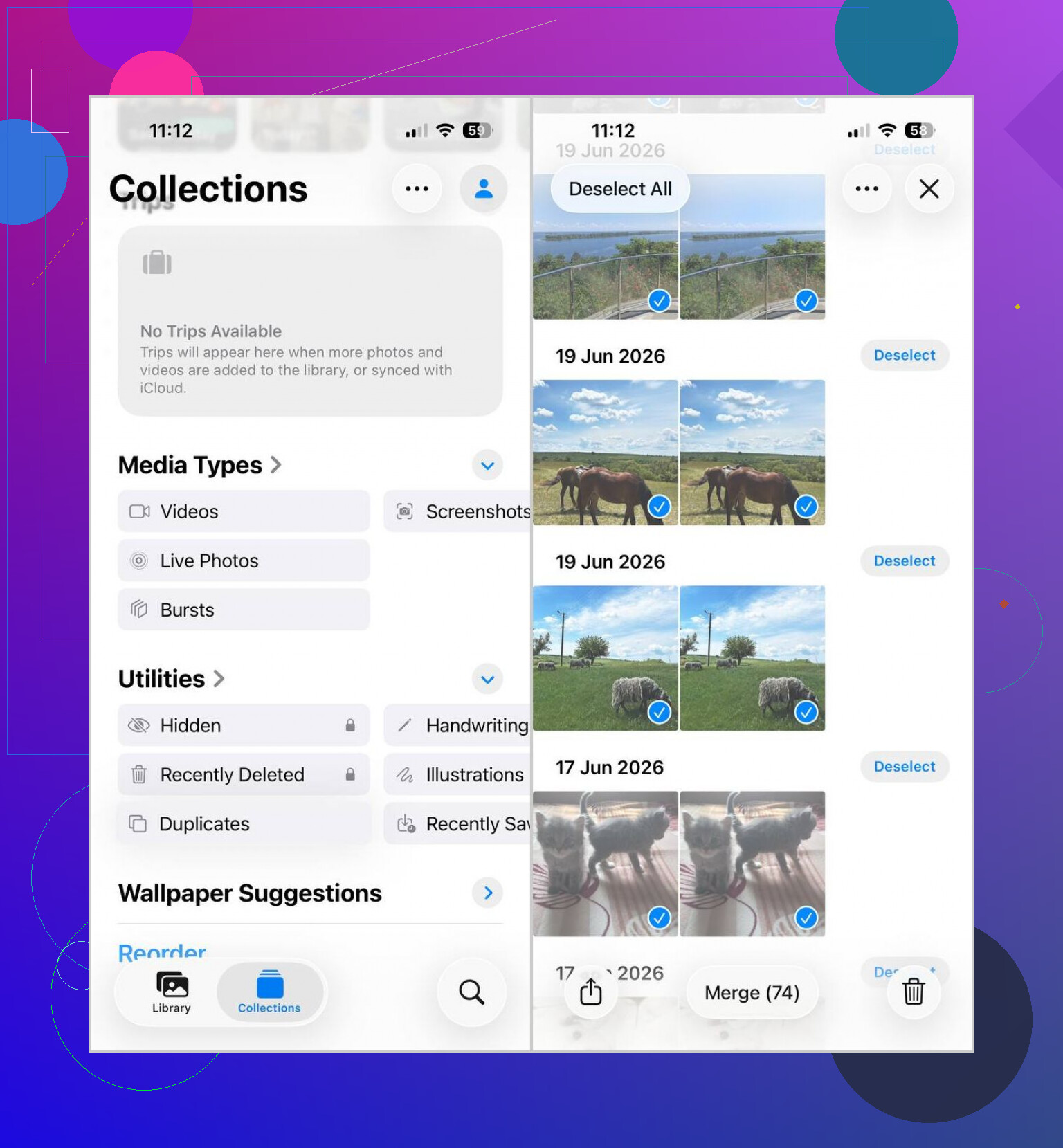
On iPhone, ‘Merge’ in Photos does not mash similar pictures into one file. It removes duplicate copies and leaves one version behind, usually the one with the better attached info.
If you want to do it with Apple’s own tool, here’s the path:
- Open Photos.
- Scroll to Utilities.
- Tap Duplicates.
- Tap Select, then Select All, or pick groups one by one.
- Tap Merge and confirm.
If the Duplicates folder is missing, wait a bit. iOS needs time to index the library. After a big import, I’ve seen it take hours. Once it took until the next day. Kinda annoying, but normal.
The part people miss is this only catches exact duplicates. Same file, same photo, copied more than once. It does not help much with stuff like:
- five near-identical pet pics
- burst shots
- selfies where your face is 2 percent different
- ten photos from the same second
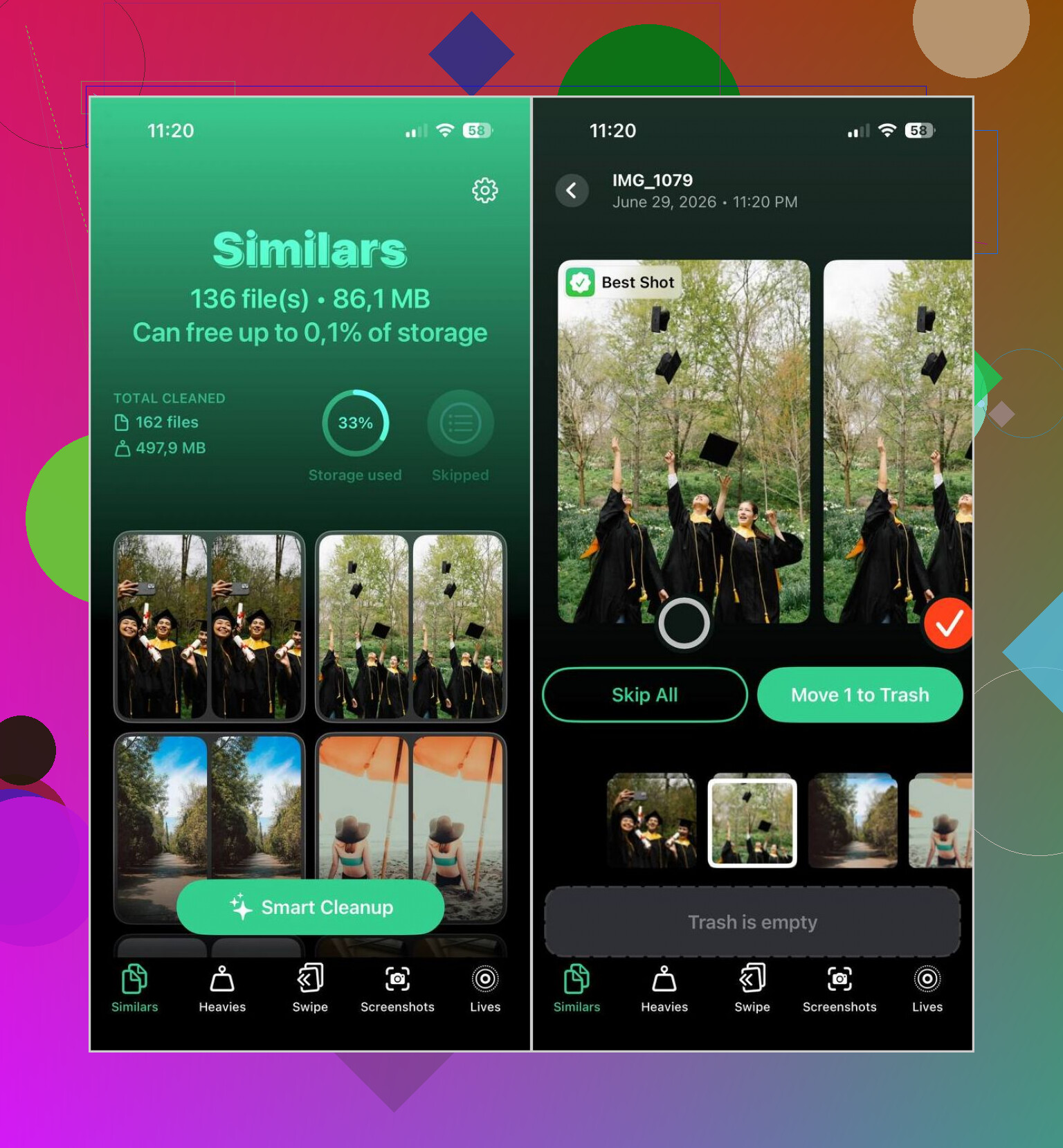
For those, I used Clever Cleaner. What helped me was the app spliting true duplicates from lookalikes, which is what my library was packed with.
What I did there:
- Gave it access and let it scan.
- Opened the Similars tab.
- Checked Smart Cleanup when I wanted the app to choose, or went group by group when I didn’t trust it.
- Deleted the picks, then cleared Recently Deleted in Photos so the storage came back right away.
Small warning from my own mess. Look through the suggested groups before wiping a huge batch. These apps do a decent job, still they sometimes bunch together photos you meant to keep, especially if lighting or angle changed a little.
17 Likes
Fastest free route, if you want to keep control, is to do the heavy cleanup off the iPhone for a minute.
Sync your Photos library to a Mac, open Photos there, then use File, New Smart Album with rules like filename, capture date, or burst series to isolate junk fast. Sort by date added or file size. It is faster than tapping through hundreds of groups on a phone screen. Then let iCloud sync the deletions back. I know @mikeappsreviewer pointed to the built in iPhone method, but for huge libraries I think the Mac route is less painfull.
If you do not have a Mac, use Clever Cleaner for the scan, then review before deleting. Free tools save time, but your review saves mistakes.
Also check this guide on easy ways to merge duplicate photos on iPhone and free up storage. It covers different ways to merge iPhone duplicates in plain english.
One more thing people miss. After cleanup, turn off Settings, Photos, Sync this iPhone for any old Finder sync source, or the dupes come back again.
One thing I’d push back on a bit from @mikeappsreviewer and @cacadordeestrelas: if your library got messy after a sync/restore, the issue is often not just duplicates, it’s the sync source itself. If you only clean the Photos app but don’t fix the import/sync settings, the same junk can creep back in. Super anoying.
Fast free route on iPhone is this:
- Check iPhone Storage to see if Photos is actually the space hog
- Make sure iCloud Photos and old Finder/iTunes sync are not fighting each other
- If you use Shared Albums or imported folders from a computer, review those too, because they can look like dupes but act differently
Also, before mass deleting, export or back up the really important stuff. “Merge” and cleanup apps are usually safe, but “usually” is doing a lot of work there lol.
For faster cleanup beyond Apple’s built-in stuff, Clever Cleaner is probly the best free option if you also have lookalikes, not just exact copies. That matters because post-restore libraries are often full of same-shot variants.
If you want a simple guide for how to quickly delete duplicate photos on iPhone and free up storage, that covers the basics pretty well.
My advice: fix sync first, then clean. Otherwise you’re just mopping while the sink is still overflowing.

I’d add one thing the replies from @cacadordeestrelas, @cazadordeestrellas, and @mikeappsreviewer only touched indirectly: sometimes you should not merge first at all.
If the duplicates appeared after a restore, check whether they are actually downloaded twice or just shown twice through different library sources. Photos, Shared Albums, synced folders, and messaging saves can make the library look worse than it is. Deleting the wrong copy can leave you confused later.
Fast free workflow I’d use:
- Open Photos and filter by Recents plus media type.
- Check a few “duplicates” and swipe up on each photo.
- Compare metadata like source app, resolution, and saved date.
- If they match exactly, use Apple’s Duplicates album.
- If they are just near-matches, use Clever Cleaner to batch-review them.
Why this matters: Apple’s tool is safer, but narrower. I slightly disagree with the “just clean it on Mac” angle because for many people the mess starts from sync rules, and moving to another device can hide the root problem.
Clever Cleaner pros:
- free
- fast scan
- catches lookalikes, not just exact dupes
- easier for huge libraries
Cons:
- needs careful review
- can group similar shots you wanted to keep
- cleanup is only as good as your final check
Also, after deleting, restart the iPhone and recheck storage. Photos storage often lags before updating.