My external hard drive suddenly shows the error “The parameter is incorrect” when I try to open it in Windows. The drive has important files on it, so I’m trying to find a safe external hard drive fix that won’t format, wipe, or erase my data. What steps can I try before using data recovery software or taking it to a repair shop?
This is usually more of a “Windows can’t read the drive properly” problem than an instant sign that everything is gone. When this has happened with external drives, the data may still be there, but Windows can’t mount or understand the file system correctly.
I wouldn’t start with formatting or CHKDSK if the files matter. That’s where people often make things worse. If the file system is damaged, or the drive is beginning to fail, repair tools can change the disk in ways that make recovery harder. Get the important stuff off first, then think about fixing the drive.
Start with the boring checks, because sometimes it really is just the connection:
- Swap the USB cable.
- Plug the drive straight into a USB port, not through a hub.
- Try it on a different computer.
- Check Disk Management and see whether the drive shows up with the right size.
If Windows can still see the drive, use recovery software before running repairs. Disk Drill is a reasonable choice here because it can sometimes read drives even when Windows gives the “The parameter is incorrect” message. If the drive is acting flaky, don’t keep scanning the physical drive over and over. Make an image of it first, then scan the image. That’s safer if the drive is getting worse.
After the files are copied somewhere safe, then you can try fixing it:
- Run
chkdsk X: /rif Windows still recognizes the file system. - If the partition shows as RAW, or CHKDSK refuses to run, try TestDisk. In some cases it can repair partition damage without formatting.
- If recovery is done and nothing else helps, a quick format can clear logical file system corruption by creating a new file system.
There’s also one weird thing worth checking: if this started right after changing Windows regional settings, make sure the decimal separator is set to a period (.). It’s uncommon, but it can cause this error on some setups.
If the drive is clicking, dropping connection, vanishing from Disk Management, or SMART shows a lot of reallocated or pending sectors, stop messing with it. That points more toward hardware failure, and a professional recovery service is the safer route if the data is important.
10 Likes
Check whether the bare drive works in a different USB enclosure or SATA adapter before you “fix” anything in Windows. A bad bridge board in the external case can throw parameter errors while the actual disk is still readable, and running repairs through flaky hardware is a great way to make a small problem bigger.
Do not click Format.
That prompt is Windows offering to make the drive usable again, not offering to save your files. Same goes for “Scan and fix” if the files matter more than the drive. It might work on a minor file system glitch, but it can also write changes to a drive that is already unstable.
The missing detail here is whether the drive shows the correct capacity. That tells you a lot. If Disk Management says the external drive is 2 TB and the partition is still there, that is a very different situation from it showing 0 bytes, “No Media,” or some nonsense size. Correct size usually means the drive is at least talking. Wrong size often points to the enclosure, USB bridge, firmware, or the disk itself failing.
I agree with @waldgeist about the enclosure. People forget that an “external hard drive” is usually just a normal SATA drive plus a USB adapter board in a plastic box. If the adapter is the problem, Windows may throw weird errors even though the disk inside is fine. But don’t crack open a sealed drive if it is under warranty or if it is one of those models with USB directly on the drive board. Some portable drives are not simple SATA drives inside.
If you want the safest no-erase route, think in this order:
- Stop writing to the drive.
- Check whether the drive shows the correct size.
- Copy or image the drive before repairs.
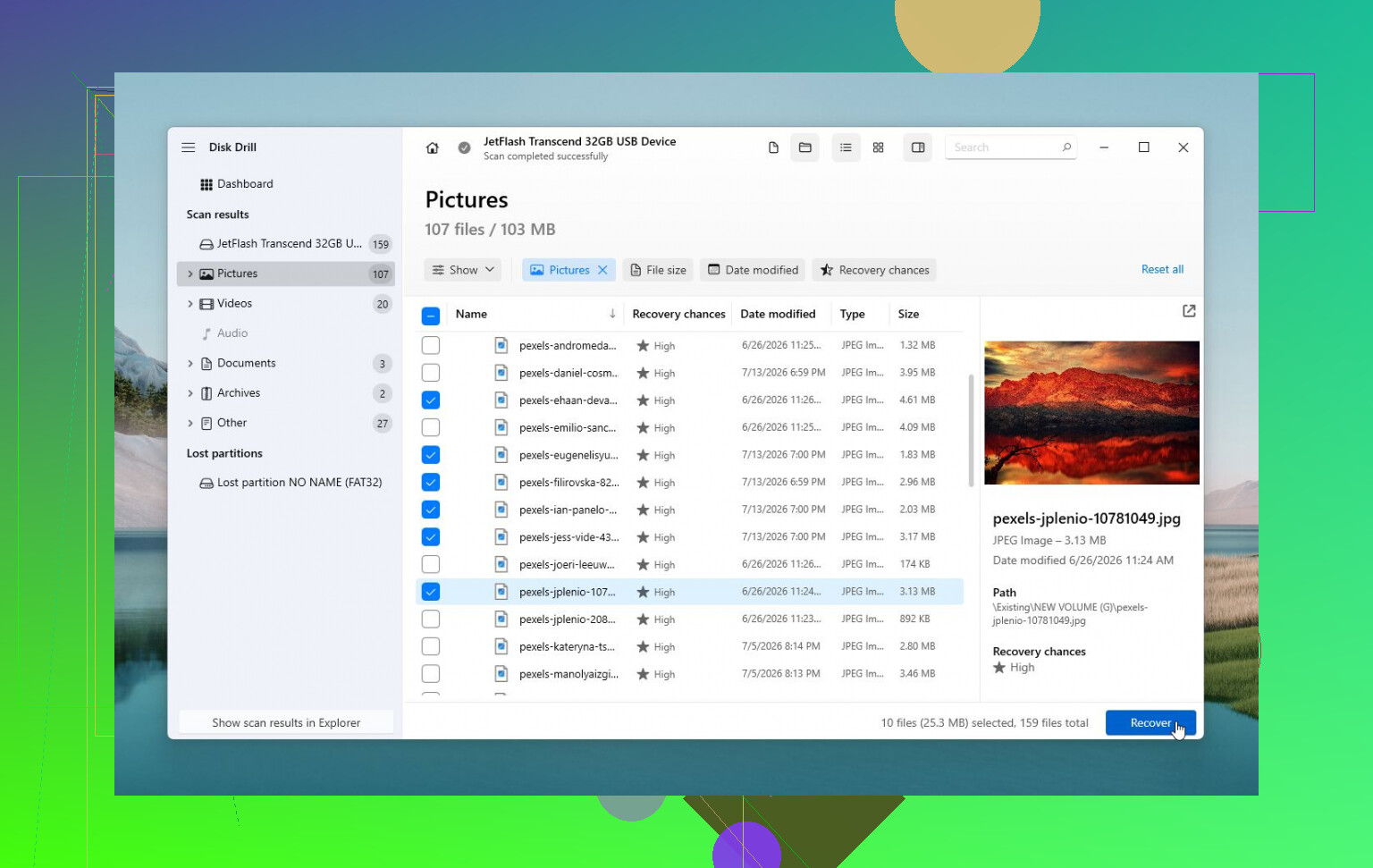
- Recover the files to a different disk.
- Only then try CHKDSK, TestDisk, formatting, or anything that modifies the original.
That fourth point matters. Do not recover files back onto the same external drive. You need another disk with enough free space. If the external is 1 TB and half full, have at least 500 GB available somewhere else, preferably more.
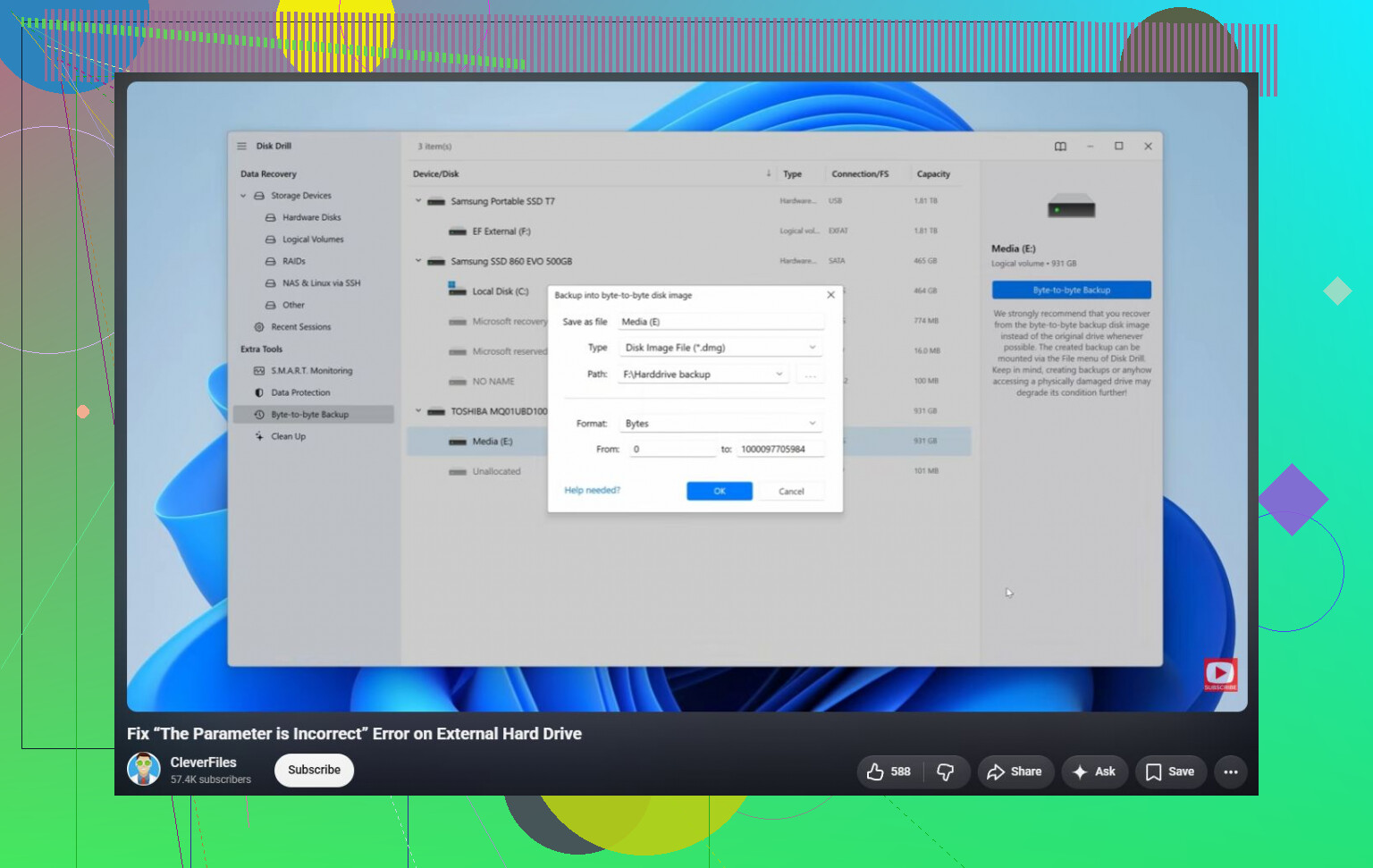
Disk Drill, R-Studio, DMDE, UFS Explorer, etc. can all be used in this kind of situation, but the tool is less important than the method. If the drive is physically struggling, repeated scans are bad. Make an image first if the software allows it, then scan the image. Disk Drill has a byte-to-byte backup feature, which is the part I’d use before caring about its recovery results.
For a cheaper route, if you are comfortable with it, a Linux live USB can sometimes read a drive that Windows refuses to open. That does not mean Linux “fixes” it. It just may be less picky about mounting a damaged file system. Mount it read-only if possible and copy the important files off. If Linux starts throwing I/O errors or the copy speed drops to nothing, stop treating it like a software problem.
The answer to your actual question is: yes, there are fixes that do not intentionally erase data, but no, there is no safe “fix button” you should press first. CHKDSK can repair file system damage without formatting, but it can also remove broken directory entries, move files into found folders, or make recovery messier. TestDisk can rebuild partition information without formatting, but using it wrong can make things more confusing. These are repair tools, not backup tools.
If the drive is silent and stable, try recovery first. If it clicks, disconnects, disappears, asks to initialize, or changes size between attempts, don’t keep experimenting. That is the point where DIY can turn a recoverable drive into a much more expensive recovery job.
A repair that appears to “work” can still be the thing that loses filenames, folder structure, or the last good copy of a weak sector. That’s why I’d be careful with any advice that starts by making the drive writable again. The goal is not to make Windows happy first. The goal is to get your files onto a different drive first.
I agree with the enclosure comments, but I’d put another caveat next to that: don’t keep hot-swapping and retrying the same bad drive all afternoon. Every failed mount, every Explorer freeze, and every “let me try one more USB port” session can mean more reads on a disk that may already be struggling. If it shows the right capacity and does not click or disconnect, fine, take a controlled shot at copying or imaging it. If it drops out randomly, stop treating it like a normal Windows error.
For a no-format path, I’d avoid Explorer as the main copying tool if the drive is slow or throwing errors. Explorer is terrible at bad reads. It may sit there forever on one damaged file and give you no useful control. A recovery tool that can skip bad areas, resume, or work from an image is a better fit. Disk Drill can be used for this, but the important part is making a byte-level image or recovering to a separate healthy disk, not the brand name. If you scan the original drive three different times with three different apps, you are increasing wear without improving your odds much.
There’s another annoying edge case: if the drive was used with BitLocker, hardware encryption, backup software, or a TV/DVR/NAS, Windows may show generic errors even though the disk is not simply “corrupt.” In that case CHKDSK can be the wrong tool entirely. Before repairing anything, think about where the drive was last used and whether it was encrypted or formatted by something other than Windows.
So the answer is yes, there are non-erasing fixes, but I would not start with the fix. Start with a copy/image attempt, save recovered files somewhere else, then experiment on the original only after the important data is safe. If the data is worth more than the cost of recovery, don’t run CHKDSK as your first move. It is a repair tool, not a rescue plan.