I’m thinking about using Mountain Duck to mount cloud storage as a local drive, but I’ve seen mixed feedback and can’t tell what’s real. I need help from people who’ve actually used it, especially with speed, stability, syncing, and whether it’s worth paying for long term.
Mountain Duck - My Honest Review
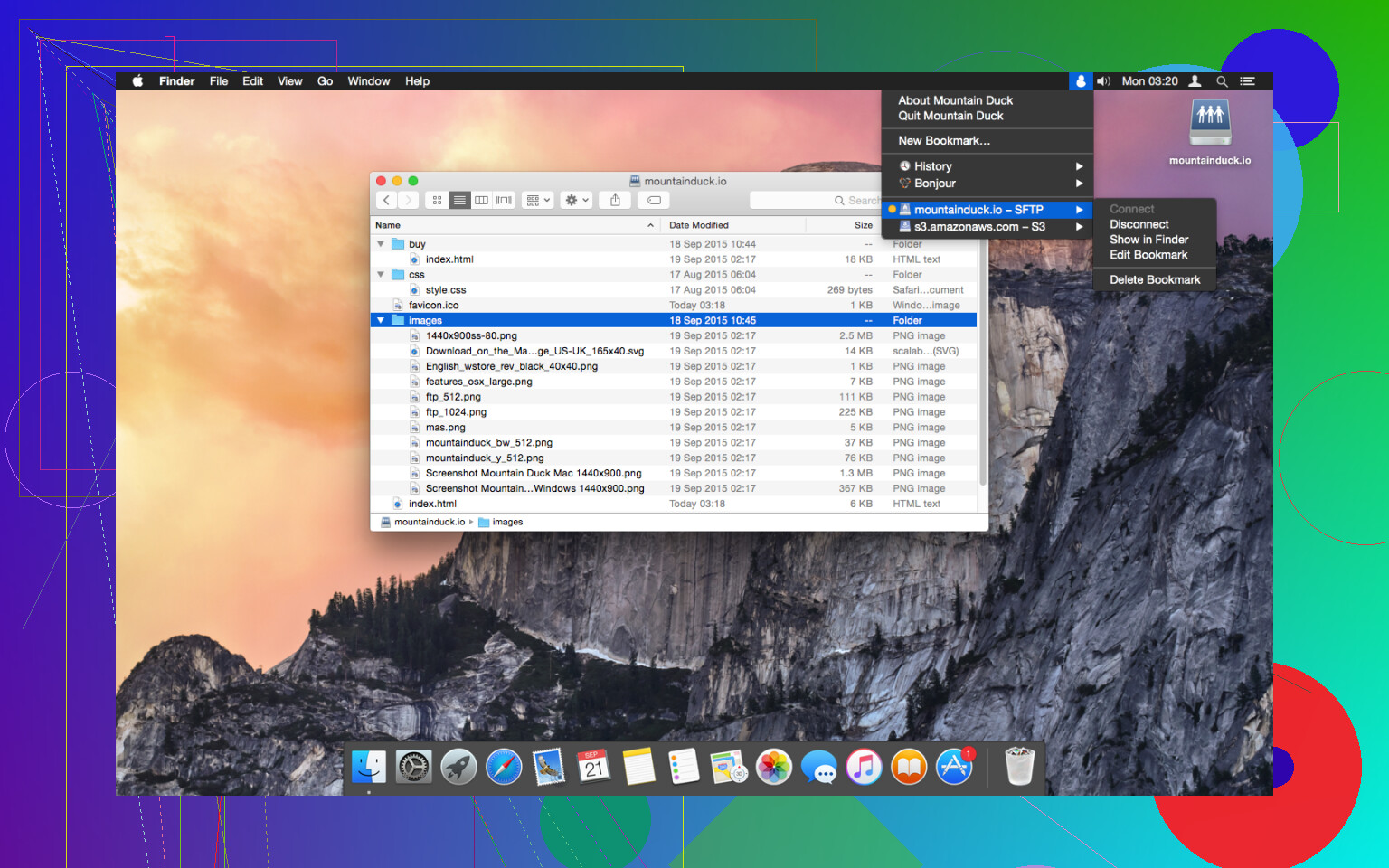
I’ve been using Mountain Duck for a while now to manage my remote files, and I figured I’d share some thoughts on how it actually holds up in a daily workflow. If you aren’t familiar with it, the basic idea is that it lets you mount server storage – like FTP, SFTP, WebDAV, or cloud services like S3 and Google Drive – directly into your Finder on macOS or File Explorer on Windows. Instead of opening a dedicated client to move files back and forth, the remote server just shows up as another disk icon on your desktop. It’s meant to make remote storage feel like it’s just another part of your local machine, which is a pretty convenient way to work if you’re constantly jumping between different servers.
What I Like
The main thing I noticed right away is how much easier it makes the “edit and save” loop. In my experience, using a standard FTP client usually involves downloading a file, editing it, and then remembering to upload it back to the server. With Mountain Duck, I can just open a text file or an image directly from the mounted volume in whatever app I use, hit save, and it handles the background sync. It supports a really wide range of protocols, which is something people often bring up as a big plus. Whether you are connecting to a legacy SFTP server for web work or a modern S3 bucket for backups, it’s all handled through the same interface.
I also like that it integrates with the native system file manager. On my Mac, I can use Quick Look to preview files on a remote server without fully downloading them first, which is nice for finding the right document in a hurry. It also has built-in encryption through Cryptomator, so if you are worried about storing sensitive data on a public cloud provider, you can encrypt files locally before they ever hit the server. This makes the whole process feel a bit more secure without adding too many extra steps to the day.
The Weak Part
One real snag some people hit is the performance when you’re dealing with large file collections. In my experience, when I connected to a server with a massive folder structure – we are talking hundreds or thousands of files in a single directory – things started to feel a bit sluggish. Browsing becomes a test of patience because the app has to fetch the directory listing from the remote server and then render it in Finder. If you’re trying to navigate through a photography archive with thousands of images, for example, you’ll likely notice that loading those directories takes a fair amount of time. It’s not a dealbreaker for smaller projects, but working with big folder structures feels tedious compared to local storage.
I’ve also noticed that it can be a bit heavy on system resources. Some users, especially those on older Mac models, have mentioned high CPU and RAM usage when the app is indexing or syncing a lot of data. It’s something to keep an eye on if you already have a lot of demanding apps open. There is also a bit of a learning curve when it comes to the settings. Figuring out how to balance the cache – so you aren’t redownloading everything but also aren’t filling up your hard drive – can be confusing initially. It takes some clicking around to get the synchronization behavior exactly where you want it.
Alternative I Would Recommend
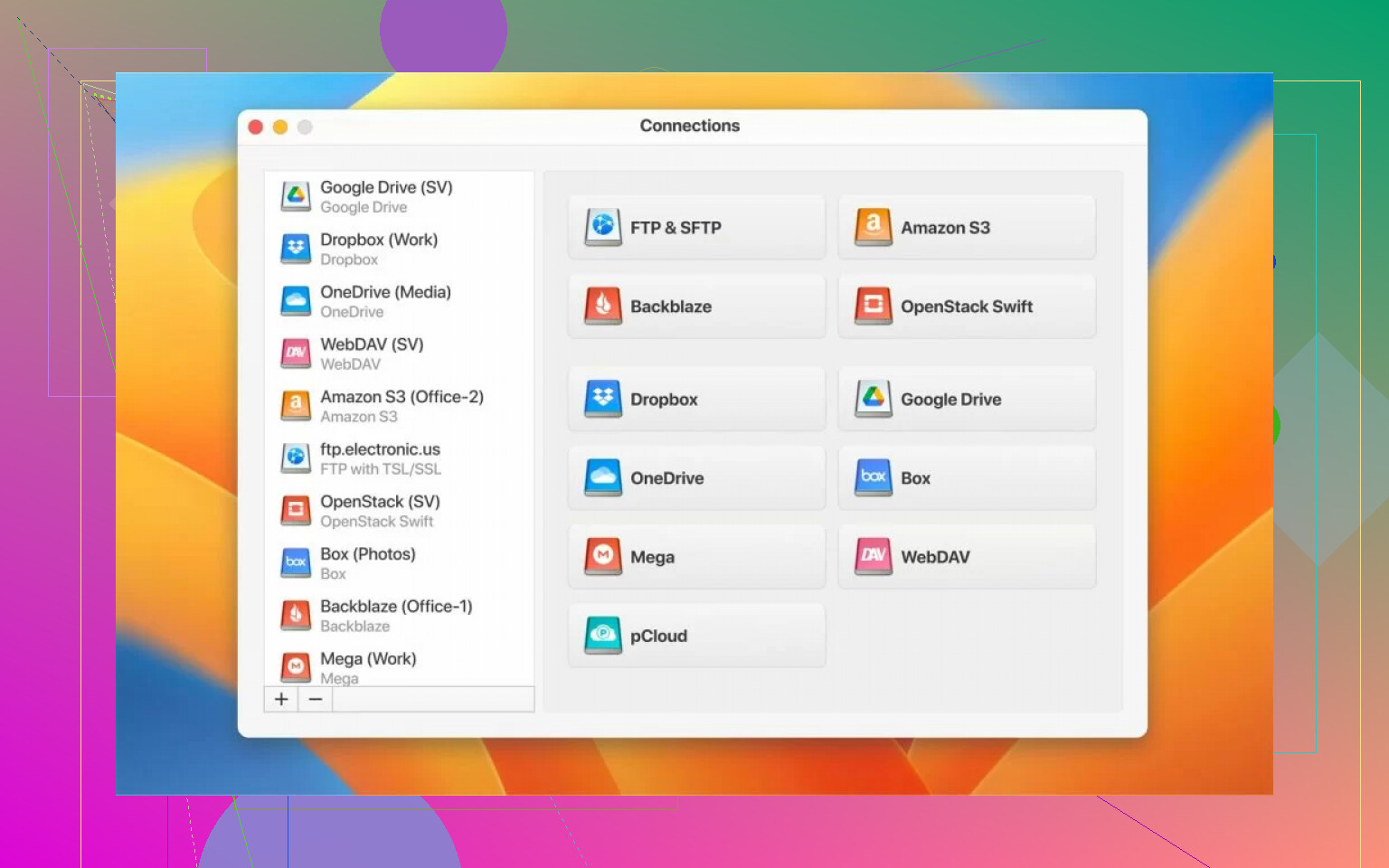
If the performance hits or the interface doesn’t quite click for you, CloudMounter is probably the closest alternative for GUI-based Finder integration. It’s a decent option that does a lot of the same things – supporting popular cloud services like Google Drive, Dropbox, and OneDrive, alongside standard remote servers. You just log in with your credentials, and your files show up in Finder or File Explorer.
In my time testing it, I found that CloudMounter handles those large file collections a bit better than Mountain Duck does. The slowdown issues don’t seem as pronounced when you’re digging through deep folder nests. It also has a solid encryption function where you can secure sensitive files before they go to the cloud, and they just decrypt automatically when you download them back to your machine. Another handy feature is the offline mode. It lets you work on files even when you don’t have an internet connection, and then it just syncs your edits once you’re back online. It’s available for both macOS and Windows with the same feature set, so it’s worth knowing about if you need a smoother experience with bigger datasets.
In a Nutshell
Overall, Mountain Duck works well enough if your main goal is to treat your remote servers like local folders without much fuss. It’s a solid bridge between your desktop and the cloud, provided you aren’t trying to manage tens of thousands of files at once. For people who just need to tweak a few files on a web server or move some documents into an S3 bucket, it makes sense and fits into the workflow quite easily. It isn’t perfect, and the performance dip on large directories is worth keeping in mind, but it’s a fair shot for anyone tired of the constant upload/download cycle of traditional file transfer apps. Between this and something like CloudMounter, you can usually find a setup that makes remote work feel a lot less like a chore.
16 Likes
I used Mountain Duck on both macOS and Windows for S3, WebDAV, and one SFTP box. My take is a bit less rosy than @mikeappsreviewer.
Speed first. Small folders felt fine. Single file edits felt fine. Big photo folders and deep trees got slow fast. Listing delays were the main pain, not raw transfer speed. If your storage has 50 to 500 files per folder, it stays usable. If you dump 20k files into one path, it gets ugly.
Stability was mixed. It did not crash a ton for me, but I saw mounts hang and need a reconnect. Sleep and wake was a weak spot on one MacBook. Finder would show the drive, but ops would stall. Annoying stuff, not total disaster.
What I liked. Native workflow. Open, save, move on. For remote text files and docs, it saved time. What I did not like. Cache tuning felt fussy, and background sync was not always easy to trust without double checking.
If your use case is daily editing of a modest file set, Mountain Duck is solid enough. If your use case is giant archives or media libraries, I would look at CloudMounter first. In my tests it felt smoother with large directories and less finicky overall. Not perfect eihter, but less babysitting.
I’m a little less harsh on Mountain Duck than @vrijheidsvogel, but also less forgiving than @mikeappsreviewer.
My real take: it’s pretty good if you use it for what it actually is, not what people wish it was.
For opening remote docs, editing a few files, quick server changes, light cloud browsing, it feels clean and native. That part is legit. Where people get burned is expecting it to behave like a blazing fast local SSD when they mount giant cloud buckets or bloated media archives. Nope. That’s where it starts feeling kinda janky.
Speed:
- small folders, fine
- normal office files, fine
- huge directories, not fine
- lots of tiny files, extra not fine
Stability was decent for me on Windows, slightly weirder on macOS after sleep. Not constant failure, just enough reconnect nonsense to be annoying. I never fully trusted it with important moves unless I double checked after.
One place I sorta disagree with both of them: I don’t think Mountain Duck is bad, it’s just picky. If your workflow is active files, not giant cold storage, it can be a nice tool.
If your main goal is mounting cloud storage as a drive with less fuss, CloudMounter is probly the easier recommendation now. In my use, it handled larger directories more smoothly and needed less babysitting. Not magic, just less irritating.
So, honest score?
7/10 for light daily work.
4/10 for giant libraries.
Try Mountain Duck if your setup is modest. If you already know your storage is messy as hell, go straight to CloudMounter.
I land somewhere between @vrijheidsvogel and @stellacadente and @mikeappsreviewer, but with one caveat: Mountain Duck is often judged for the wrong job.
If you want a mounted drive for active working files, configs, docs, light assets, it’s pretty decent. The killer feature is not speed, it’s friction reduction. Remote files feel close enough to local that you stop thinking about transfers. That matters.
Where I slightly disagree with the harsher takes: for small teams and personal workflows, “pretty decent” is sometimes exactly enough. I would not call it unreliable, just sensitive to folder structure and sleep/wake weirdness.
My honest verdict:
Mountain Duck pros
- Native Finder/File Explorer workflow
- Good for editing files in place
- Broad protocol support
- Fine for moderate file counts
Mountain Duck cons
- Directory listing can get sluggish
- Sleep/wake reconnects can be flaky
- Large media libraries feel rough
- Needs some cache babysitting
If your storage is messy, huge, or full of tiny files, I’d lean toward CloudMounter instead.
CloudMounter pros
- Smoother with large directories
- Simpler to set up and live with
- Good offline access behavior
- Less finicky day to day
CloudMounter cons
- Still not instant with enormous trees
- Can feel abstracted if you want low-level control
- Depends a lot on provider/API quality too
So no, Mountain Duck is not snake oil. It’s just not a miracle. For light to medium daily use, yes. For giant archives, I’d pick CloudMounter first.